21st October 2026
Here's whats new in v0.0.289
Features -
SMS for communication automations:
Following the launch of adhoc SMS and the Wallet, communication automations can now be sent via SMS. Until now, communication automations on an appointment type could only send emails. You can now send SMS automations, so patients automatically receive a text when the selected outcome or appointment status is applied, either immediately or after a schedule period.
An example of setting up an SMS communication automation, set to be sent 2 days after the Wax removed Outcome has been applied to the appointment type.
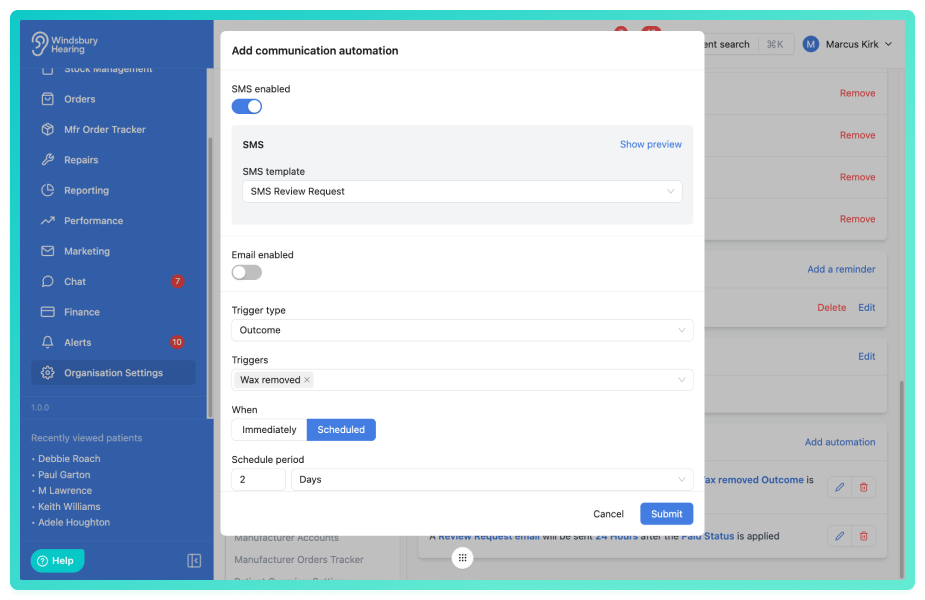
Only SMS templates with the Communication Automation type can be selected, so create your templates before setting up the automation. Each SMS sent by an automation appears in the patient's communication history.
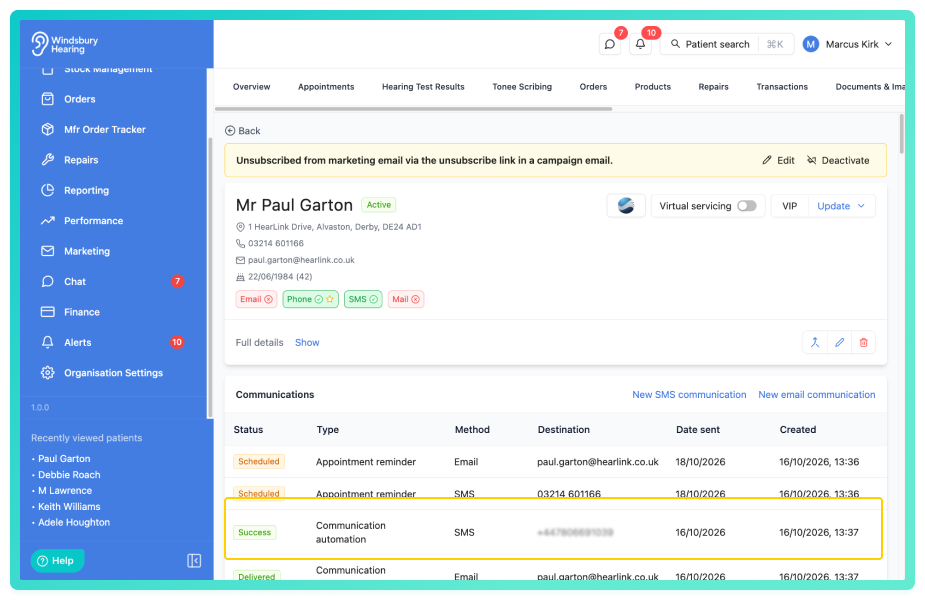
SMS sent by communication automations are billed to your organisation's Wallet. They are charged per message part, at the rate shown on the Wallet page, and anything that fails to send is refunded automatically. Appointment confirmations and reminder SMS messages are still free of charge. Only organisations owners can access the Wallet, so check your balance or set up automatic top-ups before turning on SMS automations.
Further reading: Communication Automation.
Improvements -
Unsubscribe links in email campaigns:
Campaign emails now include a secure, unique unsubscribe link by default. It goes in your template's unsubscribe block if there is one, or in the email footer it not. When a patient unsubscribes, they're marked as opted out and excluded from future campaigns and a note and Audit log entry are created.
Further reading: Email Marketing Campaigns
Campaign engagement statistics:
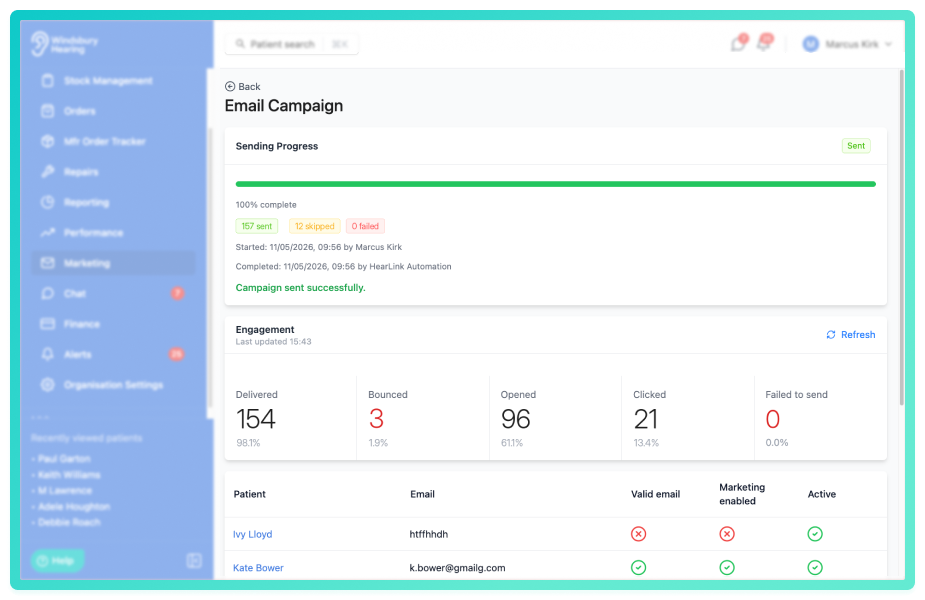
Sent email marketing campaigns now include an Engagement section on the campaign details page, showing how each campaign performed. The section displays the number of emails, delivered, bounced, opened, clicked and failed, along with the proportion of your audience for each. Statistics update as recipient interactions are recorded and can be refreshed manually.
Further reading: Email Marketing Campaigns
Remove recipients from draft campaigns and view sending progress:
Recipients can now be removed from draft marketing campaigns before sending, with campaign statistics updating automatically. Once submitted, a progress card shows the campaign's sending status in real time.
Further reading: Email Marketing Campaigns
Clinic variables in marketing templates:
Marketing templates and campaigns now support clinic variables, including clinic name, address, email and phone number. Each variable fills in with the patient's primary clinic details, so one template can be used across multiple clinics.
Show the failure reason for dropped and bounced emails:
When an email is dropped or bounced, Hearlink now records and displays the reason provided by our email delivery service. The failure reason can be viewed in the communication details dialog from the patient's communications tab, or by hovering over the status tag, This makes it easier to understand why and email wasn't delivered, such as invalid email address or the recipient having unsubscribed, so you can correct the patient's details before trying again.
Clear single select custom fields on the patient form:
Single select custom fields can now be cleared when adding or editing a patient. Previously, once an option was chosen it could only be swapped for another, not removed. A clear button now appears in the field so staff can remove a value leave it blank or choose again.
Transfer stock between clinics:
Stock items can now be transferred to other clinics within your organisation from stock management. The clinic assignment updates immediately and each transfer is recorded in the item's history. Transfer history can be viewed in the Clinic column.
Further reading: Transfer stock between clinics
Record end dates for stock trials and loans:
Stock allocated On trial or On loan can now be given an optional end date. The end date cannot be in the past. Adding an end date will create an upcoming alert in the Alerts section so you can follow up with the patient and keep track of devices that are due back.
Further reading: Allocate stock to a patient
Invoice items now displayed in the Payments & refunds report:
The Payments & refunds report now includes an Invoice items column, showing what each payment or refund was for without needing to open the invoice. Items are displayed as a list after the Tx No column. Invoice items are also included when exporting the report to CSV.
Further reading: Payments & Refunds Report
Show patient alerts on appointment:
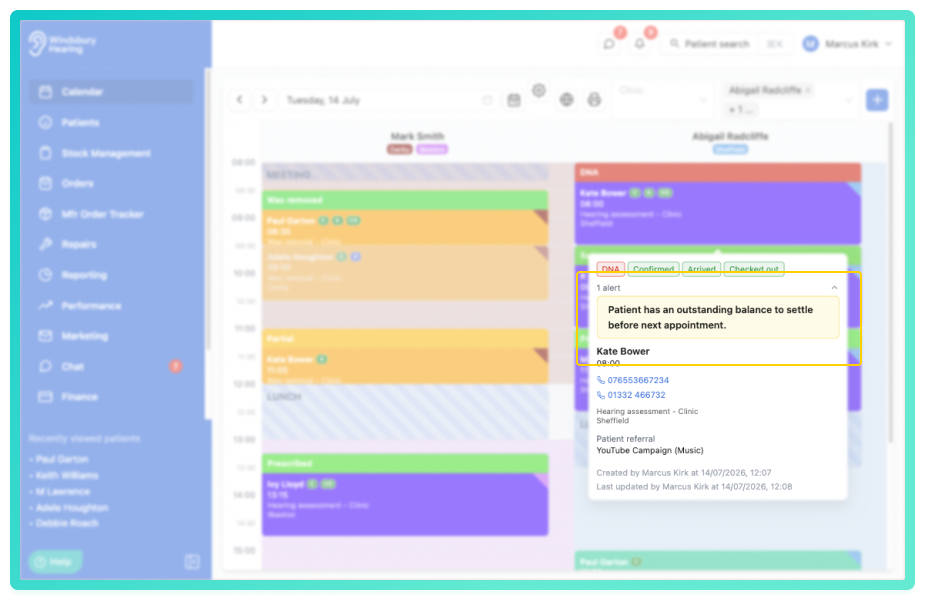
Patient alerts can now be shown when checking booking or editing an appointment, without opening the full patient record. Alerts appear as a read only banner in the appointment popover on the calendar and on the Add appointment and Edit appointment screens. In the appointment popover, alerts are collapsed by default and a counter shows how many there are. You can expand them to see the full details. This is turned off by default and can be turned on from Calendar appointment customisation in the Organisation Settings.
Further reading: Calendar appointment advanced customisation
Updated marker on patient documents:
Documents in the patient Documents & Images section now show an Updated marker when they have been regenerated. This applies to hearing tests, custom forms, repair documents and more. Hover over the marker to see who updated the document and when.
Edit alert notes from the patient banner and alert popup:
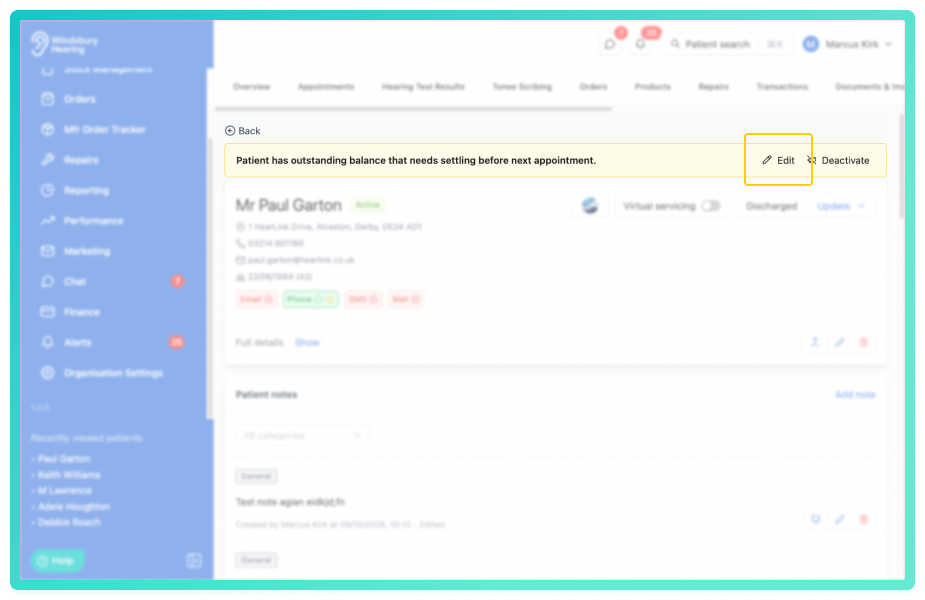
Alert notes can now be edited directly from the patient banner or the alert popup, without needing to go to the Notes tab. Click the Edit icon to open the note edit dialog, update the note and save your changes.
Further reading: Patient notes
Message and alert icons in the header:
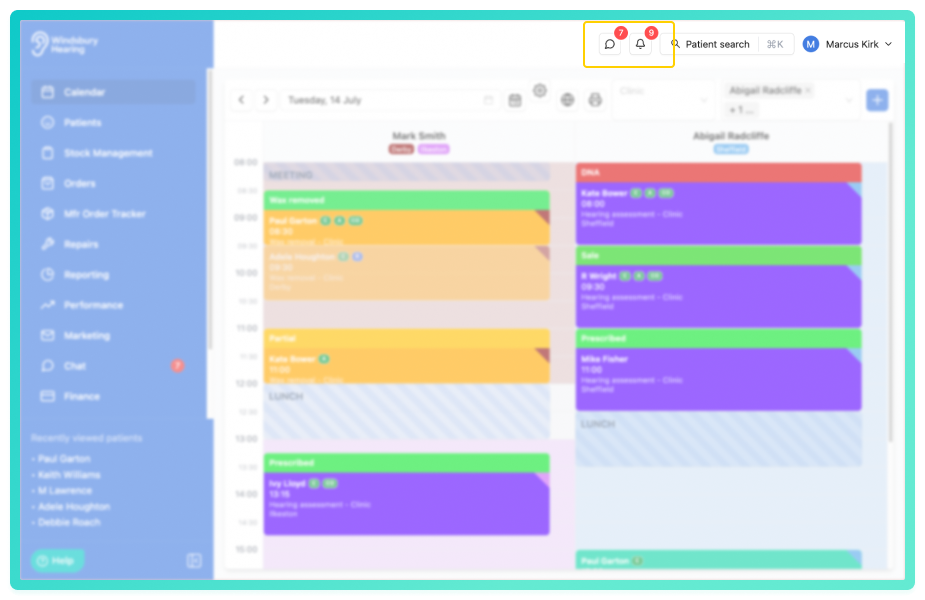
Unread message and patient alert counts are now shown in the header on both desktop and mobile, so you can check them without scrolling the sidebar. Click either icon to go straight to your messages or patient alerts. Counts update in real time and stay in sync with the sidebar badges.
Reporting Hub redesign:
The Reporting Hub has been redesigned to make reports easier to find. Reports are now grouped into sections with short descriptions, and you can search for a report by name or description.
Bug Fixes -
Communication automation date sent and failure reasons:
The date sent on communication automations now shows when the send was actually attempted, rather than when it was scheduled. Failed sends also show the reason for the failure in the patient's Communications section.
Units Sold KPI now accounts for returns and no longer restates closed months:
The Units Sold KPI now correctly accounts for cancellations and credit notes. Sales count in the invoice's own period, and a reversal reduces units in the period it occurred, without changing figures for months already closed. Invoices imported already cancelled with no cancellation date are excluded. This brings Units Sold in line with the Invoice Revenue and Revenue Margin reports, and goal evaluation uses the same calculation.
Overlapping unavailability no longer distorts utilisation figures:
Utilisation calculations now merge overlapping or duplicate unavailability entries before subtracting them, so unavailable time is only counted once per day. Previously, each entry was subtracted separately, which could cause utilisation to be incorrectly capped at 100% on affected days. This applies to headline figures, breakdowns, time series and comparisons. Online booking availability is unaffected.
Letter templates now show an error message when a font fails to load:
Previously, if a font failed to load while a letter template was being generated, a blank screen was shown. HearLink now displays an error message with a Reload button instead, so you can retry loading the template straight away. If the error continues after reloading, refresh the page in your browser.
SMS top-up amounts below the minimum are now blocked:
The Wallet Top-up and Auto Top-up dialogs now show an error message when you enter an amount below the configured minimum, and you can't continue until the amount meets it. Previously a low amount was quietly changed to the minimum when you clicked Continue to payment or Submit, without telling you. The Auto Top-up dialog now also shows the minimum amount notice, so both dialogs now show it.
Sales orders show the correct "Updated by" users:
Sales order documents now show the name of the user who last edited them. Previously, automatic system processes such as regenerating the order PDF or recalculating the order status replaced this with "Updated by HearLink Automation". These processes now keep the user name and timestamp from the last manual edit.
Was this article helpful?
That’s Great!
Thank you for your feedback
Sorry! We couldn't be helpful
Thank you for your feedback
Feedback sent
We appreciate your effort and will try to fix the article