You can transfer stock items between clinics in HearLink. When you transfer an item, the clinic assignment is updated immediately and a record of the transfer is kept in the item's history.
In this article we'll cover how to:
- transfer a stock item to another clinic.
- view the transfer history of a stock item.
Transfer a stock item
- Navigate to Stock Management.
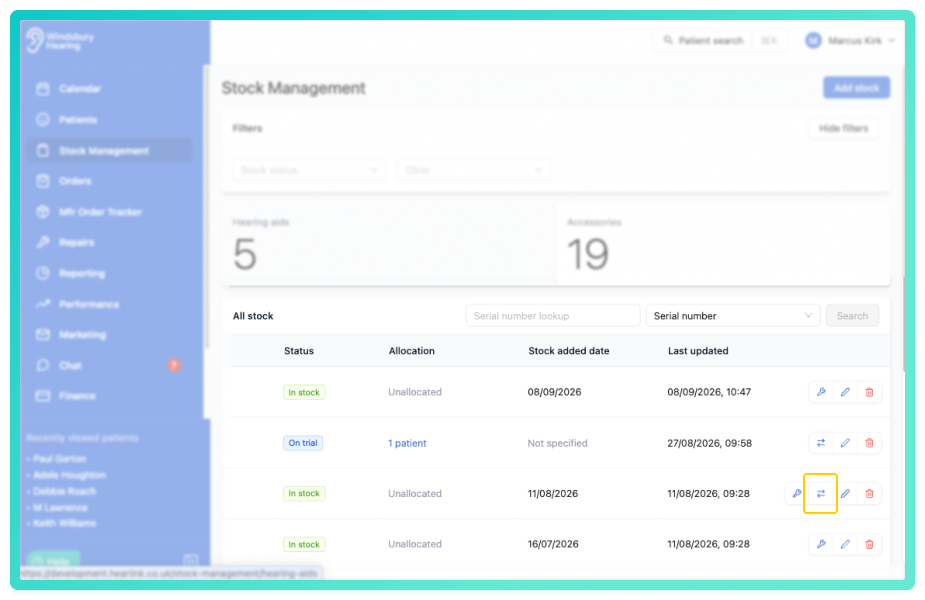
- Locate and click the Transfer Stock
 icon on the stock item you want to transfer.
- Select the destination clinic from the dropdown. The current clinic is excluded from the list.
- Click Submit to complete the transfer.
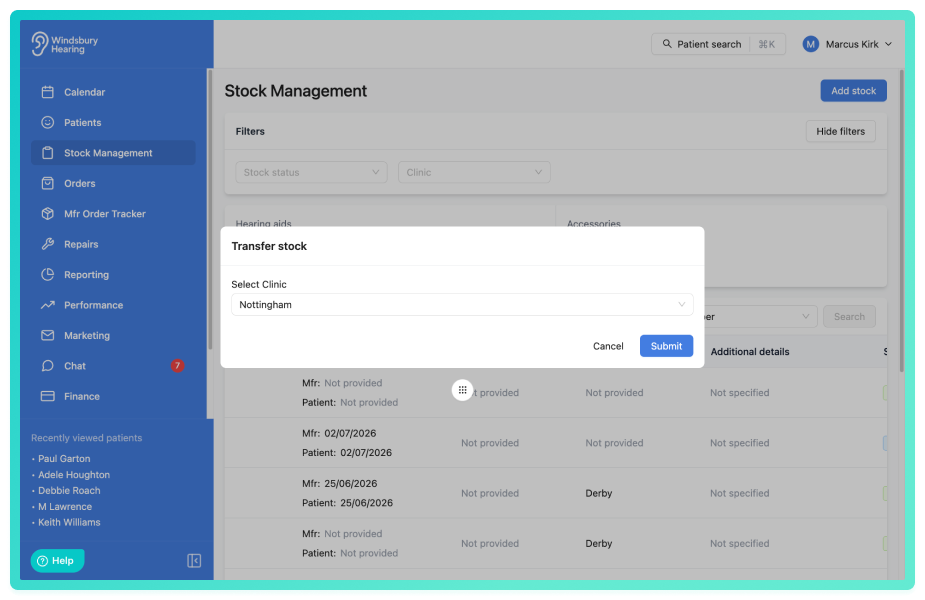
The stock item will be reassigned to the selected clinic immediately. The table will refresh to reflect the change.
View transfer history
Each stock item maintains a record of all transfers made to it. When a stock item has transfer history, a popover is available in the Clinic column.
- Locate the stock item in the table.
- Click on the Transfer text in the Clinic column to view the transfer history.
- The popover will display all transfers for that item, with the most recent transfer shown first.
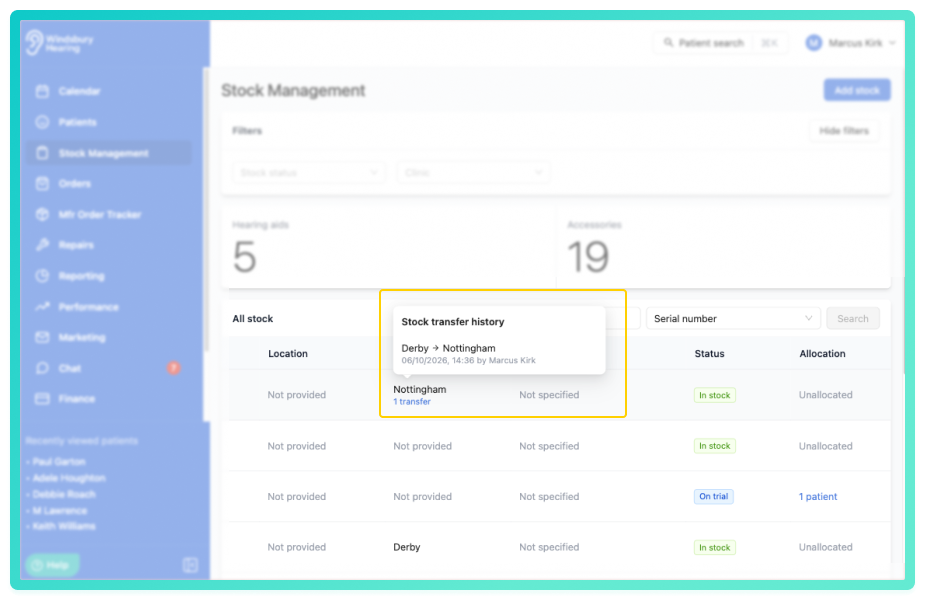
The transfer history shows who made each transfer and when it occurred.
Was this article helpful?
That’s Great!
Thank you for your feedback
Sorry! We couldn't be helpful
Thank you for your feedback
Feedback sent
We appreciate your effort and will try to fix the article