An organisation can add items to the stock management section, should they have hearing aids or accessories stored as stock. Accessories can be stored in stock management as single serialised items or items of multiple quantity.
In this article we'll cover:
- how to add new stock items such as hearing aids or accessories.
- how serialised accessories are added to stock.
- each section of the Add stock form.
Add stock
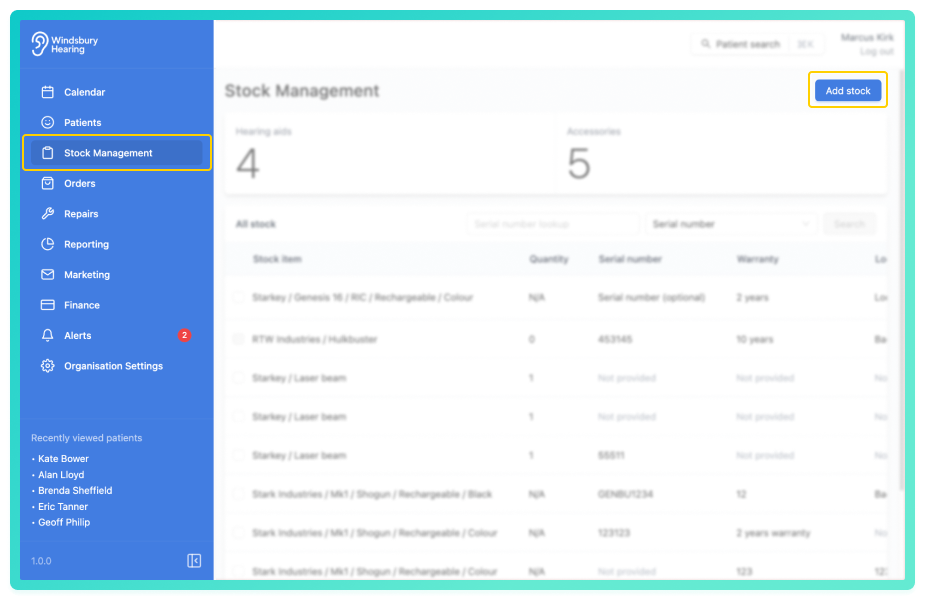
- Complete the Add stock form with the required details.
You can select from any available Hearing aids or Accessories listed in your products & services.
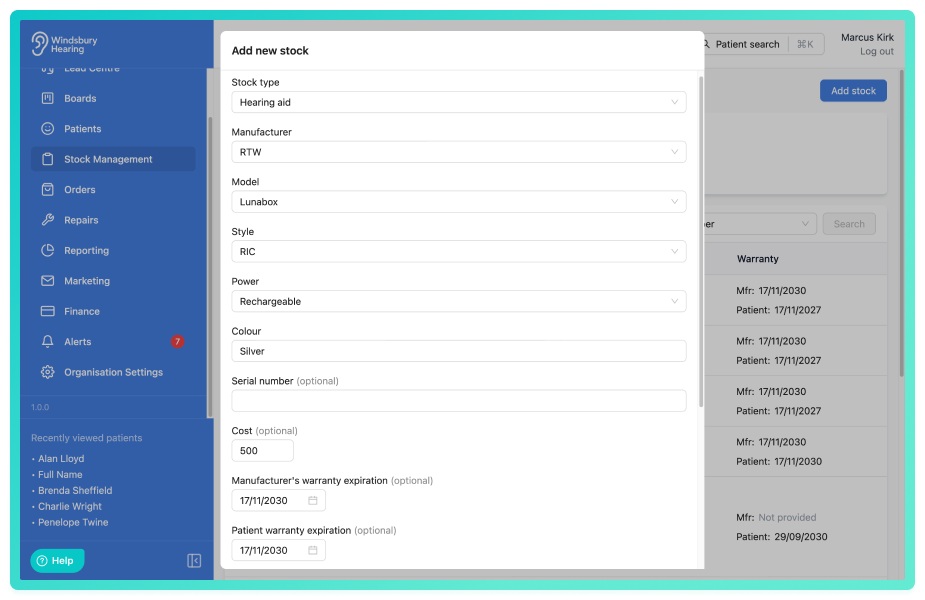
When adding warranty, a user can add separate Manufacturer and Patient expiration dates.When adding a hearing aid, the quantity is fixed at 1 and cannot be changed. For accessories, you can manually adjust the quantity as needed.- Click Submit to save the new stock item.
Once added, stock items can be allocated to a patient either for trial or as sold.
Add serialised accessories to stock
- Navigate to Stock Management.
- Click the Add stock button.
- Select Accessory as the stock type.
- Enter an option Serial Number.
- Enable the Serialised option.
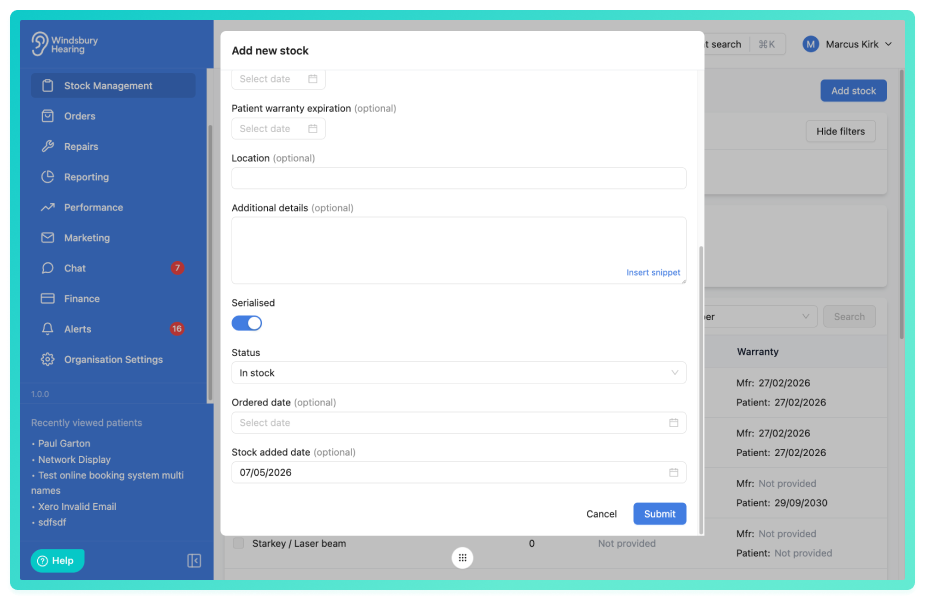
- Complete the remaining fields.
- The quantity for a serialised accessory will be removed.
- Click Submit to save the serialised accessory.
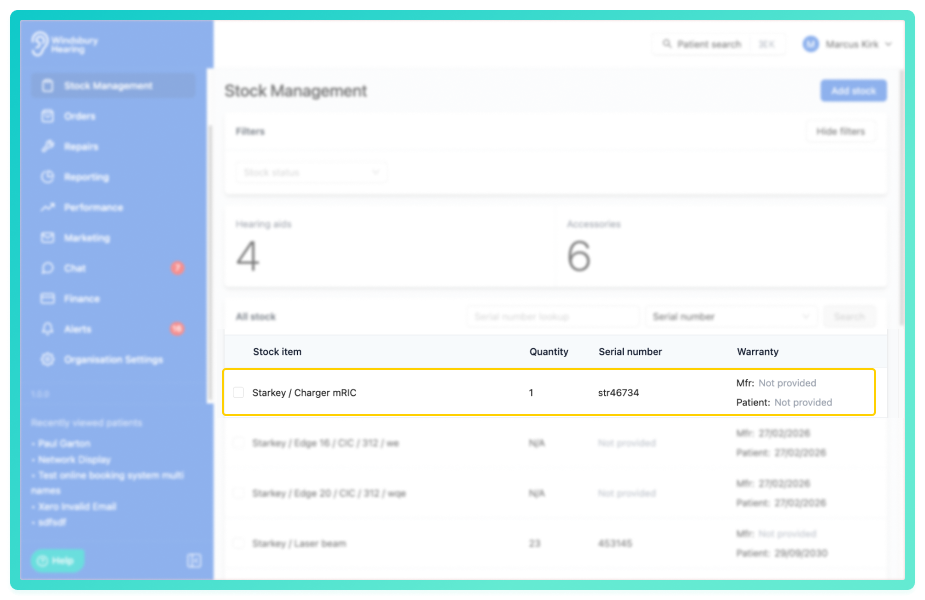
Each serialised accessory unit is tracked individually in stock and can be allocated to only one patient at a time.
Add stock form fields explained
Where the form fields have pre defined options to select from, these have been configured in the organisation settings, see Add or import hearing aid or Add or import accessories for more details.
Stock type
Whether the stock type is a hearing aid or accessory.
Manufacturer
Manufacturer of the stock type.
Model or accessory name
The model of hearing aid or the accessory name.
Style (hearing aid only)
Style of hearing aid.
Power (hearing aid only)
Power option of hearing aid.
Colour (hearing aid only)
Colour of hearing aid.
Serial number
Optional serial number.
Cost
Optional cost of product (automatically pulled from data, can be amended if required).
Manufacturers warranty expiration
Warranty automatically pulled from product data, can be amended if required.
Patient warranty expiration
Warranty automatically pulled from product data, can be amended if required.
Location
Optional location of the stock. e.g Cupboard, top shelf.
Clinic
Optional. Assign the stock item to a specific clinic to track its location and filter stock by clinic. Leave blank if the item is not assigned to a specific clinic.
Additional details
Any optional additional details regarding the product being added to stock.
Status
The status of the product, Needs ordering, Ordered, In stock.
Was this article helpful?
That’s Great!
Thank you for your feedback
Sorry! We couldn't be helpful
Thank you for your feedback
Feedback sent
We appreciate your effort and will try to fix the article