You can add hearing aids and accessories directly to a patient's product record without creating an invoice. This allows you to record that a patient has received a product quickly and efficiently.
In this article we'll cover:
- how to add a product to a patient's products.
- common uses for adding products.
Add a product to a patient
- Navigate to the desired patient.
- Locate and click the Products tab.
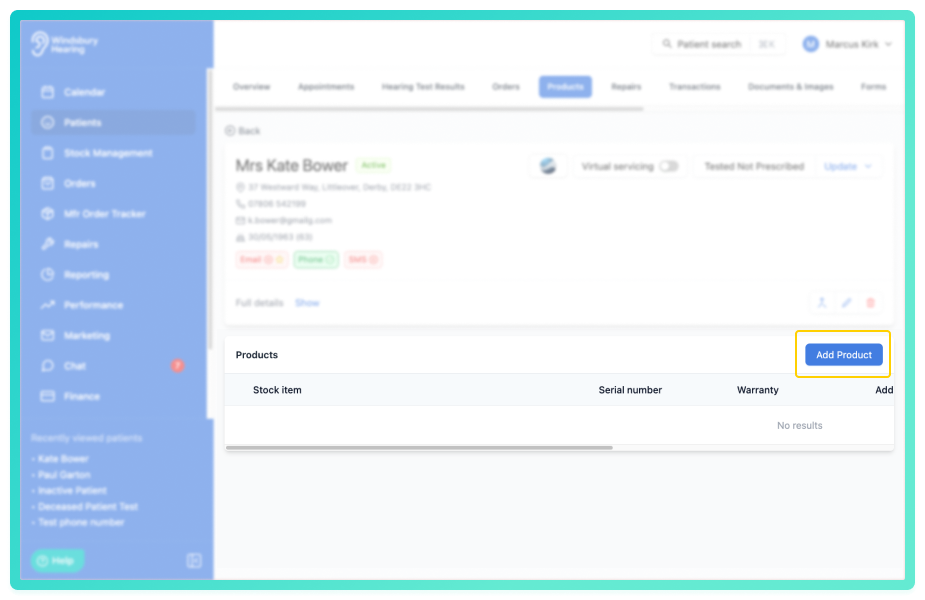
- Click the Add Product button.
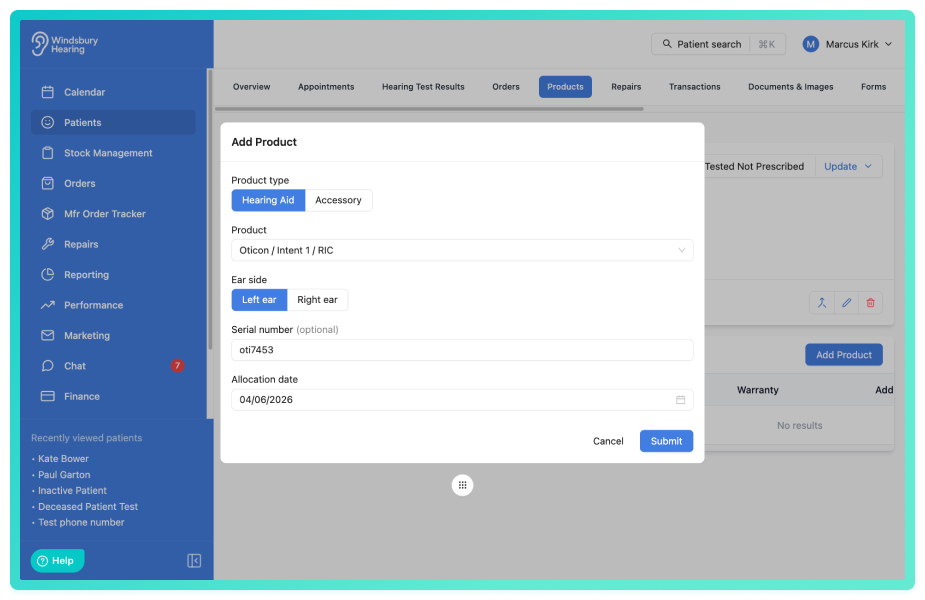
- Select the product type, Hearing Aid or Accessory.
- Search and select the hearing aid from the catalogue.
- Enter the serial number (optional).
- Select the ear side (left or right).
- The allocation date defaults to today. Change this if required.
- Click Submit to save.
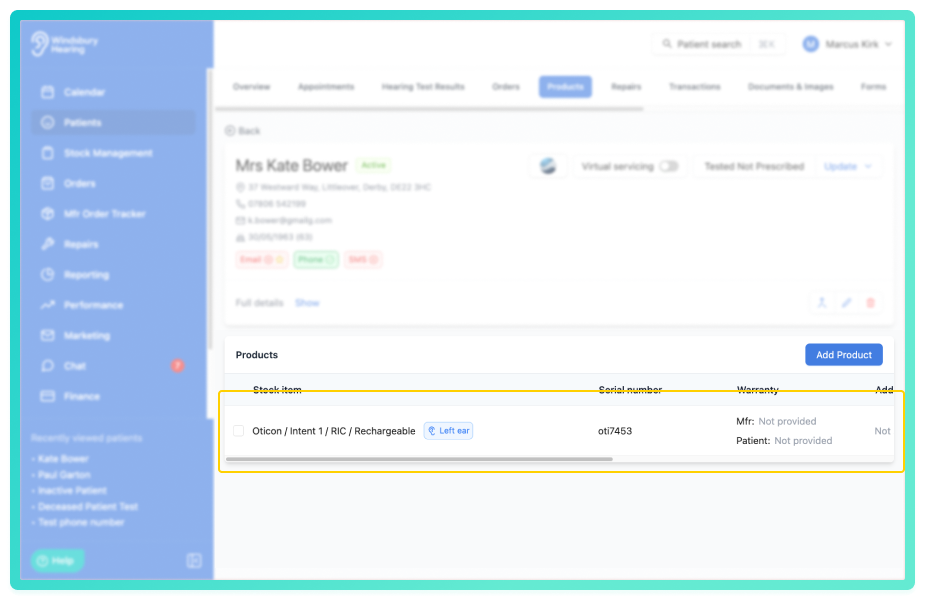
The product aid now appear in the patient's product list.
Common uses for adding products
Quick product recording - A faster way to record that a patient has received a product without needing to create a full invoice or add to stock management first.
Recording products from external sources - If a patient purchased hearing aids or accessories elsewhere, you can add them to their record for complete product tracking.
Tracking patient equipment - Keep an accurate record of what patient owns or has been fitted with.
Was this article helpful?
That’s Great!
Thank you for your feedback
Sorry! We couldn't be helpful
Thank you for your feedback
Feedback sent
We appreciate your effort and will try to fix the article