Manage and review a patient's hearing aids and accessories directly from their dashboard.
In this article we'll cover how to:
- view patient products.
- understand the information shown.
- manage individual product entries.
Products actions
- Navigate to the desired patient.
- Click the Products tab.
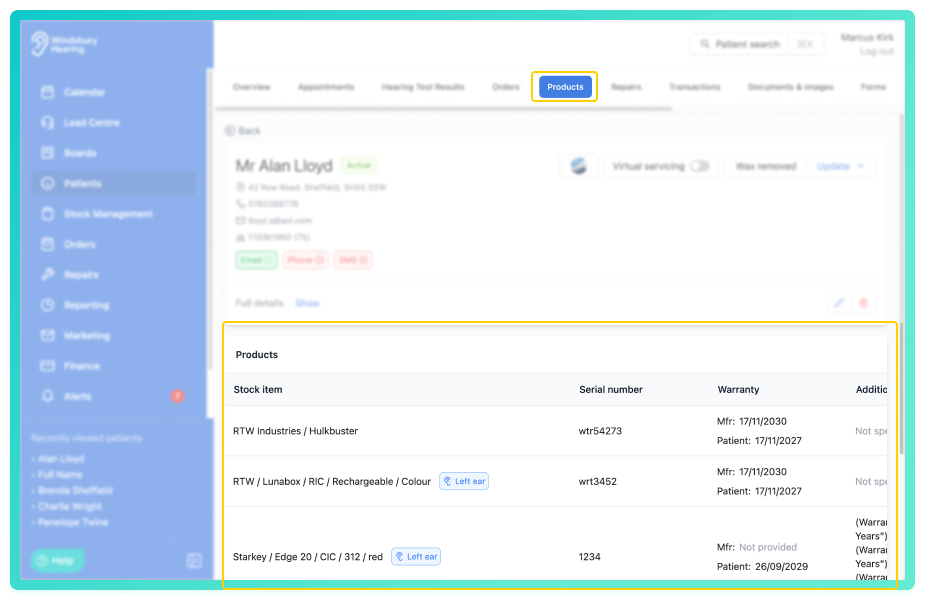
Product table breakdown
Each row in the table represents a product and includes:
- Stock item - hearing aid or accessory, including the ear if applicable.
- Serial Number - the unique identifier for the product.
- Warranty - length of warranty period for both the manufacturer and the patient.
- Additional details - any additional details related to the product.
- Status - includes statuses such as On trial or Historical. See stock statuses for more details.
- Fitted/Allocated date - when the product was assigned to the patient.
From the products tab, you can take the following actions:
- edit allocation - update which product was allocated or the ear it was assigned to.
- edit details - add or change serial numbers, warranties, and more.
- delete a product - remove a product from the patient's record.
Was this article helpful?
That’s Great!
Thank you for your feedback
Sorry! We couldn't be helpful
Thank you for your feedback
Feedback sent
We appreciate your effort and will try to fix the article