A stock item can move through a number of different statuses depending on its usage and lifecycle.
In this article we'll cover:
- how to change a stock item's status.
- what each status means.
How to change a stock status
- Navigate to Stock Management.
- Locate the Status column.
- Click on the status to open the available options.
- Select an option for the new status.
The available option will depend on the current state of the item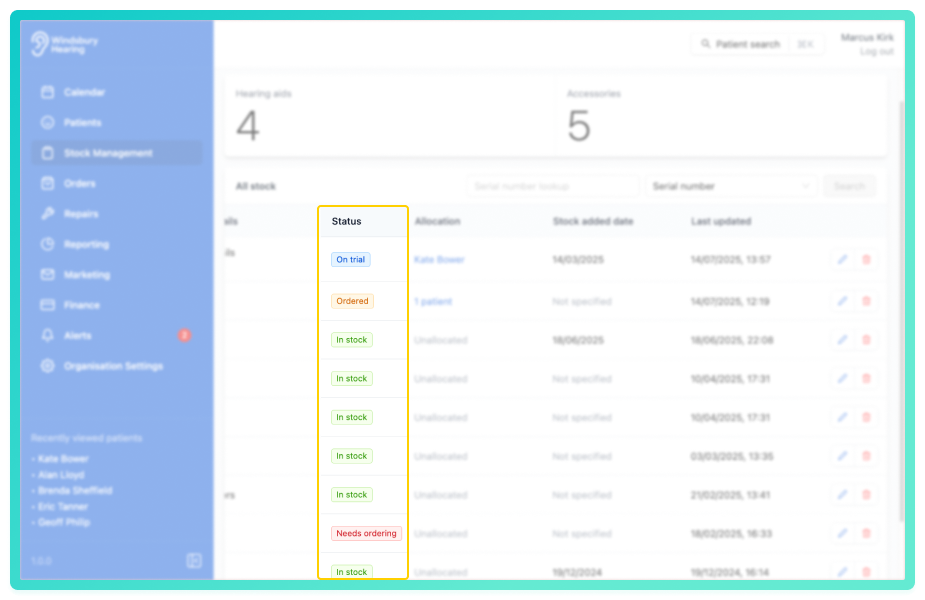
Understanding stock status
Basic Stock Lifecycle
There are three core statuses in the stock lifecycle:
- In stock - The item is currently available.
- Needs ordering - The item is required but not yet ordered.
- Ordered - The item has been ordered but not yet received.
These statuses typically reflect the procurement flow for hearing aids and accessories.
When an item is On Trial
If a stock item has been placed On trial with a patient, additional status transitions become available.
- Navigate to the desired patient.
- Locate and click the Products tab.
- Find the Status column on the required product that is On trial.
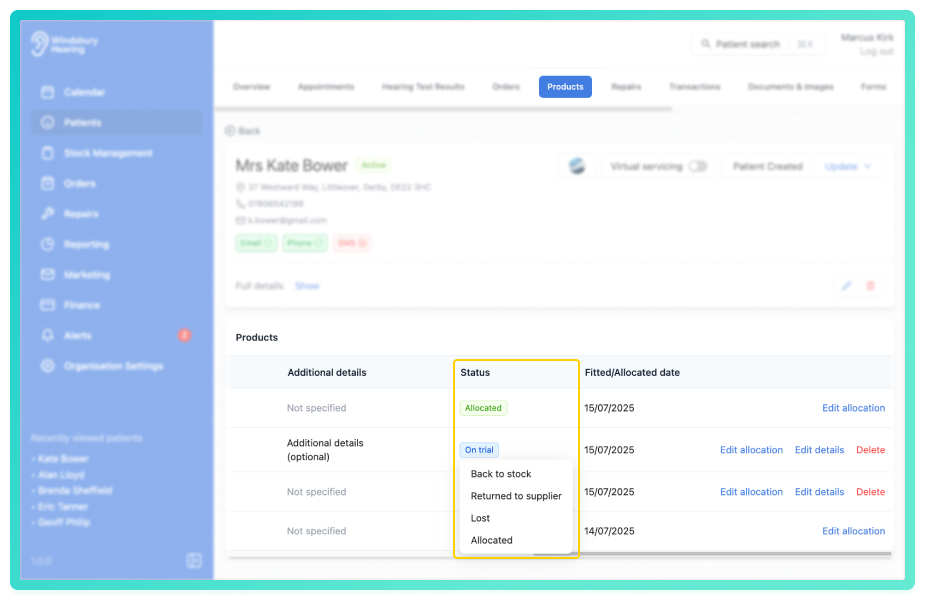
- Click the On trial text and you will see a range of options.
These include two categories:
Revert the status back to stock:
- In stock - Return the item to the available stock pool. This can then be assigned to another patient.
Progress the item out of stock:
- Allocated - The item is now assigned to the patient it was on trial with.
- Returned to supplier - The item has been returned and is no longer held in the system.
- Lost - The item is no longer available due to loss and is removed from the system.
When a stock item is marked as Lost and Returned to supplier, it will be removed from the HearLink system. Allocated will move the stock item to the patient it was on trial to.Historical stock
Allocated stock can be marked as historical. This retains the item fro record keeping while excluding it from active stock workflows.
Click the status on an allocated item to see the option to change it to Historical.
Historical stock is hidden from standard stock views, stock overview counts and product selection when creating a repair or fitting receipt.
Was this article helpful?
That’s Great!
Thank you for your feedback
Sorry! We couldn't be helpful
Thank you for your feedback
Feedback sent
We appreciate your effort and will try to fix the article