If you do not manage hearing aids through the main stock inventory, you can generate stock directly from an order. This allows you to enter the serial number and warranty and attach the hearing aid straight to the patient's Products tab without suing the stock management section. This approach works best when hearing aids are ordered specifically for a patient. For managing stock through stock management, see this article.
In this article we'll cover how to:
- allocate generated stock to a patient.
- allocate generated stock to stock management.
Generate stock directly to the patient products
- Navigate to the desired patient.
- Locate and click Orders tab.
- Locate the required order, then click More options

- Select Generate stock from the list.
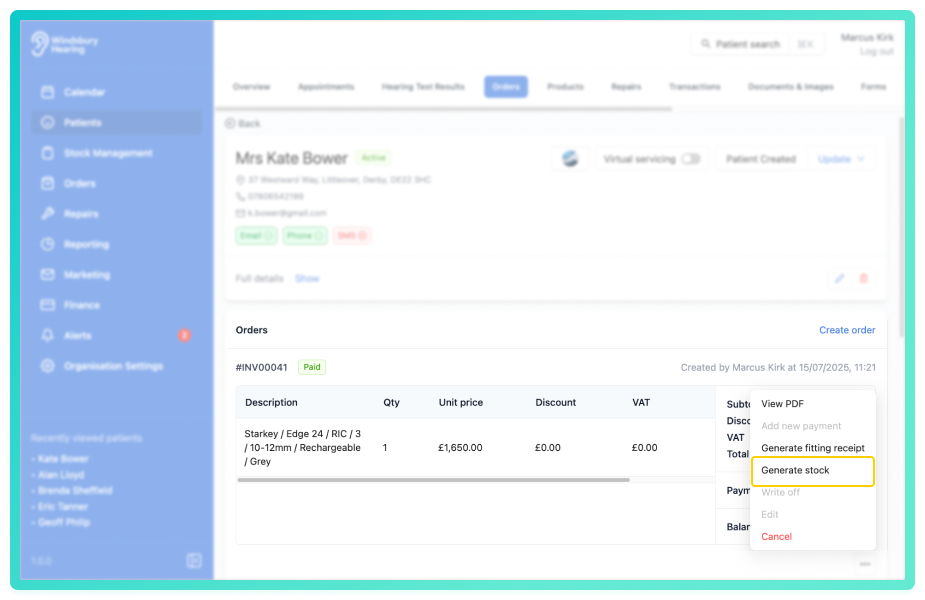
- Complete the Generate stock form to your requirements.
- Add a Serial number.
- Add optional Warranty, this can be configured differently for Manufacturer's and Patient's depending on your organisations policies.
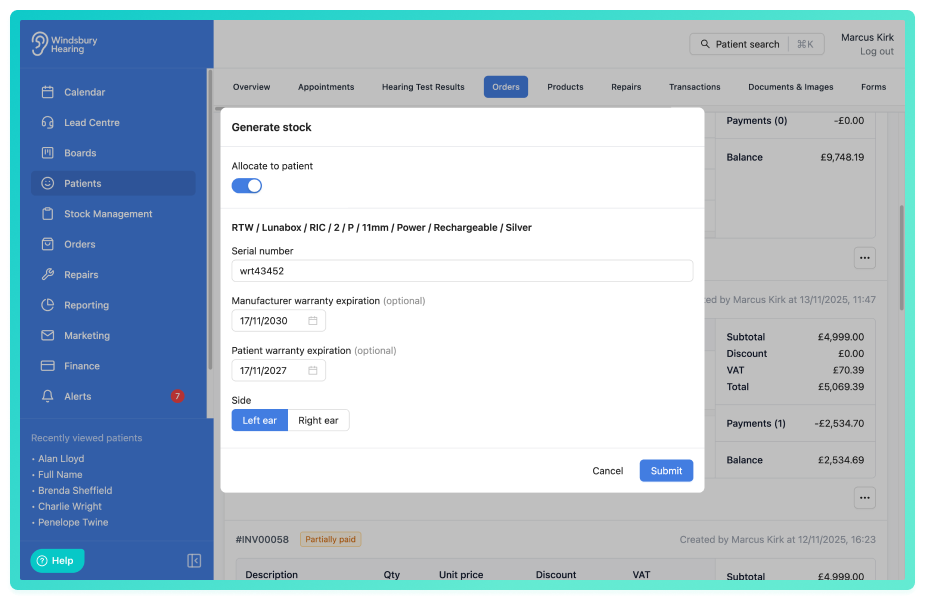
- Click Submit to save.
The stock item will now appear in the Products tab of the patient dashboard.

Allocate generated stock to Stock management
To allocate the stock item to stock management:
- Disable the Allocate to patient option.
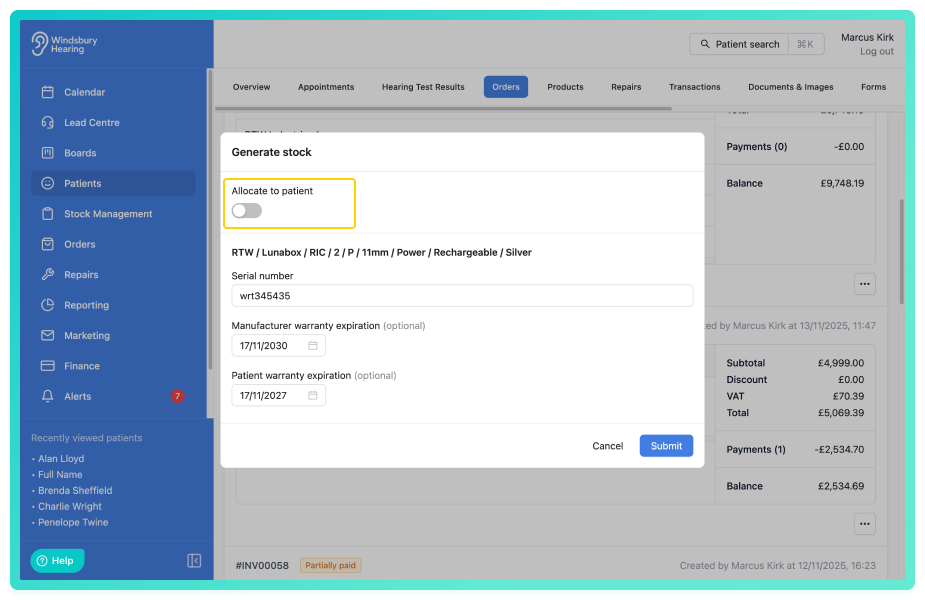
- Click Submit to generate the stock item.
The stock will now appear in the Stock management section of the system under hearing aids.

Was this article helpful?
That’s Great!
Thank you for your feedback
Sorry! We couldn't be helpful
Thank you for your feedback
Feedback sent
We appreciate your effort and will try to fix the article