If your clinic holds hearing aids and accessories in inventory, you can allocate them directly from the stock management section when completing a sale. This moves the product from your stock list to the patient's products tab and links it to their record. This workflow is ideal when you keep surplus or bulk purchased devices available for immediate sale. You can also allocate a product as on loan or trial, this will not remove the stock from the stock management area, so you can keep track of where you devices are in the system.
If you do not hold much stock and create stock once and order has been placed you may want to view the Generate stock article instead.
In this article we'll cover how to:
- allocate stock for a trial or loan.
- allocate stock as sold.
- allocate multiple accessories to one patient.
Allocate stock for trial or loan
- Navigate to Stock Management.
- Locate and click the Checkbox of the required Stock item.
- Locate the Allocate - On trial button or Allocate - On loan button.
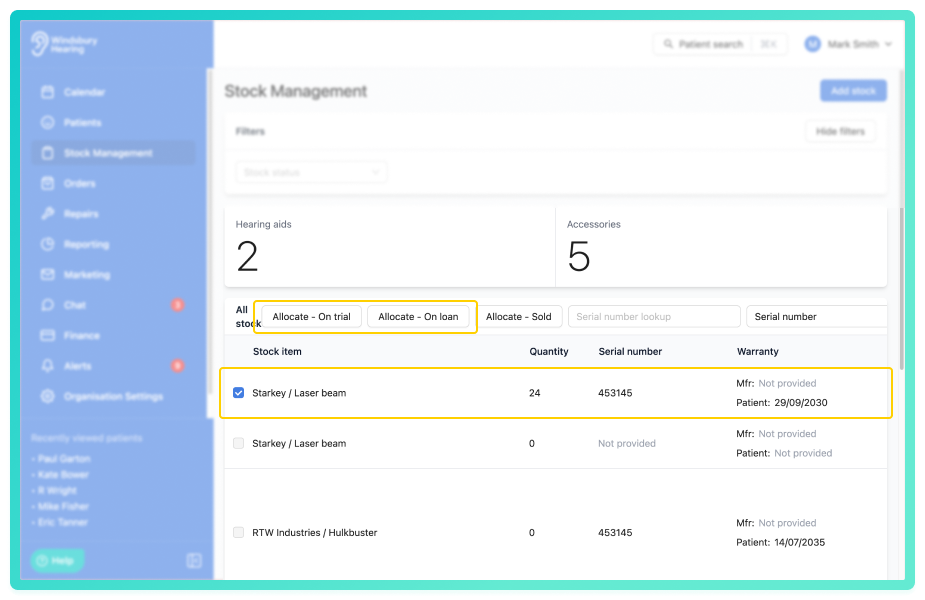
- Click the Allocate - On trial button or Allocate - On loan.
- Search for the required patient.
- Complete the form.
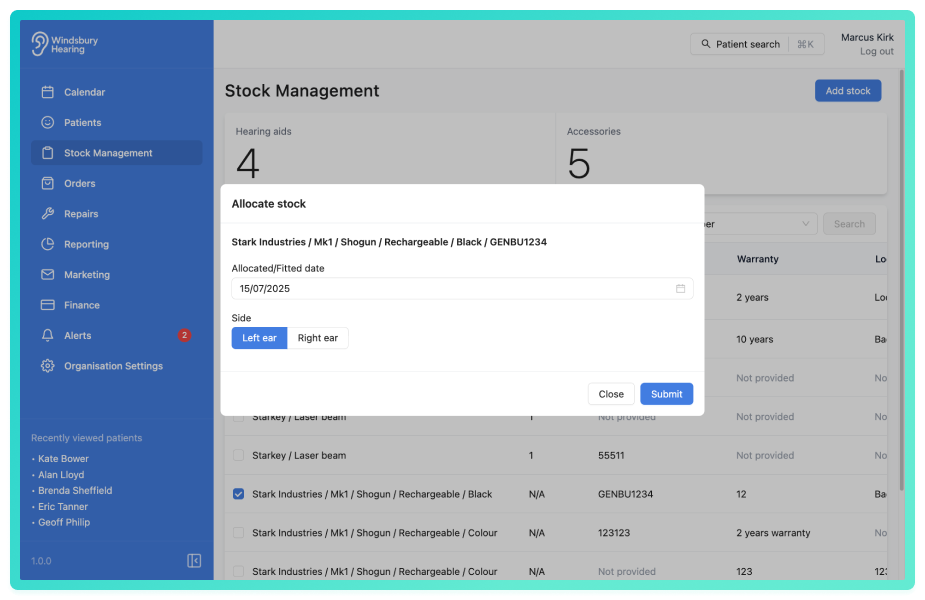
- Click Submit to allocate the stock item on trial or loan to a patient.
The status and allocation are now updated for the selected stock item.
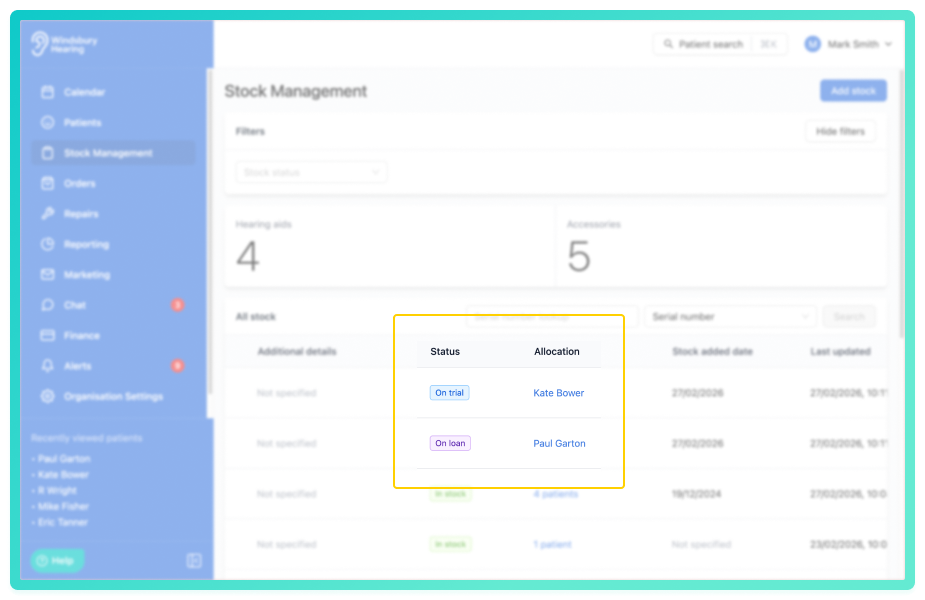
Allocate stock as sold
- Navigate to Stock Management.
- Locate and click the Checkbox of the required Stock item.
- Locate the Allocate - Sold button.
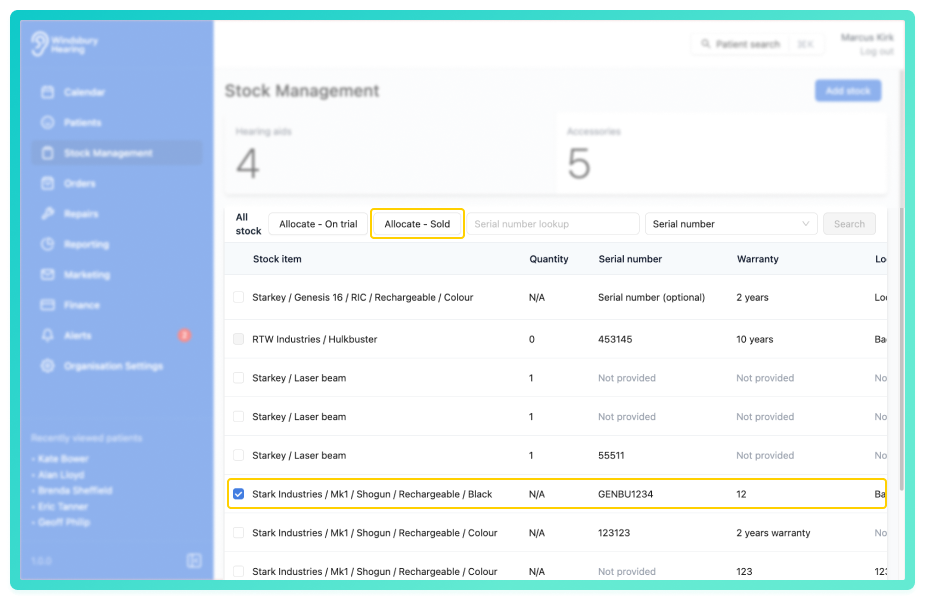
- Click the Allocate - Sold button.
- Search for the required patient.
- Complete the form.
- Click Submit to allocate the stock to the patient as sold.
Once a stock item has been allocated to a patient as Sold it will be removed form the stock list and added to the Products section of the patient dashboard.Allocate multiple accessories to one patient
- Navigate to Stock Management.
- Locate and click the Checkbox of the required Accessory.
- Locate the Allocate - Sold button.
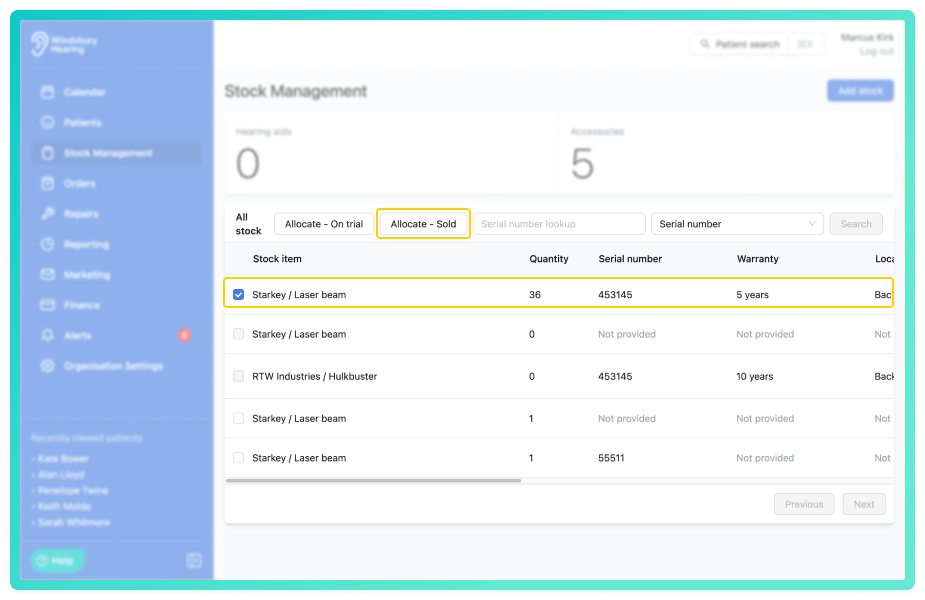
- Click the Allocate - Sold button.
- Search for the required patient.
- Complete the form including quantity.
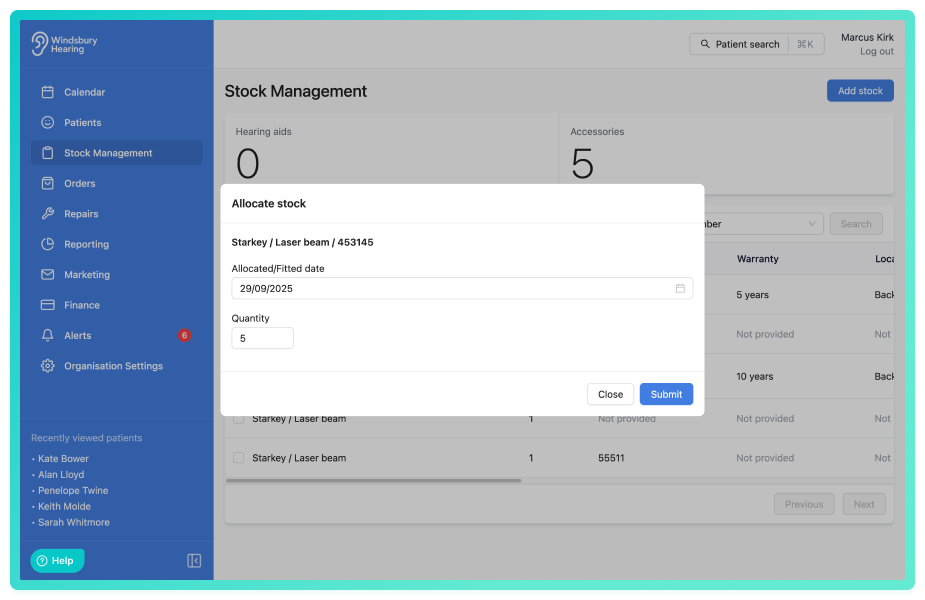
- Click Submit to allocate the quantity of Accessories to the patient.
Was this article helpful?
That’s Great!
Thank you for your feedback
Sorry! We couldn't be helpful
Thank you for your feedback
Feedback sent
We appreciate your effort and will try to fix the article