When a patient has had a product fitted, you can generate a fitting receipt to document the fitting and capture patient and audiologist confirmation.
In this article we'll cover how to:
Generate a fitting receipt
- Navigate to the desired patient.
- Locate and click the Orders tab.
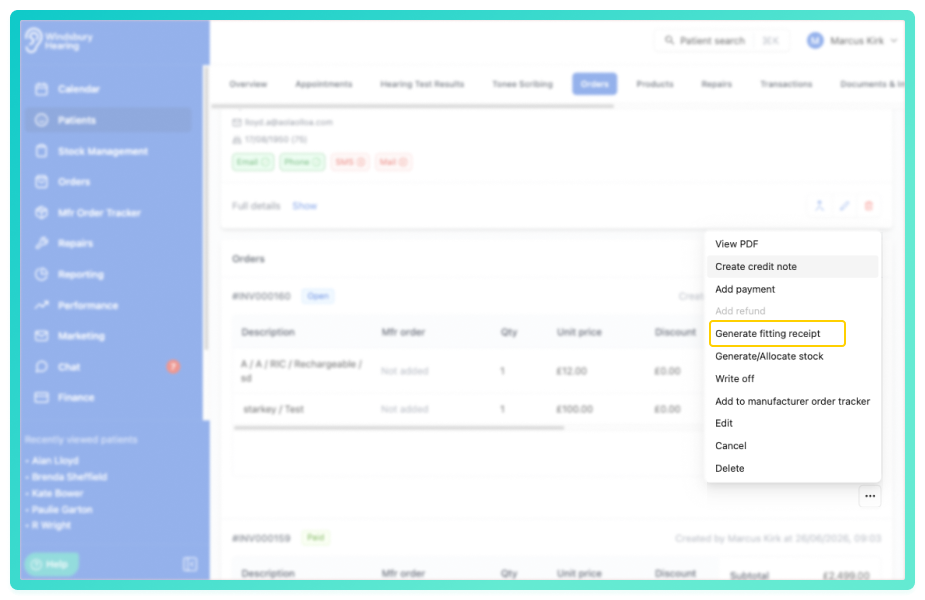
- Locate the relevant order, then click More options
 .
. - Select Generate fitting receipt from the options.
The form lists each hearing aid and accessory on the order. Set the Product for each item (see choosing the product for each item), then complete the fitting receipt details:
- Fitting date - the date the product was fitted.
- Note - any optional notes.
- Terms and conditions - attach up to 5 optional terms and conditions documents.
- Fitting payment - optionally record a payment taken at the fitting, with an amount and method.
- Patient confirmation and Audiologist confirmation - capture a signature, a manual entry, a physical signature, or none.
- Send a copy via email - send the fitting receipt directly to the patient or any other email address.
- Click Submit to save.
Choose the product for each item
Each item on the order needs a product so its serial number, warranty and (for hearing aids) side appear on the receipt.
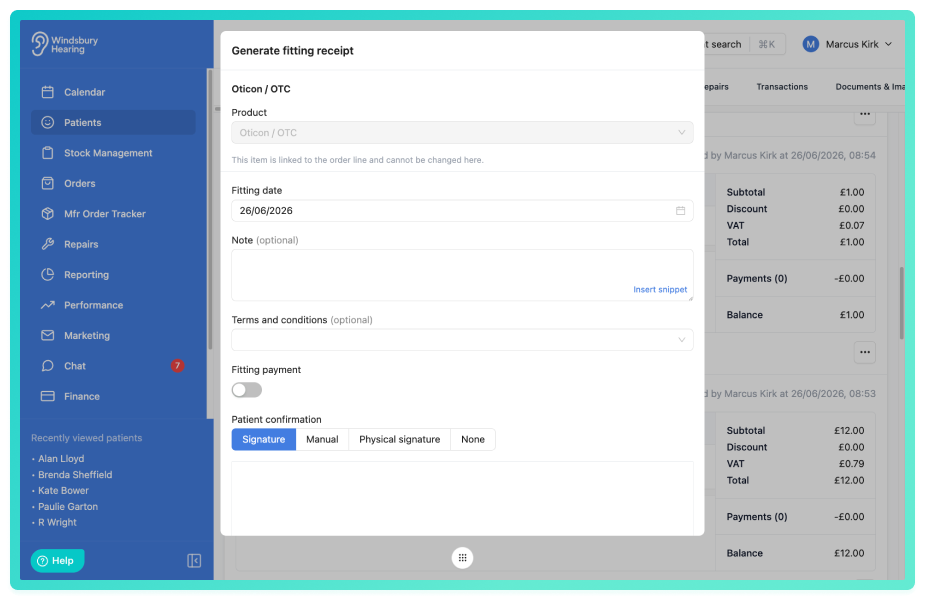
If the order line already has stock linked to it, the Product is filled in for you and locked, taken from the linked stock item. A hint explains it can't be changed here - to change it, unlink or re-link the stock from the Generate/Allocate stock form.
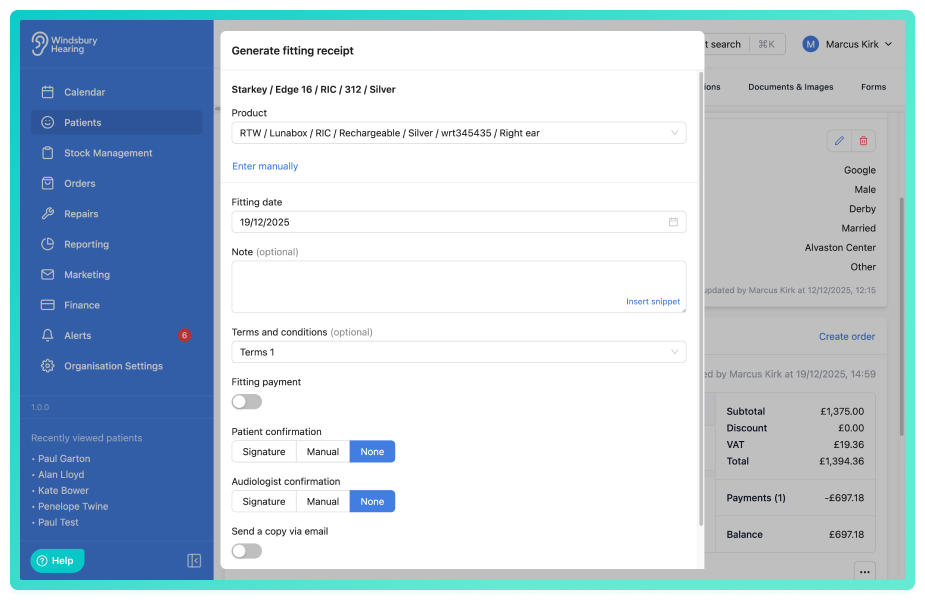
If the item isn't linked to stock, you can either:
- choose an item from Select from assigned products - the stock allocated to this patient, or
- click Enter manually to type the Serial number, Warranty and, for hearing aids, the Side.
Choosing a product on the fitting receipt is for the document only - it doesn't change how stock is allocated or linked. Manage stock links from the Generate/Allocate stock form.Find the fitting receipt
Once generated, the fitting receipt is available to email, view or delete in the Documents & Images section of the patient dashboard.
Was this article helpful?
That’s Great!
Thank you for your feedback
Sorry! We couldn't be helpful
Thank you for your feedback
Feedback sent
We appreciate your effort and will try to fix the article