HearLink lets you generate or allocate stock directly from an order, without going through Stock management first. This links a physical stock item to the order line and allocates it to the patient, so the item appears on their Products tab. It works best when stock has been ordered for a specific patient.
In this article we'll cover how to:
- open the Generate/Allocate stock form.
- generate new stock for an order.
- allocate existing stock to an order.
- review or unlink stock linked to an order.
Only users with the correct permissions can generate, allocate or unlink stock. If you think you should have permission to perform such an action please contact the organisation owner.Open the Generate/Allocate stock form
- Navigate to the desired patient.
- Locate and click the Orders tab.
- Locate the relevant order, then click More options
 .
. - Select Generate/Allocate stock from the options.
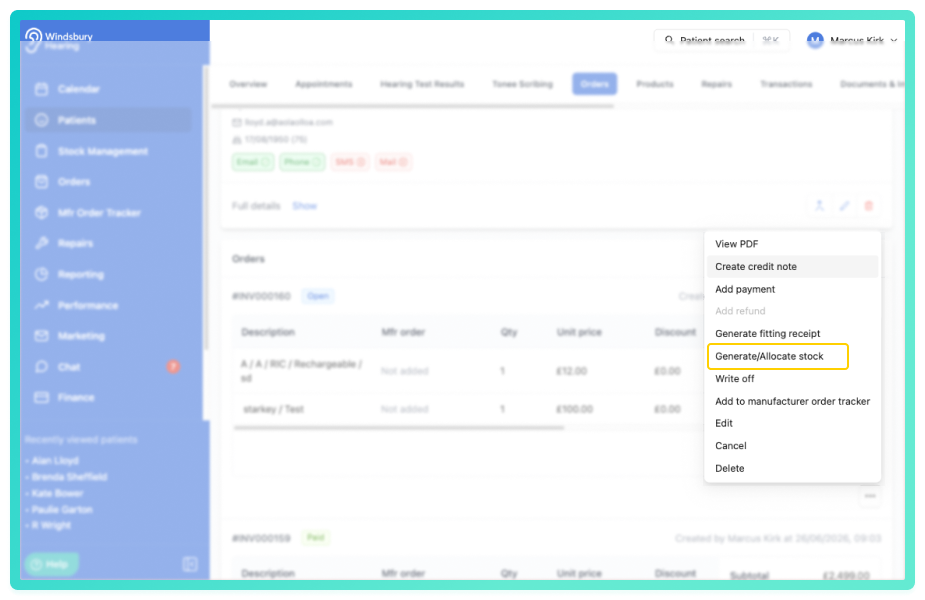
The form lists every hearing aid and serialised accessory on the order. Where an order line has a quantity of more than one, each unit is shown as its own row.
Each item has a toggle beside its name. You don't have to complete every item at once - switch off any item you're not dealing with right now and only the items left switched on are saved. Items that are switched off are ignored and aren't validated.
Generate new stock for an order
Use this when the physical item isn't already recorded in HearLink.
- For the item you're handling, make sure Create new is selected.
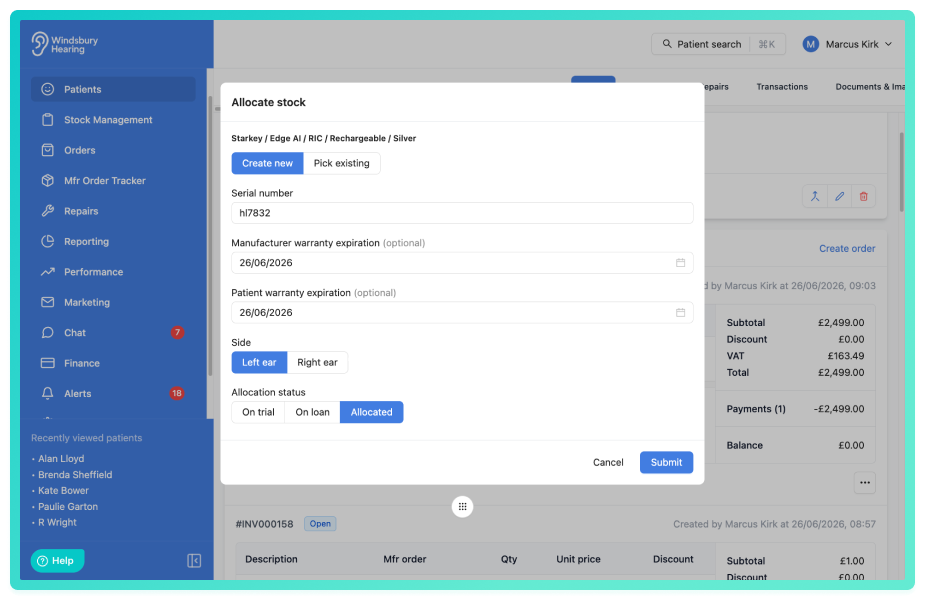
- Add a Serial number (required for hearing aids).
- Add an optional Manufacturer warranty expiration and Patient warranty expiration.
- For a hearing aid, choose the Side (left or right).
- Choose the Allocation status - On trial, On loan or Allocated.
- Click Submit to save.
The new stock item is created, linked to the order line and allocated to the patient. It now appears on the patient's Products tab and in Stock management.
Allocate existing stock to an order
Use this when the item already exists in your stock and just needs linking to the order.
- For the item you're handling, select Pick existing.
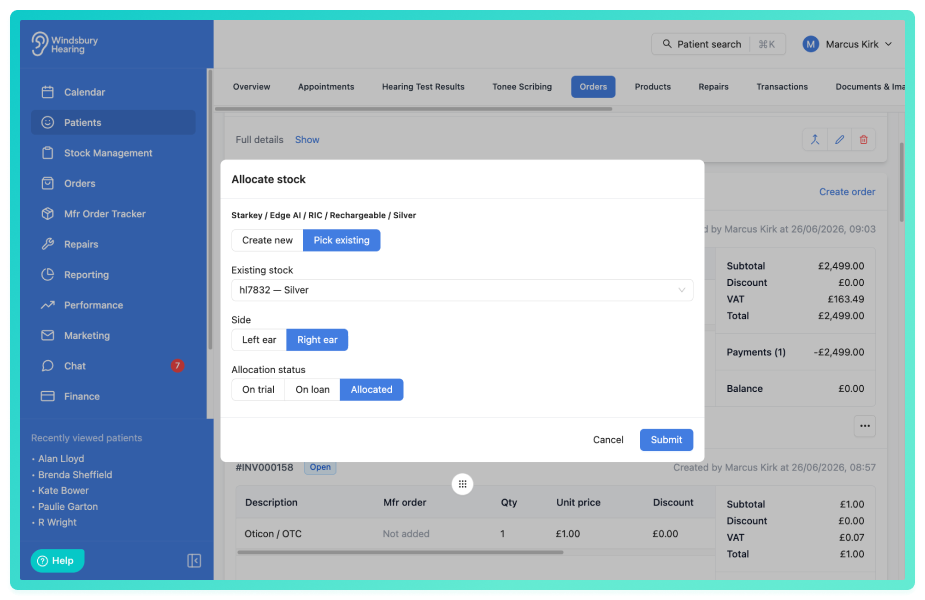
- Choose the item from the Existing stock list. Only matching items that are available to link are shown.
- For a hearing aid, choose the Side (left or right).
- Choose the Allocation status - On trial, On loan or Allocated.
- Click Submit to save.
The chosen item is linked to the order line and allocated to the patient.
Review or unlink linked stock
When an item is already linked to the order, it's shown as a read-only summary - the serial number, status and (for hearing aids) the side - instead of a form.
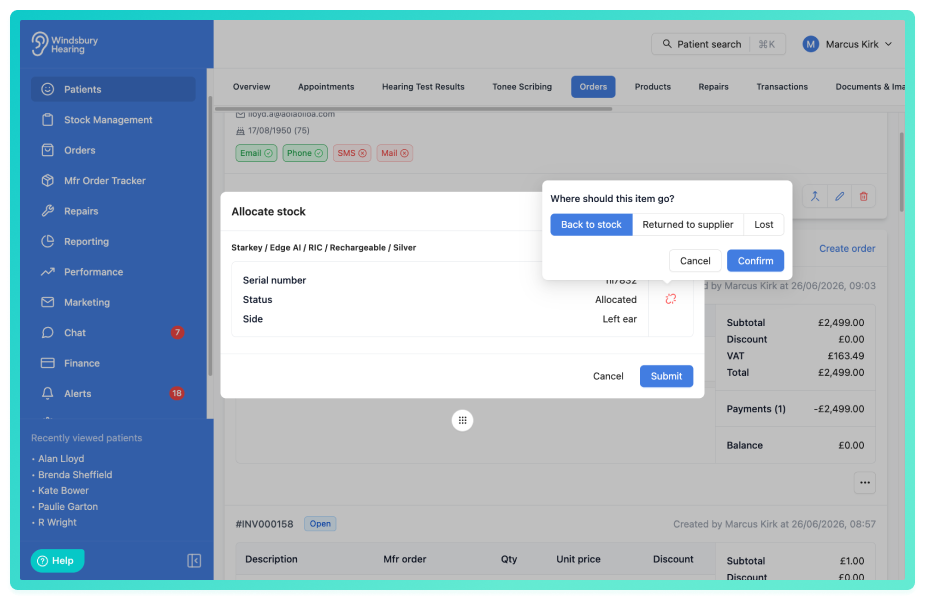
- Click the Unlink icon next to the item.
- Choose where the item should go - Back to stock, Returned to supplier or Lost.
- Click Confirm.
The item is unlinked from the order line and the item becomes editable again, so you can generate or allocate a different item if needed.
Reminder: If you return an allocated item to stock from the patient's Products tab (setting its status to In stock), it's automatically removed from the order too.Was this article helpful?
That’s Great!
Thank you for your feedback
Sorry! We couldn't be helpful
Thank you for your feedback
Feedback sent
We appreciate your effort and will try to fix the article