You can generate a Return for Credit document when marking a patient product as Returned to supplier. This allows you to record the return and automatically create the required documentation for the manufacturer.
In this article we'll cover how to:
- mark a product as returned to supplier.
- generate a return for credit note.
Mark a product as returned to supplier
- Navigate to the desired product either from the Patient Products list.
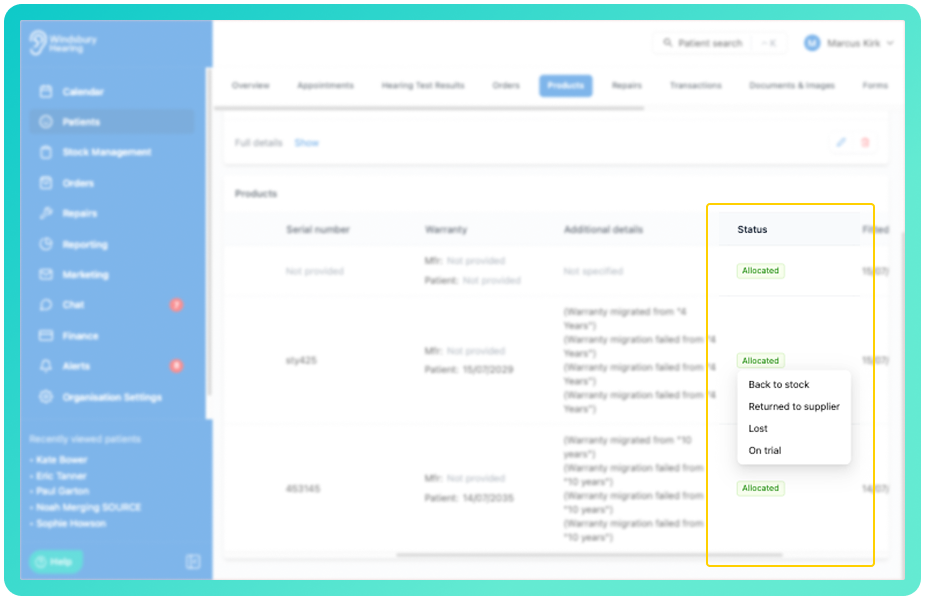
- Locate and click the status dropdown on the product row.
- Select Returned to supplier.
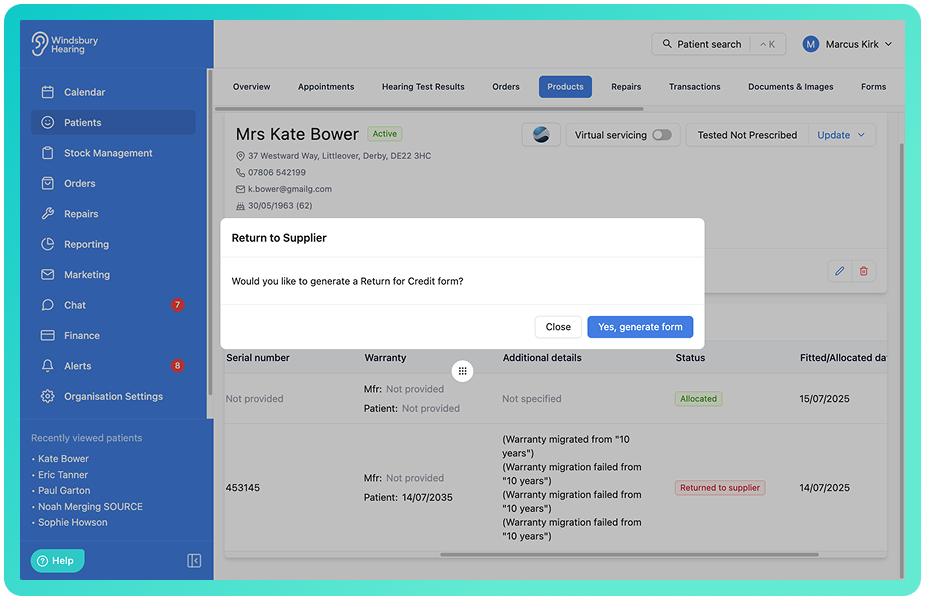
- You will be prompted to generate a Return for Credit form or continue without generating the document.
- Click Yes, generate form.
Complete the Return for Credit form
- The manufacturer will be automatically selected if they have been added to your Manufacturers Accounts.
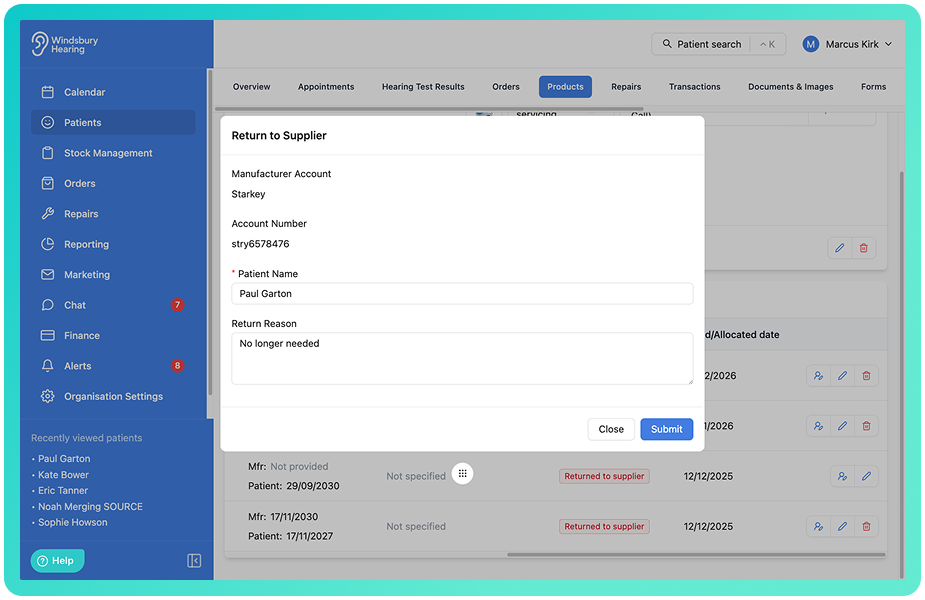
- Add a return reason.
- Click Submit.
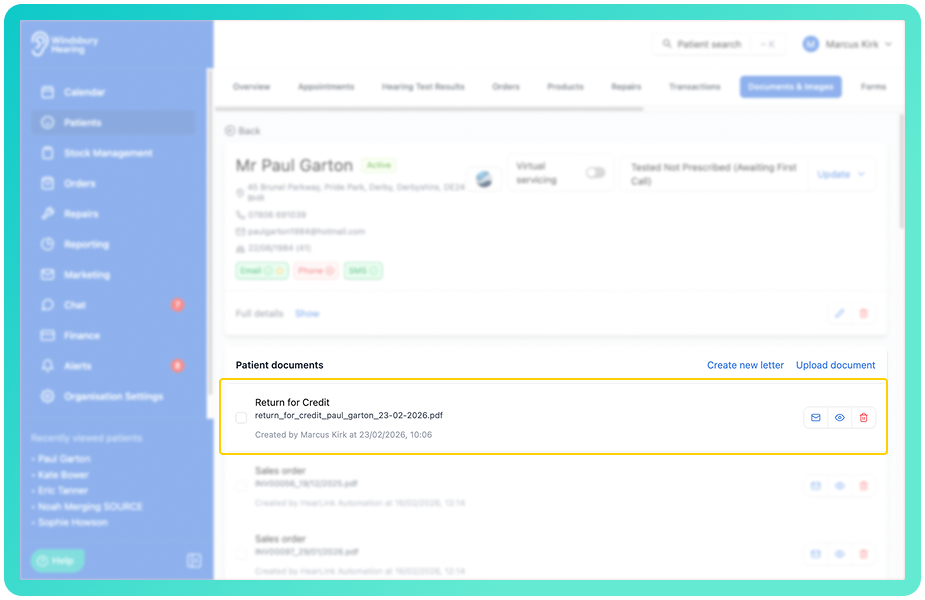
A Return for Credit PDF will be created and opened automatically. The document will open in a new browser tab and a copy will be saved in the patient's Documents section.
Once completed, the product status will be updated to Returned to supplier and the return documentation will be stored against the patient record.
Was this article helpful?
That’s Great!
Thank you for your feedback
Sorry! We couldn't be helpful
Thank you for your feedback
Feedback sent
We appreciate your effort and will try to fix the article