Credit notes allow your organisation to reverse or reduce the value of an existing invoice. They can be created manually, generated alongside a refund, or automatically created when cancelling an unpaid order, providing a flexible, transparent way to manage changes to invoices. Credit notes help ensure that your financial records stay accurate and that invoice adjustments are clearly tracked. All credit notes are numbered automatically and integrated into reporting.
In this article we'll cover how to:
- create a credit note.
- create a stand alone credit note.
- edit a credit note.
- delete a credit note.
- understand automatic credit notes from cancelled orders.
- see how credit notes appear in reports and exports.
- common scenarios.
Create a credit note
Credit notes can be added to an invoice either as part of a refund or as a stand alone adjustment.
- Navigate to the desired patient.
- Locate and click the Orders tab.
- Locate the relevant order, then click More options

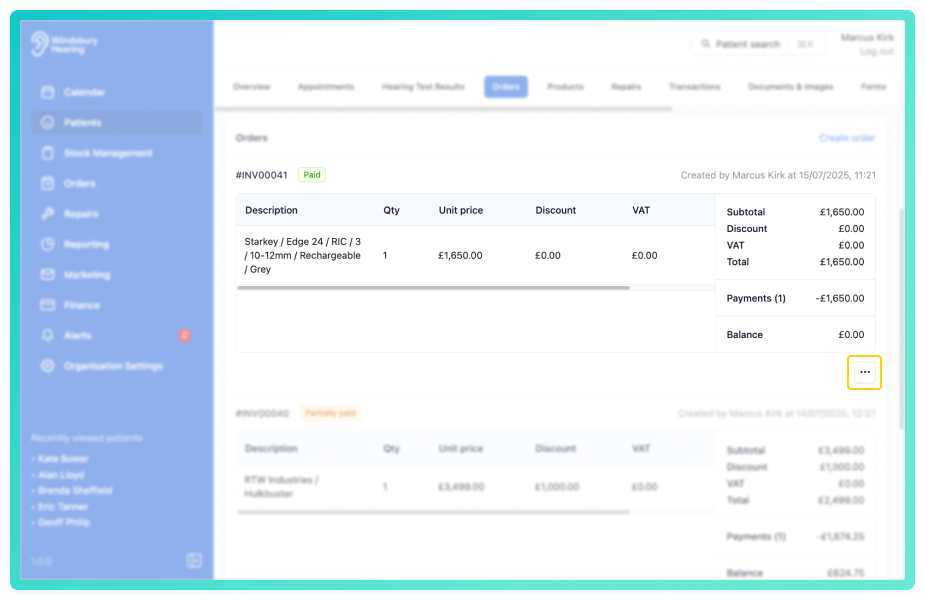
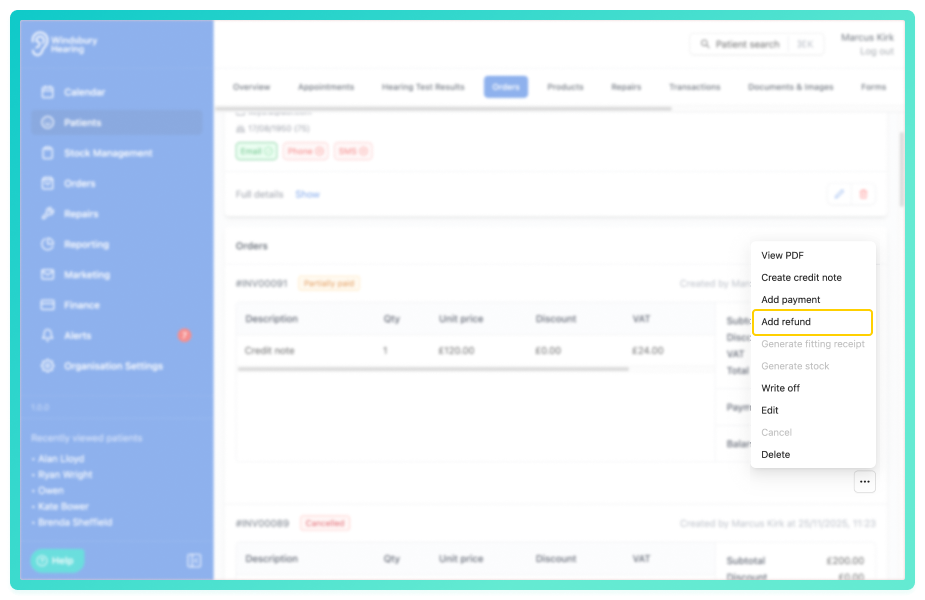
For fully paid or partially paid invoices, you can issue a refund and choose whether or not to create a credit note.
- Click Add refund. (For more information on refunds see this article)
- Fill in the details including the refund Amount and Payment method.
- Click Submit.
- You'll be asked if you would like to Create credit note.
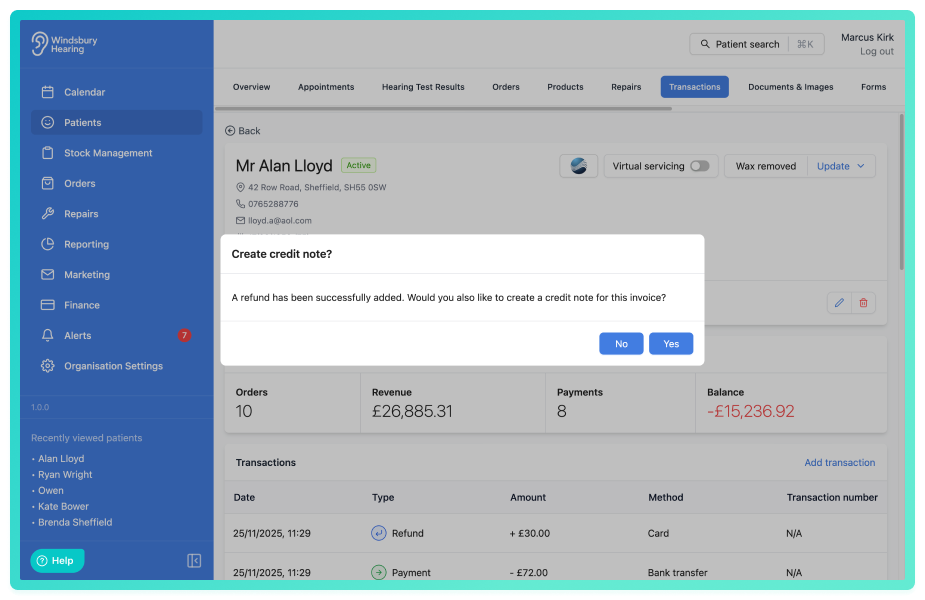
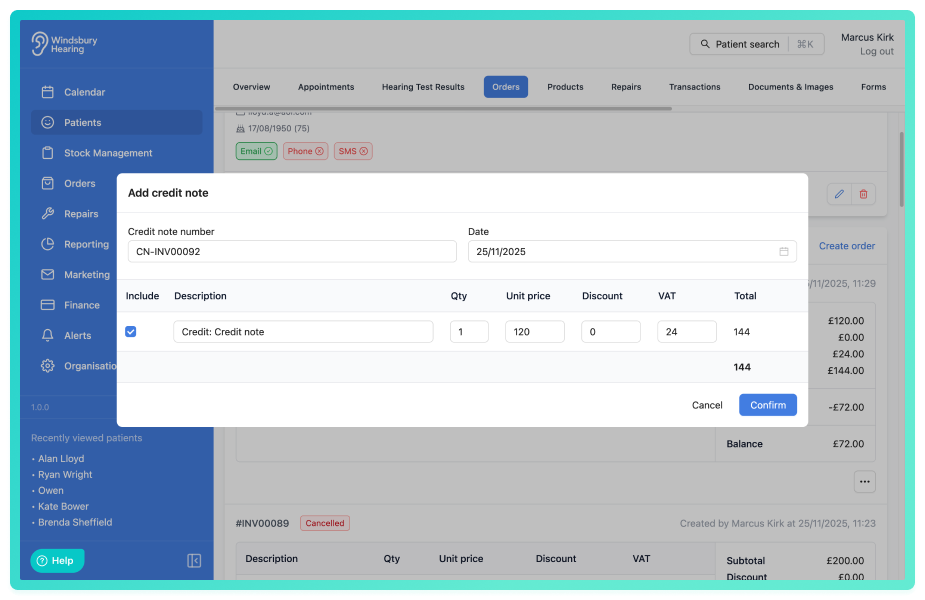
- Click Yes to Add credit note.
- Confirm the details of your credit note (for real life examples, see here).
- Click Confirm.
You will see the following entries in the invoice transactions:
- Charge: original invoice value.
- Payment: any payment made by the client.
- Refund: the amount returned to the patient.
- Credit note: the value reversal applied to the invoice.
This ensures the invoice balance is updated correctly.
| Transaction Type | When it appears | What it represents | Notes |
|---|---|---|---|
| Charge | When the invoice/order is created. | The original invoice amount. | Always appears first. |
| Payment | When a patient pays towards the invoice. | Money received that reduces the outstanding balance. | Can be full or partial. |
| Refund | When money is returned to the patient. | A negative payment applied to the invoice. | Only appears when issuing a refund. |
| Credit Note | When the invoice value is reduced. | Lowers invoice revenue without affecting payments (unless paired with a refund). | Auto-created when cancelling orders or created manually when issuing refunds. |
Create a stand alone credit note
If no refund is being issued, you can add a credit note by itself.
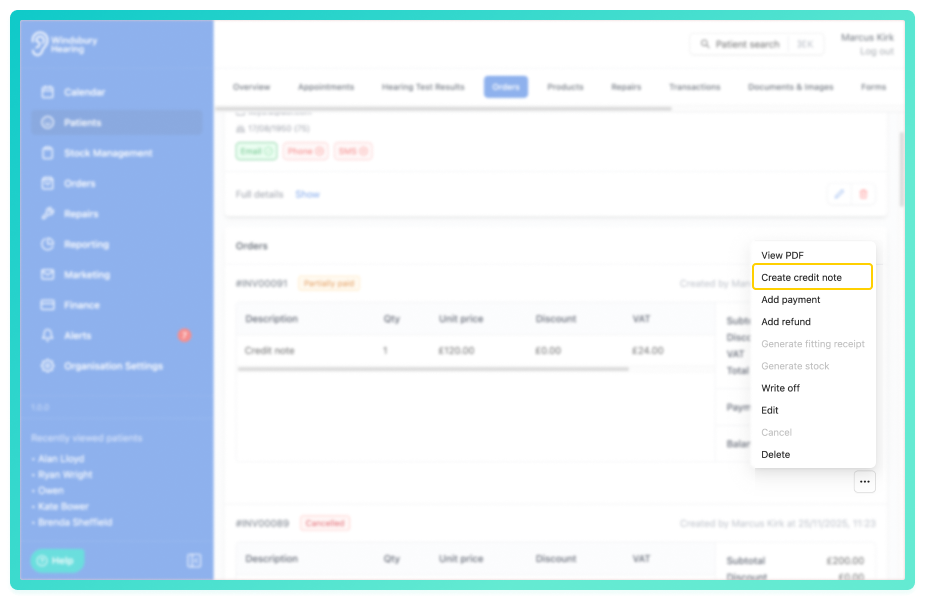
Only the Credit note will appear in the transaction history.
Edit a credit note
You may need to edit a credit note to change the values. You can do this from the transactions tab on the Patient overview page.
- Locate the required Credit note entry in the invoice's transaction list.
- Click the Edit
 icon.
icon. - Update the details as required.
- Click Confirm.
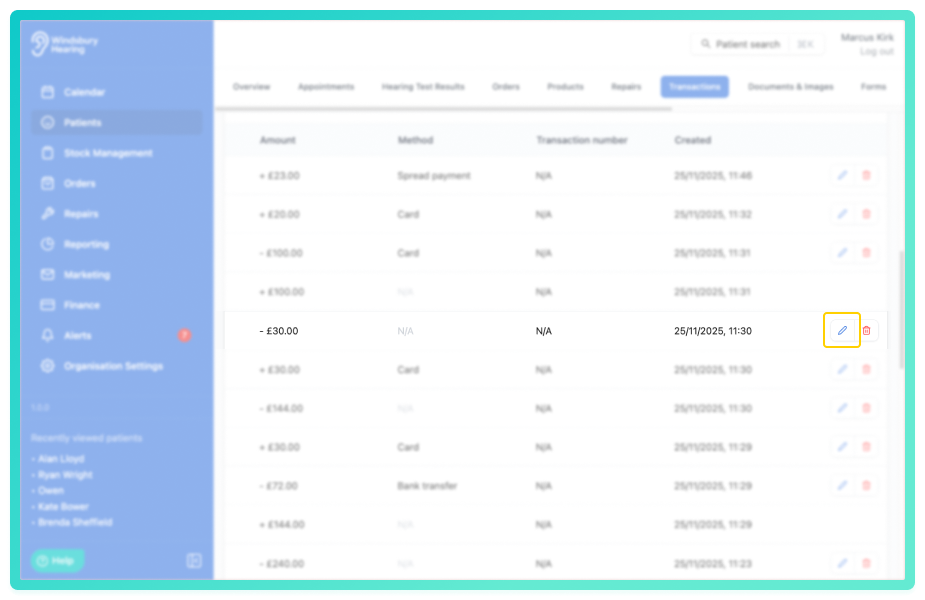
This will adjust the invoice balance and related reporting automatically.
Delete a credit note
A credit note can be deleted if needed by the organisation.
- Locate the required Credit note entry in the invoice's transaction list.
- Click the Delete
 icon.
icon. - Click Delete.
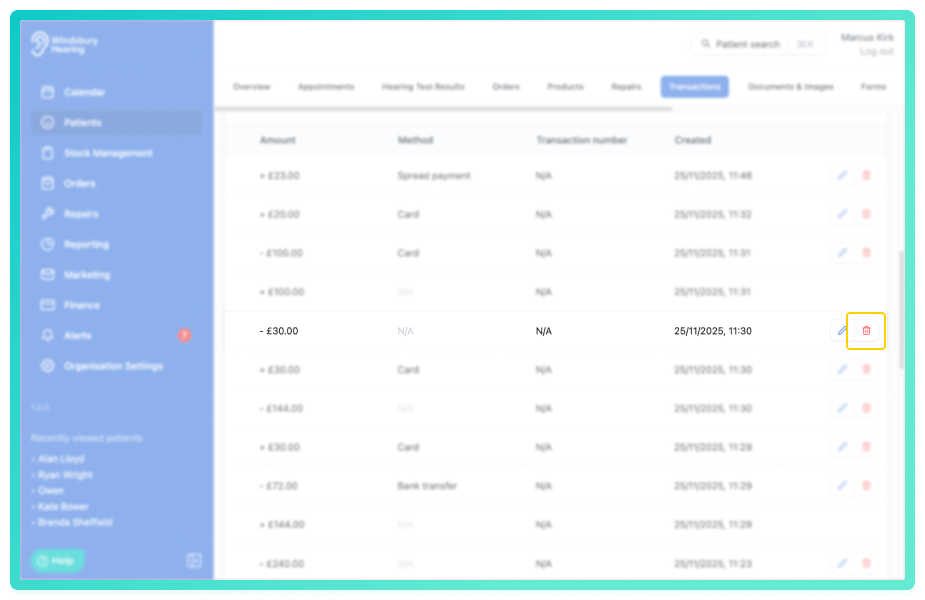
The Credit note will now be removed from the transaction history. The invoice balance and reports will adjust automatically.
Automatic credit notes from cancelled orders.
If an order/invoice is cancelled, HearLink will automatically generate a full-value credit note.
This keeps financial records accurate without requiring manual adjustments.
You will see:
The invoice total will return to £0.00, and the cancelled order will be recorded.
If an order/invoice is partially paid, a user can still cancel an invoice and automatically create a credit note for the full amount. This will put the balance of the order into negative value.How credit notes appear in reports and exports.
Credit notes update financial calculations throughout the system.
They affect:
- Invoice item revenue & margin report - Credit notes included as an item in the report.
- Account receivable report - Will update the outstanding balances of any orders with credit notes.
- Xero data export - Credit notes appear in the export. Follows the same revenue as invoice items. Ensures external accounting remains aligned.
Common scenarios
Here are some common scenarios to further illustrate credit notes.
Example 1: Cancelling an unpaid order
A patient decides not to go ahead with an order that has no payments attached.
What to do:
- Click the three dotson the unpaid invoice.
- Click Cancel.
What happens:
- A full-value Credit note is automatically generated.
- No refund is created (as no payments exist).
- The invoice total becomes £0.00.
- Reports affect the cancellation appropriately.
Result: The invoice is fully reversed without manual adjustments.
Example 2: Partially paid invoice with partial credit
A patient paid a £200 deposit on a £1000 invoice. The clinic needs to reduce the invoice by £100.
What to do:
- Click the three dotson the unpaid invoice.
- Click Add credit note.
- Enter £100 and click Confirm.
What happens:
- The invoice balance reduces from £800 to £700 remaining.
- Payment history remains unchanged (deposit still applied).
- Accounts receivable updates the outstanding balance automatically.
Result: The outstanding amount is corrected without affecting the original payment.
Example 3: Creating a credit note without a refund
A patient was given a £50 goodwill adjustment, but no money needs to be returned.
What to do:
- Click the three dotson the unpaid invoice.
- Click Add credit note.
- Enter £50 and give the credit note a description.
- Click Confirm.
What happens:
- Only a credit note appears in the transactions.
- No refund is issued.
- Reports reflect the £50 reduction in revenue.
Result: The invoice value is adjusted, but payments remain unchanged.
Was this article helpful?
That’s Great!
Thank you for your feedback
Sorry! We couldn't be helpful
Thank you for your feedback
Feedback sent
We appreciate your effort and will try to fix the article