Patient notes can be added to a patient's dashboard to store important context. Notes can also be flagged as alerts, which will display prominently when a user accesses the patient's dashboard.
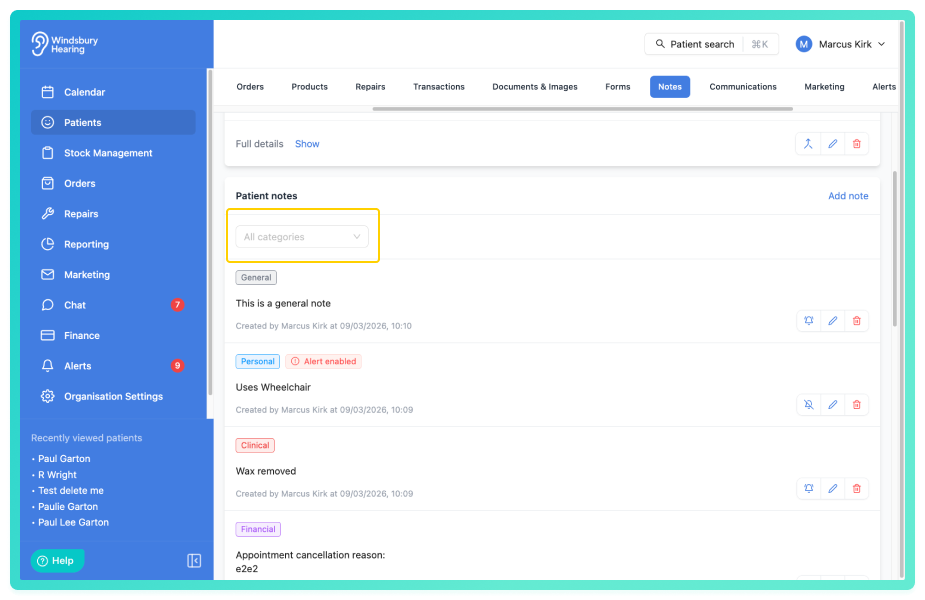
Notes can also be organised using Notes Categories, helping you group different types of information such as clinical notes, communications history or financial context. Categories can also be used to filter the notes list, making it easier to fins specific information within a patient record.
In this article we'll cover how to:
- add a new note.
- select a note category.
- make the note dialog fullscreen.
- set a note as an alert.
- edit a note.
- delete a note.
Add a new note
- Navigate to the desired patient.
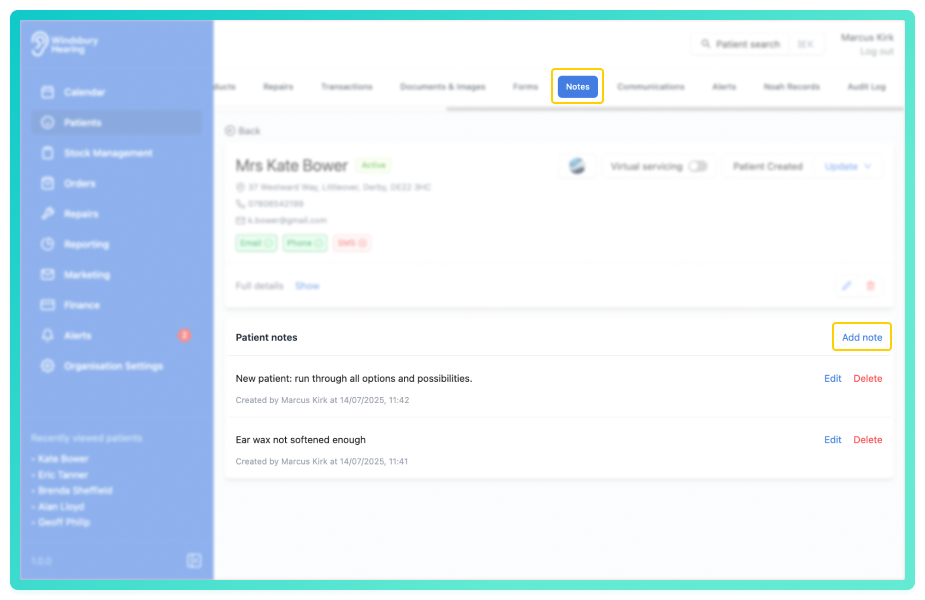
- Locate and click the Notes tab.
- Click the Add note text.
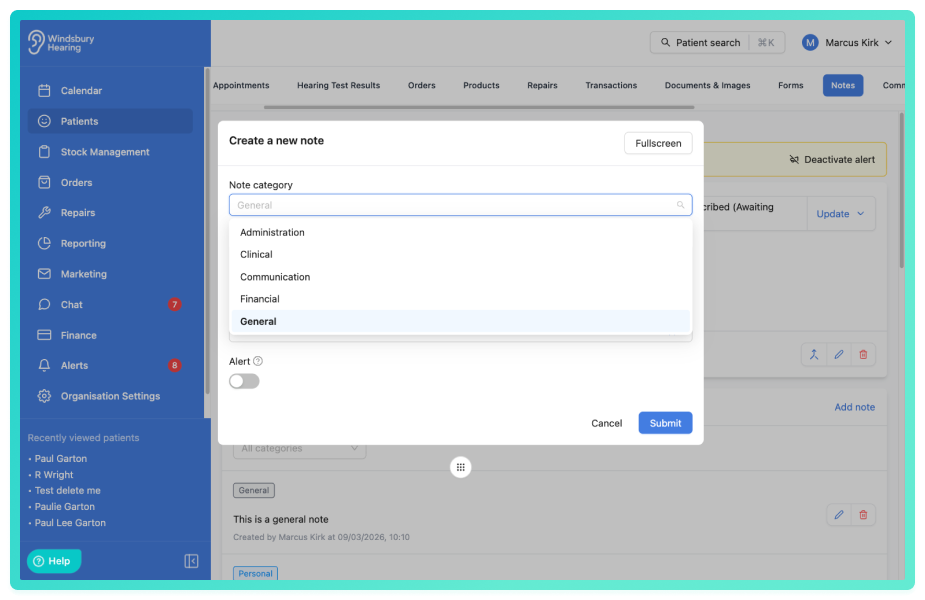
- Complete the Create a new note form.
- Select which category the note falls into. All notes will be General by default.
- Click Submit to save the note.
- Filter notes by category if desired.
Make the note dialog fullscreen
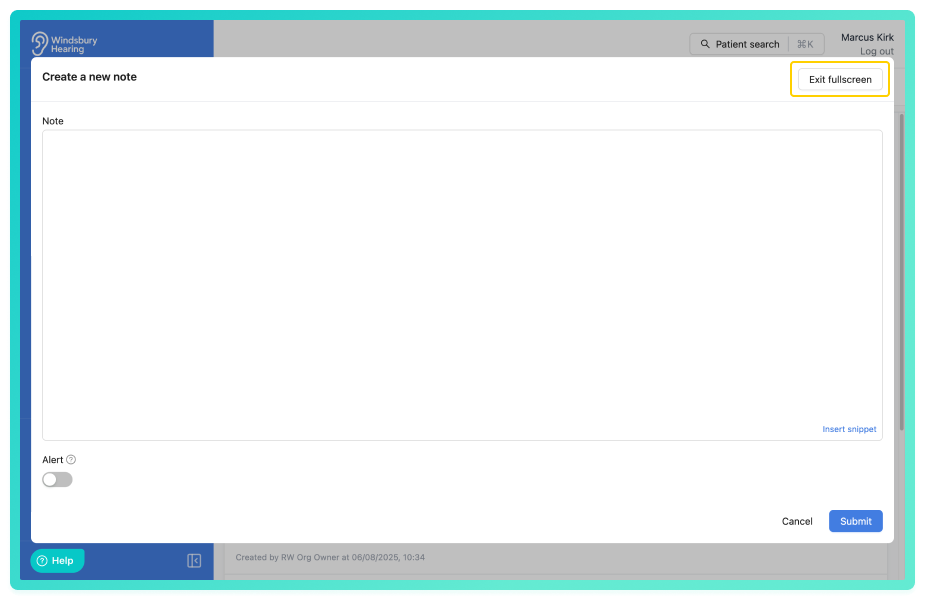
If you have a large patient note to record you may want to have the note dialog fullscreen for easier reading.
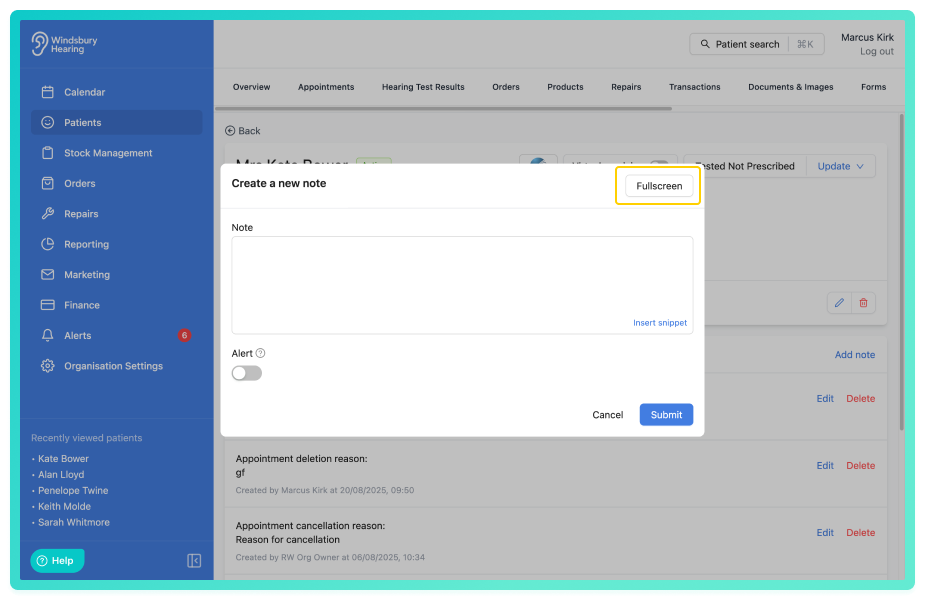
- To exit fullscreen, click the Exit fullscreen button.
Set the note as an alert
- While creating or editing a Note enable Alert.
When enabled, the note will display as an alert banner each time the patient dashboard is viewed. You can deactivate the alert directly from the pop up by clicking the Deactivate alert text.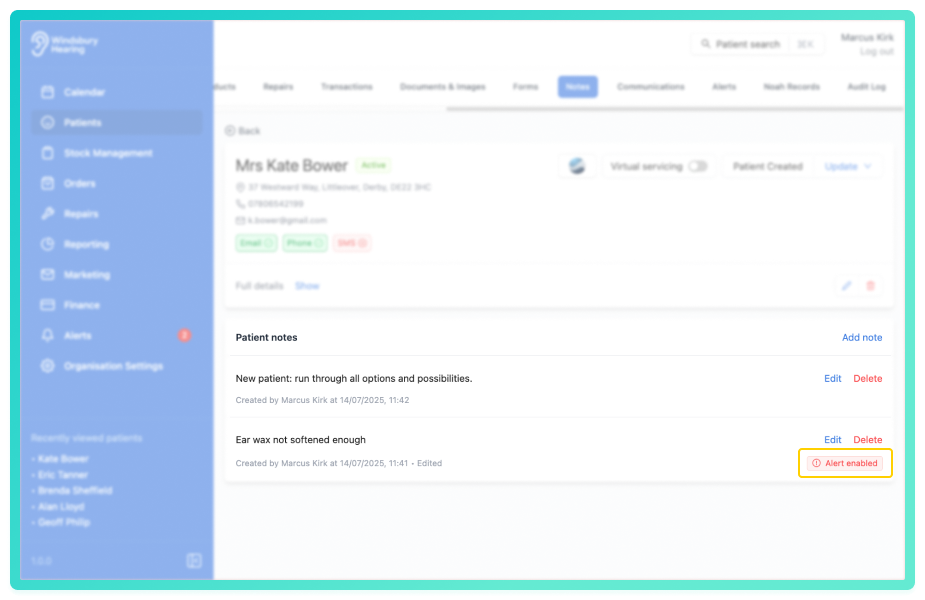
Edit a note
- Locate and click the Edit text on the note you want to edit.
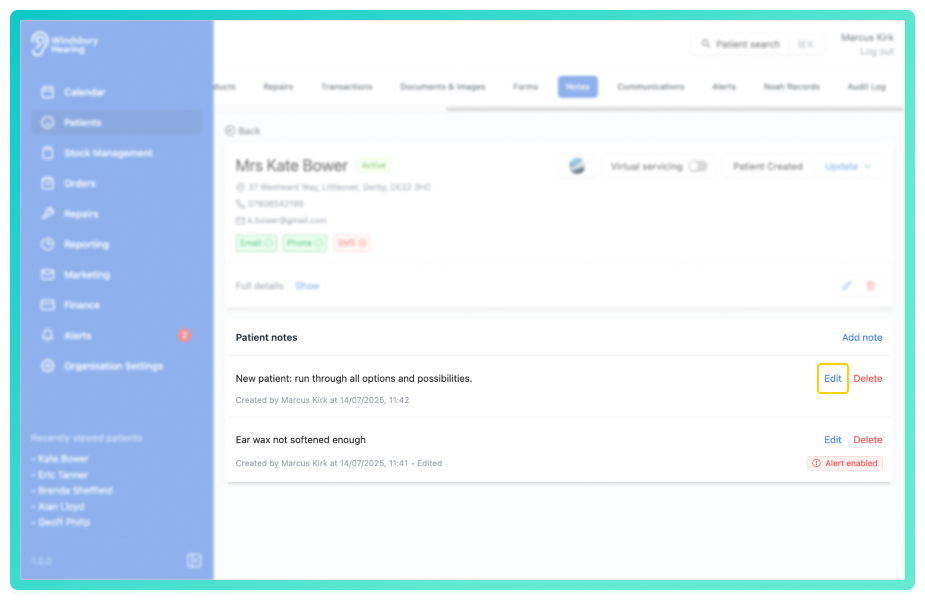
- Update the Note as required.
- Click Submit to save your changes.
Delete a note
- Locate the Delete text on the note you want to delete.
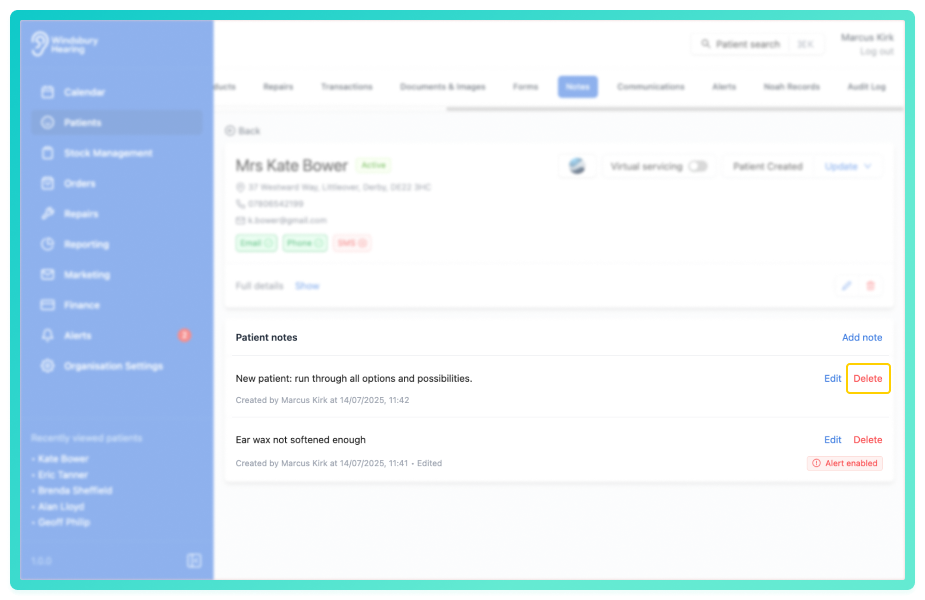
- Click the Delete text.
- You'll be shown a warning message.
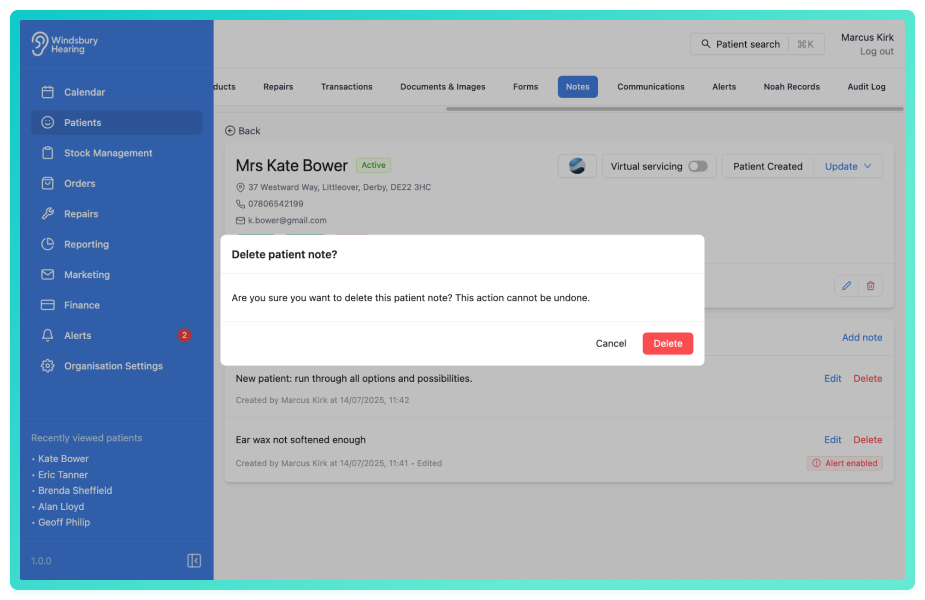
- Click Delete to confirm and delete the note.
Warning: Once a note has been deleted this action cannot be undone. Please proceed with caution!
Was this article helpful?
That’s Great!
Thank you for your feedback
Sorry! We couldn't be helpful
Thank you for your feedback
Feedback sent
We appreciate your effort and will try to fix the article