Patient statuses help track a patient's position within your workflow. Whether they're a new lead, in consultation, fitted, or discharged. Updating a patient's status not only helps your team stay aligned, but may also trigger appointment outcomes if linked.
Note sure how statuses work or how to set them up? See, Workflow explained.In this article we'll cover how to:
- change a patient's status.
- add a secondary status.
- understand what happens when a status is linked to an appointment outcome.
Change a patients status
- Navigate to the desired patient.
- Locate the Update text on the patient details section.
This will be displaying the current patient status.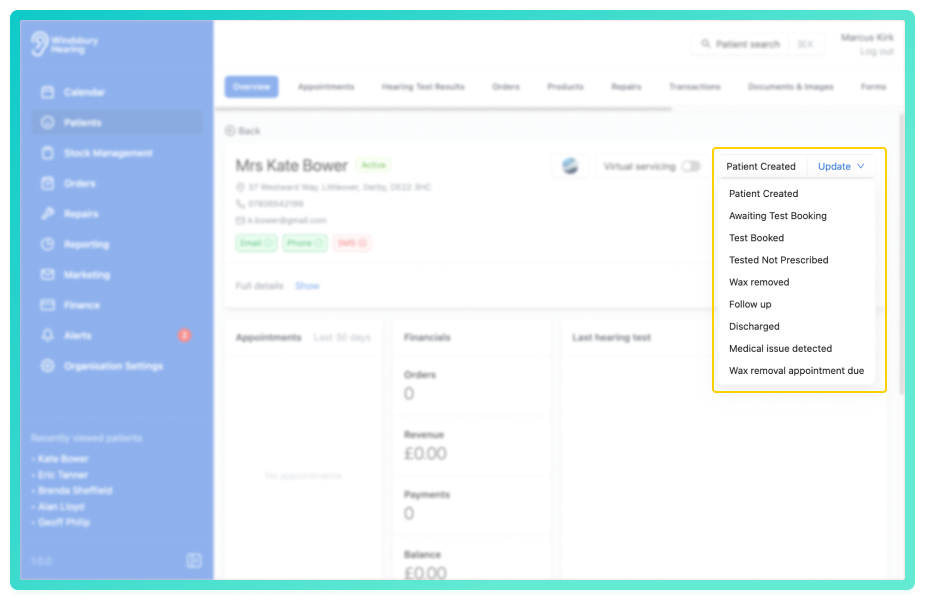
- Select the required status from the list.
Add a secondary status
Secondary statuses are available and can be set up in the Secondary workflow. These can then be tracked separately from the main status.
If a secondary workflow is attached to a primary you can:
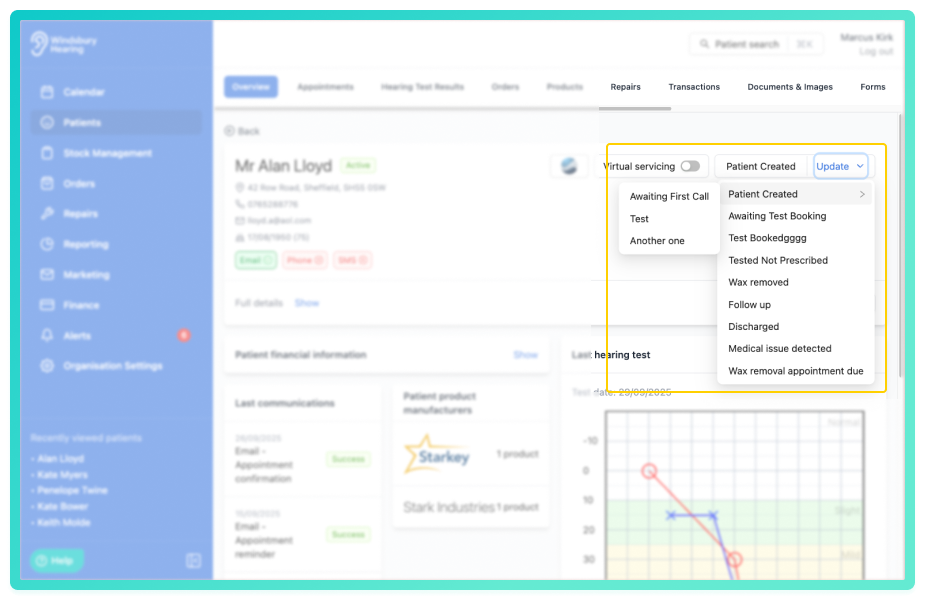
- Select the required status from the list.
What happens when you change a status?
If the selected status is linked to an outcome (set up in your appointment types), it will automatically update any matching appointment, applying the relevant outcome banner and logging the change.
| Status | Linked Outcome | Banner (custom colour) |
|---|---|---|
| Wax removal unsuccessful | More Investigation | |
| Wax removal successful | Removed successfully | |
| Follow up needed | No | None |
To learn more about how outcomes and statuses connect, see How to use outcomes.Was this article helpful?
That’s Great!
Thank you for your feedback
Sorry! We couldn't be helpful
Thank you for your feedback
Feedback sent
We appreciate your effort and will try to fix the article