You can set or update a patient's contact permissions when adding a new patient or by editing an existing patient from the dashboard. These permissions determine how your organisation is allowed to communicate with the patient.
In this article we'll cover how to:
- set contact permissions when adding a new patient.
- update contact permissions for an existing patient.
- set a contact preference.
You must obtain patient's explicit consent before enabling marketing communication via Email, Phone, or SMS.Set contact permissions when adding a new patient
During the process of adding a new patient, scroll to the bottom of the form. You'll see checkboxes for Email, Phone & SMS if you have them as a field on your patient form.
- Check the relevant checkboxes according to the patient's preferences.
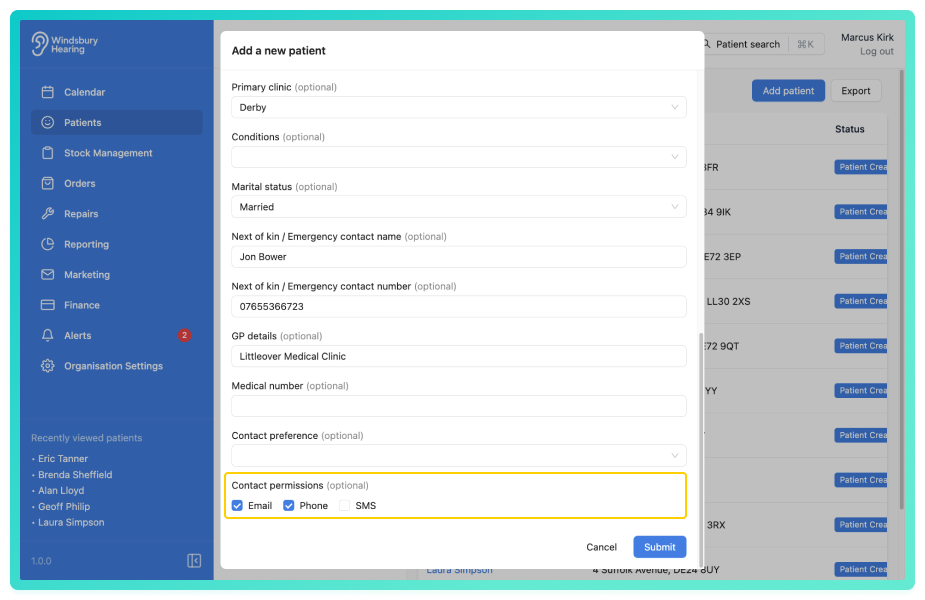
- Click Submit to save the changes.
Update contact permissions from the patient dashboard
- Navigate to the desired patient.
- Locate and click the Edit icon

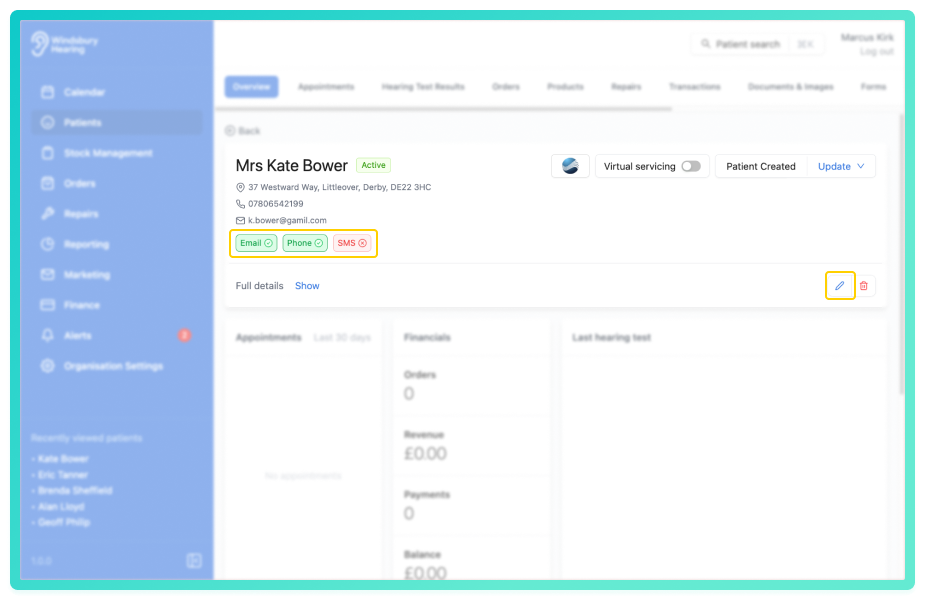
- Update the Contact permissions as required.
- Click Submit to save the changes.
Set a patient's contact preference
During the process of adding a new patient, scroll to the bottom of the form. You'll see an option to select a Contact preference if you have them it set as a field on your patient form.
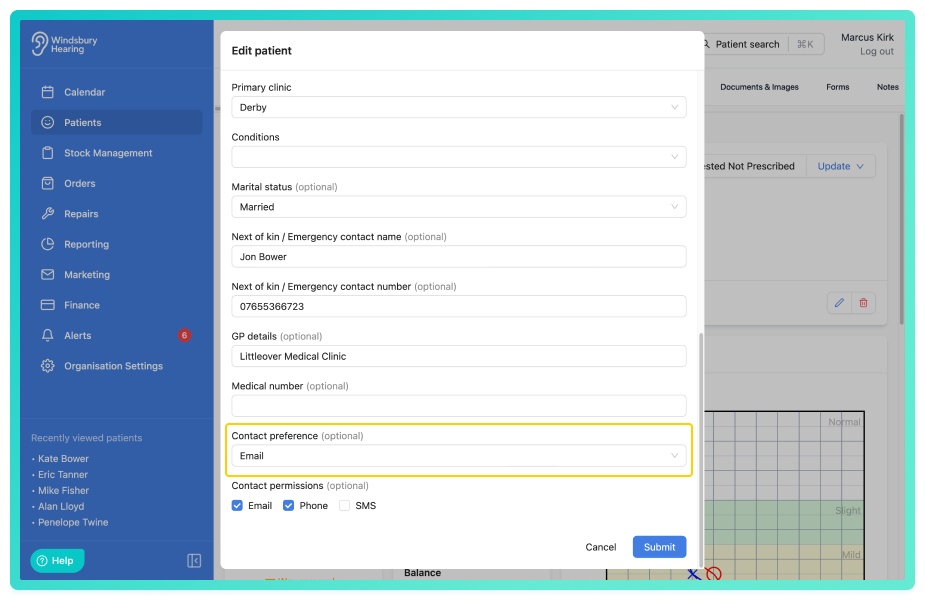
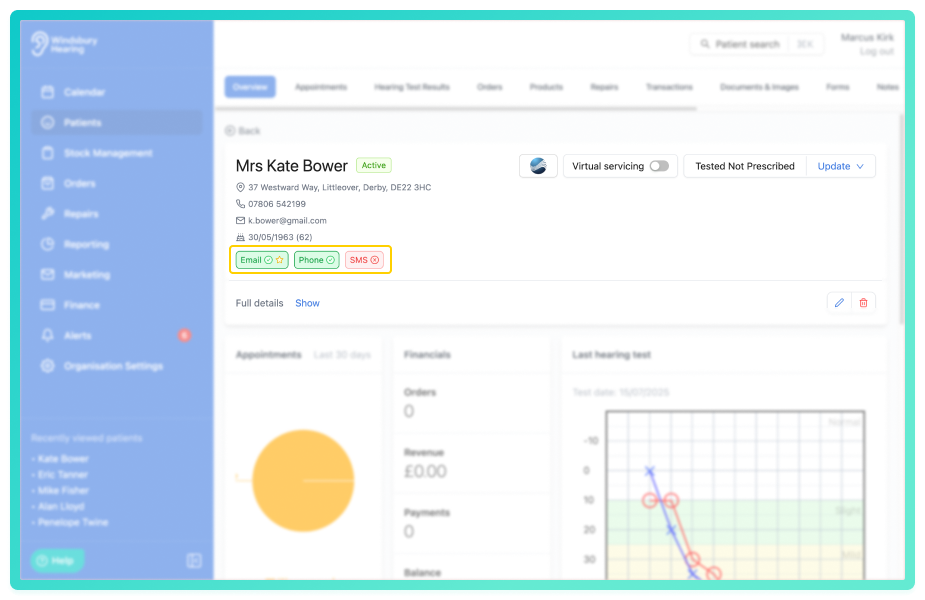
This will be displayed on the contact permissions with a star icon to make it visible at a glance.
Was this article helpful?
That’s Great!
Thank you for your feedback
Sorry! We couldn't be helpful
Thank you for your feedback
Feedback sent
We appreciate your effort and will try to fix the article