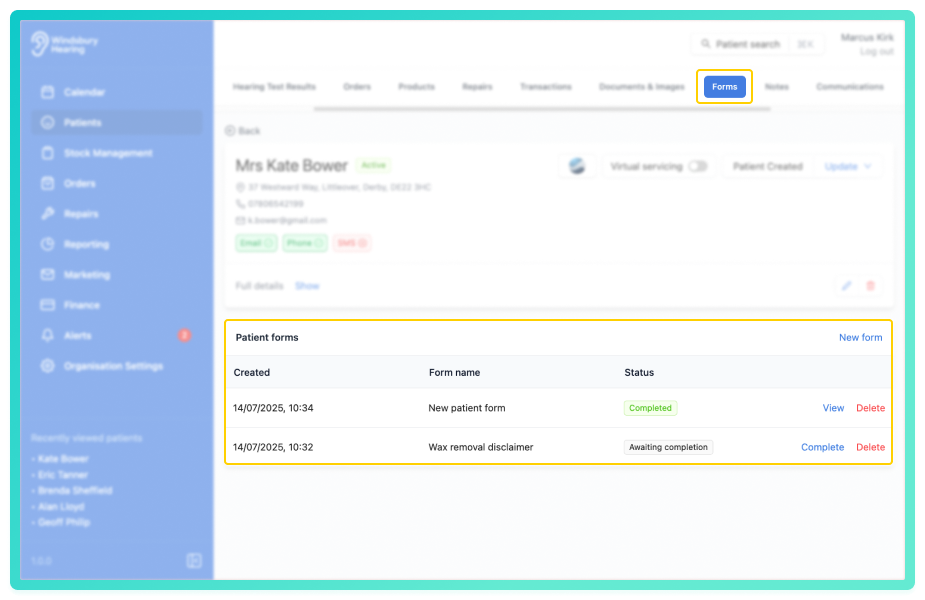
Within the Forms tab on a patient's dashboard, you can view and manage any forms associated with the selected patient. You'll when each form was created, the form name, and its current status. From here, you can also add a new form, complete a form, or delete one if it's no longer needed.
In this article we'll cover how to:
- add a new form
- complete a form.
- delete a form.
If you need to add or edit a form this can be done in organisation settings. If you don't have access, please contact your organisation owner.Form Overview
- Navigate to the desired patient.
- Locate and click the Forms tab.
Add a new form
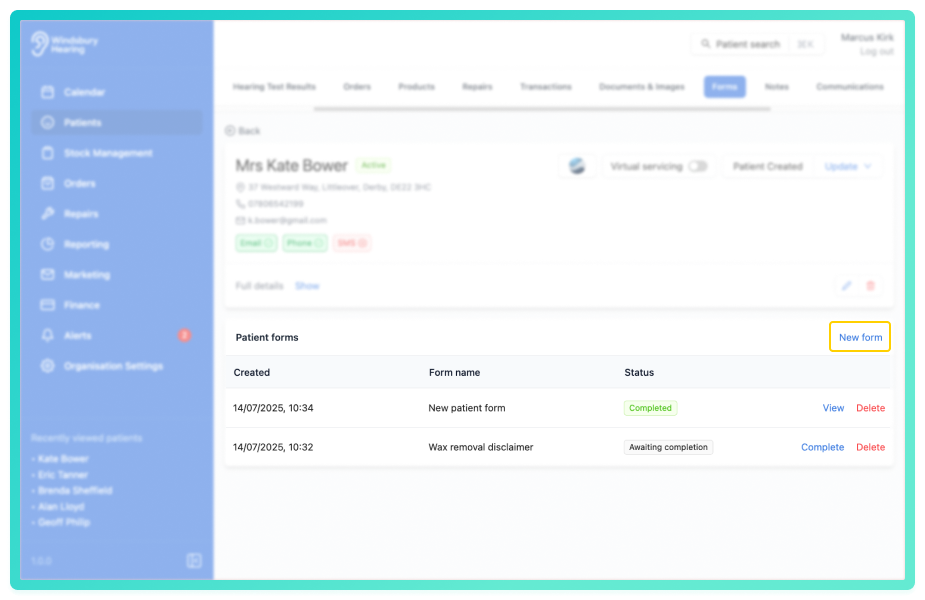
- Click the New form text.
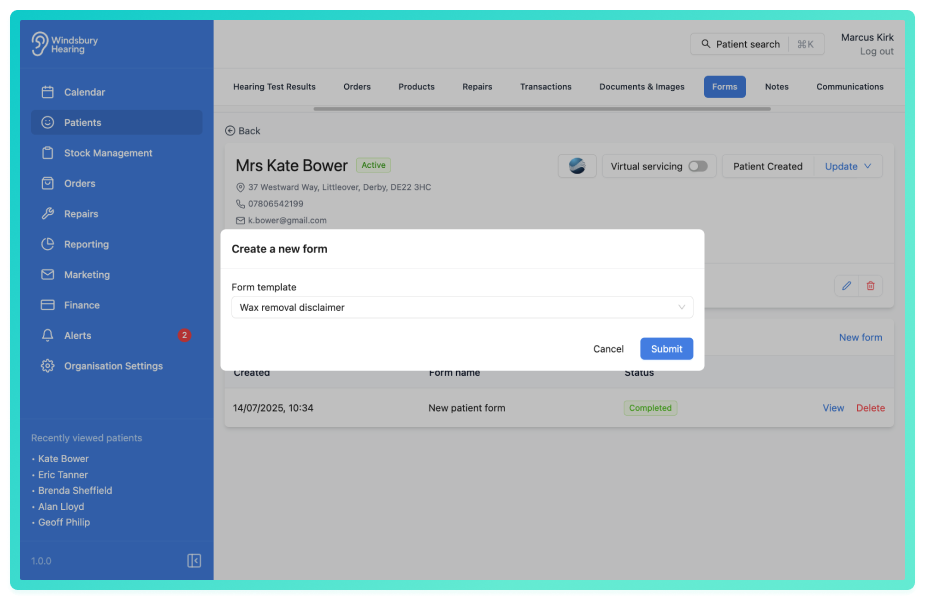
- A dropdown dropdown list of available form templates will appear.
Create form templates if required in organisation settings.- Select the required form.
- Click Submit to save.
Completing a form
- Click the Complete text next to the relevant form.
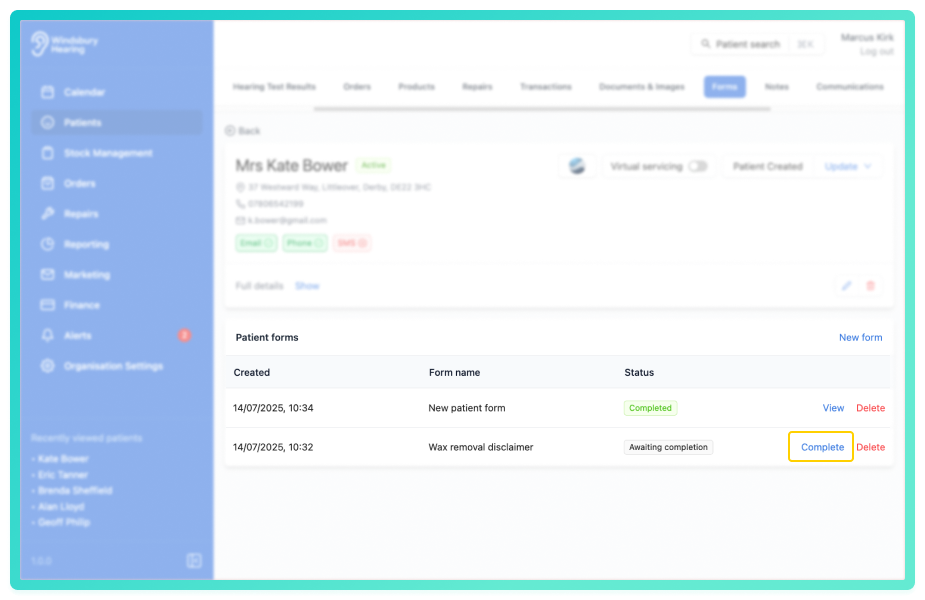
- A new tab will open with the form ready to be completed by the patient or a staff member.
- Click Submit, the form status will update automatically.

Deleting a form
- Locate and click the Delete text next to the relevant form.
- You'll be shown a warning message.
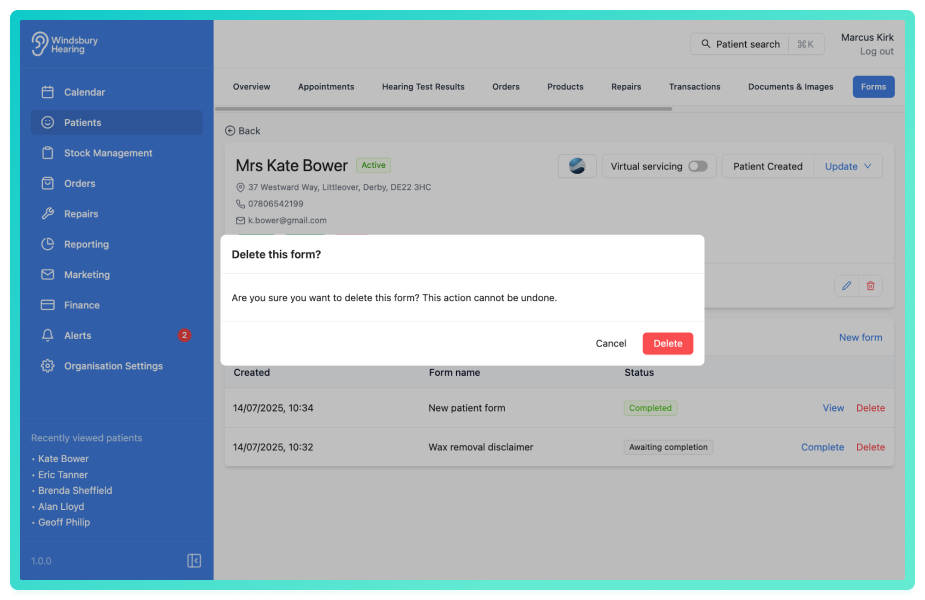
- Click Delete to confirm and delete the form.
Status Meanings
- Awaiting completion - A form has been created and awaiting but not yet filled in.
- Completed - The form has been successfully submitted.
- Expired - The form is no longer valid and can no longer be completed.
Warning: Once a form has been deleted this action cannot be undone. Please proceed with caution!Was this article helpful?
That’s Great!
Thank you for your feedback
Sorry! We couldn't be helpful
Thank you for your feedback
Feedback sent
We appreciate your effort and will try to fix the article