Once marketing groups have been created and patients added to them, your organisation can view the full list of patients within each group and export that data for use in external marketing tools (e.g Mailchimp, HubSport).
This ensures you can segment your patients in HearLink while still running your outbound campaigns in the marketing platform of your choice.
In this article we'll cover how to:
View patients in a marketing group
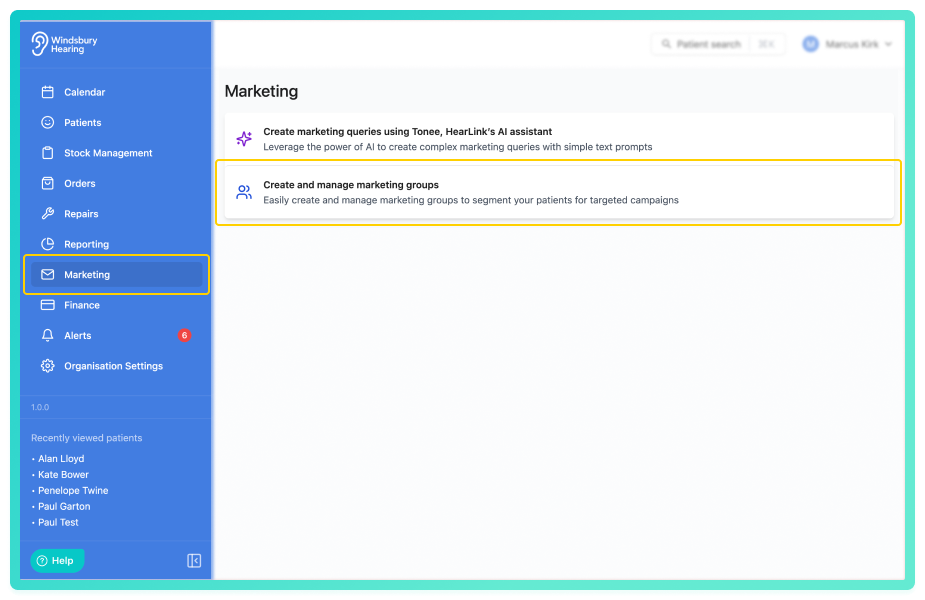
- Locate the group you want to review.
- Click the View
 icon next to the required group.
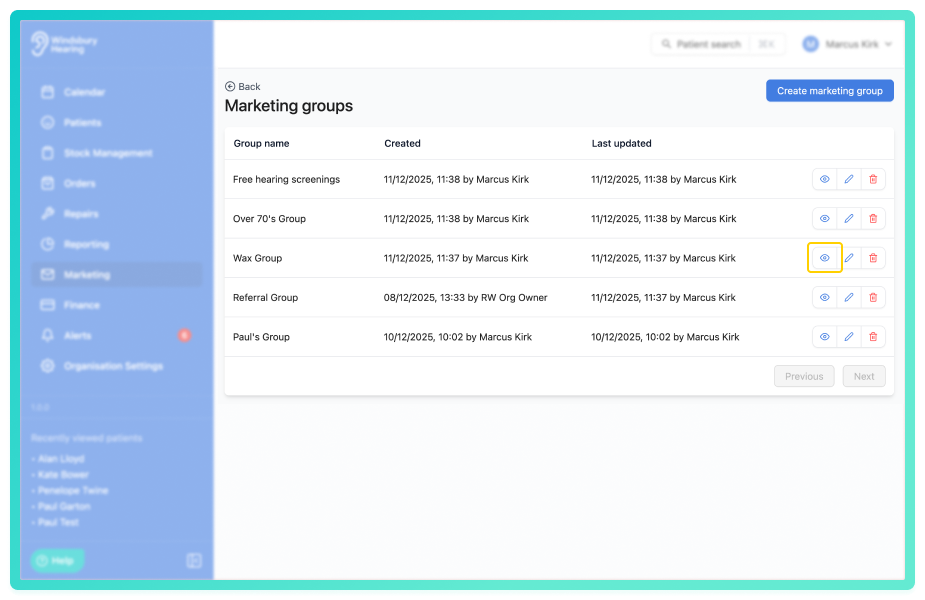
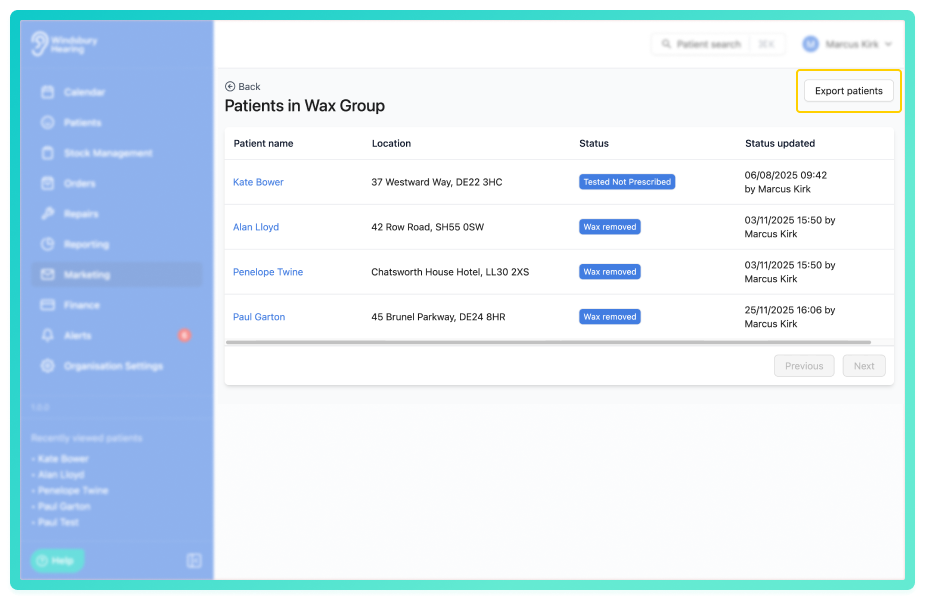
You'll see a full list of patients who belong to the selected group, including:
- Patient name - clickable to open dashboard.
- Location - the patients address.
- Status - current status of the patient.
- Last updated - when the patient was last updated.
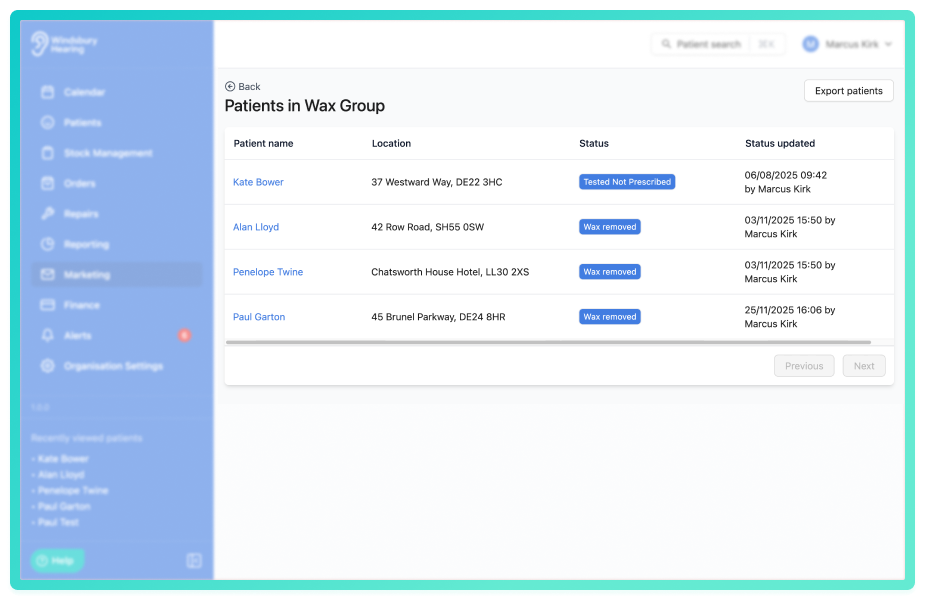
This page updates automatically whenever a patient is added or removed.
Export a marketing group
You can export the list of patients in any marketing group as a CSV file. This CSV can then be uploaded to external marketing software for email campaigns and marketing.
- Navigate to Marketing.
- Locate and click the Create and manage marketing groups section.
- Locate the group you want to review.
- Click the View icon next to the required group.
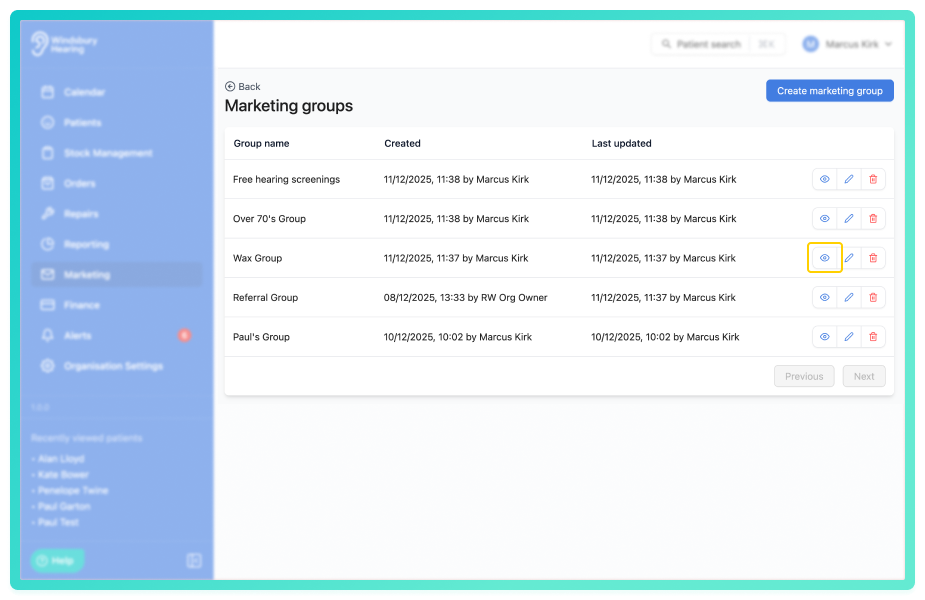
- Click Export patients.
- On the dialog click Export.
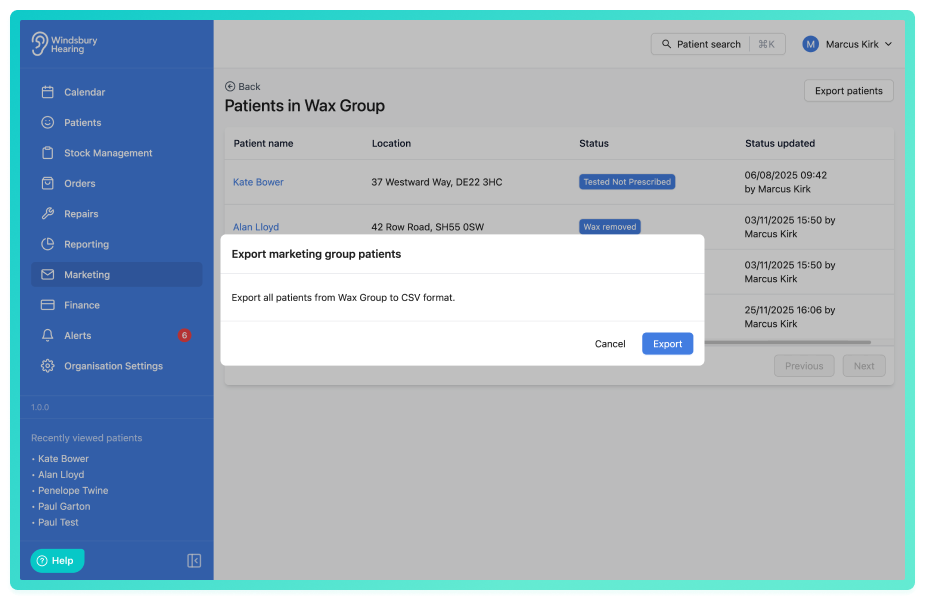
A CSV file will download containing a list of all patient's in the specific marketing group with the relevant information.
How organisation's use this export
Exporting patients from a marketing group allows your organisation to:
- Run targeted marketing campaigns in external platforms.
- Keep mailing lists up to dat with no manual retyping.
- Engage specific patient groups (e.g. "Patients due annual check up", "Potential Upgrades").
Was this article helpful?
That’s Great!
Thank you for your feedback
Sorry! We couldn't be helpful
Thank you for your feedback
Feedback sent
We appreciate your effort and will try to fix the article