HearLink allows you to connect your HearLink calendar to an external calendar system, such as Outlook, Google Calendar, Apple Calendar, or any calendar that supports iCal feeds.
This connection is one-way, meaning appointments from HearLink will appear in your external calendar, but updates must still be made inside HearLink.In this article we'll cover how to:
- generate your personal external calendar link.
- use the iCal link in Outlook, Google Calendar and Apple Calendar.
Generate your external calendar link
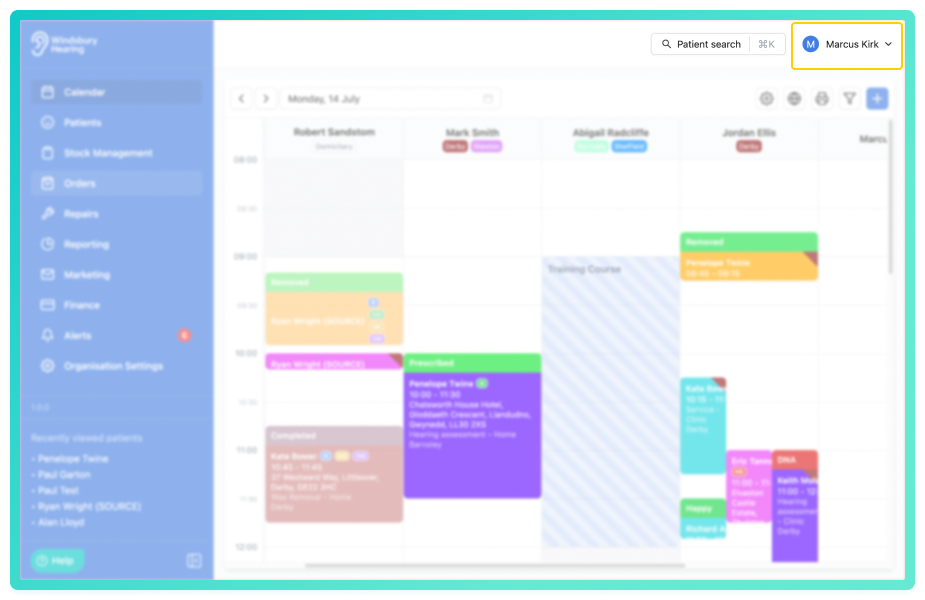
There will be 2 options displayed. These are:
- External calendar sync.
- Log out.
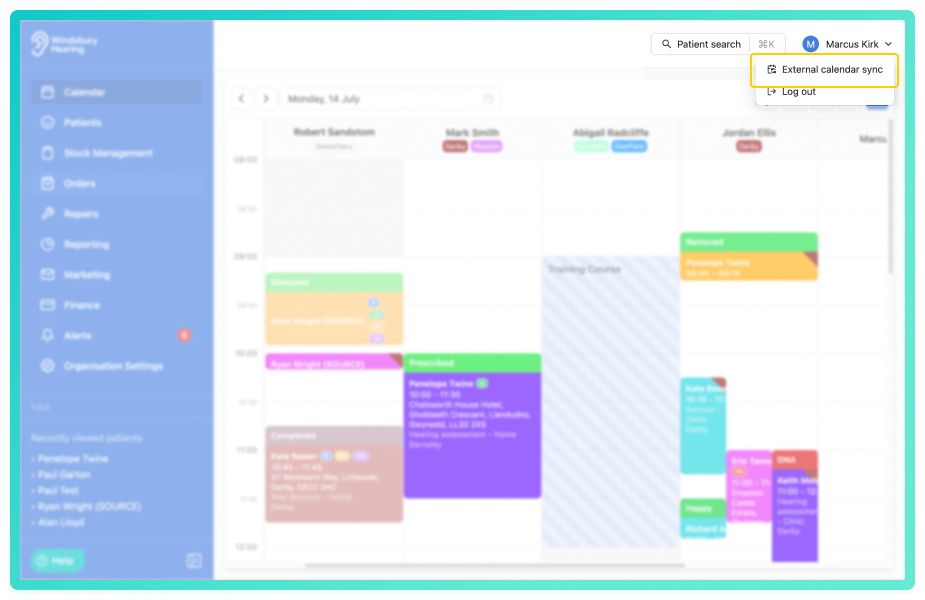
- Click External calendar link.
Your personal iCal link will be generated. You can copy this link to add it to your external calendar.
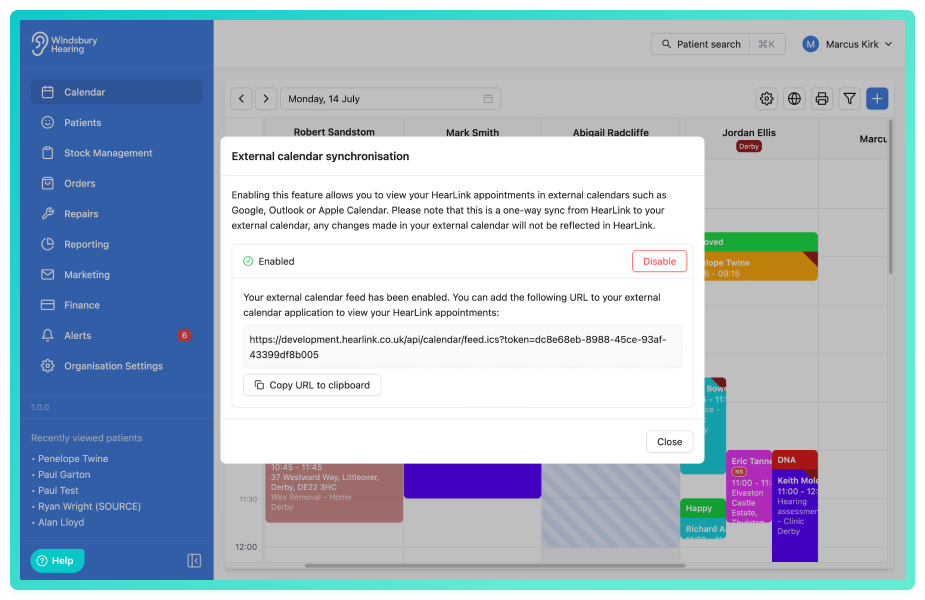
 Keep your link secure: Your iCal URL grants calendar visibility. Do not share with anyone.
Using your iCal link in popular calendar apps
Below are short summaries for the main calendar providers. Each uses your unique HearLink iCal URL.
Google Calendar
- Open Google Calendar.
- On the left menu, click Other calendars → From URL.
- Paste your HearLink iCal link.
- Click Add calendar.
Google may take a few minutes to display events. Refreshing the page can help.
Microsoft Outlook Web (Outlook.com / Office 365)
- Go to Outlook Calendar in your web browser.
- In the left sidebar, click Add calendar → Subscribe from web.
- Paste your HearLink iCal link.
- Click Import/Subscribe.
Microsoft Outlook Desktop (Windows)
- Open Outlook and go to Calendar.
- Choose Home → click Add calendar → From Internet.
- Paste your HearLink iCal link and confirm subscription.
Your HearLink calendar will appear under "Other Calendars". Outlook typically refreshes subscribed calendars periodically (often every 24 hours).
Apple Calendar on Mac (macOS)
- Open the Calendar App.
- From the menu, go to File → New Calendar Subscription.
- Paste your HearLink iCal link into the dialog and click Subscribe.
- Enter a name (e.g. "HearLink Calendar") and set a refresh frequency (e.g. every 15 minutes or hourly).
Apple Calendar on iPhone / iPad (iOS / iPadOS)
- Open Settings → Calendar → Accounts → Add Account → Other.
- Choose Add Subscribed Calendar.
- Paste your HearLink iCal link.
- Tap Save.
After subscribing appointments will appear in your Apple Calendar. If your'e using multiple Apple devices under iCloud, subscribing on the Mac is the most reliable way to syncto all devices.
Was this article helpful?
That’s Great!
Thank you for your feedback
Sorry! We couldn't be helpful
Thank you for your feedback
Feedback sent
We appreciate your effort and will try to fix the article