From the calendar, you can add holidays or unavailability to a user's schedule. This can also be managed via organisation settings. From the calendar you change a single instance of a repeating holiday or unavailability. An example would include if you wanted to move a lunch for one specific day.
In this article we'll cover how to:
- add a holiday or unavailability.
- edit an existing holiday or unavailability.
- edit a repeating holiday or unavailability.
- delete an existing holiday or unavailability .
- set up repeating holidays or unavailability.
Add a Holiday or Unavailability via the Calendar
- Navigate to Calendar.
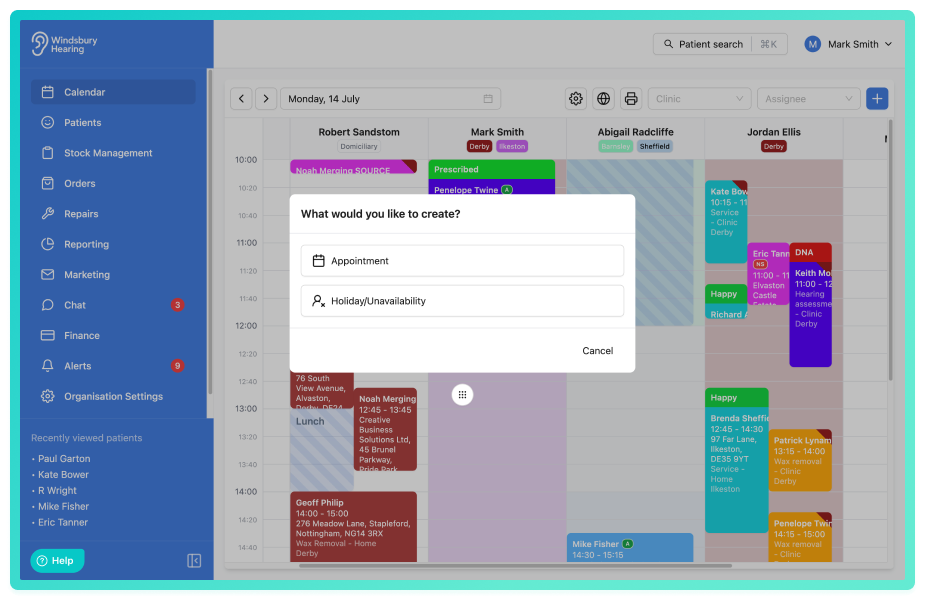
- You can create a Holiday/Unavailability in two ways.
- Click the + button.
- Select Holiday/Unavailability.
- Click on the Calendar and select Holiday/Unavailability.
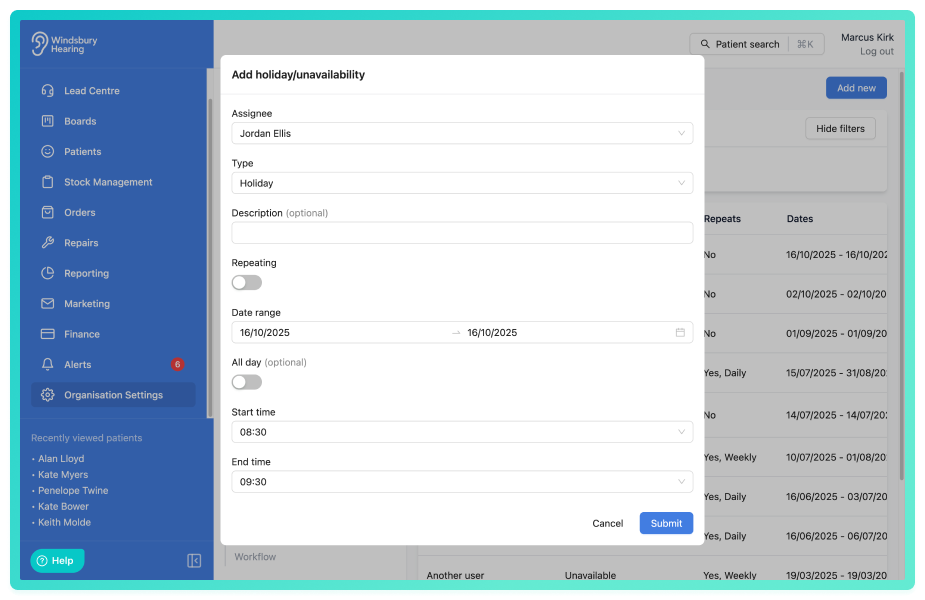
- Complete the Holiday/Unavailability form as required.
If you select the All day option, the start and end time will be removed and the holiday/unavailability will be set to the start and end time of the calendar.- Click Submit to save.
The entry will now appear in the calendar.
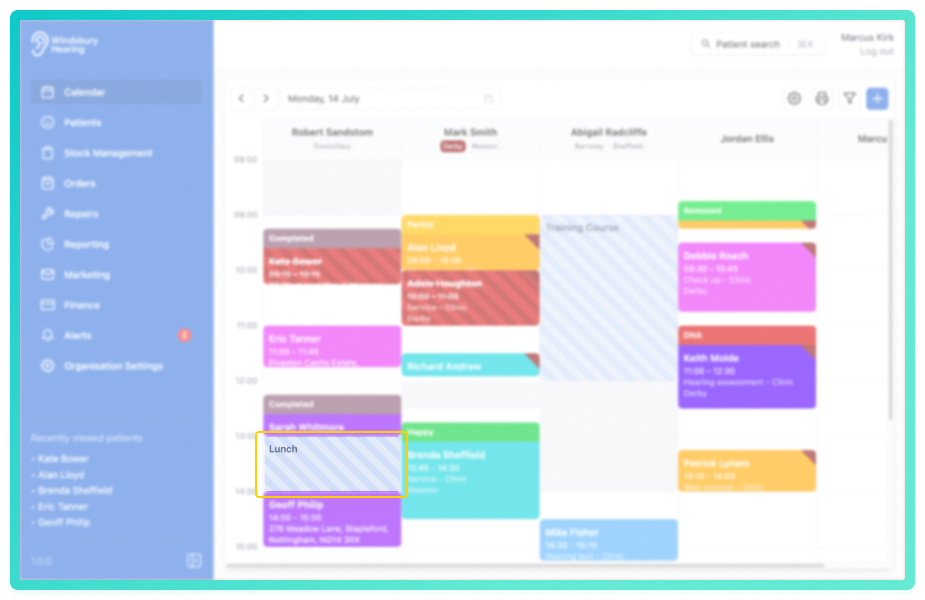
Edit a Holiday or Unavailability
- Locate and click More options
 , on the holiday you want to edit.
 - Click the Edit text.
If the holiday or unavailability is not repeating follow the below steps. If it is repeating there will be a different dialog, jump to edit a repeating holiday or unavailability.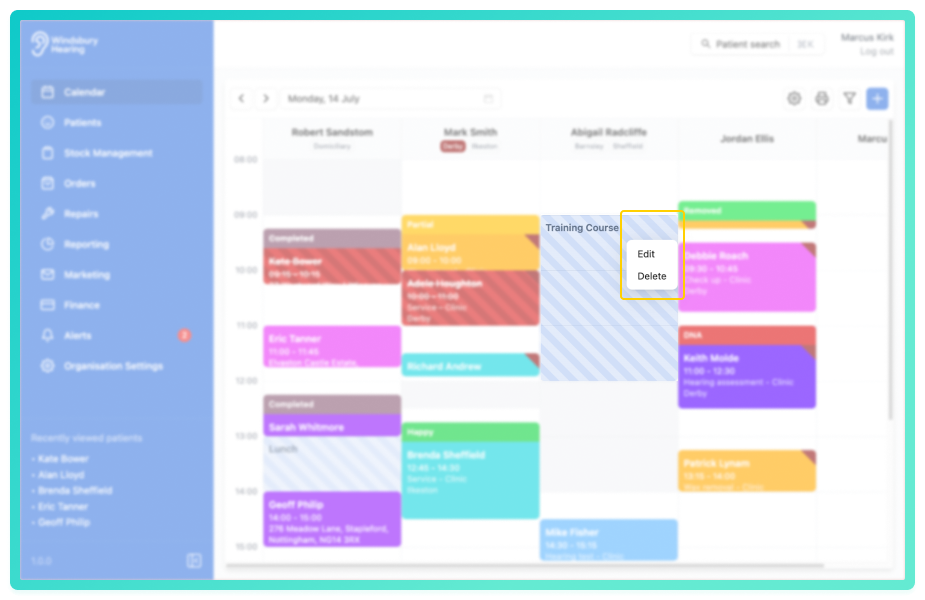
- Update the Holiday as required.
- Click Submit to save your changes.
Edit a repeating Holiday or Unavailability
You can edit a single instance of a repeating holiday or unavailability without affecting the rest of the instances.
Example: A user normally has a lunch break 12:30 - 13:00, but for one specific day it needs to be changed to 13:00 - 13:30, while keeping all other days the same.
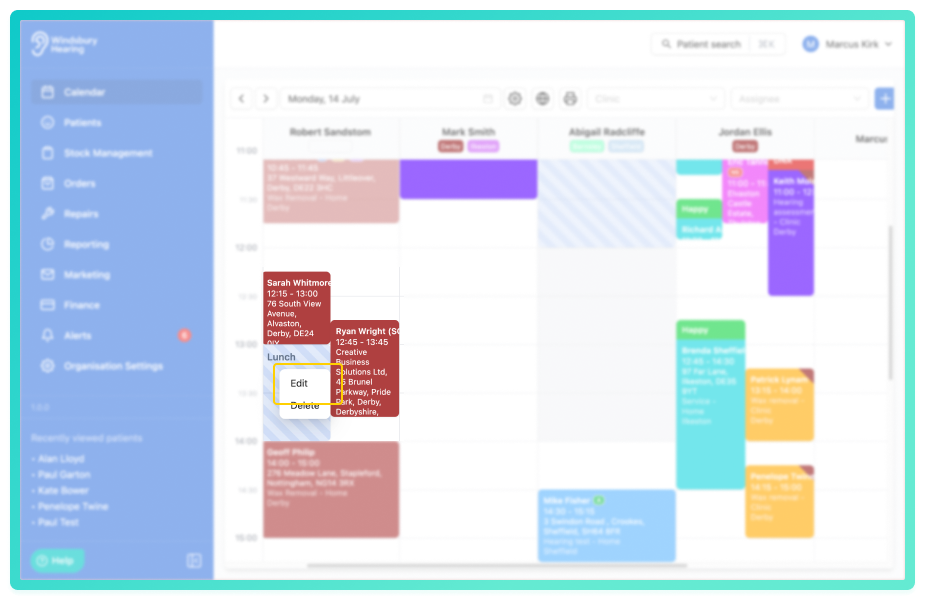
- Locate and click More options, on the holiday you want to edit.
- Click the Edit text.
- You will be asked how you want to apply the change: Only this instance or All instance.
If you select All instance please follow the instructions in Edit a Holiday or Unavailability.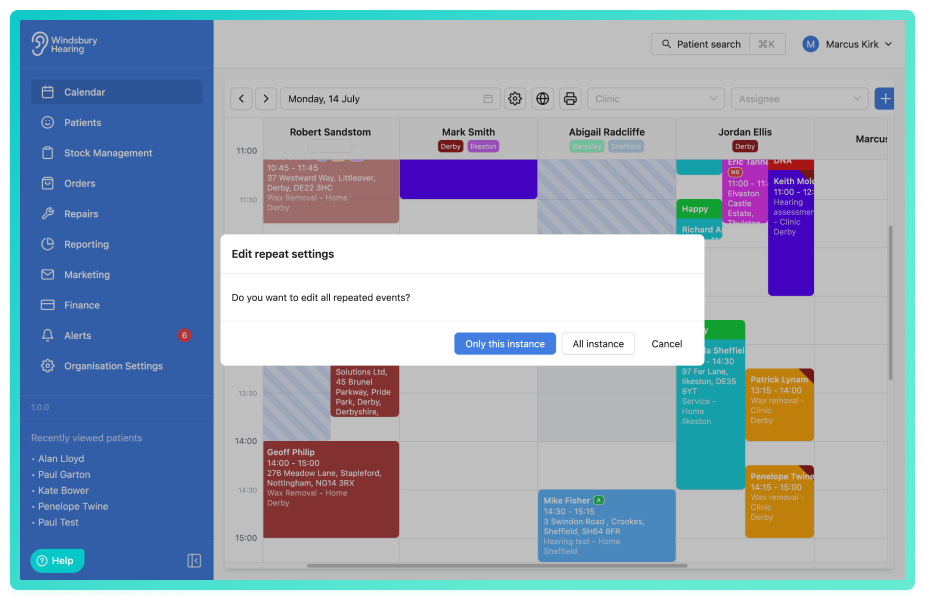
- Select Only this instance.
- Update the holiday or unavailability with the required details.
- Click Submit to apply the changes.
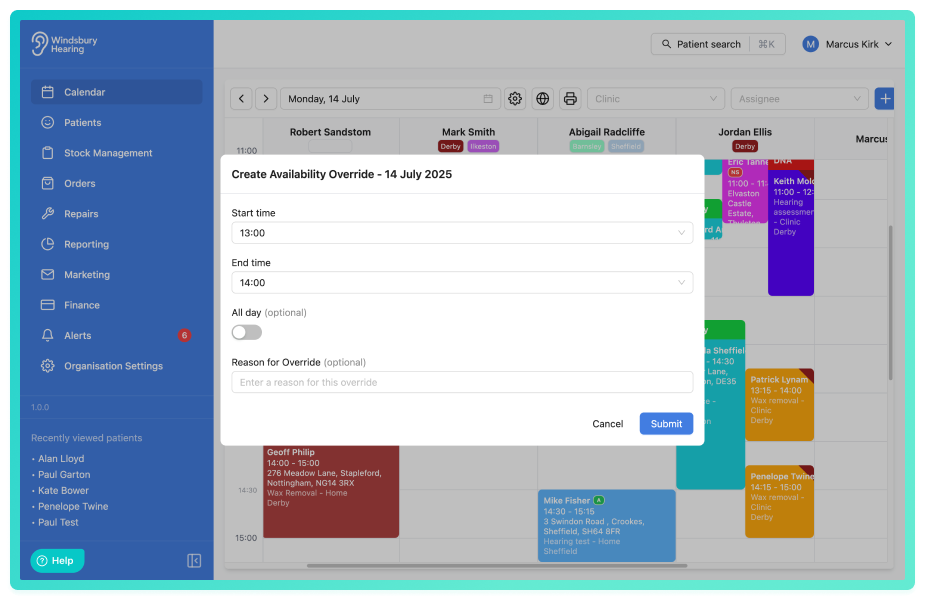
The holiday or unavailability will have been updated only for that specific instance, all other repeating occurrences will remain unchanged.
Delete a holiday or unavailability
- Locate and click More options, on the holiday you want to delete.
- Click the Delete text.
- You'll be shown a warning message.
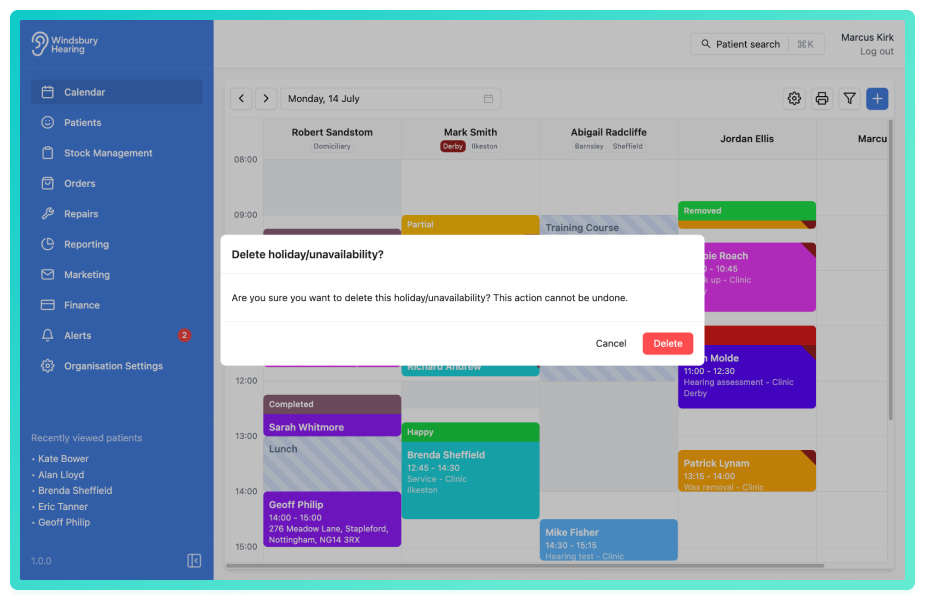
- Click Delete to confirm and delete the holiday.
Warning: Once a holiday or unavailability has been deleted this action cannot be undone. Please proceed withy caution!Set up repeating holidays or unavailability
When adding a holiday or unavailability, enable the Repeating option to allow it to recur.
- Choose to repeat every specific number of days, weeks, months or years.
- Select which days of the week the entry should apply to.
- Set an end date or choose to end after a specific number of occurrences.
Example: if a user is unavailable every Thursday from 12:30 PM to 15:30 PM, enable the repeating option and configure the reccurrence accordingly.
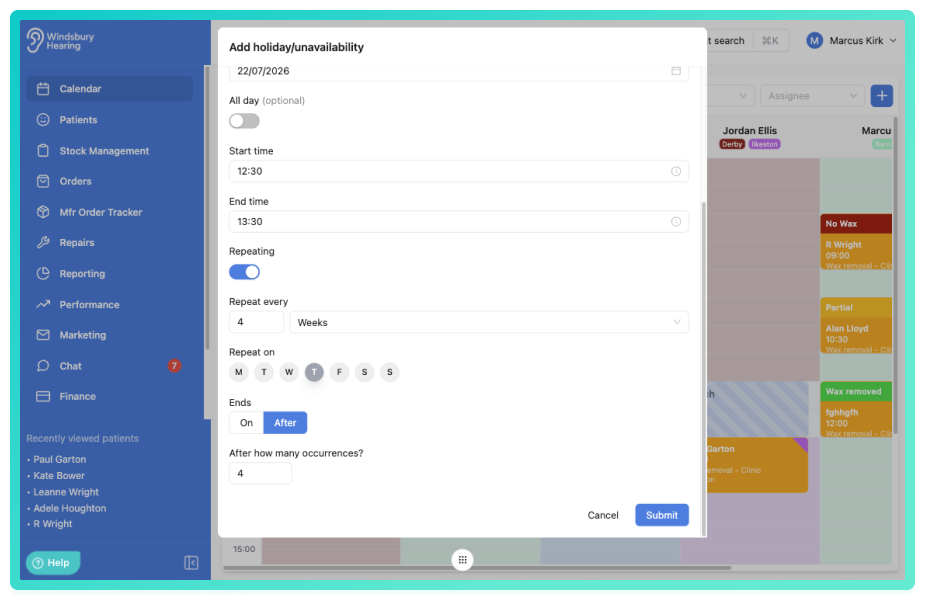
- Click Submit to save.
The unavailability will now repeat based on the configuration until the specified end date.
Add a holiday or unavailability through the organisation settings
You can also manage holidays or unavailability via organisation settings. Please see this article for more information.
Please be aware you can still book appointments when a user is on holiday. Be sure to double check when booking an appointment.
Was this article helpful?
That’s Great!
Thank you for your feedback
Sorry! We couldn't be helpful
Thank you for your feedback
Feedback sent
We appreciate your effort and will try to fix the article