If needed, a patient can be created when booking an appointment. This helps reduce time when a new patient is needed to be created before an appointment can be booked.
In this article we'll cover how to:
- how to create a patient when booking an appointment.
Create patient when booking an appointment
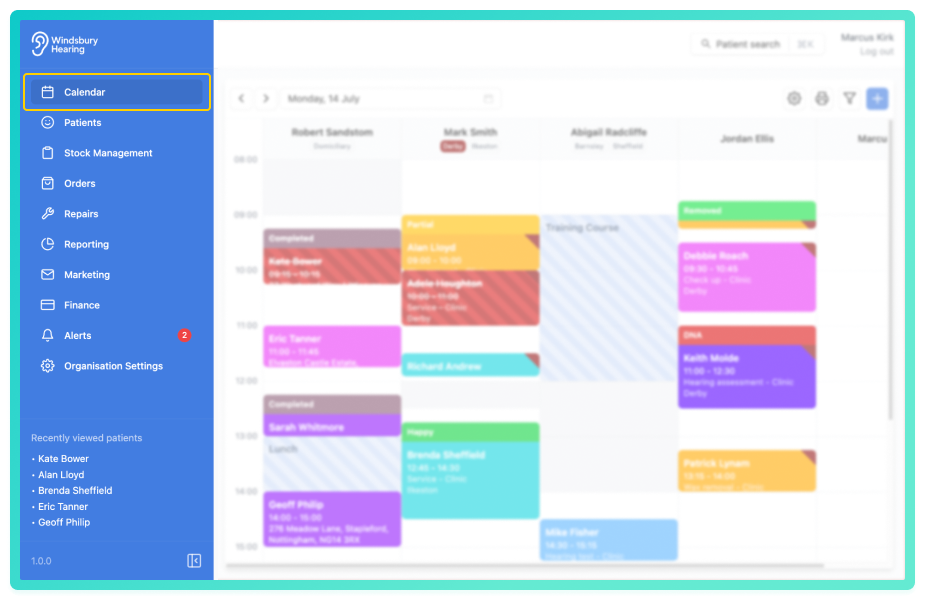
- Click on the desired time slot under the appropriate user to begin booking.
Example: to book a 9:00 AM appointment, click at that time beneath the assignee's name.
- Click the Add a new patient button.
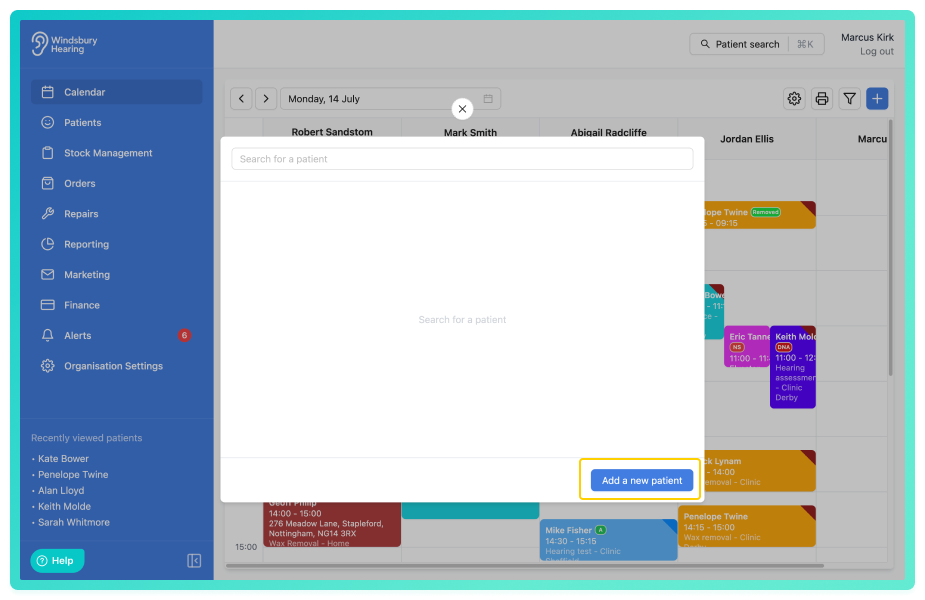
- The patient form will appear.
The add a new patient form, when creating an appointment, will only include the mandatory fields you set in the patient form settings. This ensures you can add a new patient quickly, create the appointment and fill in the patient optional details at a later time. 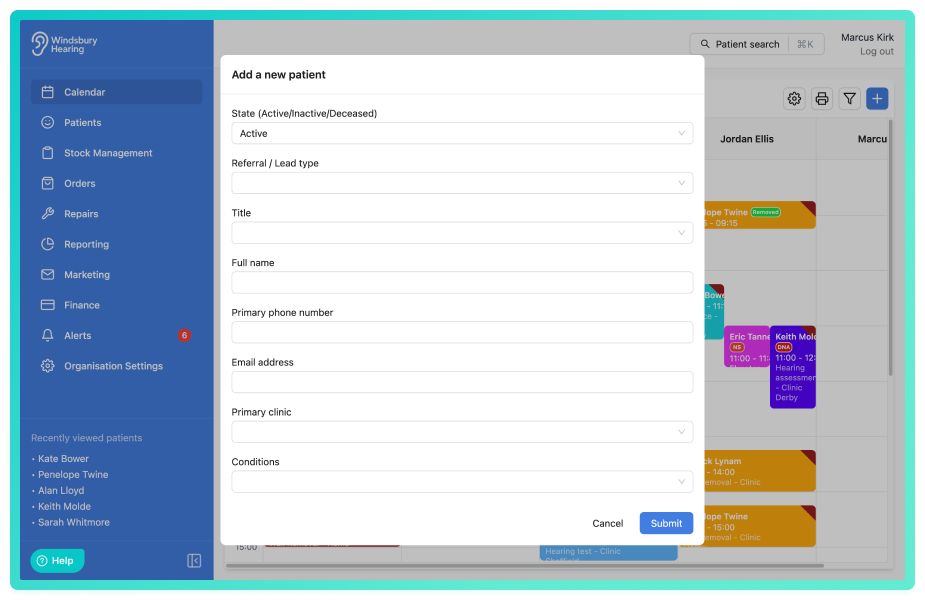
- Fill in the patient form and you will be redirected back to creating the appointment with the new user's details.
Complete creating an appointment by following this article.
Was this article helpful?
That’s Great!
Thank you for your feedback
Sorry! We couldn't be helpful
Thank you for your feedback
Feedback sent
We appreciate your effort and will try to fix the article