If you need a printed copy of a user's schedule, you can generate a PDF or CSV directly from the calendar view. This can be saved to your device or printed out, depending on your requirements. When exporting to CSV, you can select which columns to include in the export. You can also export multiple schedules using the same method.
In this article we'll cover how to:
- generate a PDF or CSV of a user's daily schedule.
- select columns when exporting to CSV.
Create a PDF or CSV of a daily schedule
- Navigate to Calendar.
- Locate and click the Printer icon button.

- Select a User from the dropdown menu.
- Select a Date.
- Select the Export Type
- Click Submit.
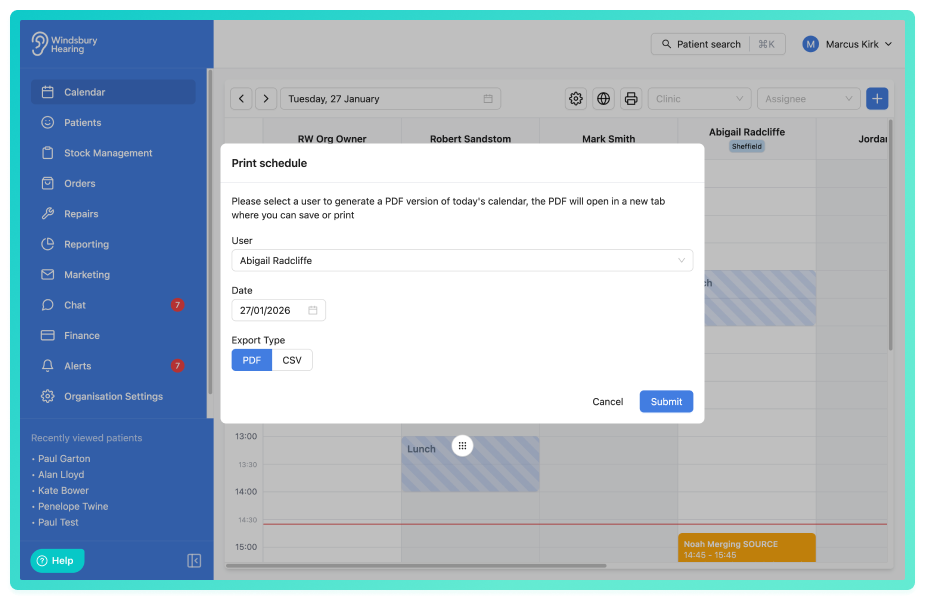
If CSV selected, a CSV file will be automatically downloaded to your system.
If PDF selected, a PDF of the user's daily schedule will be generated. You can then download or print it as needed.
Select columns when exporting to CSV
When exporting your calendar to CSV format, you can customise which columns are included in the export.
- Open the print or export schedule dialog.
- Locate the available columns list.
- Select the checkboxes next to the columns you want to include in your CSV export.
- Deselect any columns you do not require.
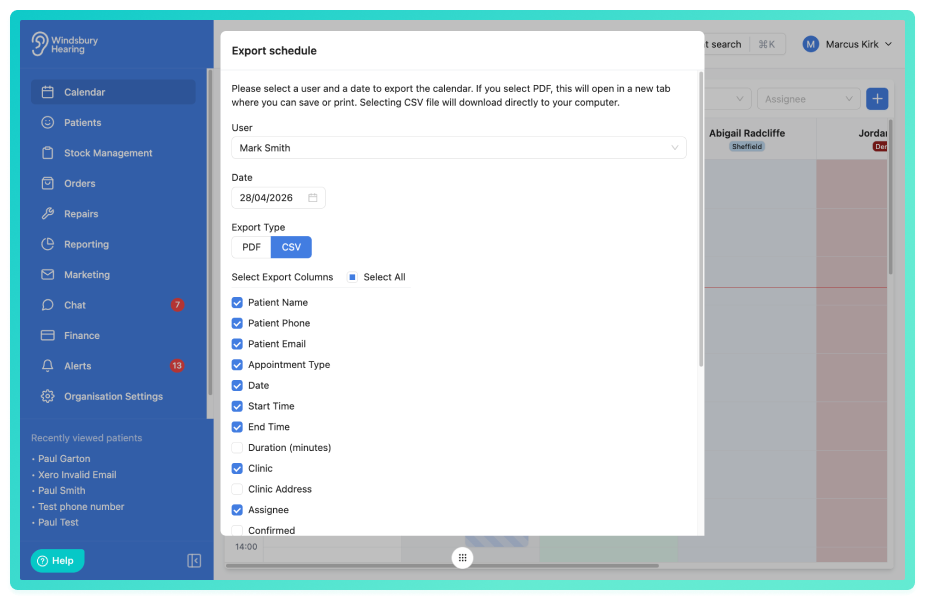
- Click Submit.
Only the columns you have selected will be included in the exported CSV file, allowing you to exclude unnecessary information and create cleaner exports for reporting.
Was this article helpful?
That’s Great!
Thank you for your feedback
Sorry! We couldn't be helpful
Thank you for your feedback
Feedback sent
We appreciate your effort and will try to fix the article