You can manage holidays and user unavailability within the organisation settings. This ensures that calendars reflect when a user is not available for appointments, either temporarily or on a repeating basis.
In this article we'll cover how to:
- add a new holiday or unavailability.
- edit an existing entry.
- delete an existing holiday or unavailability.
- set up repeating entries.
- filter holidays or unavailability by user.
Only users with the correct permissions can add, edit or delete holidays & unavailability. If you think you should have permission to perform such an action please contact the organisation owner.Add a new holiday or unavailability
- Navigate to Organisation Settings.
- Locate and click the Holidays & Unavailability section of the settings.
- Locate the Add new button.
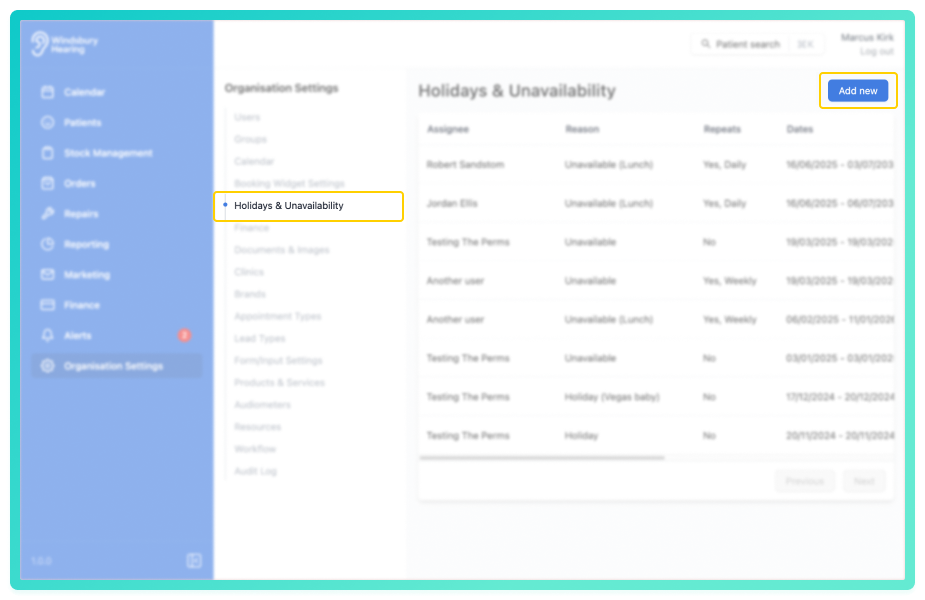
- Click the Add new button.
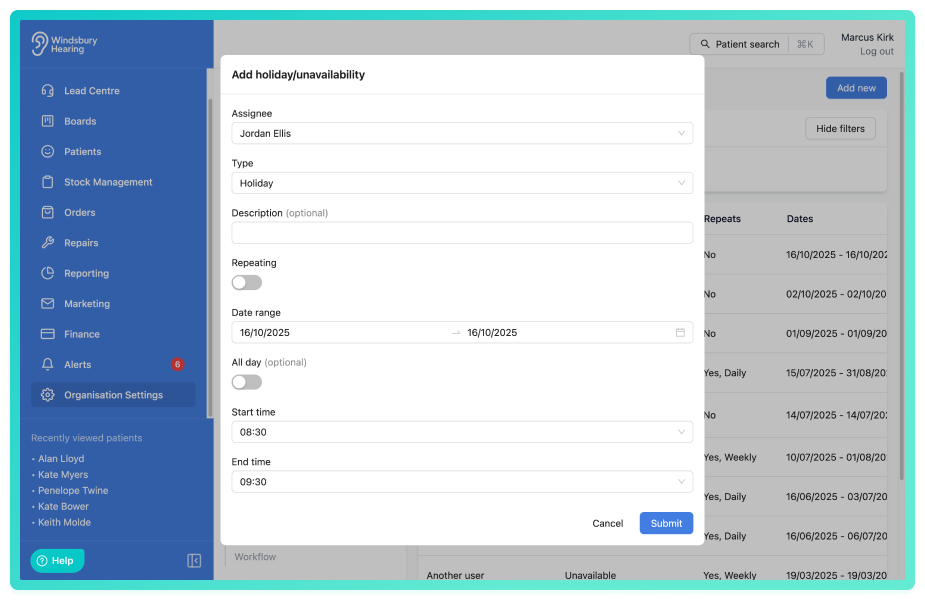
- Complete the form with the relevant user and their holiday or unavailability details.
If you select the All day option, the start and end time will be removed and the holiday/unavailability will be set to the start and end time of the calendar.We will cover how to use the Repeat option later in this article.
Edit a holiday or unavailability
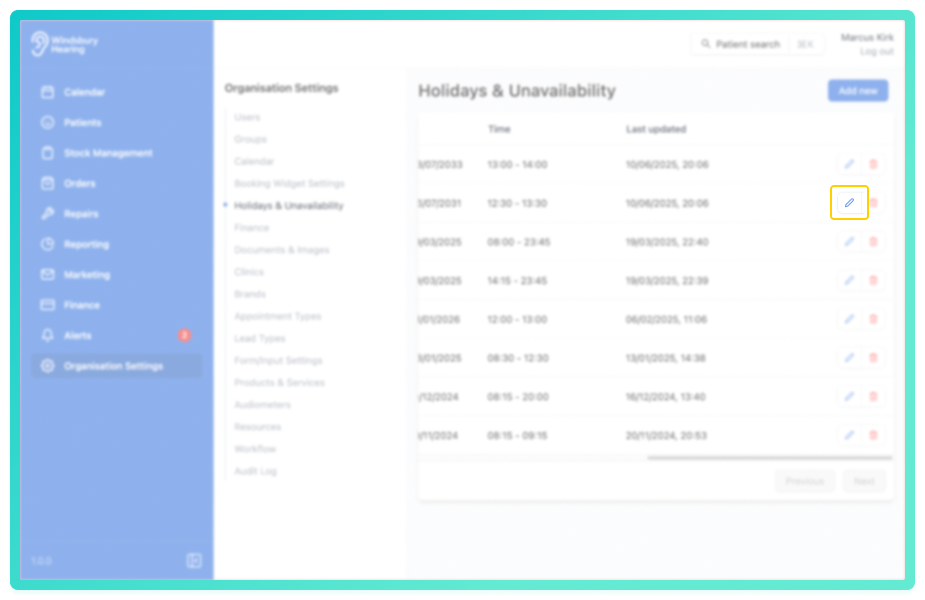
- Locate and click the Edit icon
 next to the relevant entry.
- Update the details in the form to the new requirements.
- Click Submit to apply the changes.
The calendar will reflect the updated information.
Delete a holiday or unavailability
- Locate and click the Delete icon
 next to the relevant entry.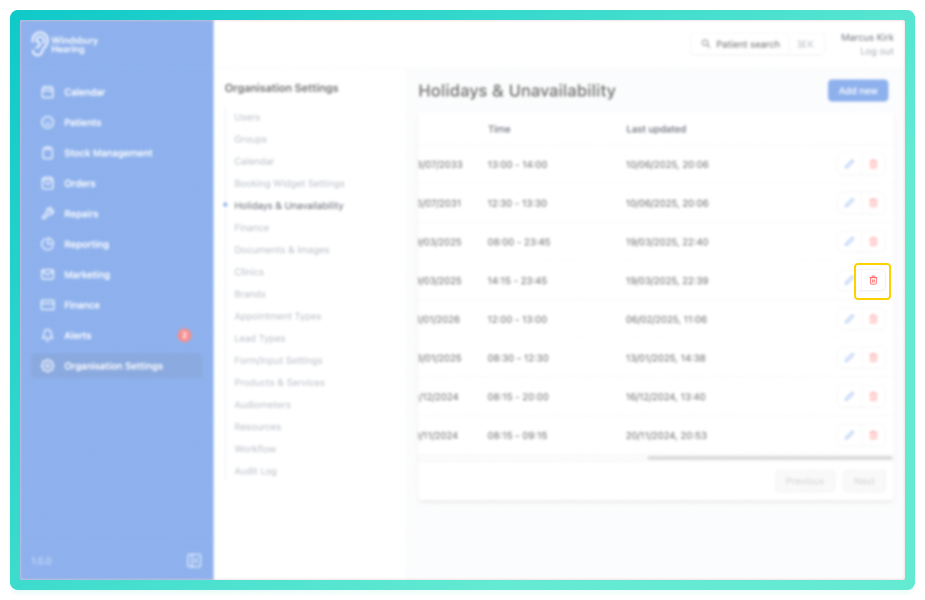
- You'll be shown a warning message.
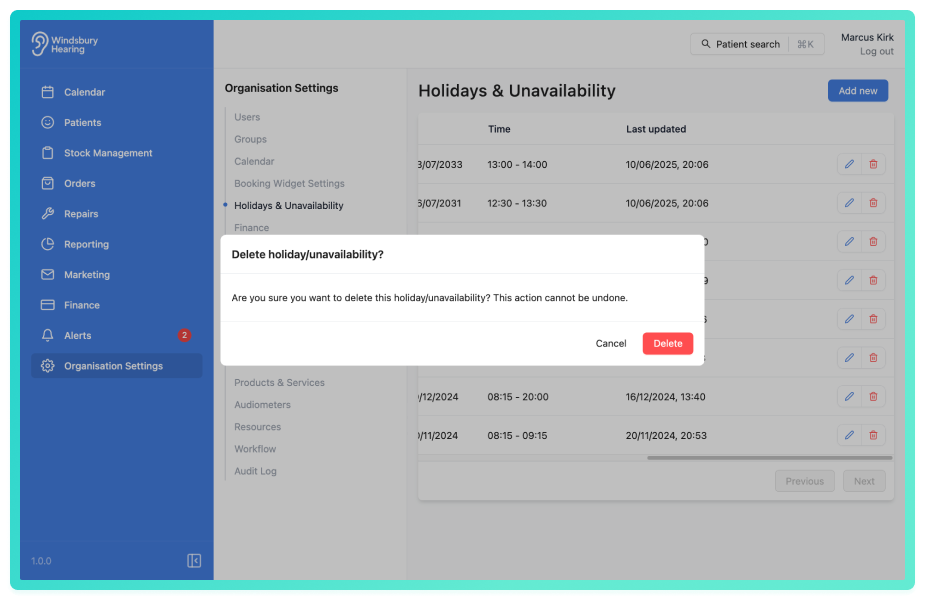
- Click Delete to confirm and remove the entry.
Warning: Once a holiday or unavailability has been deleted this action cannot be undone. Please proceed with caution!Repeat Holidays or Unavailability
When adding a new entry, you can choose to set it as a repeating event.
Example: Mark is unavailable for the next four weeks, every Thursday between 12:30 and 15:30, due to training purposes. Rather than entering this manually each week, enable the Repeat option and configure the recurrence.
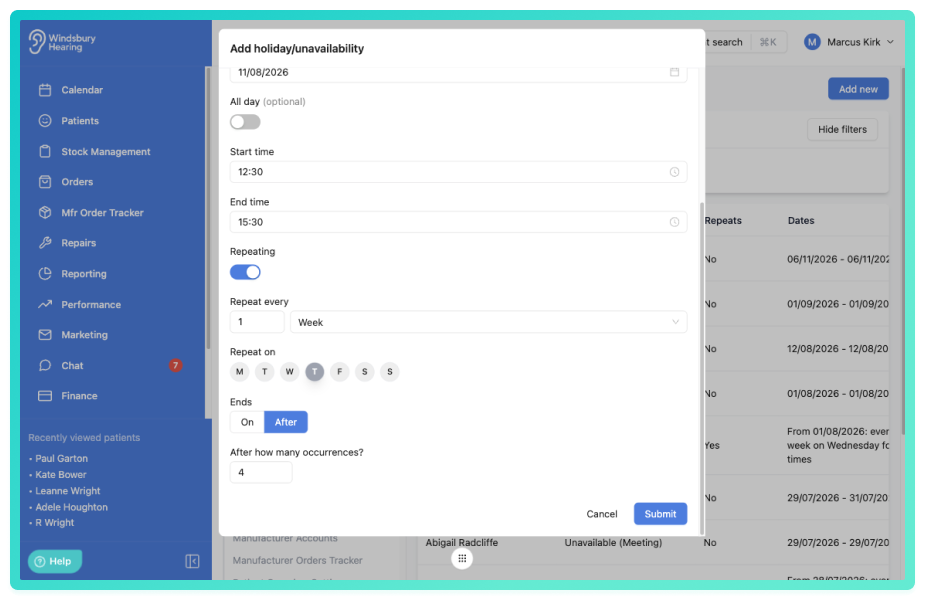
- Click Submit and the HearLink system will apply the unavailability automatically across the chosen time span.
Please be aware you can still book appointments when a user is on holiday or unavailable. Be sure to double check when booking an appointment.Filter Holidays & Unavailability per user
You can quickly find all holidays and unavailability for a specific using by using the filter feature.
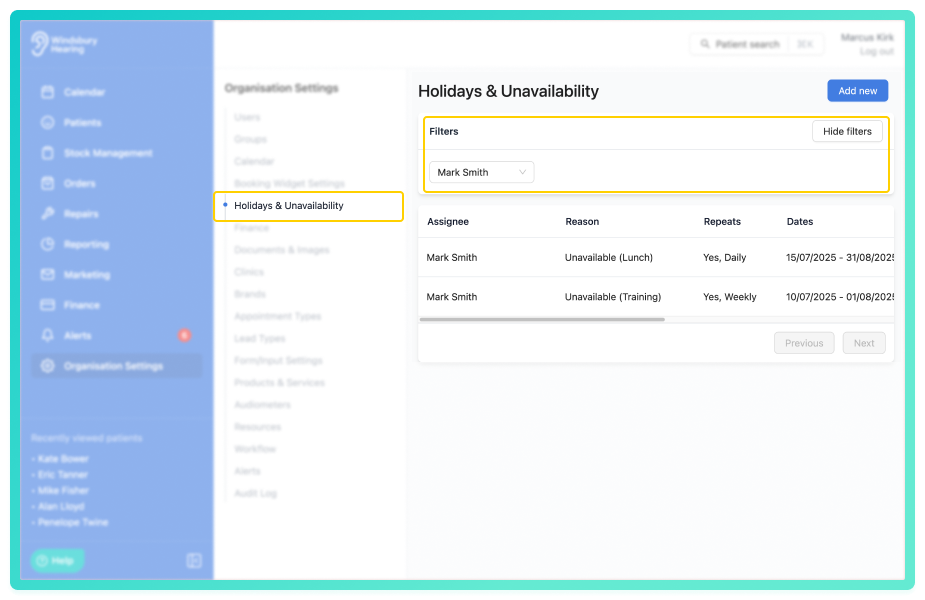
Was this article helpful?
That’s Great!
Thank you for your feedback
Sorry! We couldn't be helpful
Thank you for your feedback
Feedback sent
We appreciate your effort and will try to fix the article