You can configure the calendar to suit your organisation's needs, including setting start and end times, choosing default views, and selecting which days of the week to display.
In this article we will cover:
- how to configure the calendar settings.
- a breakdown of each available setting.
Only users with the correct permissions can update calendar settings. If you think you should have permission to perform such an action, please contact your organisation owner.Configure the calendar settings
- Navigate to Organisation Settings.
- Locate the Calendar section of the settings.
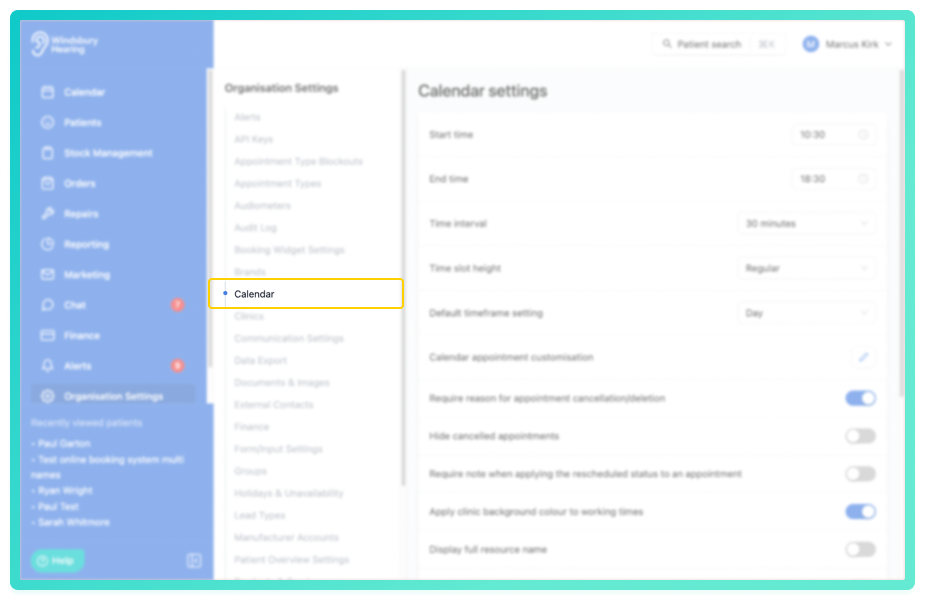
- Complete the Calendar configuration based on your organisation's perferences.
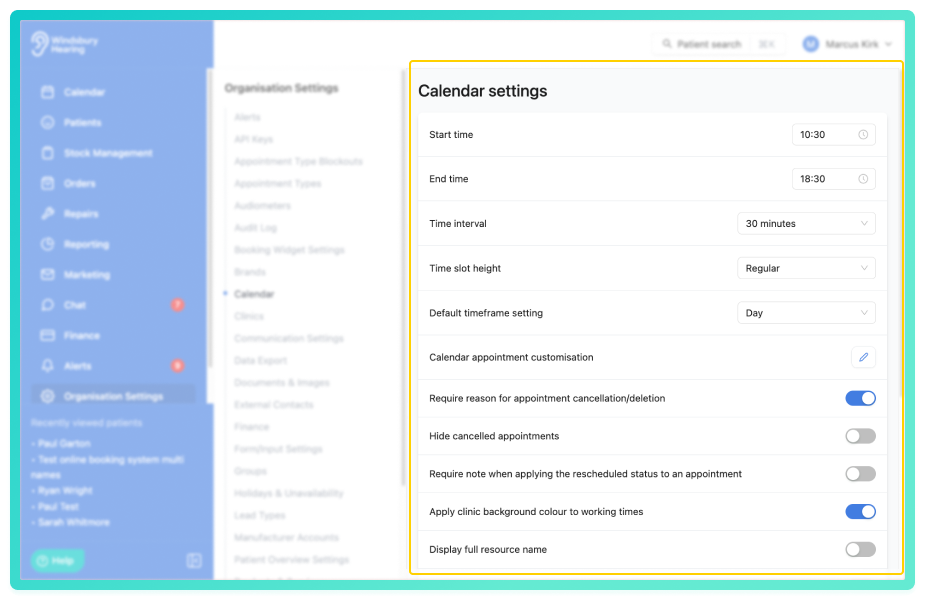
Understanding the Calendar Settings
Start Time & End Time
This sets the visible timeframe on the calendar.
Example: If the start time is set to 8:30 AM, the calendar will begin at 8:30 AM.
Time Interval
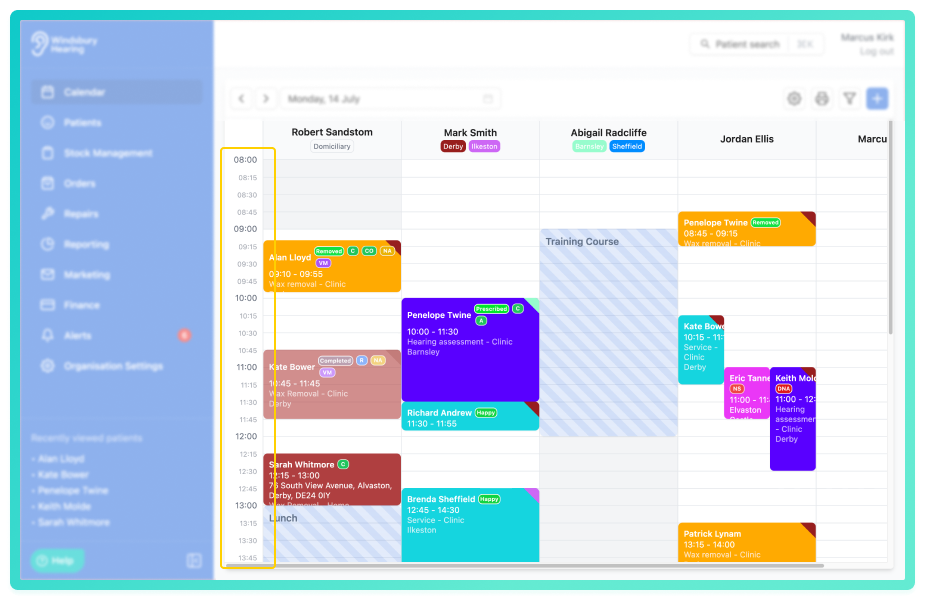
This sets time interval on the calendar. It can be set to 15, 20, 30 or 60 mins.
Example: The below image is set to 15 minute intervals.
Time slot height
Choose between Small, Regular, Large or Extra Large as the default height of the time slot settings.
This helps you view more of the appointment information for shorter durations such as 15 minute bookings.
See Time slot height for more information.
Default timeframe setting
Choose between Day or Week as the default display in the People view.
The Clinic view will always default to Day.
You can also change this view directly from within the calendar.
Calendar appointment customisation
Choose how you wish the appointment card appears. For more information see Calendar appointment customisation.
Require reason for appointment cancellation/deletion
When cancelling or deleting an appointment, an organisation can add a reason to the cancelation or deletion. Set your preferences for the reason to be required or optional.
- When setting is enabled the user cancelling or deleting an appointment must provide a reason.
- When the setting is disabled the user cancelling or deleting an appointment can still provide a reason should they want, but it is an optional field.
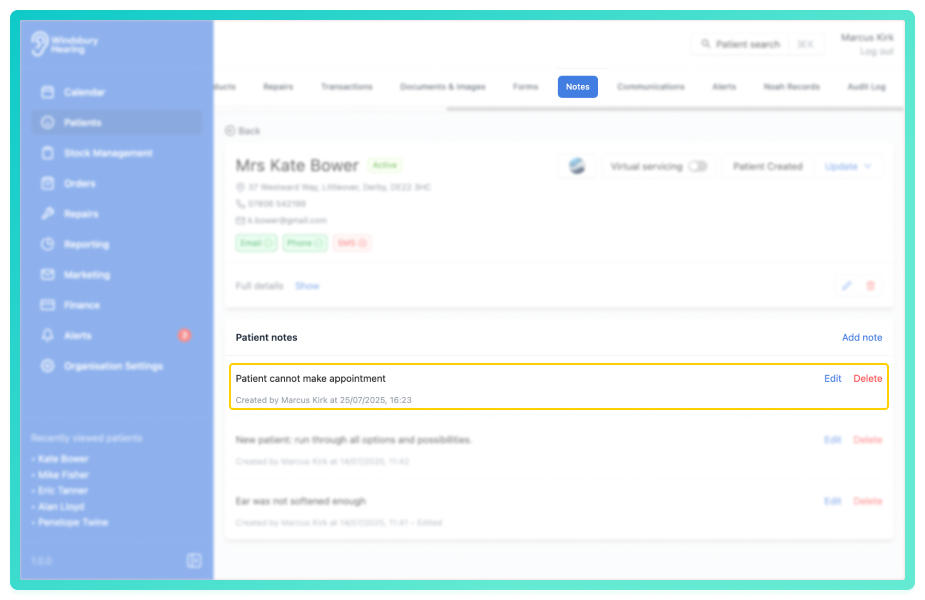
If a note has been added to a cancellation or deletion. It will automatically be added to the patient notes in the patient dashboard.
Require note when applying the rescheduled status to an appointment
When rescheduling an appointment, an organisation can add a reason for the reschedule. Set your preferences for the reason to be required or optional.
- When setting is enabled the user rescheduling an appointment must provide a reason.
- When the setting is disabled the user rescheduling an appointment can still provide a reason should they want, but it is an optional field.
If a note has been added to a reschedule. It will automatically be added to the patient notes in the patient dashboard. 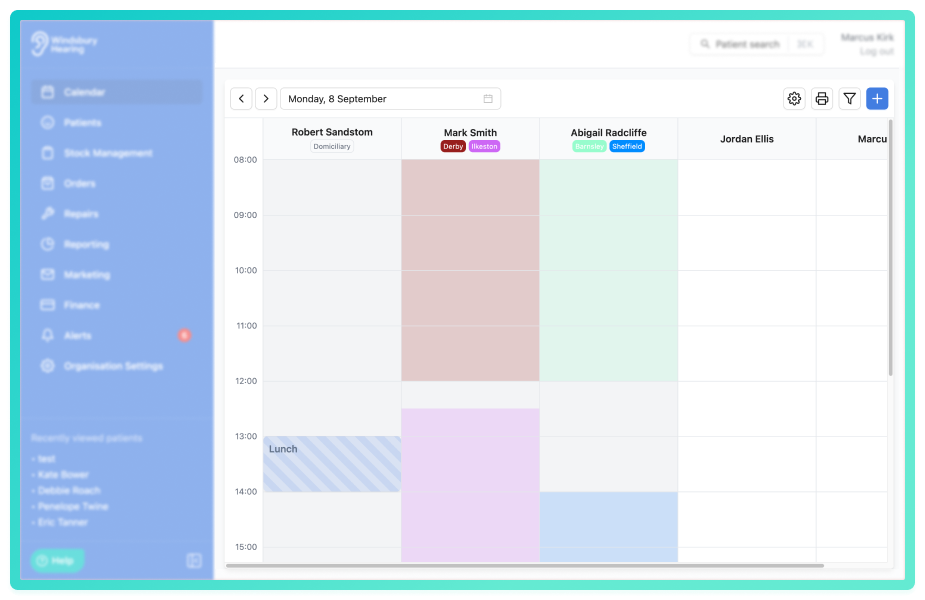
Display full resource name
By default the week view of the calendar only displays the initials of each user in the calendar header. With this option toggled on, the full name will appear when in week view on the calendar.
Prevent internal bookings when location is mismatched
By default HearLink does not stop a user booking an internal appointment if the clinic mismatches, the user will receive a warning but can override this.
When enabled, this setting prevents users from creating internal appointments where the selected clinic location does not match the user's assigned schedule location. This helps avoid booking errors and ensures appointments are only created where the assignee is actually available.
Primary clinic mismatch
You can configure HearLink to warn or block users when assigning a patient to an appointment at a clinic that is not their primary clinic. This helps maintain data accuracy and ensures patients are scheduled at the correct location.
Choose your preferred setting:
- Off (default)
- Warning - users will see a warning message when assigning a patient to a clinic that does not match their primary clinic, but can proceed with the action.
- Block - users will be prevented from assigning a patient to a clinic that does not match their primary clinic, until the clinic is changed to match.
Require an outcome to be set before an appointment can be checked out
When this setting is enabled, users must first record the outcome of the appointment before completing the check out action. This helps ensure appointment results are consistently recorded and prevents appointments from being closed without capturing the necessary clinical or administrative information.
Enabled Days
If your organisation is only open on selected days, use the checkboxes to select which days should appear on the calendar.
Calendar Order
If you have multiple practitioners, you can configure the order in which they appear in the calendar to suit your workflow.
Was this article helpful?
That’s Great!
Thank you for your feedback
Sorry! We couldn't be helpful
Thank you for your feedback
Feedback sent
We appreciate your effort and will try to fix the article