An organisation can choose the time slot settings for the booking widget to align more with the organisation's working times and appointment type duration.
In this article we'll cover how to:
- set an interval.
- set a minimum booking notice.
Only users with the correct permissions can edit the time slot settings. If you think you should have permission to perform such an action please contact the organisation owner.Set a time slot interval
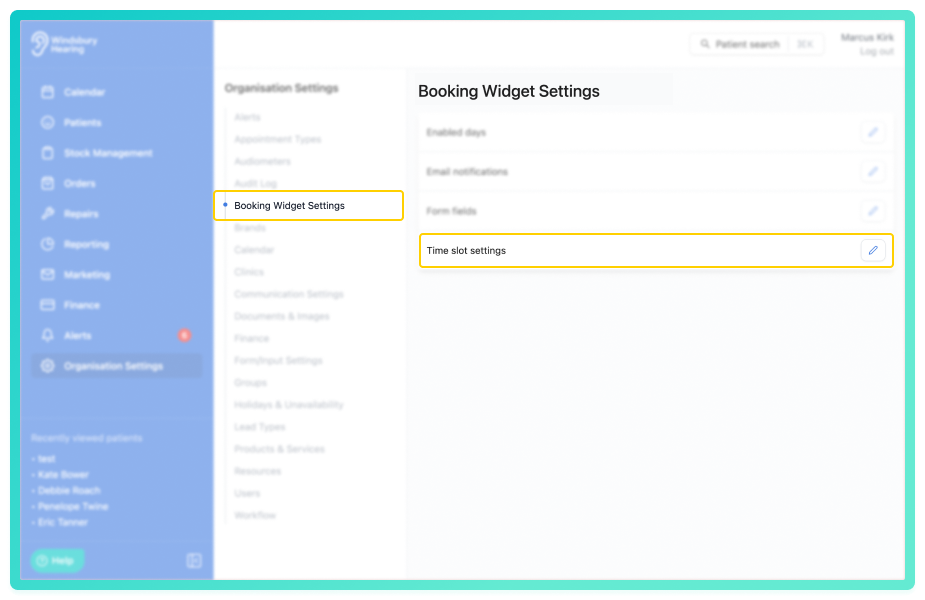
- Navigate to Organisation settings.
- Locate and click the Booking Widget Settings section of the settings.
- Click the Edit icon
 next to Time slot settings.
- Select an Interval for appointment time slots.
- Options include 5, 10, 15, 20, 30, and 60 minutes as well as the appointment type duration.
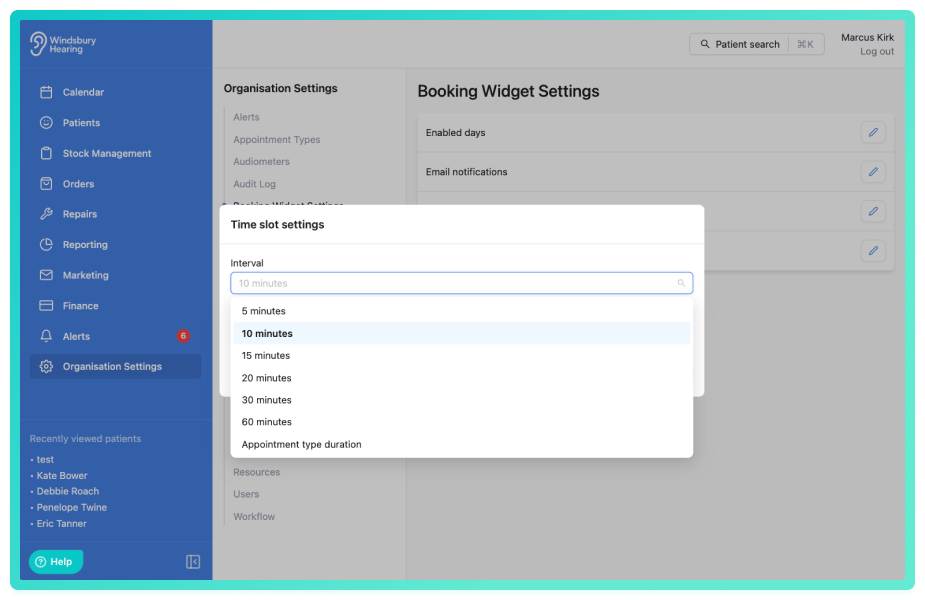
- Click Submit to apply the changes.
The interval you set is the default spacing between offered slots, not a fixed grid. If a gap appears in the schedule that's smaller than your chosen interval, such as from a manually booked appointment on the calendar, HearLink offers slots in smaller increments around that gap to make use of the available time, then returns to your set interval once the gap has passed.

Example: your interval is set to 30 minutes. A patient books manually on the calendar from 11:45 to 12:30. Slots leading up to 11:45 will be offered in 15 increments to fill the gap, and slots from 12:30 onwards return to the usual 30 minute interval.
Set a minimum booking notice
Set a minimum amount of time before a patient can book an appointment on the booking widget.
Example:
- Set the minimum amount of time to 30 minutes.
- A patient is browsing the booking widget at 11:00.
- They cannot book an appointment until 11:30.
- This helps prevent last minute appointments.
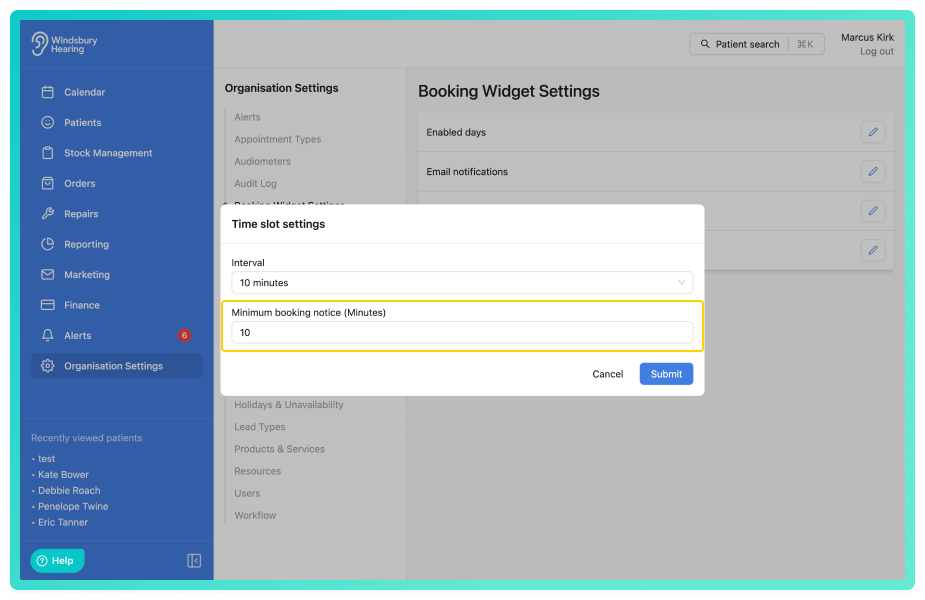
- Click Submit to apply the changes.
Was this article helpful?
That’s Great!
Thank you for your feedback
Sorry! We couldn't be helpful
Thank you for your feedback
Feedback sent
We appreciate your effort and will try to fix the article