An organisation can choose which days are available for patients to book appointments using the booking widget. These can be configured for the organisation as a whole or for individual clinics.
In this article we'll cover how to:
- edit the enabled days for the whole organisation.
- edit the enabled days for individual clinics.
Only users with the correct permissions can edit the enabled days. If you think you should have permission to perform such an action please contact the organisation owner.Enable days
- Navigate to Organisation settings.
- Locate and click the Booking Widget Settings section of the settings.
- Click the Edit icon
 next to Enabled days.

Whole organisation
- Select the checkboxes for each day your organisation wants to allow bookings
- Example: If your organisation operates Monday to Friday, select these days
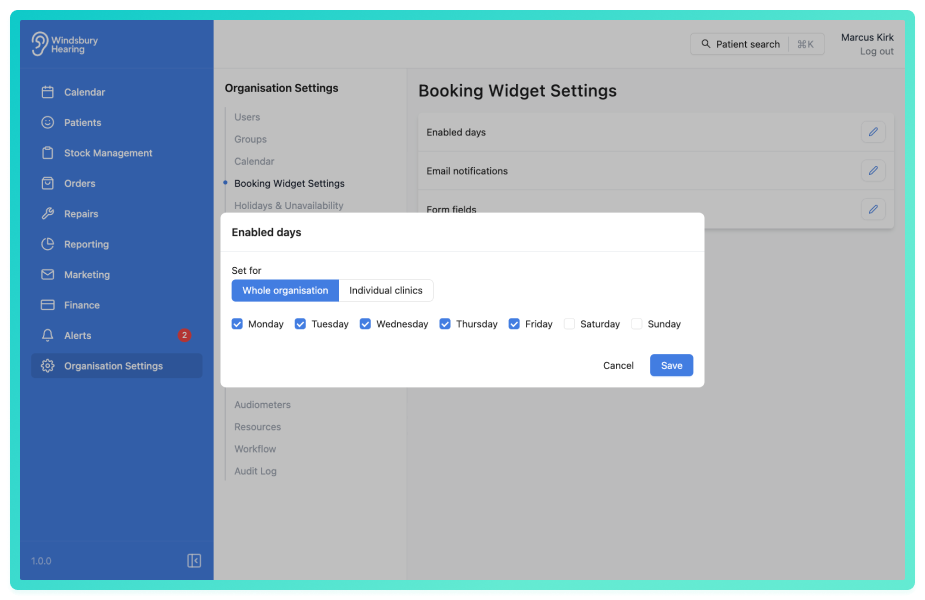
Individual clinics
- If an organisation has multiple clinics, you can set the Enabled days for each clinic separately.
- Example: All clinics operate Monday to Friday. Derby clinic also operates Saturdays and Sundays. Select the days accordingly for each clinic.

- Click Save to apply the changes.
Was this article helpful?
That’s Great!
Thank you for your feedback
Sorry! We couldn't be helpful
Thank you for your feedback
Feedback sent
We appreciate your effort and will try to fix the article