There are a number of pre-defined form fields for the booking widget:
- Full Name (required)
- Phone Number (required)
- Email Address
- Date of birth
- Gender
- GP
- Additional Notes
- Where did you hear about us?
You can enable or disable these fields according to your organisation's needs. You can also male these fields mandatory or optional.
In this article we'll cover:
- how to enable or disable the form fields.
- how to add options to the Where did you hear about us? field.
- how this field relates to referrals.
- where the additional notes data is presented.
Only users with the correct permissions can edit the form fields. If you think you should have permission to perform such an action please contact the organisation owner.Edit form fields
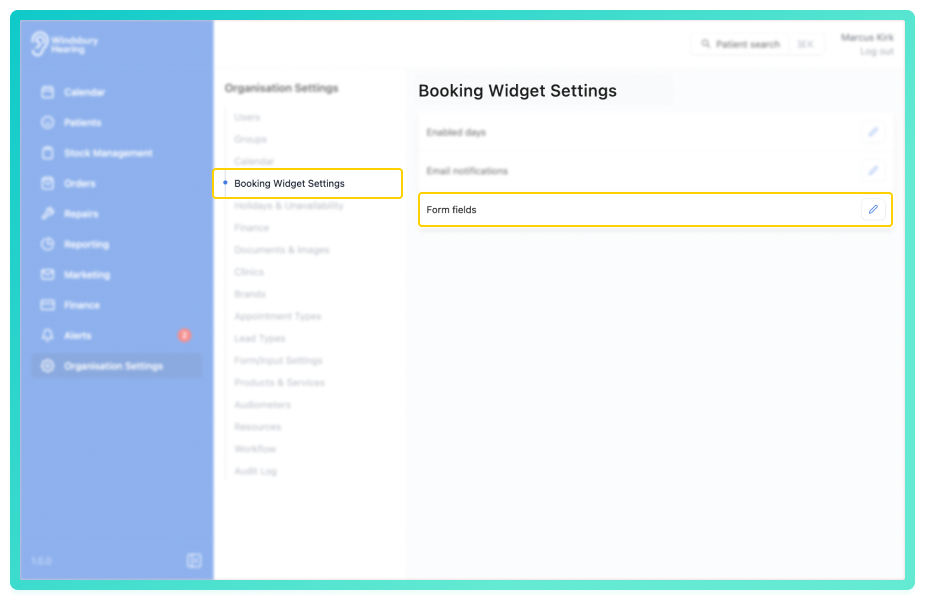
- Navigate to Organisation settings.
- Locate and click the Booking Widget Settings section of the settings.
- Click the Edit icon
 next to Form fields.
- Enable or disable each Form field as required. Example: Full name and Phone Number enabled (required), Email Address and Where did you hear about us? disabled (hidden).
- Choose whether you want each field to be mandatory or optional.
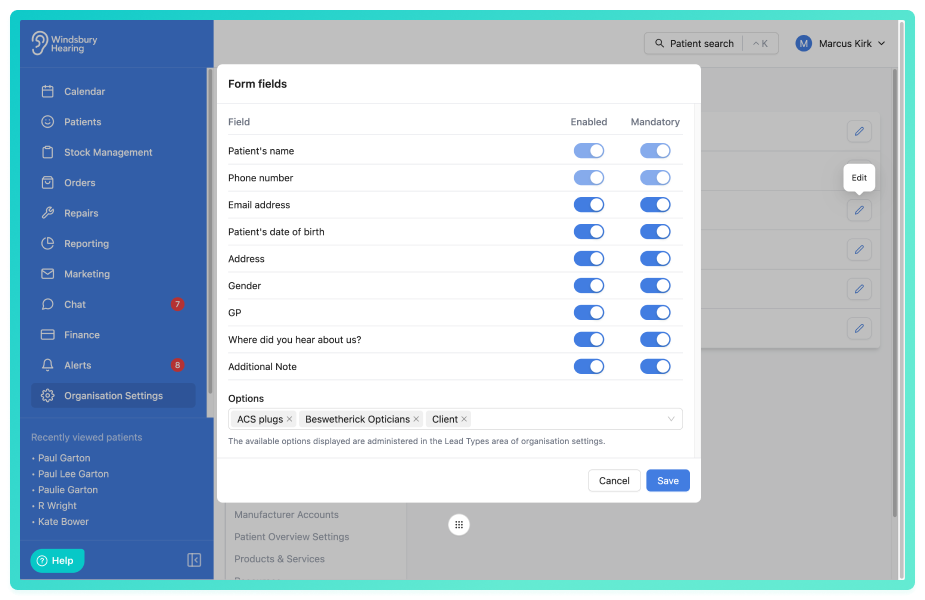
- Click Save to apply the changes.
Where did you hear about us?
When enabled, you can add options that correspond to your lead types.
This data can then be tracked in the Reporting section of the HearLink system.
- Add the desired options
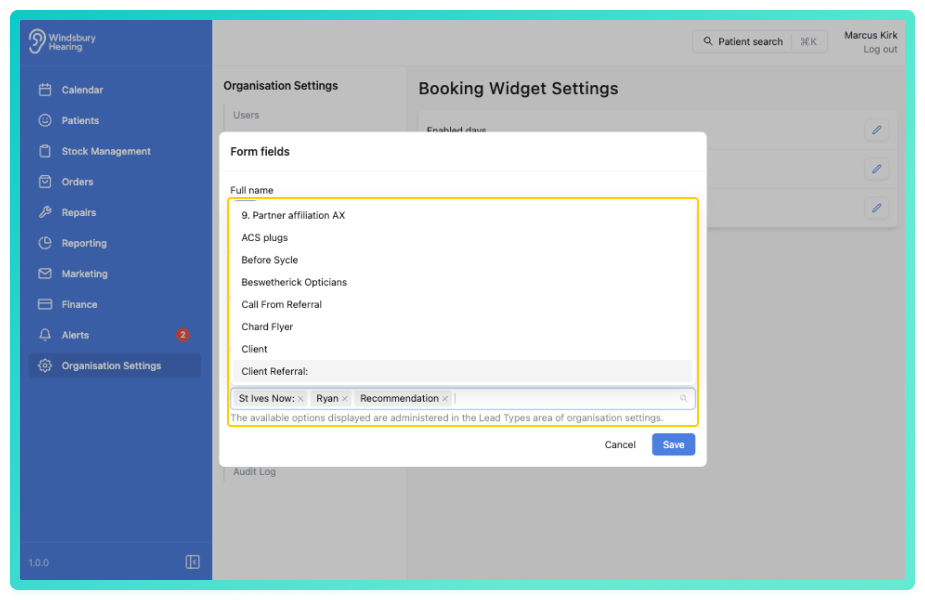
- Click Save to save your options.
Was this article helpful?
That’s Great!
Thank you for your feedback
Sorry! We couldn't be helpful
Thank you for your feedback
Feedback sent
We appreciate your effort and will try to fix the article