An organisation can configure mandatory fields on the invoice form to enforce data entry requirements when creating or editing invoices. This allows administrators to set which fields must be completed before an invoice can be saved.
In this article we'll cover how to:
- access the invoice form settings.
- configure mandatory fields on the invoice form.
- enable the billed appointments selector.
- linked appointment and reporting.
Only users with the correct permissions can manage invoice form settings. If you think you should have permission to perform such an action please contact the organisation owner.Access invoice form settings
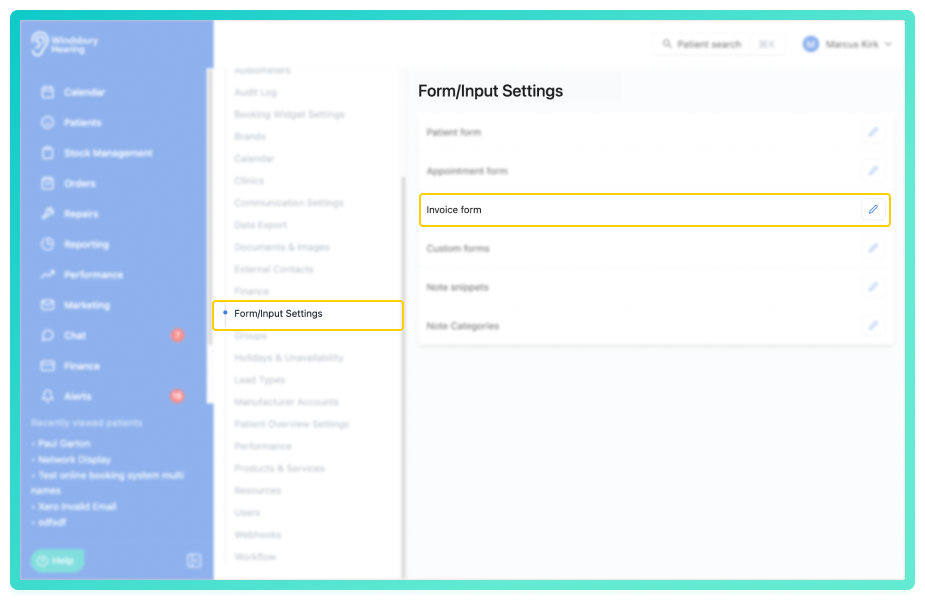
- Navigate to Organisation Settings.
- Locate and click Form Settings section of the settings.
- Click Edit
 icon next to Invoice form.
Configure mandatory fields
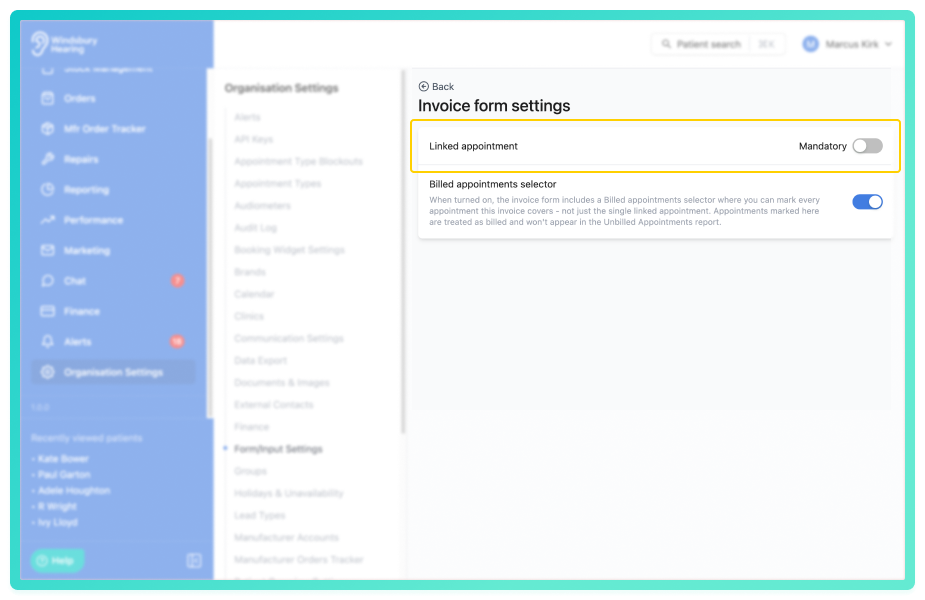
The invoice form settings page displays available fields that can be made mandatory.
- Select whether the Linked appointment should be enabled or disabled as a mandatory field.
- When enabled, users must select a linked appointment when creating or editing an invoice.
Once enabled, the billed appointments selector will appear on the invoice form, allowing users to select which appointments an invoice covers. Changes are saved automatically when you toggle a field.
Enable the billed appointments selector
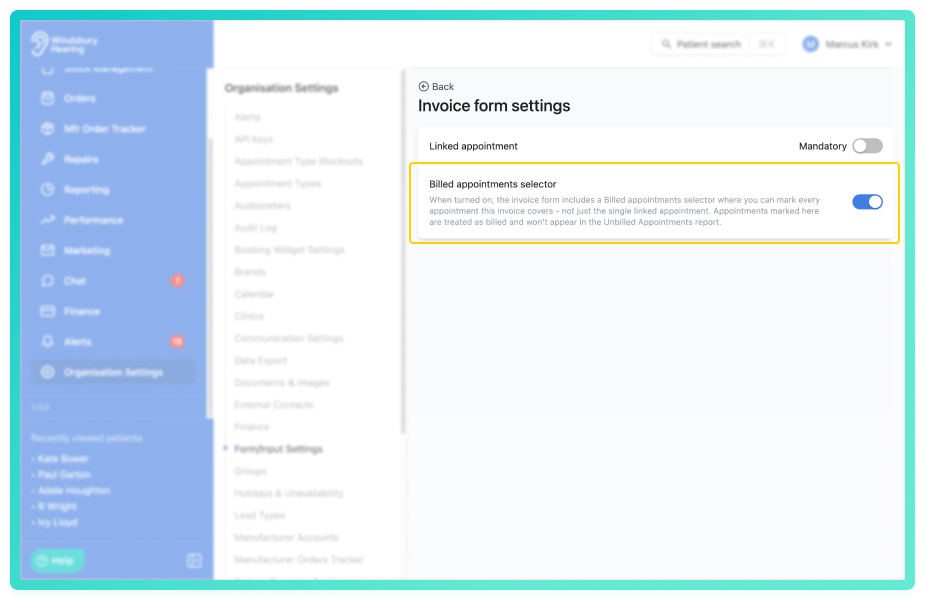
The billed appointments selector allows you to mark which appointments an invoice covers, helping track which appointments have been invoiced and excluding then from the unbilled appointments report.
- Toggle Billed appointments selector to enable or disable it.
Changes are saved automatically when you toggle a field.
Linked appointment and reporting
Linking invoices to appointments is important for accurate reporting. If your organisation uses sales orders or conversion rate metrics on performance dashboards, the linked appointment field is required to record that data correctly. Without a linked appointment, invoices cannot be attributed to specific appointments and will be excluded from these calculations.
Was this article helpful?
That’s Great!
Thank you for your feedback
Sorry! We couldn't be helpful
Thank you for your feedback
Feedback sent
We appreciate your effort and will try to fix the article