An organisation can create custom forms to digitally collect information from either their patients or for internal use. An organisation can quickly duplicate forms with minor alterations.
In this article we'll cover how to:
- add a new custom form.
- edit and manage form components.
- map a form field to a patient record field.
- preview the form.
- duplicate an existing form.
- edit a custom form.
- delete a custom form.
Only users with the correct permissions can add a new form. If you think you should have permission to perform such an action please contact the organisation owner.Add a custom form
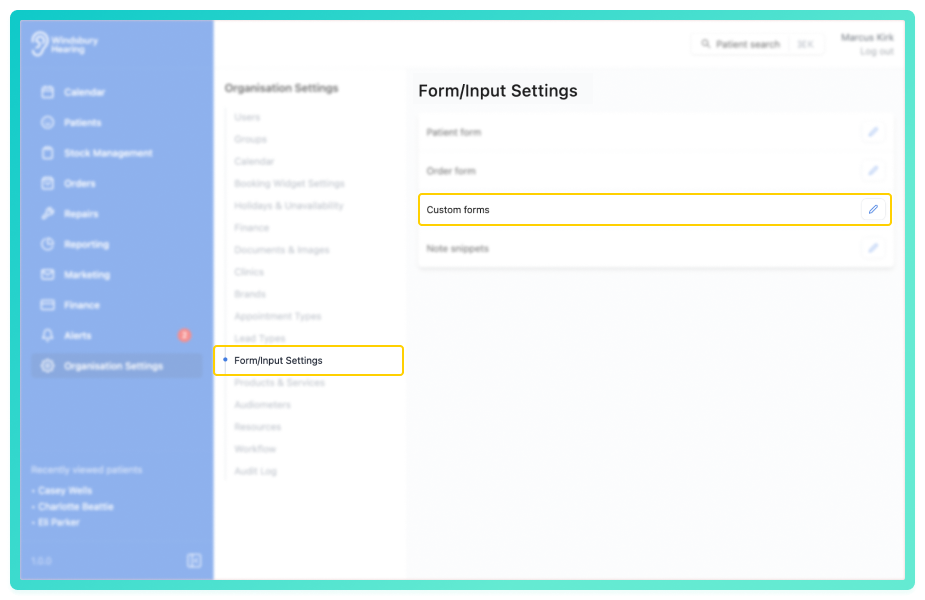
- Navigate to Organisation settings.
- Locate and click the Form/Input Settings section of the settings.
- Click the Edit icon
 next to Custom forms.
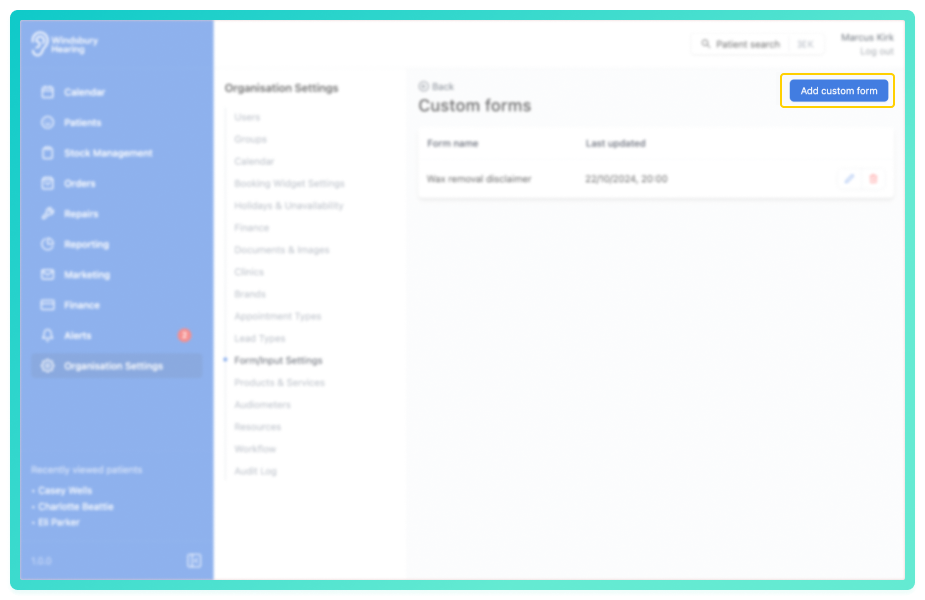
- Click the Add custom form button.
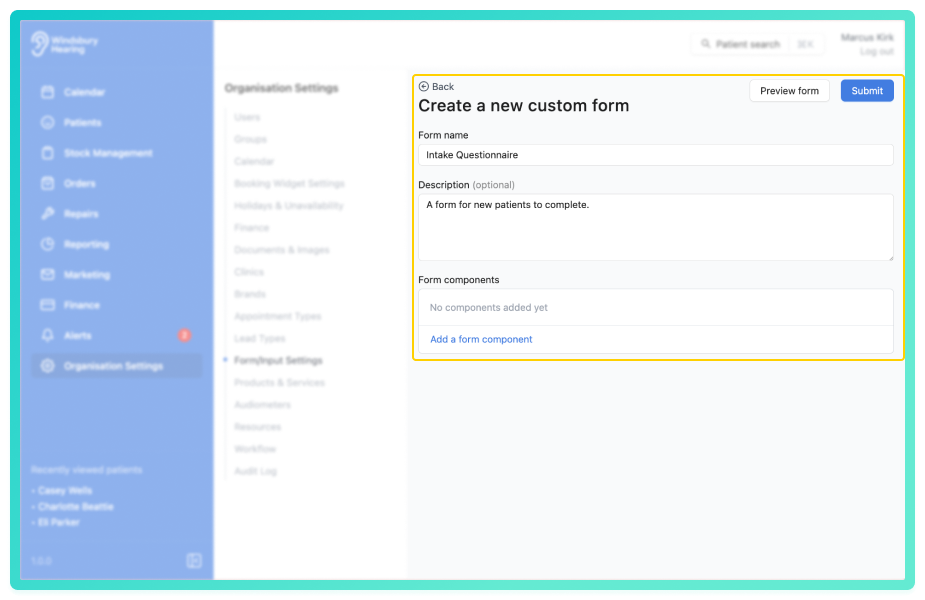
Complete the basic form setup:
- Enter a Form name
- Add a Description
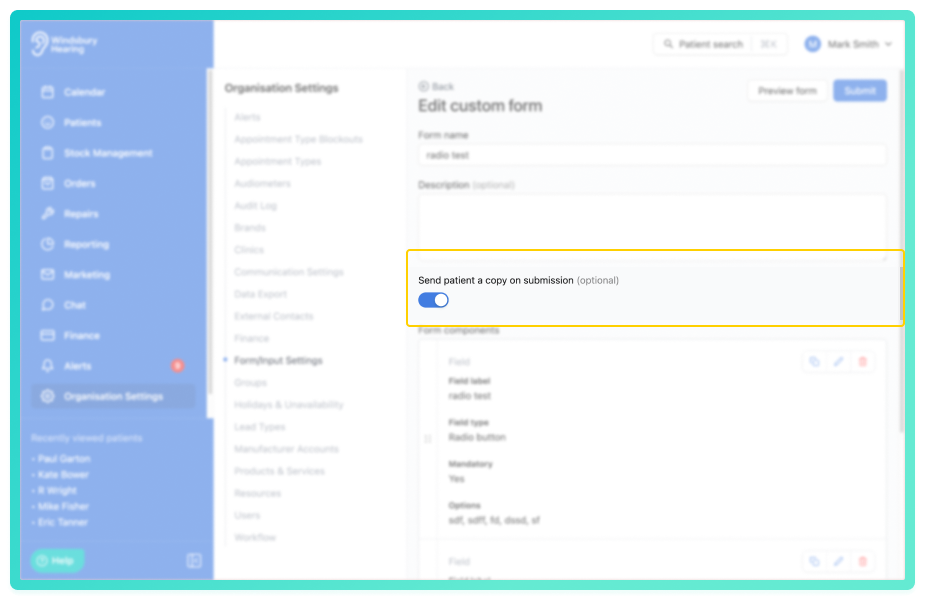
When sending a form manually, you can decide whether or not to send a copy to the patient by email automatically on submission.
- Enable or disable Send patient a copy on submission.
- Add Form components as needed
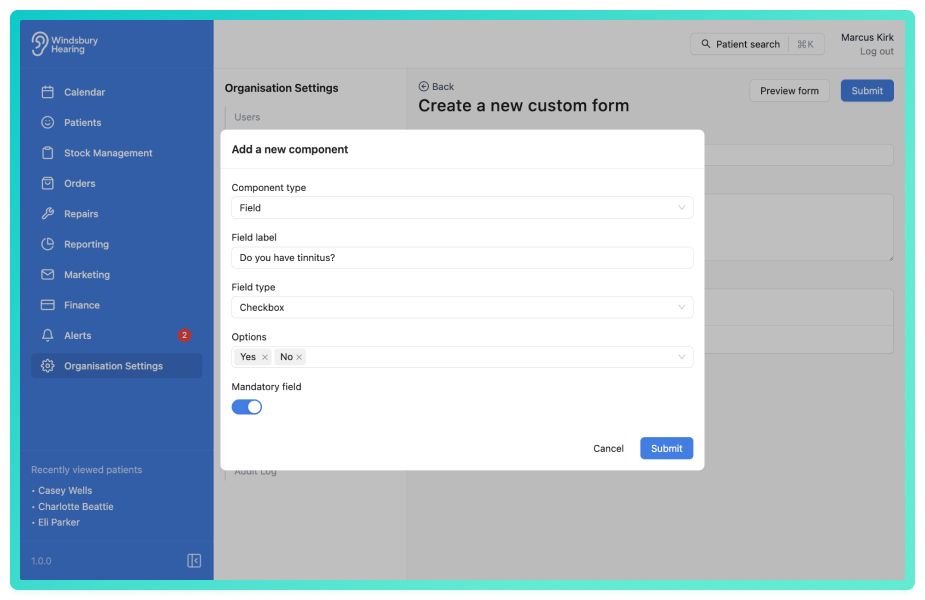
Each component can be marked as mandatory or optional, depending on your requirements. Example: You may want to request a telephone number, but leave it optional. In this case, set it as disabled for mandatory.- Click the Preview form button.
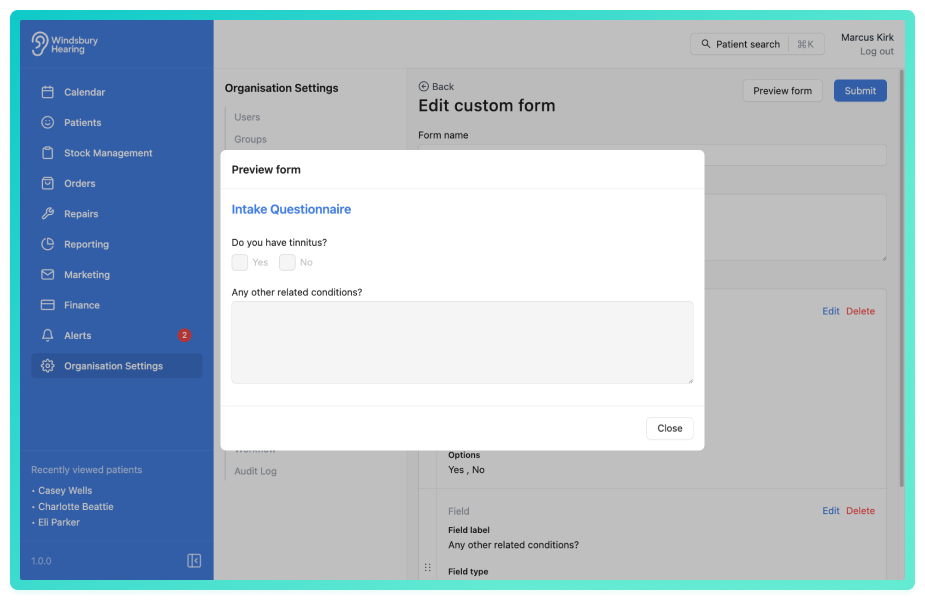
- Click Submit to save your changes.
The form will now be ready to assign and use. For more information, see the Patient Forms article.
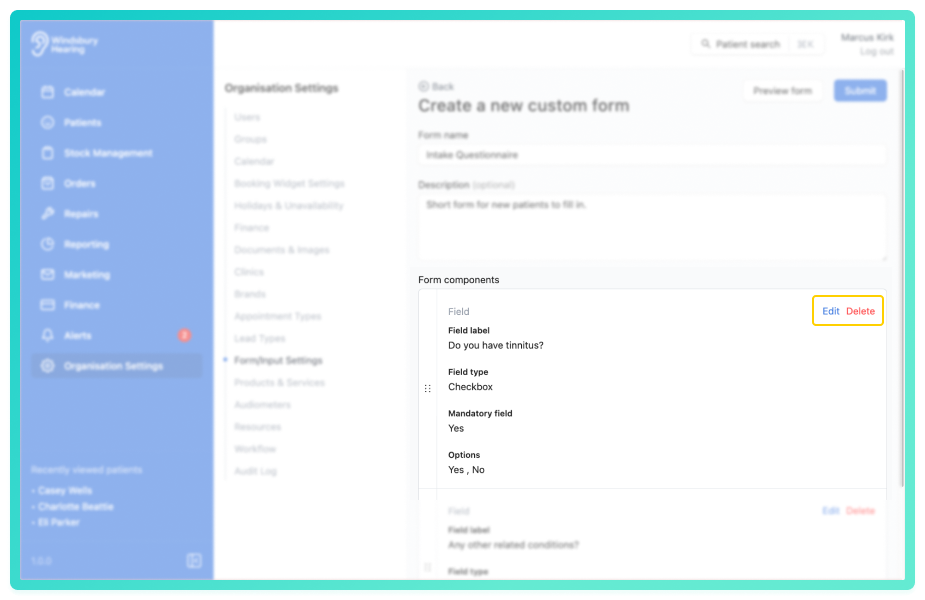
Edit or delete form components
- Click the Edit text on the Form component you want to edit.
- Update the details as required.
- Click Submit to save your changes.
- Click the Delete text on the Form component you want to delete.
- The component will be deleted immediately.
Map a form field to a patient record field
You can map a form field to a patient record field so that information automatically pre-fills when the form is attached to a patient. This reduces data entry and ensures consistency across your records.
- Select the form field you want to map to a patient record field (Text field or Date field).
- Select an option from Pre-populate from patient record (Full name, Email Address, Phone Number and Date of Birth).
- Save the form.
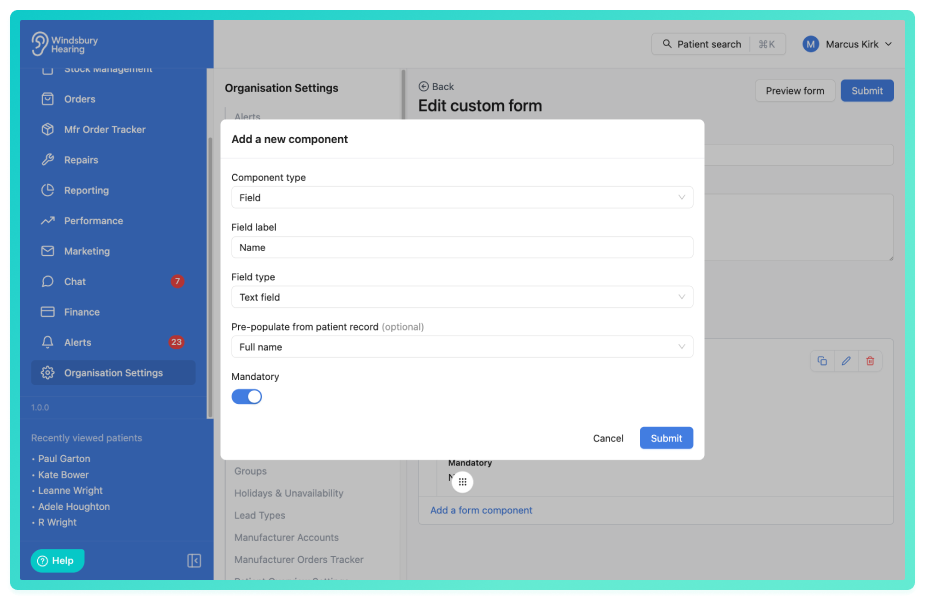
When the form is attached to a patient, the mapped field will automatically pre-fill with the corresponding data from the patient record.
Note: Pre-filled values are captured at the moment the form is created. If the patient record is updated after the form is created, the form will retain the original values.Pre-filled fields can still be edited by the person completing the form. The mapping only affects the initial values displayed.
Duplicate an existing form
Sometimes you may want a very similar form but without some particular fields or a couple of extra fields. Instead of creating a completely new form a user can duplicate an existing form and change what is required.
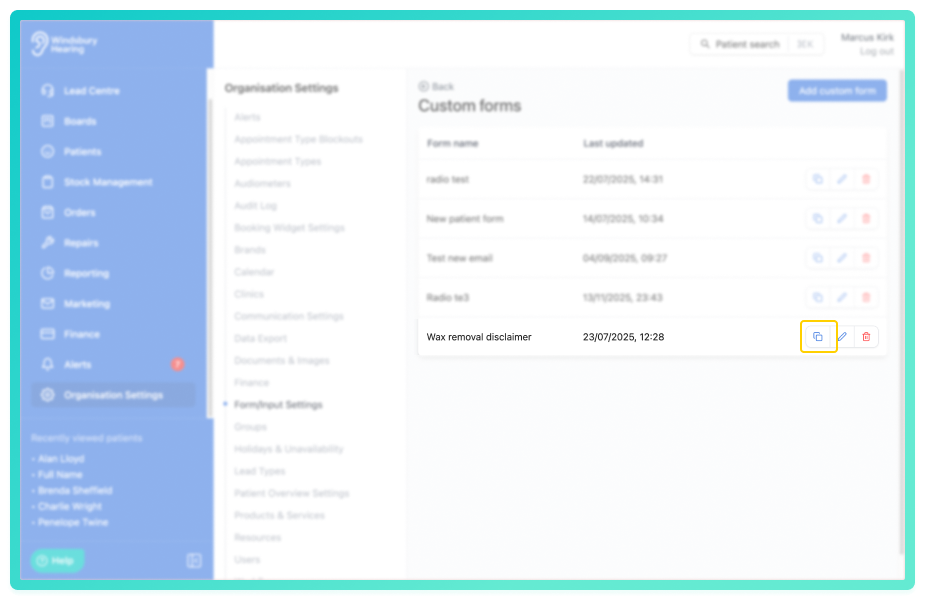
- Click the Duplicate icon on the Form you want to duplicate.
- Add a Name for the form and update the details as required.
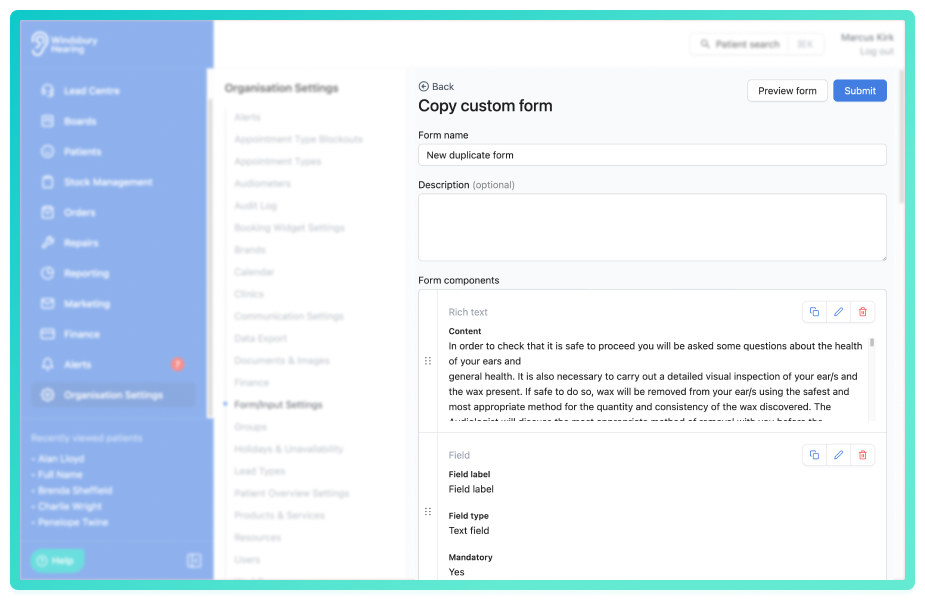
- Click Submit to save your changes.
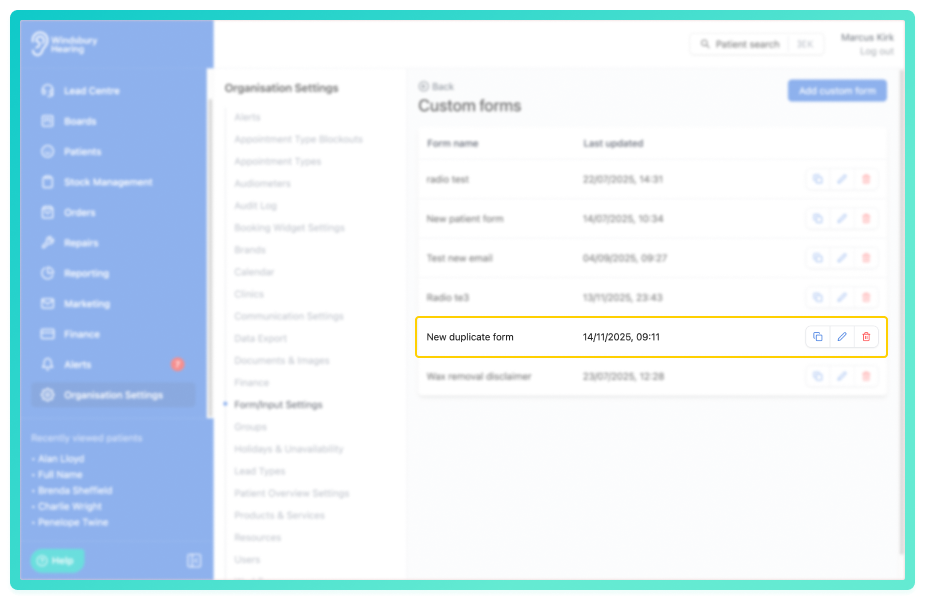
The new form will be available to use in the system.
Edit a custom form
- Navigate to Organisation settings.
- Locate and click the Form/Input Settings section of the settings.
- Click the Edit iconnext to Custom forms.
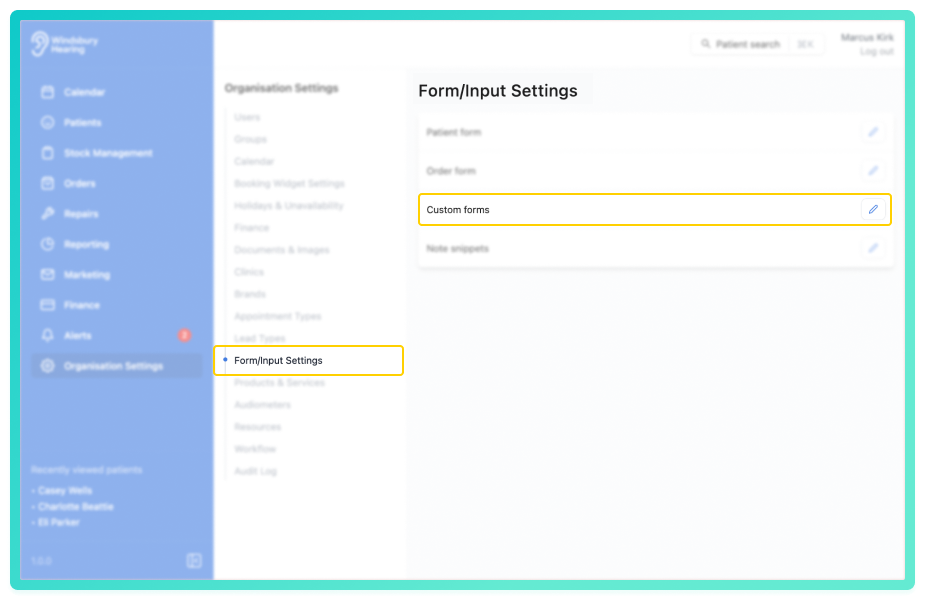
- Locate and click the Edit iconon the custom form you want to update.
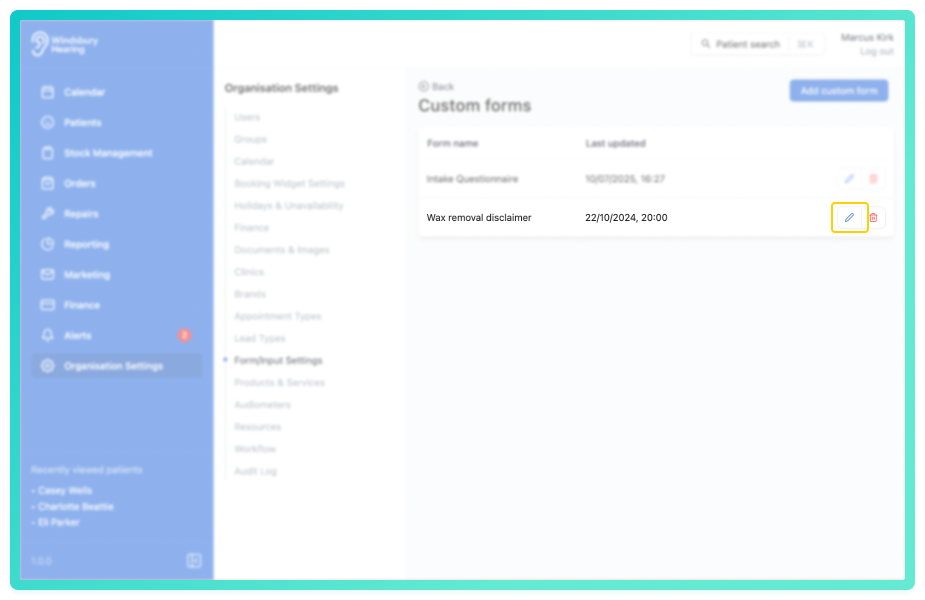
- Update the Custom form details as required.
- Click Submit to save your changes.
For more on custom forms and components, see the custom forms article.
Delete a custom form
- Locate the Delete icon
 on the custom form you want to delete.
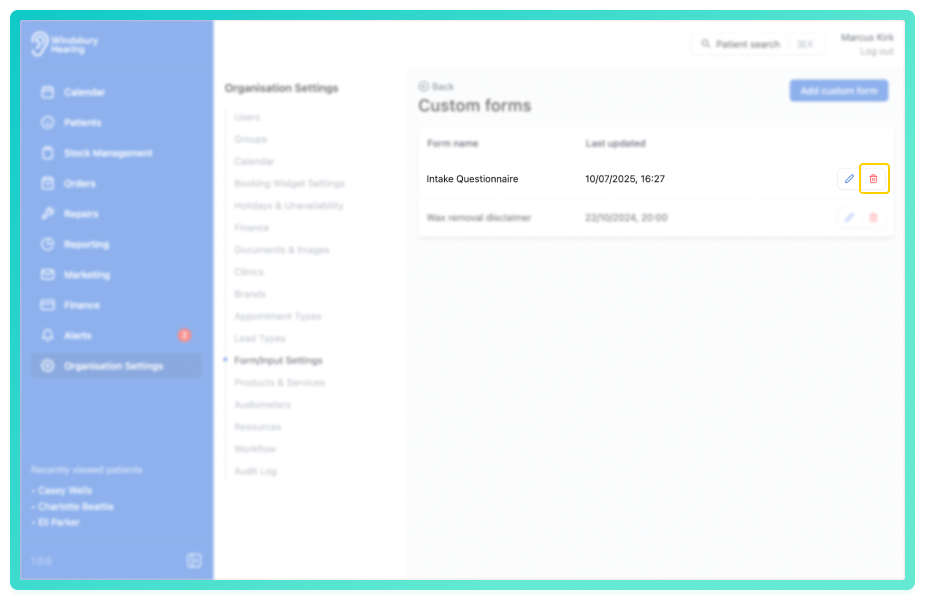
- Click the Delete icon.
- You'll be shown a warning message.
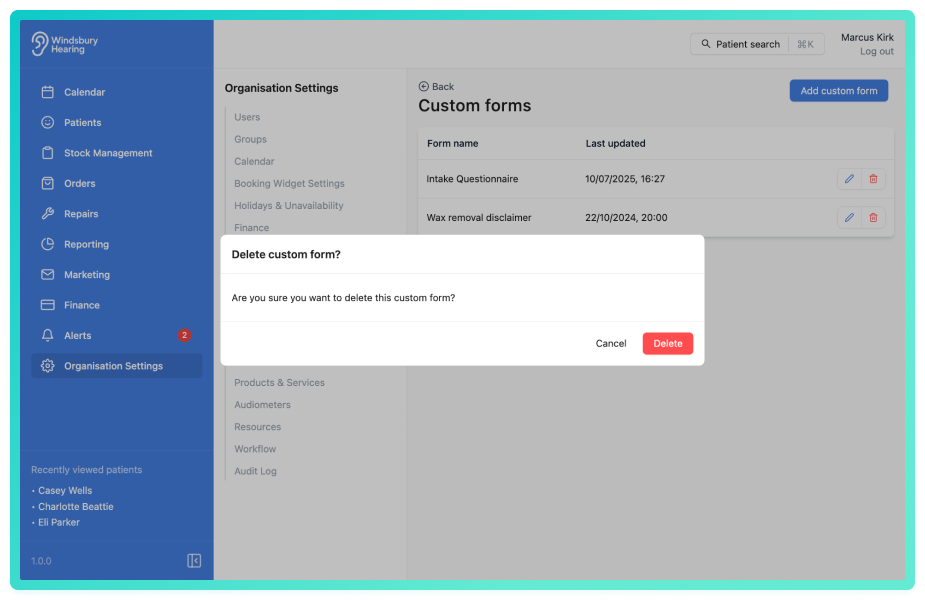
- Click Delete to confirm and delete the custom form.
Warning: Once a custom form has been deleted this action cannot be undone. Please proceed with caution!
Was this article helpful?
That’s Great!
Thank you for your feedback
Sorry! We couldn't be helpful
Thank you for your feedback
Feedback sent
We appreciate your effort and will try to fix the article