Note snippets allow you to quickly insert reusable text across the HearLink system. Instead of typing out full sentences or common phrases, you can trigger a snippet with a shortcut. Saving time and ensuring consistency.
In this article we'll cover how to:
- use a note snippet with a trigger.
Note snippets can be used in any text area across the system. If you'd like to create or manage your organisations's snippets, see the note snippets settings article.Note snippet example
Let's say you've created a snippet where:
- the Trigger is test.
- the Snippet is this is a test.
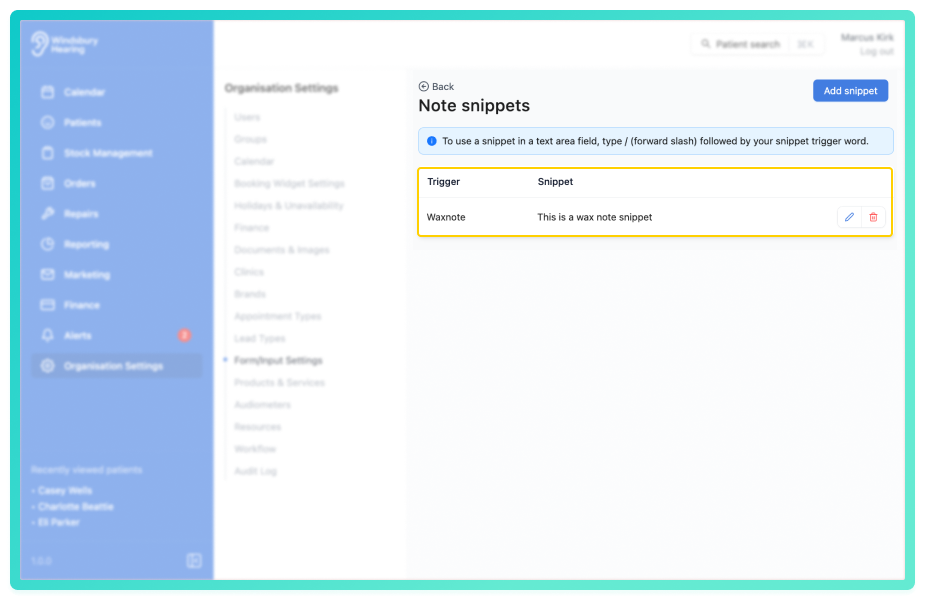
Using a note snippet
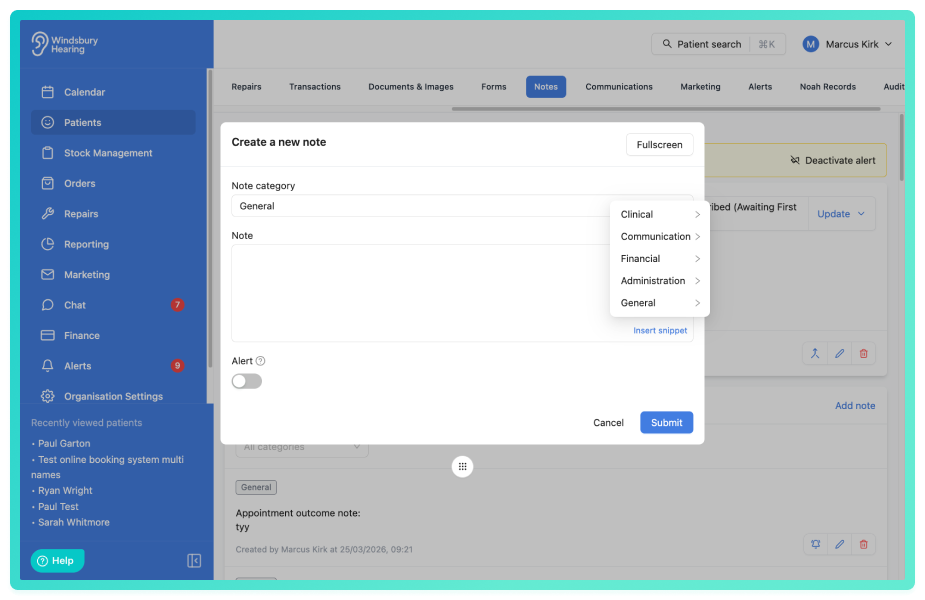
To use the snippet when adding a note (for example, when creating a note in the patient dashboard). There are two ways to trigger a snippet. Typing a forward slash is available in all text areas, whilst inserting a snippet using the dropdown is available in certain areas of the HearLink system.
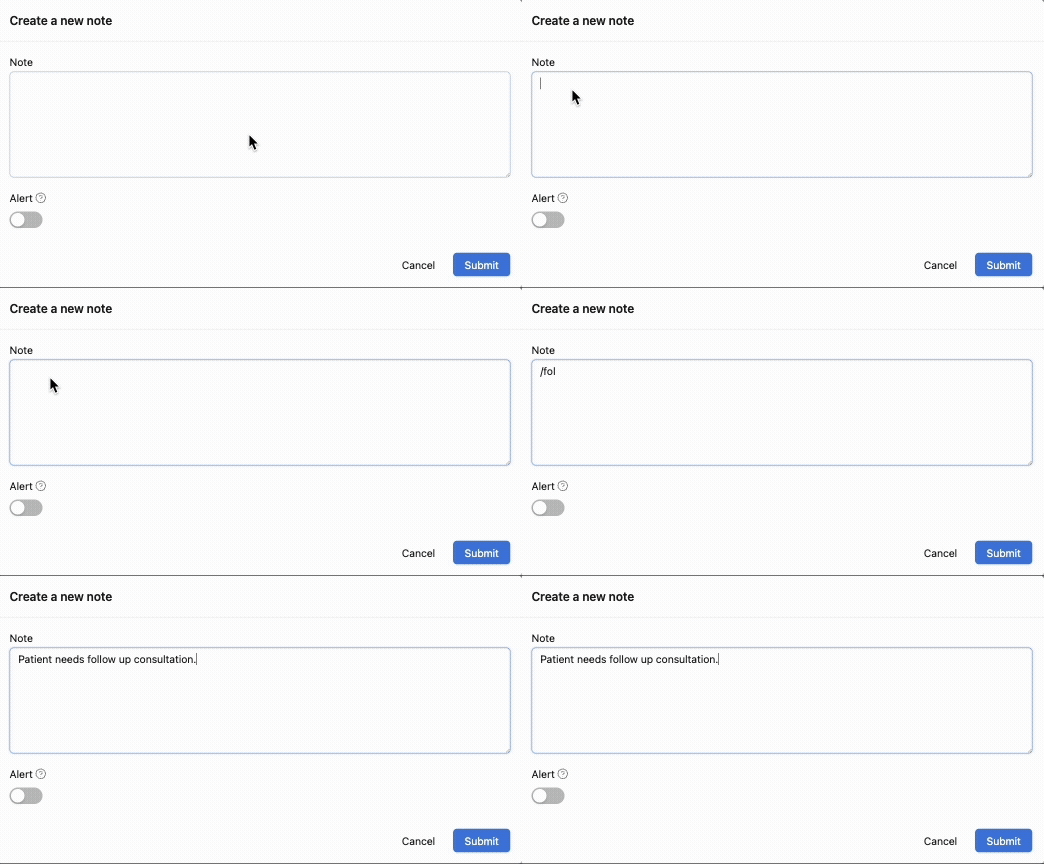
- Type a forward slash ( / ) followed by the snippet trigger.
- The full snippet will be inserted automatically.
| Trigger | Snippet Text |
|---|---|
| /routine | Patient attended routine check up. No concerns raised |
| /fitcheck | Hearing aid checked & cleaned. Functioning as expected |
| /followup | Follow up scheduled in 6 months |
| /waxremoval | Performed wax removal successfully using micro-suction |
| /notattended | Patient did not attend appointment. Reschedule |
Typed example: Typing /test will autofill the phrase "this is a test". You can then modify or add to the text as needed.
Insert snippet example: Click the dropdown and select a snippet from your list. This will insert the snippet in the textarea, without removing the current text.
Was this article helpful?
That’s Great!
Thank you for your feedback
Sorry! We couldn't be helpful
Thank you for your feedback
Feedback sent
We appreciate your effort and will try to fix the article