View and add patient transactions directly from the patient dashboard. You can also add refunds in this section. For a broader overview of transaction and finance settings, see this article.
In this article we'll cover how to:
- view patient transactions.
- add a transaction.
View patient transactions
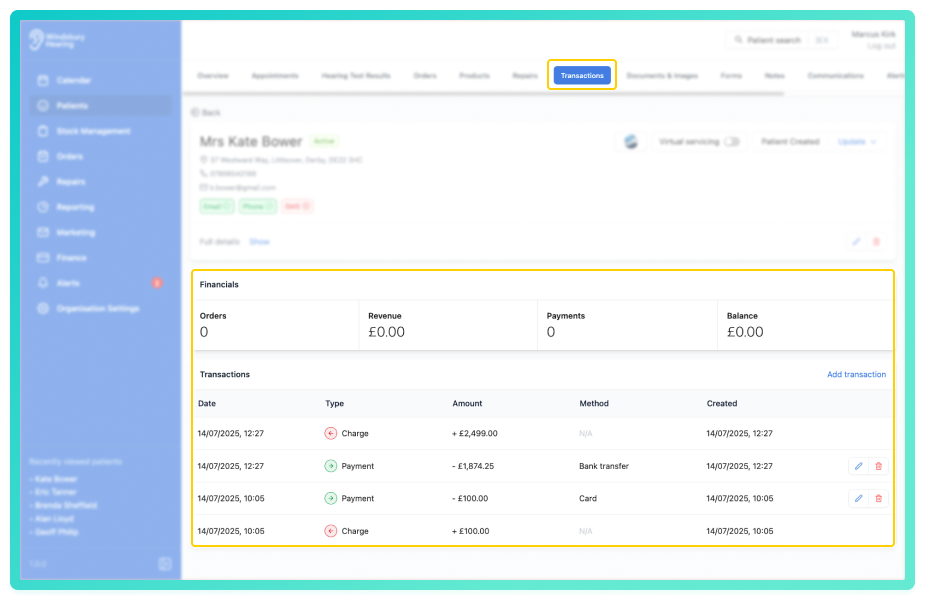
- Navigate to the desired patient.
- Click the Transactions tab.
- View all available transactions for the selected patient.
Add a transaction
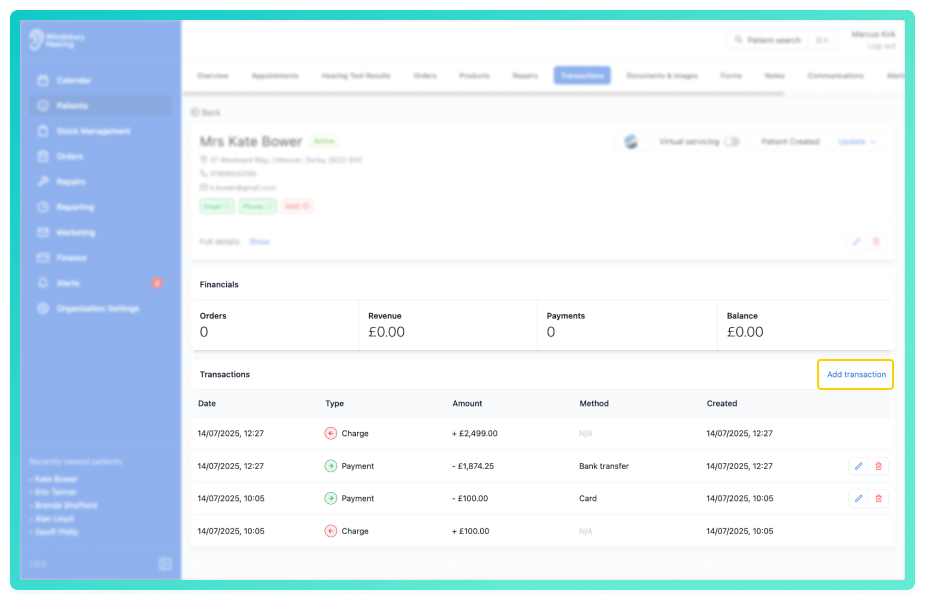
- Locate and click the Add transaction text.
- Complete the form with the Transaction details.
- Click Submit to save the new transaction.
There are two options for creating a new transaction. Payment or Refund. To edit an existing transaction, see this article. 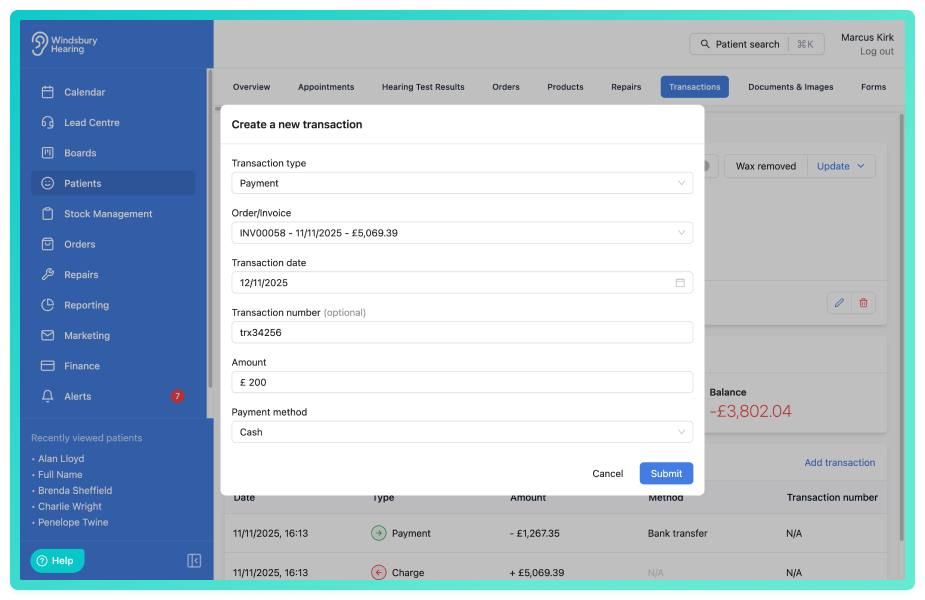
The new transaction will now appear in the patient's transaction list. If the type of transaction is a refund the refunded amount with be applied to the attached Order/Invoice.
Was this article helpful?
That’s Great!
Thank you for your feedback
Sorry! We couldn't be helpful
Thank you for your feedback
Feedback sent
We appreciate your effort and will try to fix the article