While most calendar configuration is managed in the organisation settings, you can quickly adjust the calendar view from within the calendar screen itself. This includes switching between People and Clinics views, and (when on People) switching between Day and Week layouts.
In this article we'll cover how to:
- switch between people and clinics view.
- adjust the calendar timeframe.
If you can't see a particular user on the calendar view, it is likely because they are not assigned to an appointment type yet. Please assign the user and they should be viewable. Switch to clinics view
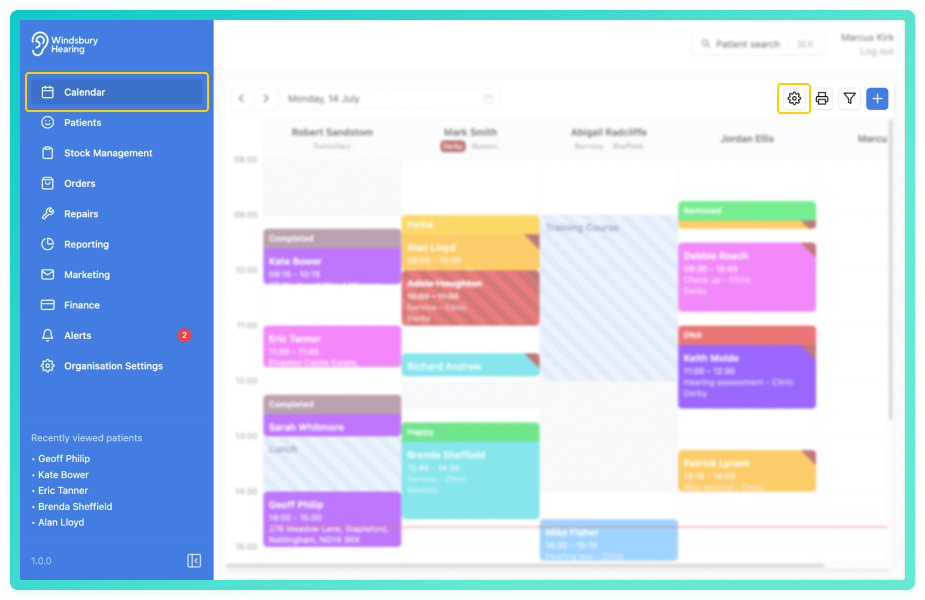
- Navigate to Calendar.
- Locate and click the Settings button.
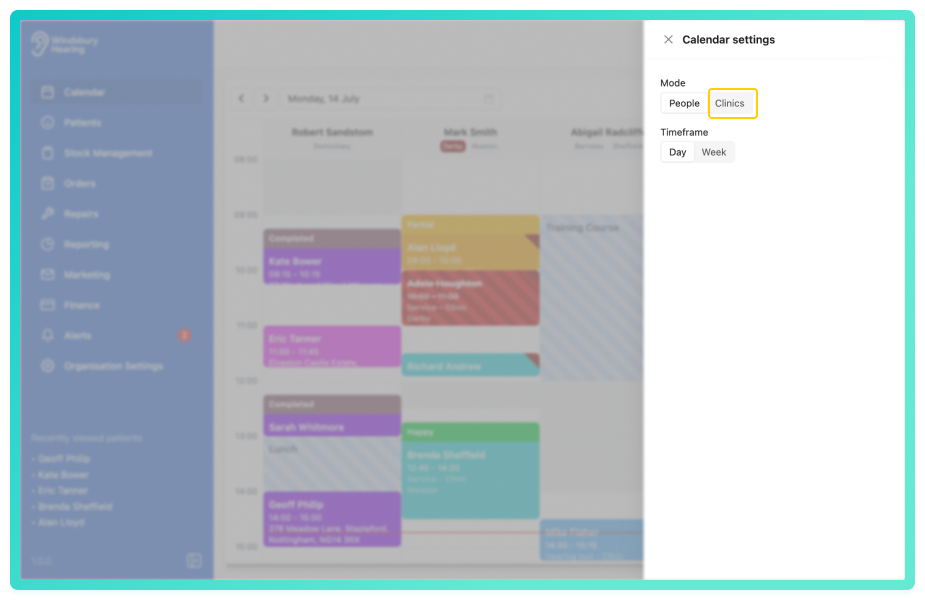
- Select week or day view according to your preferences.
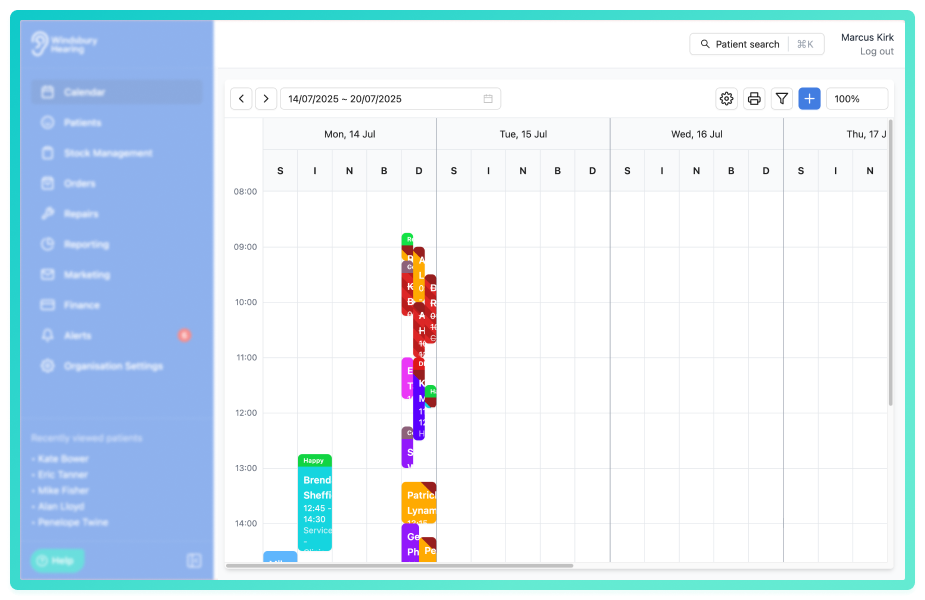
Week view gives a broader view of clinic availability and appointments.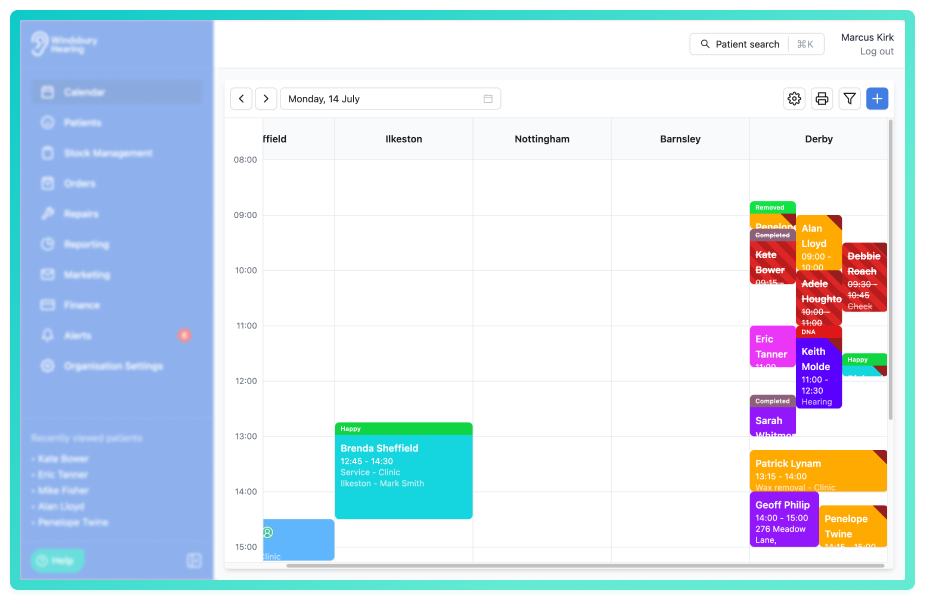
Day view stretches the calendar for a detailed breakdown of each clinic's day.
Switch to people view
- Locate and click the Setting button.
- Select People.
Week view gives a broader view of clinician availability and appointments.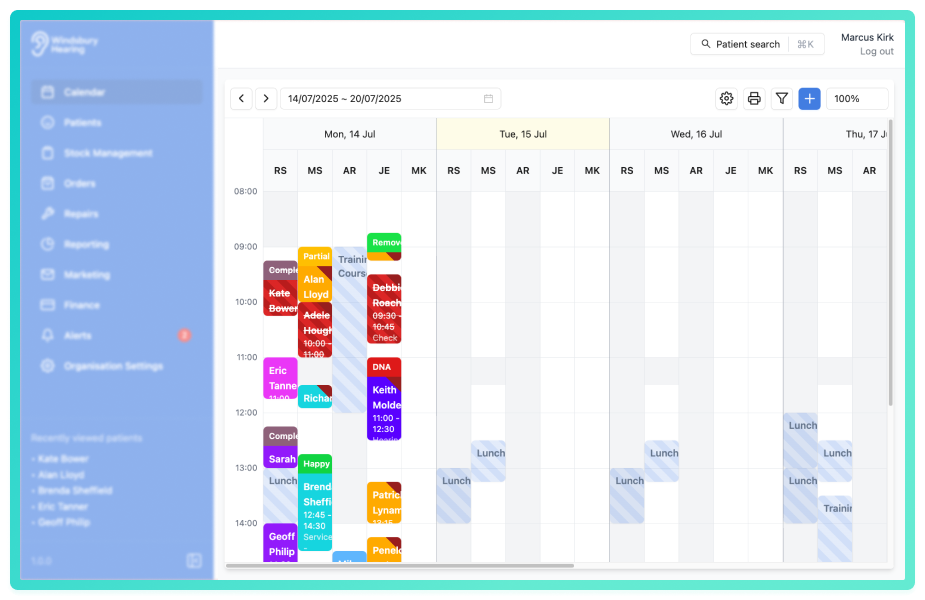
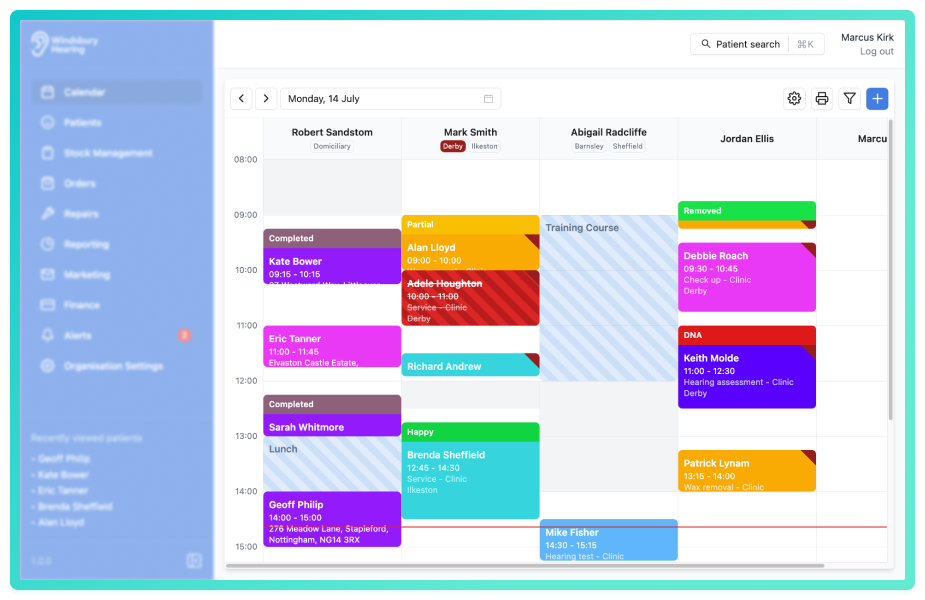
Day view stretches the calendar for a detailed breakdown of each clinician's day.
Was this article helpful?
That’s Great!
Thank you for your feedback
Sorry! We couldn't be helpful
Thank you for your feedback
Feedback sent
We appreciate your effort and will try to fix the article