To create letter documents in HearLink you first need to set up letter templates. Once letter templates are set up, you can generate letters directly from a patient profile. Letters are created as PDF's, stored automatically in the patient documents and images sections and can be downloaded, printed or emailed.
In this article we'll cover how to:
- create a letter from the patient profile.
- select a letter template and appointment (if required).
- download, print or email a letter.
Create a letter document
- Navigate to the desired patient.
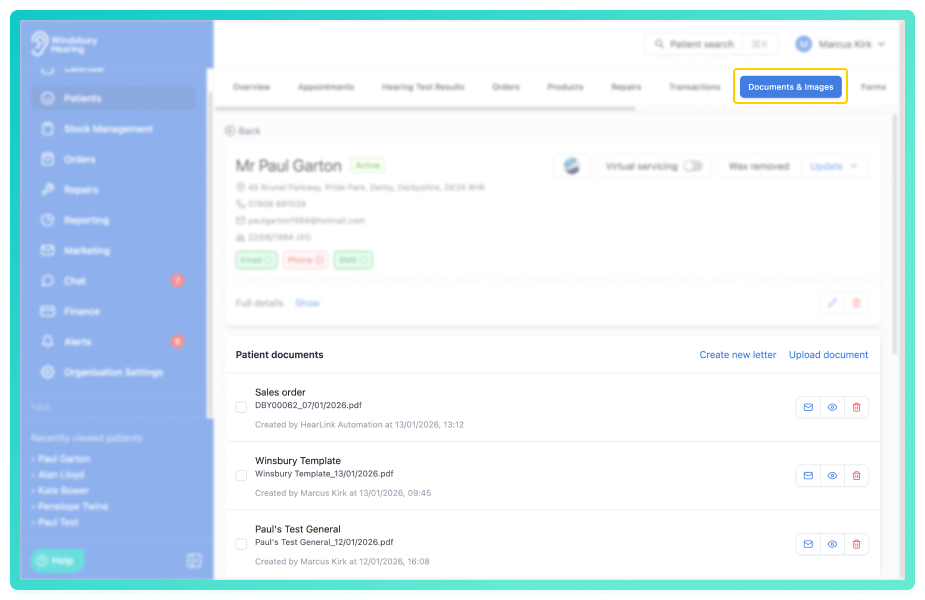
- Locate and click the Documents and Images tab.
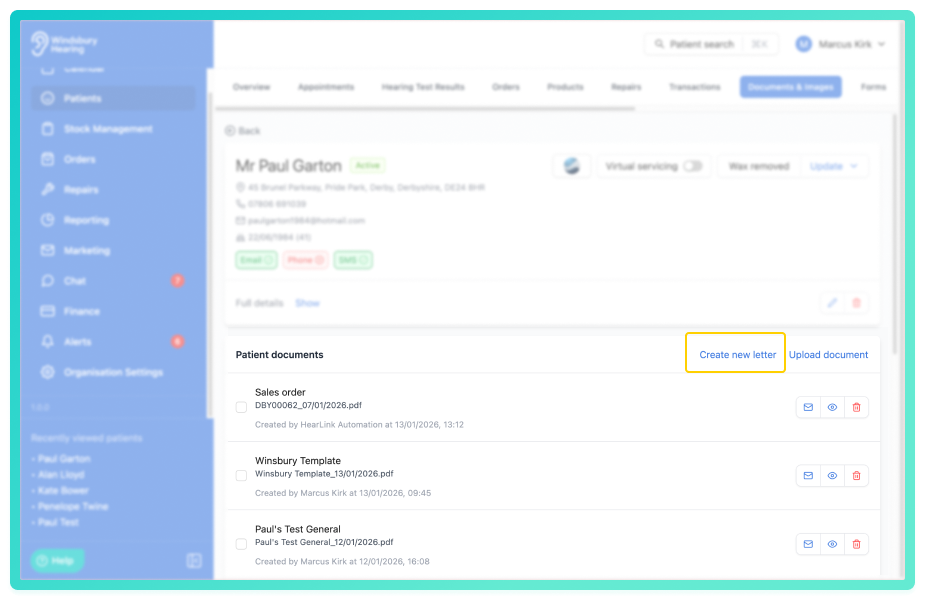
- Click the Create new letter text.
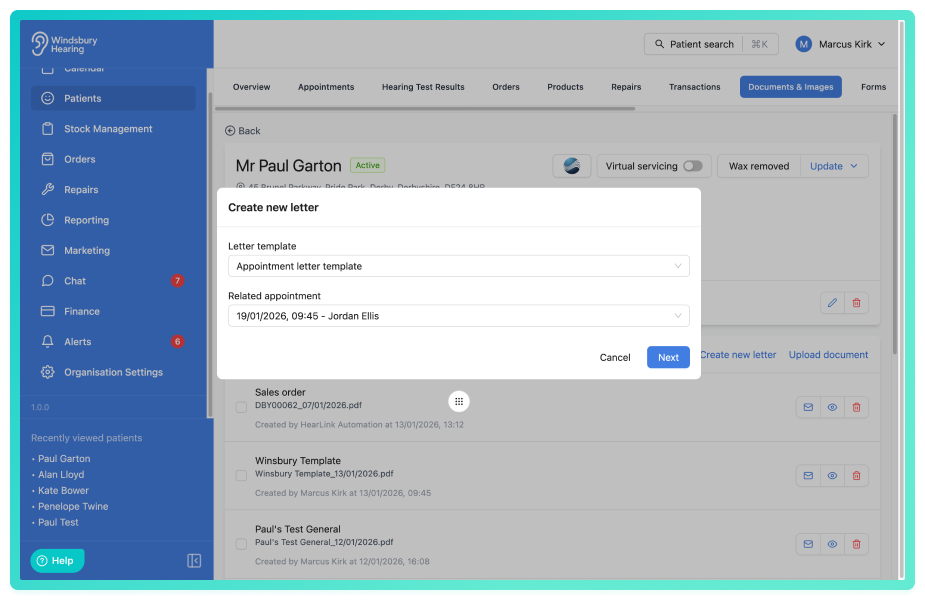
- Select a Letter template.
- If the template is an Appointment type, select the related appointment.
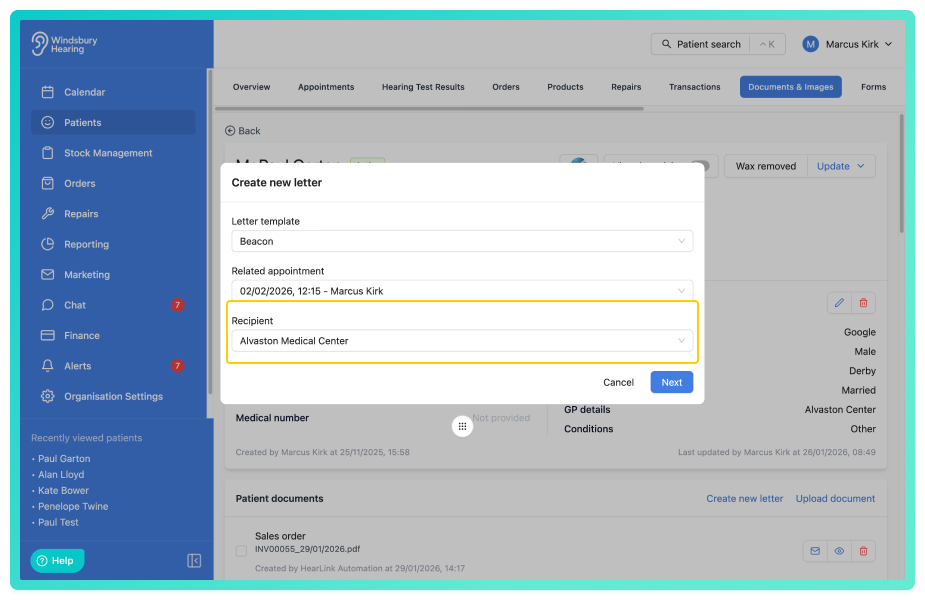
- The patient will be the selected recipient as default, you can choose an external contact should you have any attached to the patient.
- The variables from the letter template will be populated with the data from the patient and the appointment/clinic if one has been selected.
- You can make amendments to the letter before saving, all text remains fully editable.
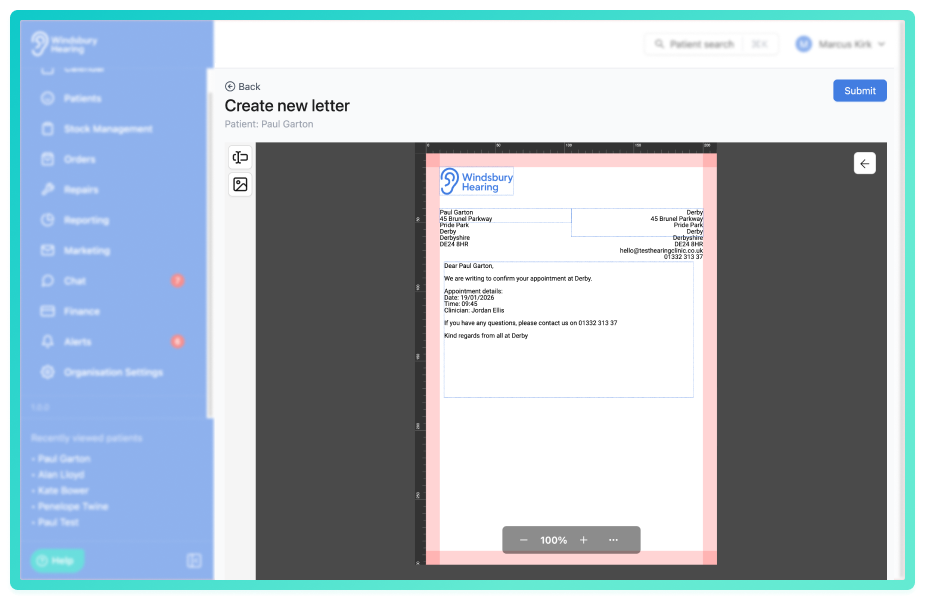
- Click Submit to save the letter as a document.
What happens next
- A PDF will automatically open in a new browser tab, ready to print or download.
- A copy of the letter will be saved in the Documents and Images section of the patient profile.
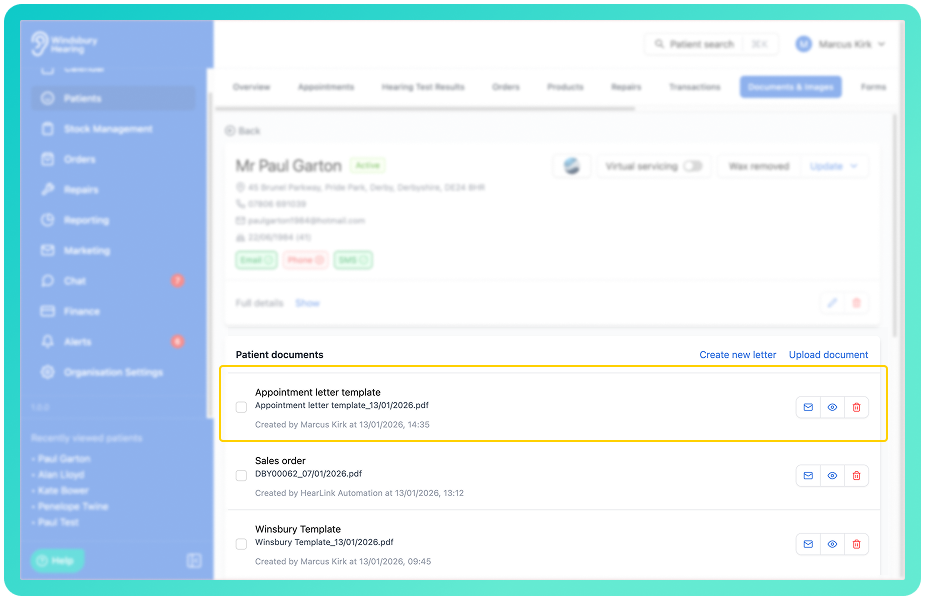
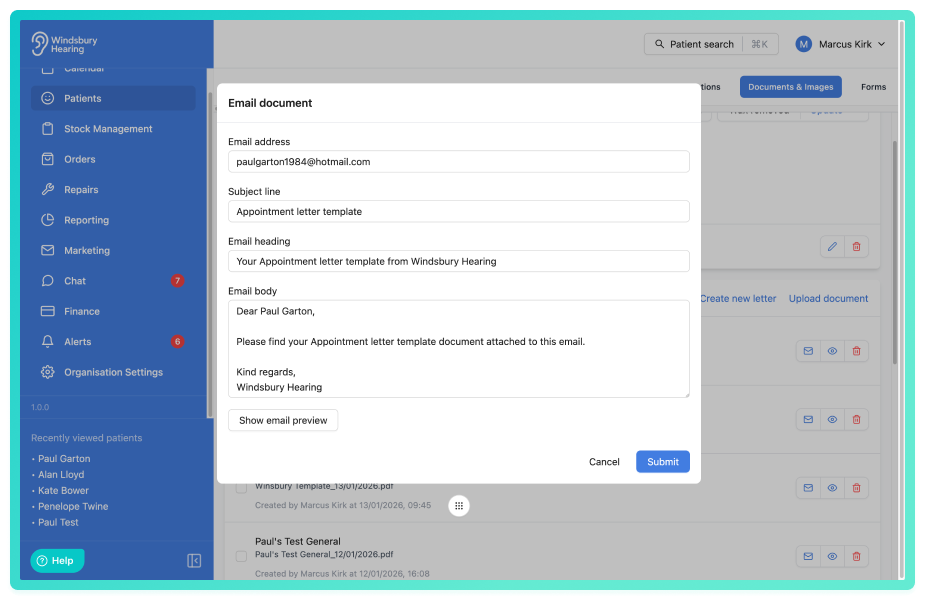
- The letter can be emailed directly from HearLink, where it will be included as an attachment.
Was this article helpful?
That’s Great!
Thank you for your feedback
Sorry! We couldn't be helpful
Thank you for your feedback
Feedback sent
We appreciate your effort and will try to fix the article