An organisation may have multiple email templates to use across the system. An email template can have a subject, body and documents attached to it. These ad hoc email templates can be amended at point of sending to the patient. An organisation can also set up templates to use in confirmations and reminders by selecting the type when creating an email template, you choose the location in which it can be used.
In this article we'll cover how to:
- create an email template.
- attach documents to the template.
- understand and use email types and templates.
- duplicate an email template.
- edit an email template.
- delete an email template.
Only users with the correct permissions can manage email templates. If you think you should have permission to perform such an action please contact the organisation owner.Create an email template
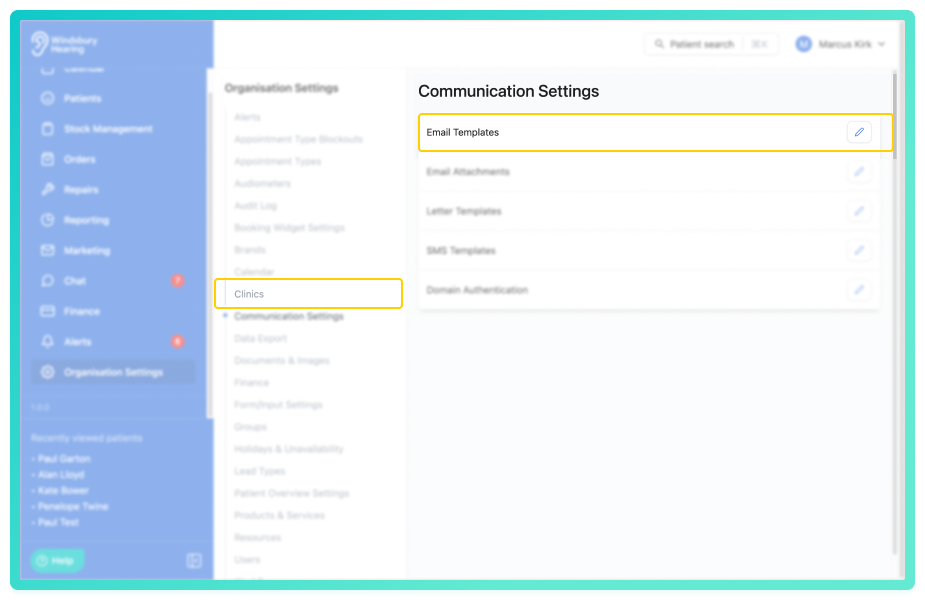
- Navigate to Organisation settings.
- Locate and click the Communication Settings section of the settings.
- Click the Edit icon
 next to Email Templates.
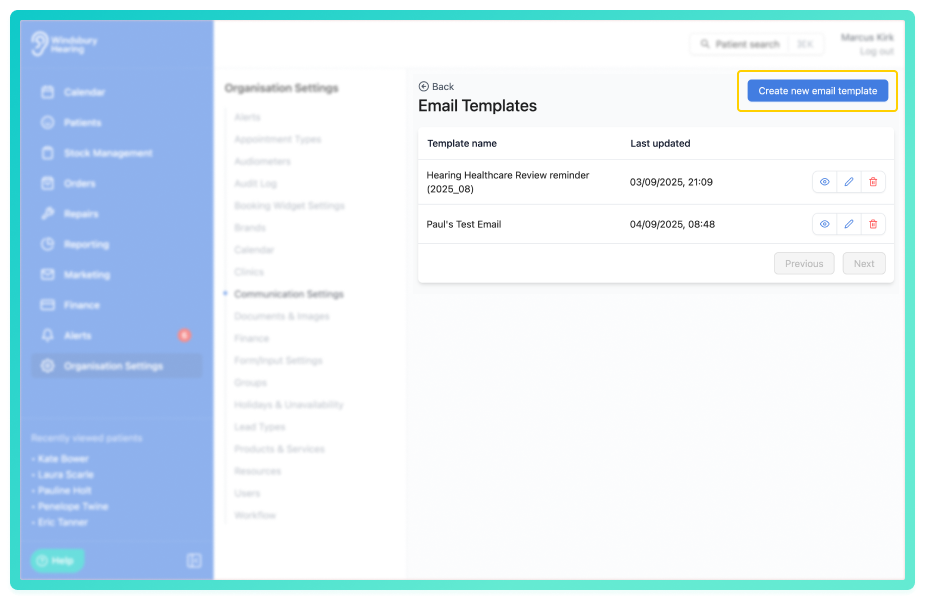
- Click the Create new email template button.
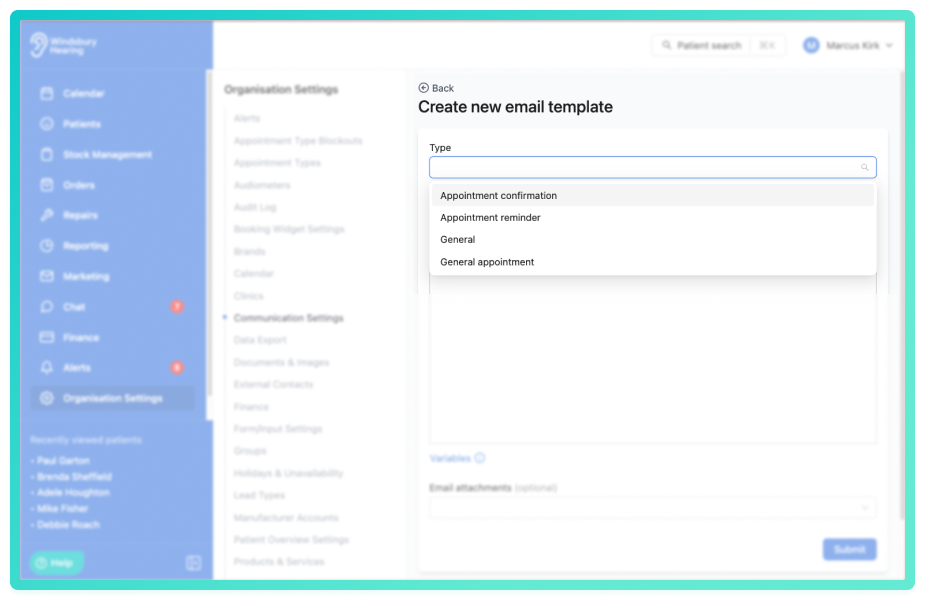
- Choose an email template Type. This could be General, General Appointment, Communication Automation, Appointment Confirmation or Reminder.
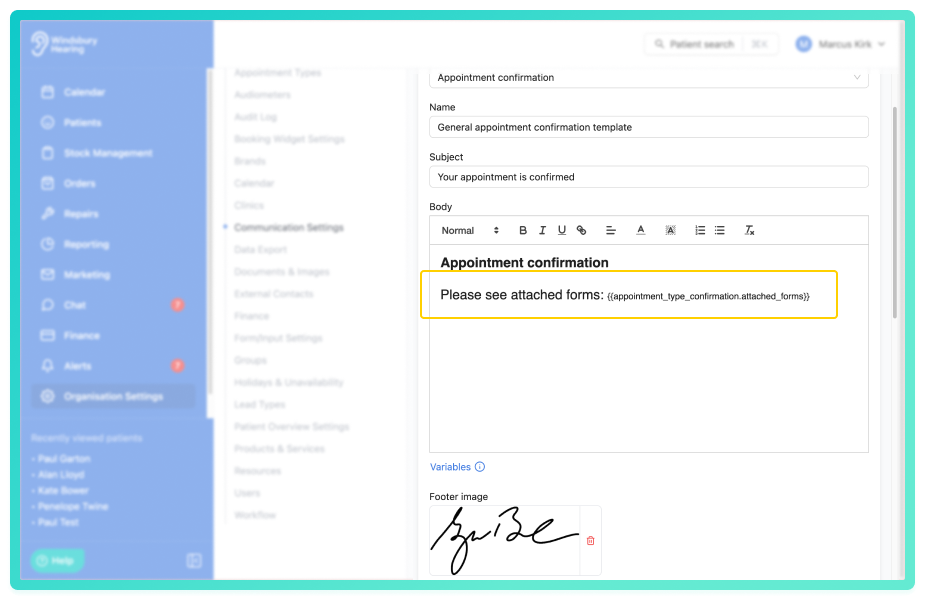
Complete the email template setup:
- Enter a template Name.
- Add an optional Brand.
- Add a Subject title, using Variables if required.
- Create the Body of the email template, using Variables if required.
- Add optional uploaded documents.
- Add an optional Logo.
Important: If creating an email confirmation template that includes a form, you must add the attached forms variable for these to be included.
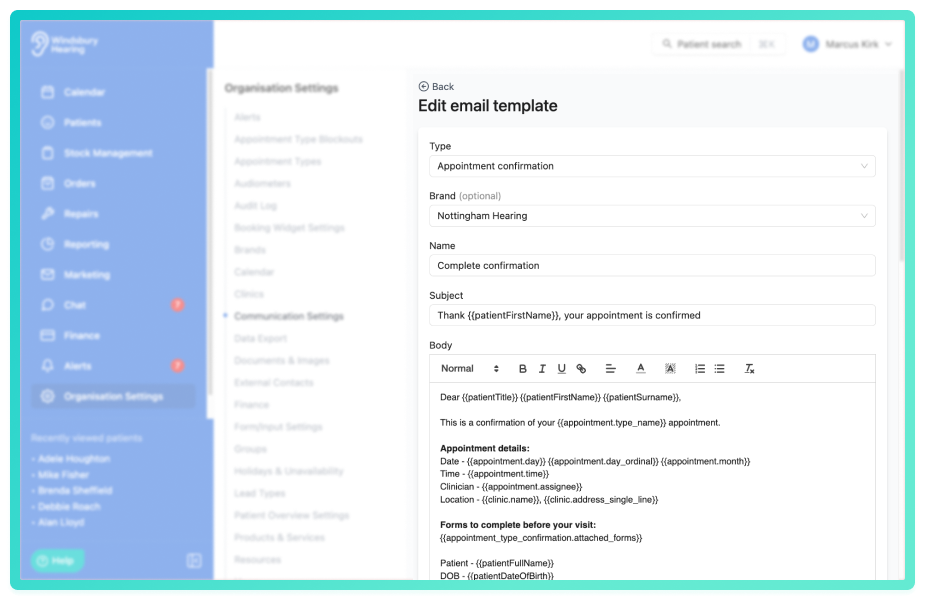
- Click Submit to save the email template.
As you are creating the template, a preview will be viewable under the submit button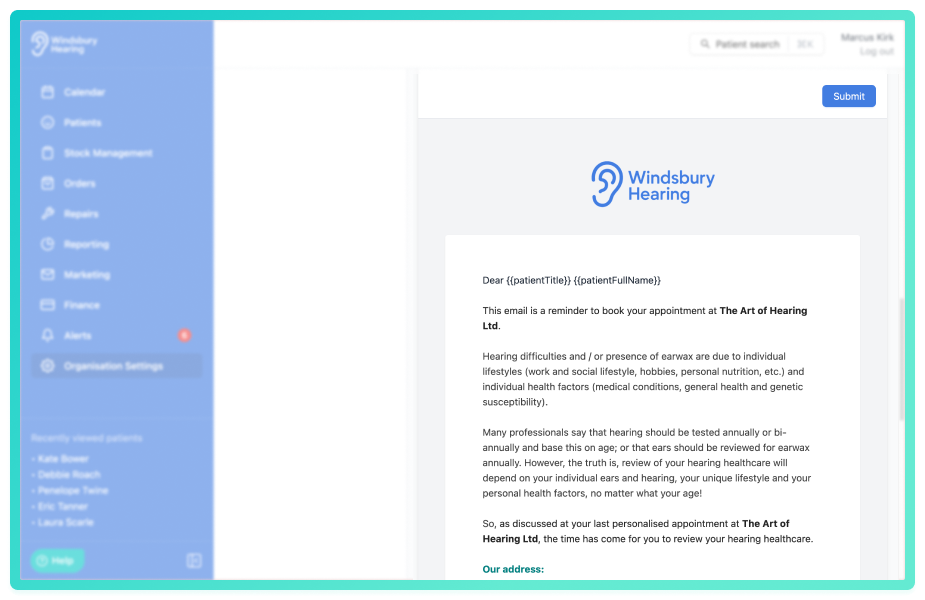
When Sending an ad hoc email, a user can edit an email before sending.Attach a document to an email template
Multiple documents can be attached to any email template. These are then sent with the template when emailing the patient.
- Select the required documents from the dropdown list.
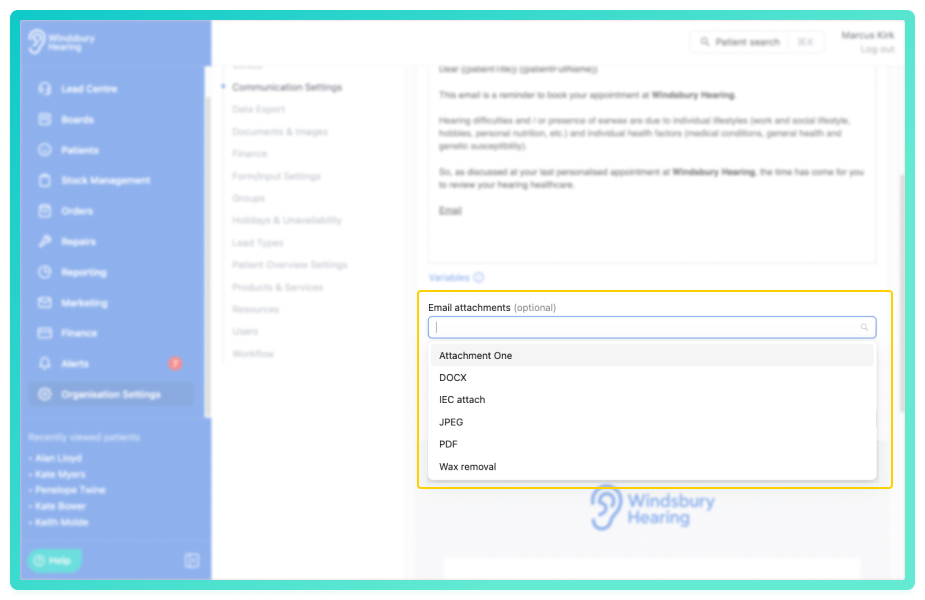
- Complete the email template and click Submit to save the email template with the documents attached..
The attached documents can be removed at point of sending an email to the patient. A user can also add attachments when sending an ad hoc email.Email template types
Email templates are categorised by purpose:
- Confirmation - used for appointment confirmation emails.
- Reminder - used for appointment reminder emails.
- General Appointment - used for ad hoc emails linked to a specific appointment, selected when sent directly from the patient dashboard.
- Communication Automation - used for automated emails sent when specific actions are taken on appointment types.
- General - used for ad hoc emails sent directly from the patient dashboard, that are not directly tied to an appointment, such as follow ups, information requests or administrative communications.
Using Email templates
Email templates are assigned in two ways:
- Communication Automation, Confirmation and Reminder templates are selected within the appointment types settings.
- General templates are selected when sending ad hoc emails from the Communications section of the patient dashboard.
Once selected, HearLink will automatically apply the correct email template based on the action being performed.
For detailed information on using Email templates in appointment types and the patient dashboard, see these articles.
Duplicate an email template
You may want to duplicate emails if you are sending similar communications with different variables or content. Instead of creating a completely new email template, a user can duplicate an existing template and change what is required.
- Click the Duplicate icon on the Email Template you want to duplicate.
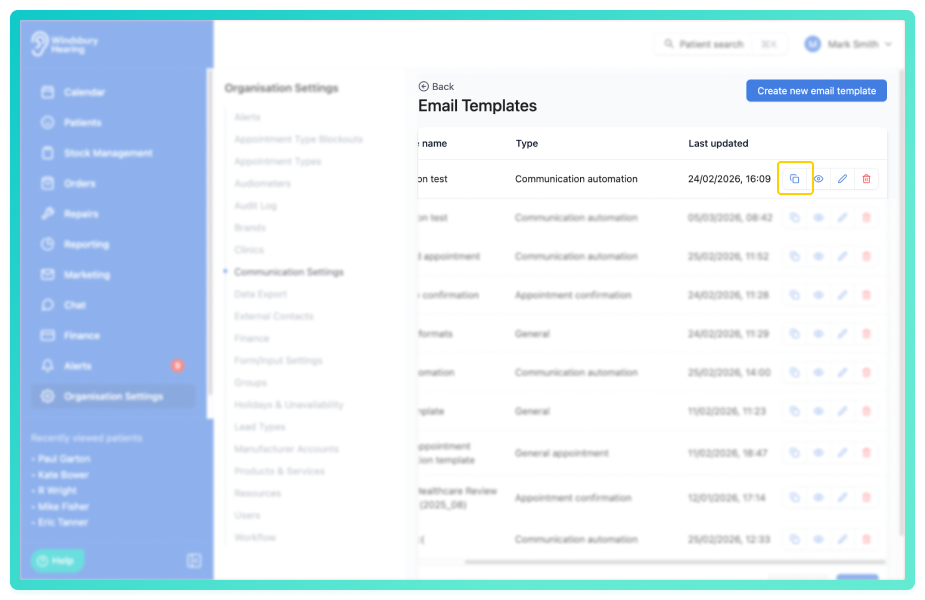
- Add a name for the Email template and update the details as required.
- Click Submit to save your changes.
The new email template will be available to use in the system.
Edit an email template
- Click the Edit iconof the Email template you want to modify.
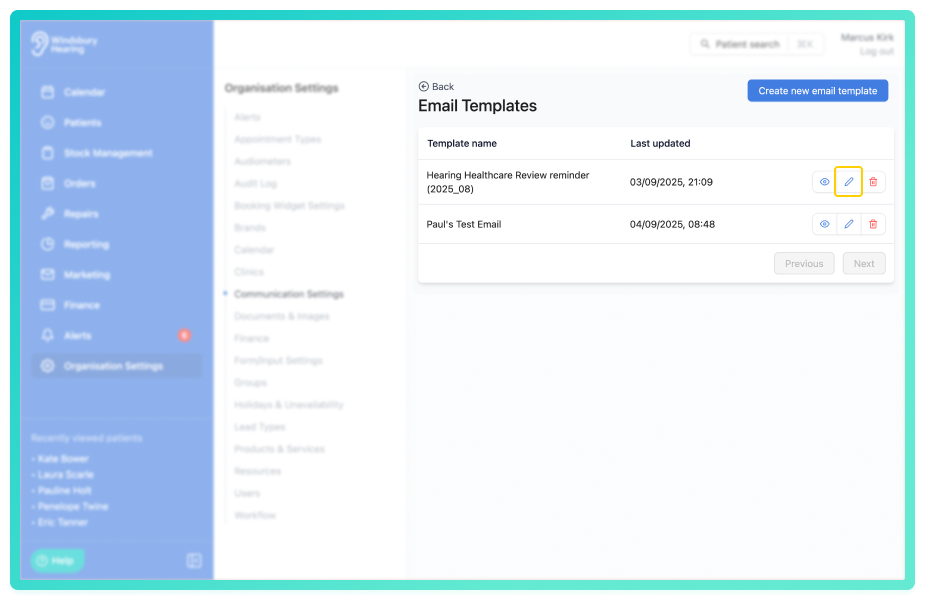
- Update the Email template as required.
- Click Submit to save your changes.
Delete an email template
- Locate the Delete icon
 of the Email template you want to delete.
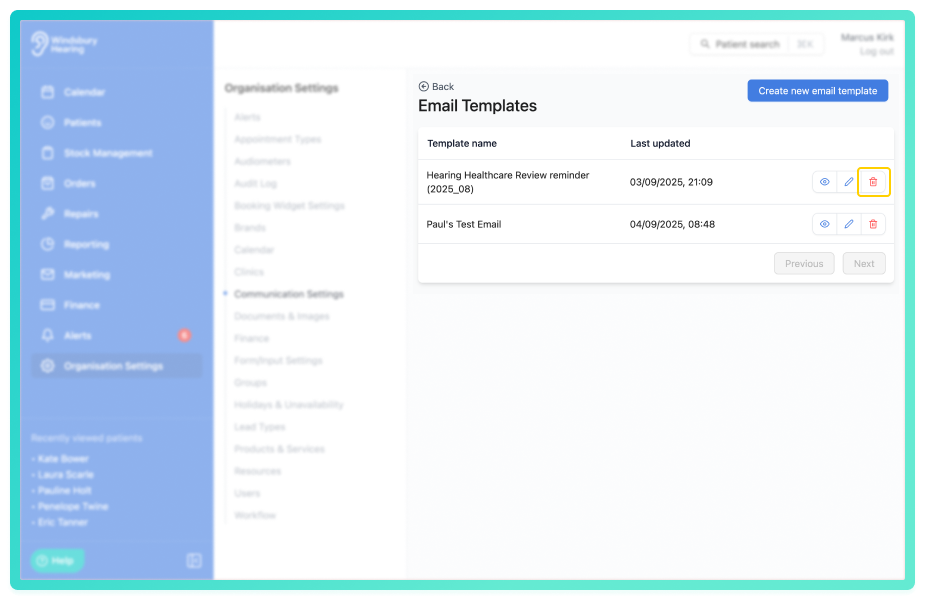
- Click the Delete icon.
- You'll be shown a warning message.
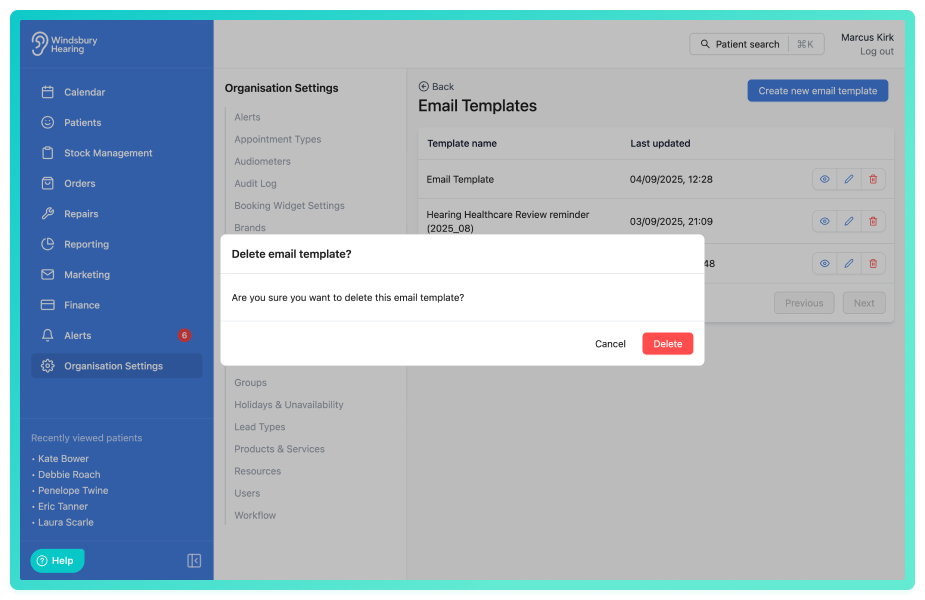
- Click Delete to confirm and delete the email template.
Warning: Once an email template has been deleted this action cannot be undone. Please proceed with caution!Was this article helpful?
That’s Great!
Thank you for your feedback
Sorry! We couldn't be helpful
Thank you for your feedback
Feedback sent
We appreciate your effort and will try to fix the article