Within the Documents & Images tab on the patient's dashboard, you'll find any files associated with the selected patient. Some file may be automatically generated by the HearLink system during specific actions like a Sales Order or a Hearing Test. You can email these documents when needed
In this article we will cover how to:
- email a document or image.
- email multiple documents.
Email a document or image
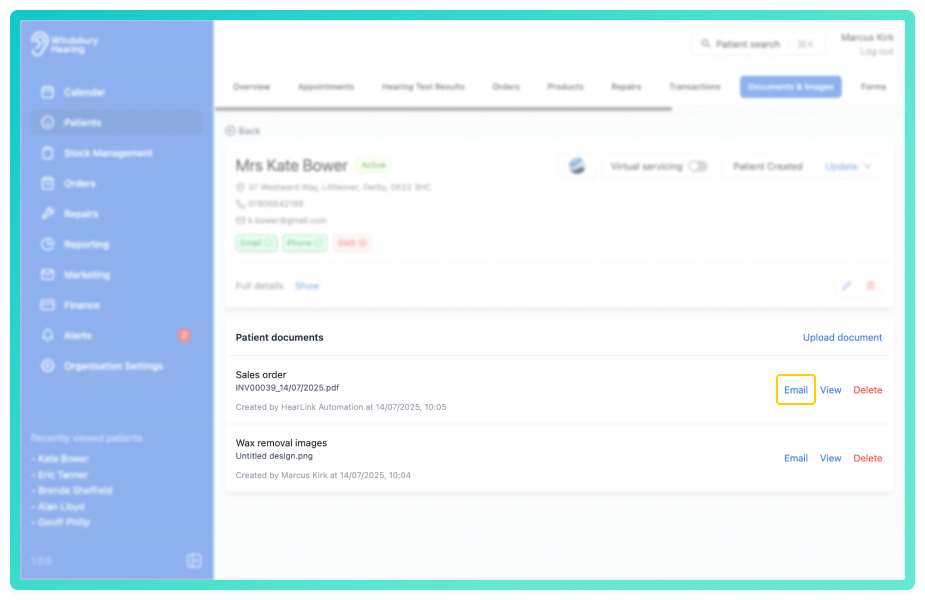
- Click the Email text next to the relevant document.
- A form will appear pre-filled with details pulled from the document.
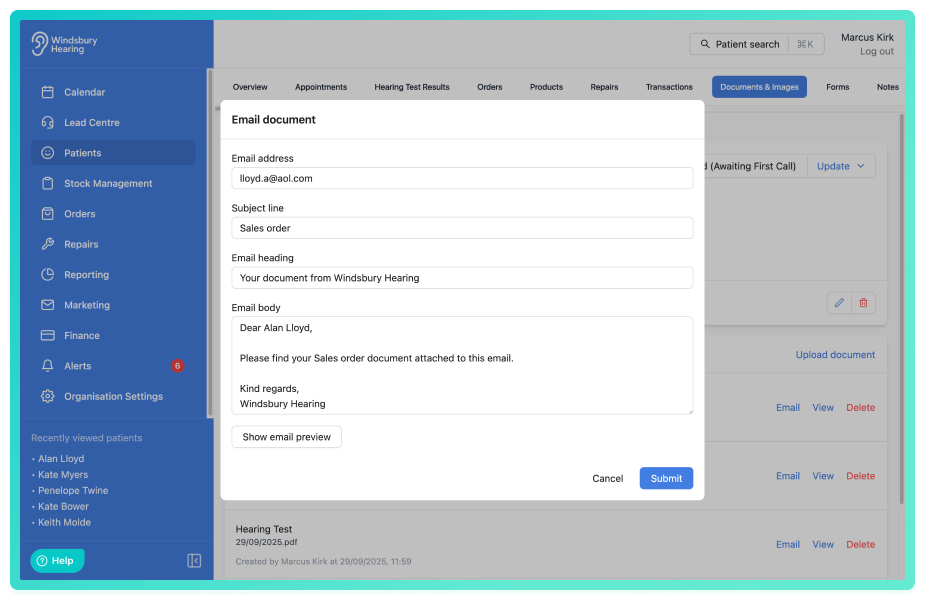
If an email address was not provided when creating a patient, you will need to manually add an email address.- Make any changes or customisations to the content if required, including subject line, email heading and body.
- Optional: Click Show email preview to see the email layout.
- Click the Submit to send the email.
Email multiple documents
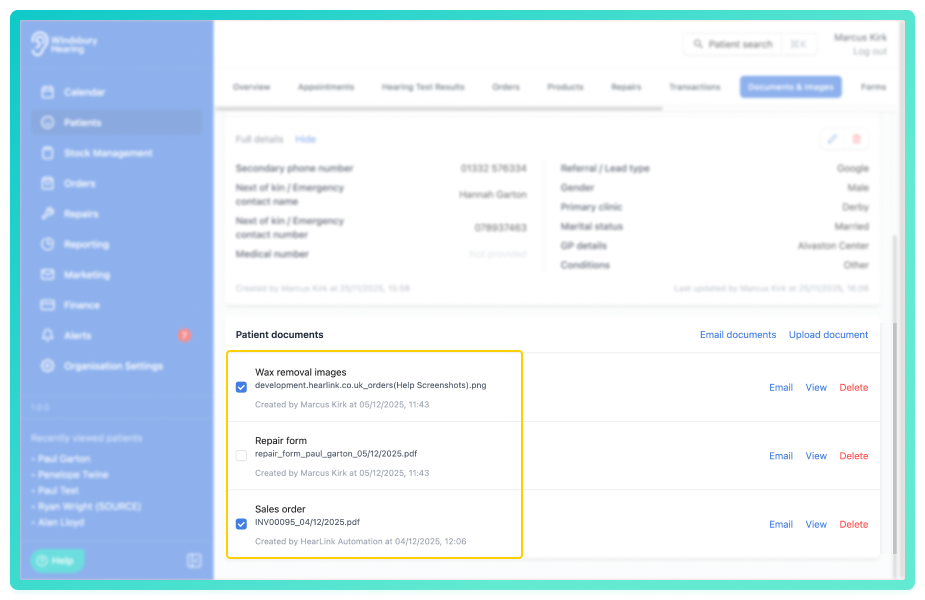
- Check the tickboxes next to the relevant documents. Select as many as required.
- Click Email documents.
- A form will appear pre-filled with the extra documents.
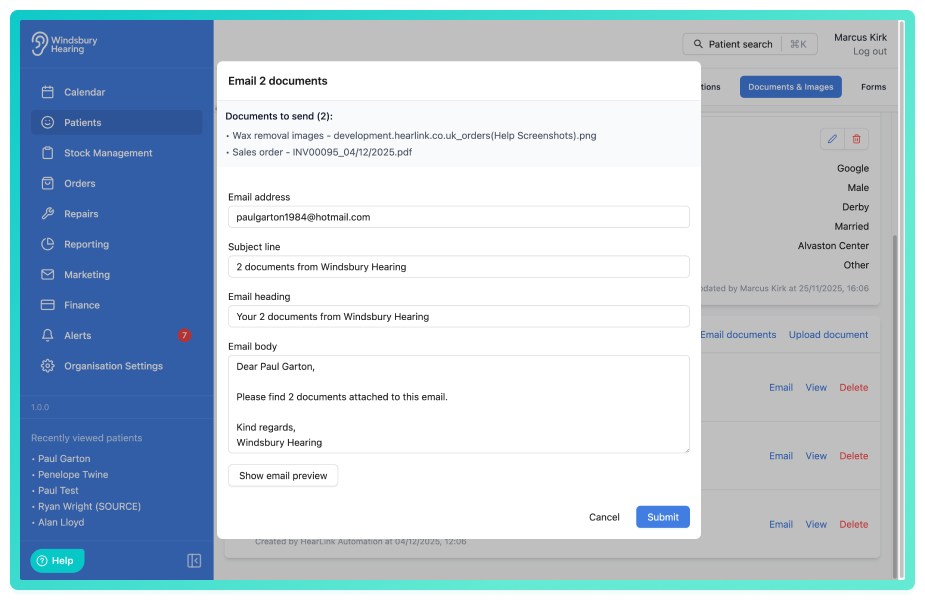
If an email address was not provided when creating a patient, you will need to manually add an email address.- Make any changes or customisations to the content if required, including subject line, email heading and body.
- Optional: Click Show email preview to see the email layout.
- Click the Submit to send the email.
Was this article helpful?
That’s Great!
Thank you for your feedback
Sorry! We couldn't be helpful
Thank you for your feedback
Feedback sent
We appreciate your effort and will try to fix the article