You can export letter templates as Word documents from the generate letter page. This allows you to download an editable .docx file that preserves the layout, formatting, and images from your template.
In this article we'll cover how to:
- export a letter template as a Word document.
- understand the limitations of exported Word documents.
Export a letter template as Word
When creating a new letter:
- Click the Export as Word button.
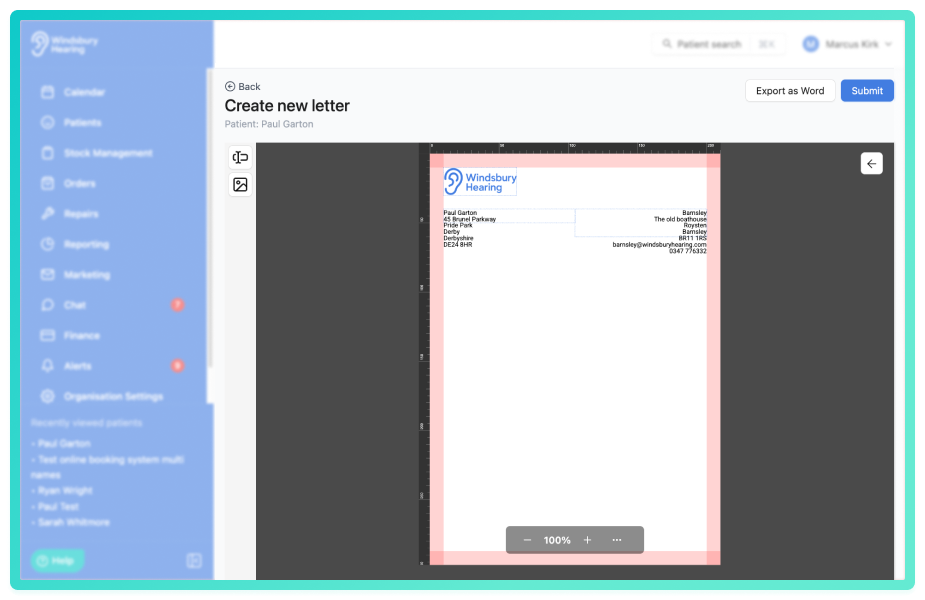
- The file will download to your device as a .docx file, named using the template name.
The exported Word document will contain all elements from your template, including text, images, logos, and formatting. You can open and edit the document in Microsoft Word or any compatible word processor.
What is preserved in the export
The following elements are preserved when exporting to Word:
- Page margins and layout.
- Font, size, and colour.
- Text alignment, bold, italic, and underline formatting.
- Line height and spacing.
- Images and logos with original aspect ratio.
- Side-by-side layouts (such as logos and clinic address positioned next to each other).
Known limitations
The following limitations apply to exported Word documents:
- Side-by-side elements and images are rendered as floating drawings in Word. These cannot be repositioned in Word Online due to Microsoft limitations. You can reposition them in Word Desktop.
Was this article helpful?
That’s Great!
Thank you for your feedback
Sorry! We couldn't be helpful
Thank you for your feedback
Feedback sent
We appreciate your effort and will try to fix the article