Manage a user's day-to-day schedule by assigning time blocks across their working week. Each block can represent a specific location and time range, you can add multiple blocks per day to reflect the real world routines.
You can also schedule future schedule changes to take effect on specific dates, allowing you to plan ahead for shift changes, seasonal adjustments or known schedule modifications.
In this article we'll cover:
- viewing and creating a user's schedule with effective dates.
- selecting a rotation type.
- how to remove a block.
- a working example.
- understanding rotation types and week panels.
- using copy, pastes and apply to all shortcuts.
- managing multiple schedules.
Only users with the correct permissions can edit a user's schedule. If you think you should have permission to perform such an action, please contact your organisation owner.Viewing and creating a users schedule
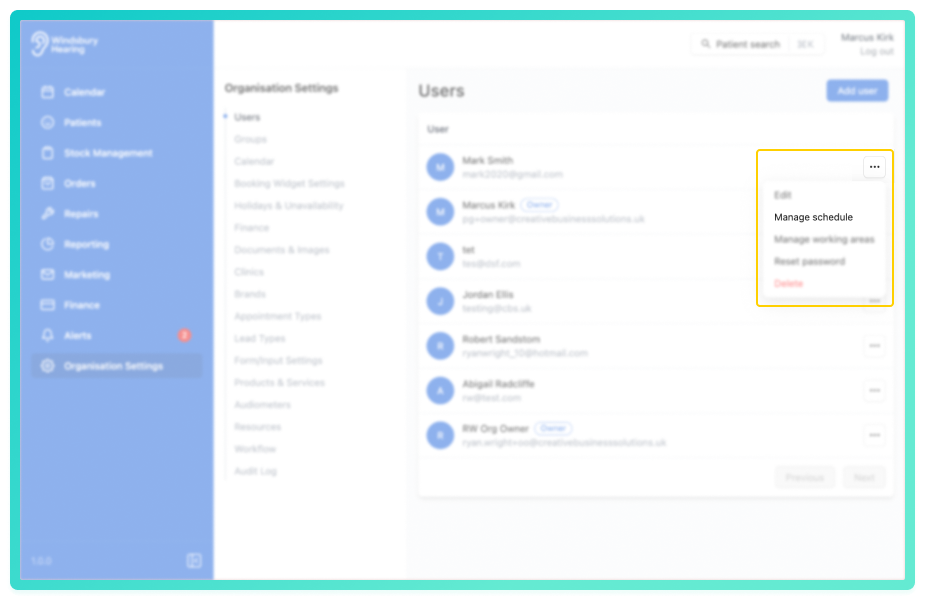
- Navigate to Organisation settings.
- By default you'll be in the Users section or click Users.
- Locate the user whose schedule you want to manage, then click More options
 next to their name.
Each schedule shows the effective date (when the schedule becomes active), when it was created and last updated.
If you see a schedule with the affective date of 1990, this is migrated from an existing schedule and can be edited or a if you wish to start fresh create a new one.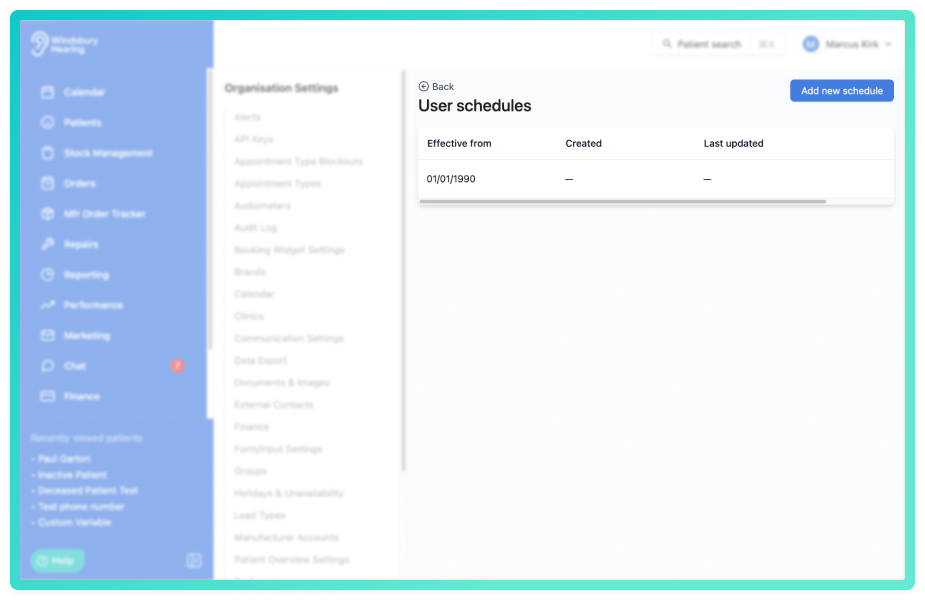
Add a new schedule:
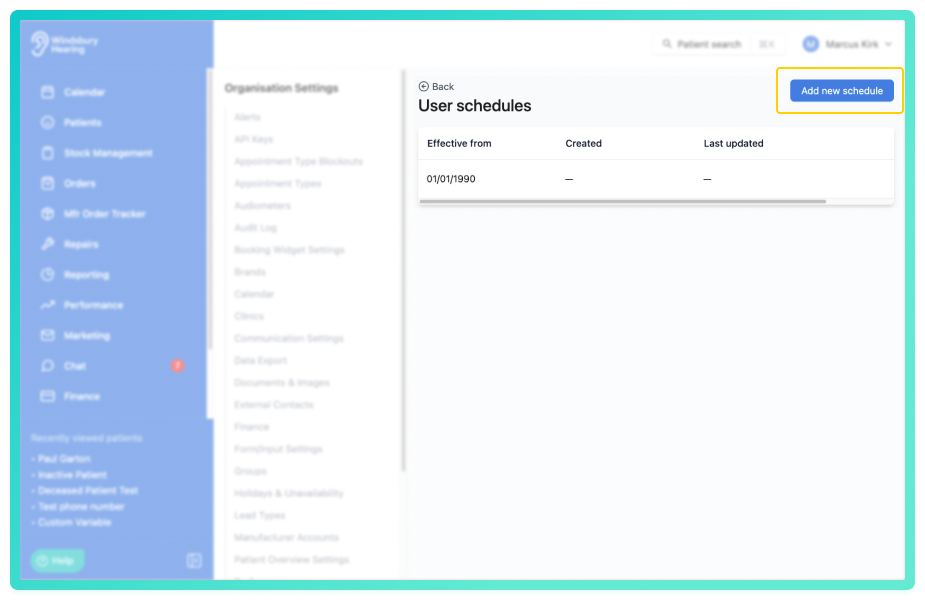
- Click Add new schedule.
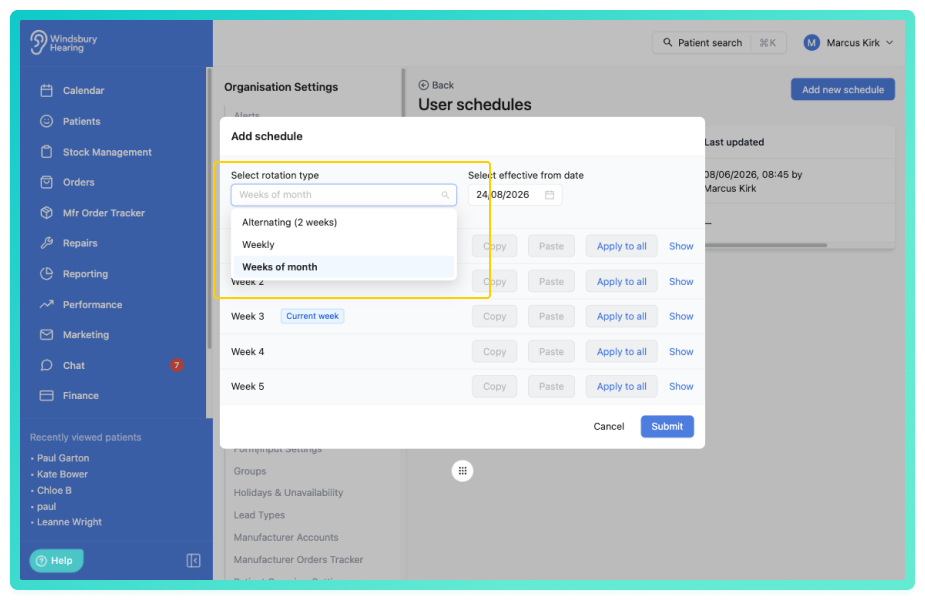
- Set the effective date - this is when the schedule becomes active.
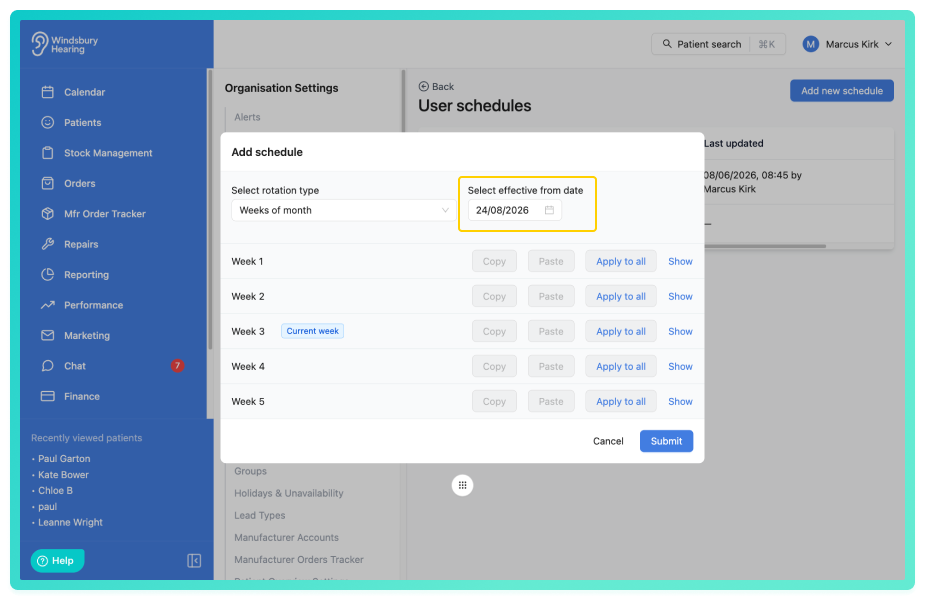
- Select a Rotation type - Weekly, Alternating (2 weeks) or Weeks of month (Monthly).
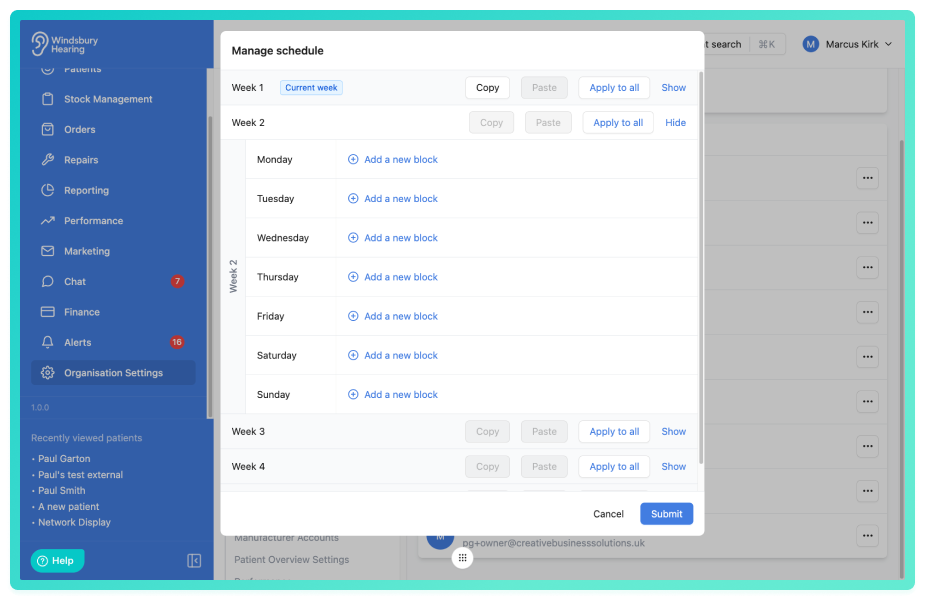
- Click Add a new block.
Foe each block you'll need to provide:
- Location - either a clinic assigned to the user or domiciliary.
- Times - a start and end time.
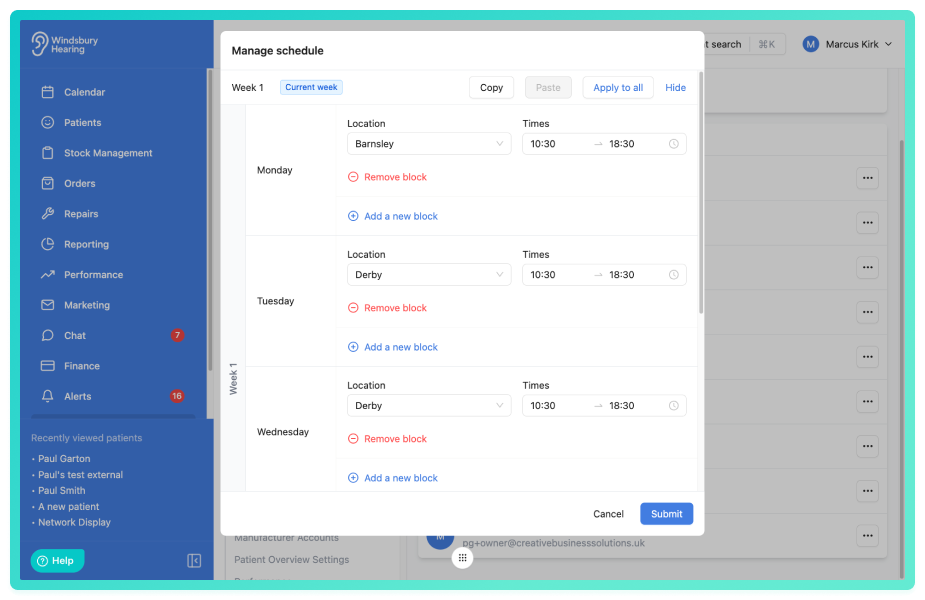
You can add as many Blocks as needed to accurately reflect a user's working day.
Remove a block
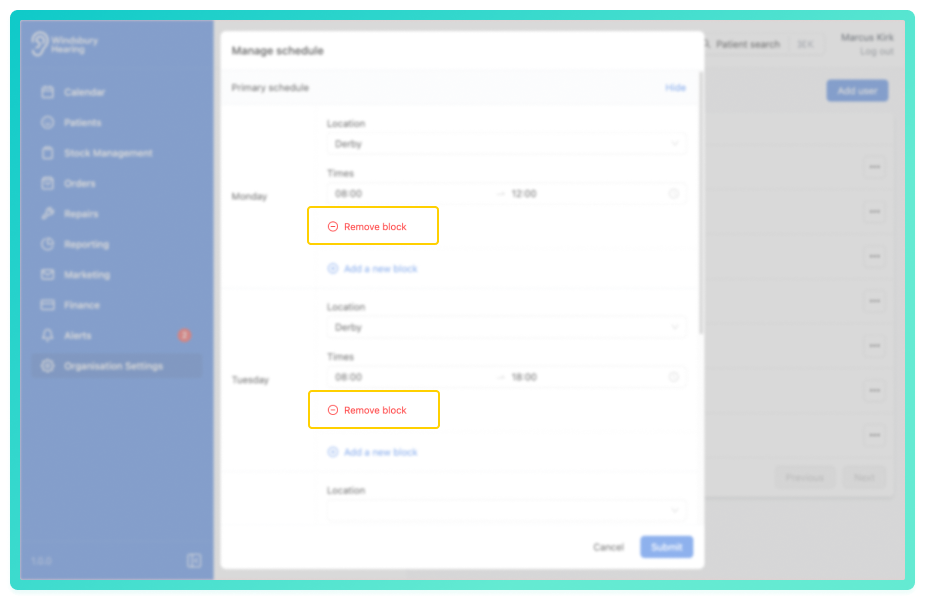
To remove a block
- Locate the block you want to delete.
- Click Remove block.
- The block will be removed from the schedule.
Working example
Let's say on Mondays, a user works in two different locations:
- 8:30 AM - 12:00 PM at the Alvaston Practice.
- 1:00 PM - 5:00 PM at the Derby Practice.
To reflect this on the Calendar, add two separate blocks for Monday.
We are only looking at Monday here, but this process can be repeated for each day of the week adding the blocks as required.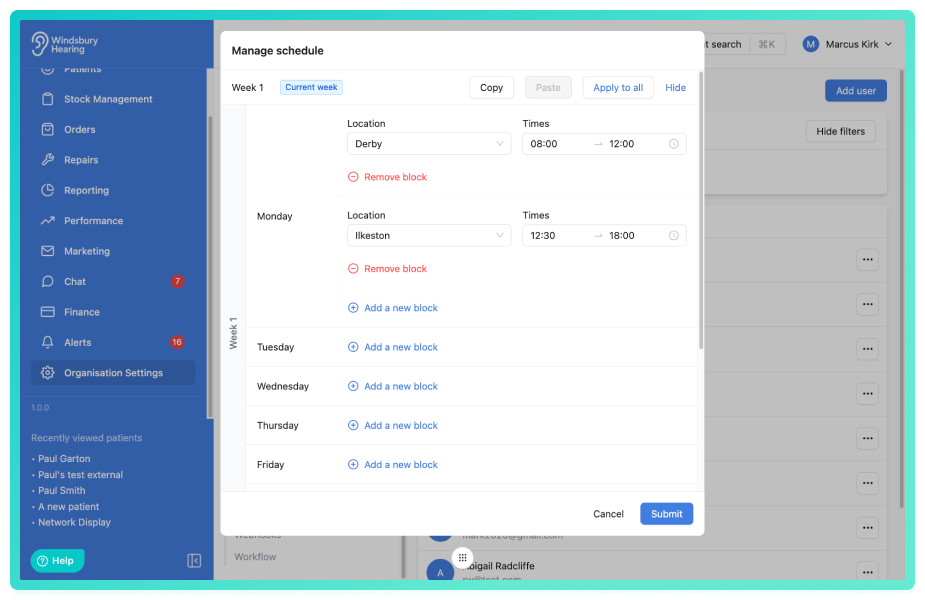
- Click Submit to save the schedule.
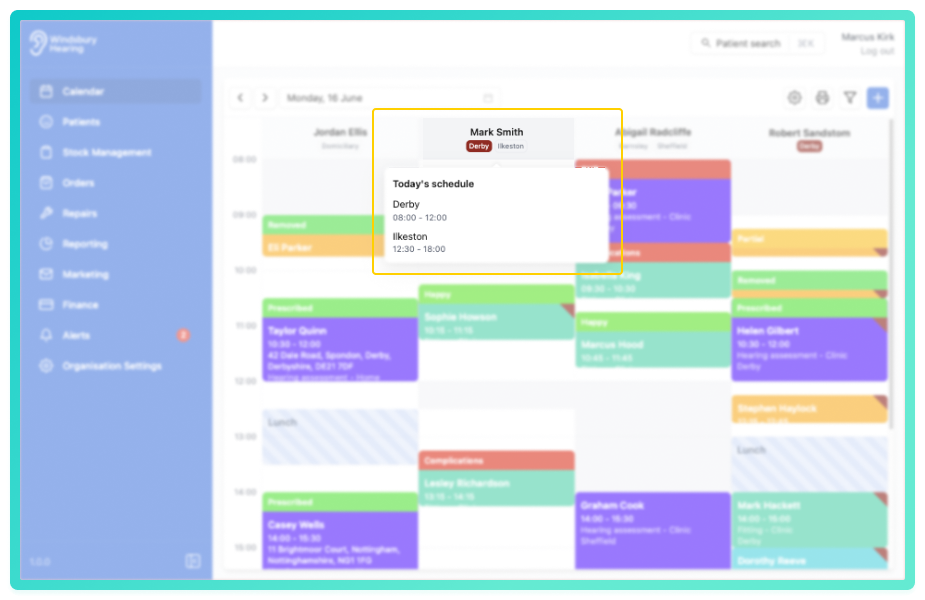
The changes will be reflected in the Calendar.
Understanding rotation types
User schedules support three rotation types, which control how many weeks of schedule you configure and how they repeat:
- Weekly - one schedule repeats every week.
- Alternating - two schedules (Week A and Week B) alternate on a fixed fortnightly cycle.
- Weeks of month - schedules are assigned to weeks 1 through 5 of each calendar month, with each week applying to all dates falling within that week number.
Existing schedules without a rotation type set continue to use Weeks of month.
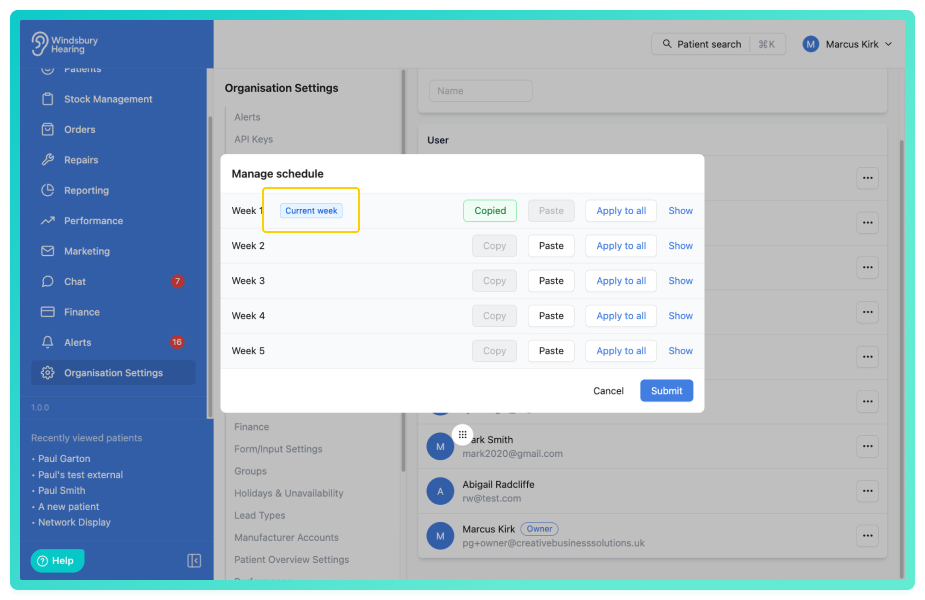
The current week you are editing is highlighted with a badge so you can quickly identify which week's schedule you are working on.
Week of month example:
You can set up a schedule for each of the 5 weeks. For example:
Week 1 (Monday):
- 8:30 AM - 12:00 PM at the Alvaston Practice.
- 1:00 PM - 5:00 PM at the Derby Practice.
Week 2 (Monday):
- 8:30 AM - 12:00 PM at the Alvaston Practice.
- 1:00PM - 5:00 PM Domiciliary.
Week 3 (Monday):
- Same as Week 1.
Week 4 (Monday):
- Same as Week 2.
Week 5 (Monday):
- Should mirror Week 1 or can be customised.
Week 5 handling:
Week 5 is handled as a special case because not all months contain a fifth week. By default, Week 5 mirrors the schedule fromWeek 1. If you need Week 5 to have a different schedule, you can customise it using blocks like all other weeks.
Using copy, paste and apply to all shortcuts
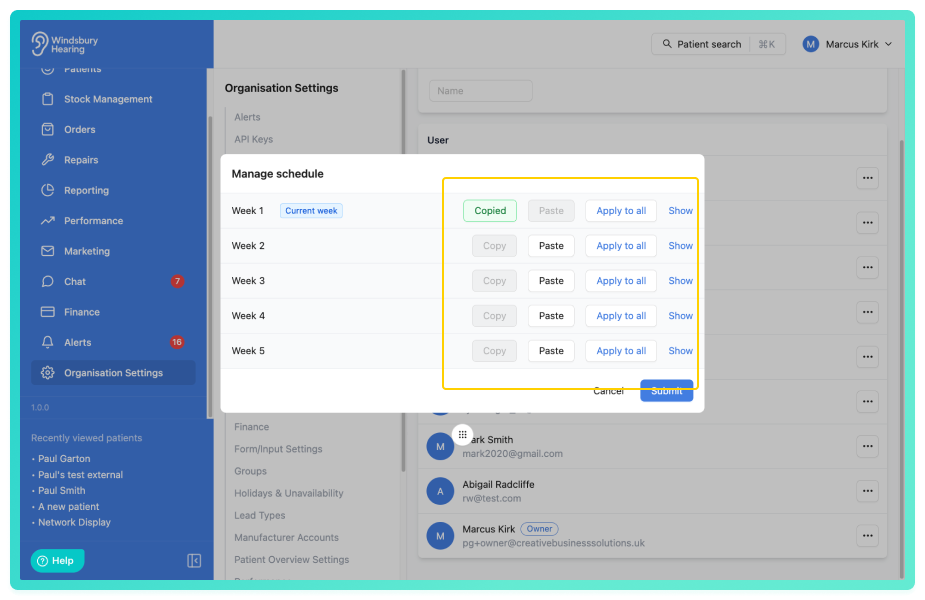
To speed up schedule configuration, you can use copy, paste and apply to all shortcuts.
- Set up the schedule for Week 1 with the required working hours and locations.
- Use the Copy button to copy the Week 1 schedule.
- Select which week you wish to apply the Week 1 schedule to and click the Paste button to apply the copied schedule.
- Alternatively, use the Apply to all button to apply that weeks schedule to all five weeks at once.
Managing multiple schedules
Once you've saved a schedule, you'll return to the User Schedules page. From here you can:
View all schedules - See all past, current and future schedules with their effective dates.
Edit future schedules - Click Edit on any future schedule and modify it before it becomes active. Once the effective date arrives, the schedule becomes current and can still be edited. Past schedules cannot be edited and are read-only.
Delete future schedules - Remove any future schedule before it becomes active if your plans change.
Example: Planning ahead:
Let's say a user's schedule changes on June 1st. You can:
- Create the current schedule (effective today).
- Add a new schedule with effective date June 1st.
- Configure the June schedule with the new working hours.
- Save.
When June 1st arrives, the new schedule automatically becomes active. If plans change before then, you can edit or delete the future schedule.
Was this article helpful?
That’s Great!
Thank you for your feedback
Sorry! We couldn't be helpful
Thank you for your feedback
Feedback sent
We appreciate your effort and will try to fix the article