A user may need to reset their password for a several reasons. For example, if they've forgotten it or if it's been compromised.
In this article we'll cover:
- how to reset a users password
- what to do with the temporary password
Only organisation owners can reset another user's password.Reset password
- Navigate to Organisation Settings.
- By default you'll be in the Users section.
- Locate the user whose password needs to be reset, then click More options
 next to their name.
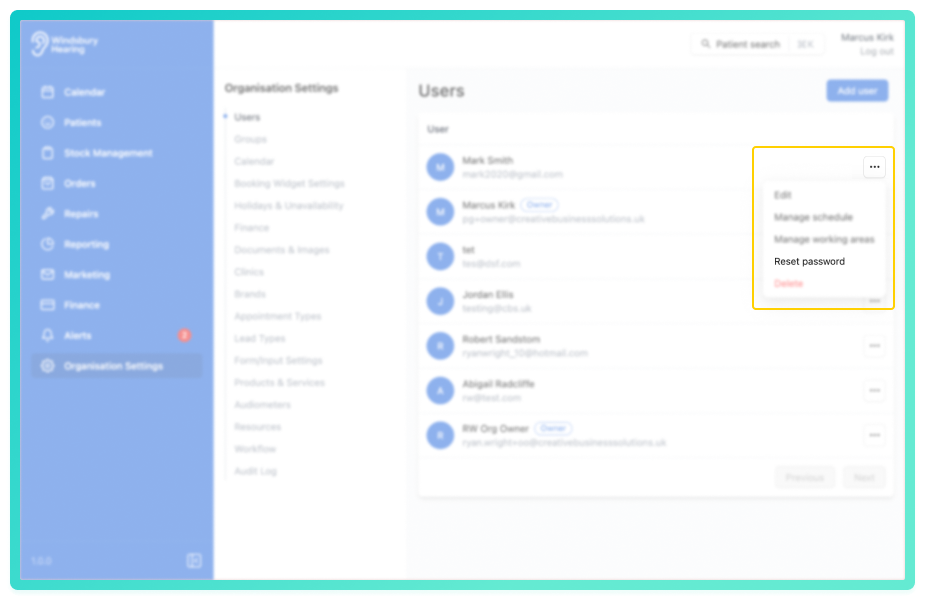
- Select Reset password from the dropdown options.
- A confirmation message will appear.
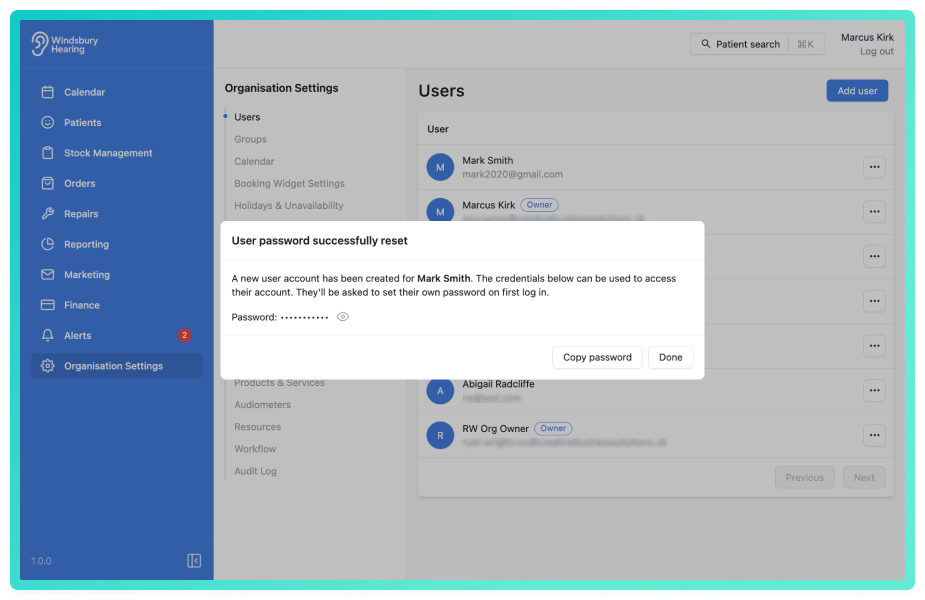
- Click Done and you have successfully reset the password for this user.
Once submitted a temporary password will be generated. Take note of the:
- Temporary Password
When the user logs in to the HearLink system for the first time after their password has been reset, they'll be prompted to create a new password.
You'll need to securely provide them with the temporary password generated by HearLink. Once they've set their new password. they'll be able to access the system based on their permissions.
Was this article helpful?
That’s Great!
Thank you for your feedback
Sorry! We couldn't be helpful
Thank you for your feedback
Feedback sent
We appreciate your effort and will try to fix the article