You can define a user's work area in the HearLink system using an interactive map powered by Google maps. This helps the system make smart recommendations when assigning appointments.
In this article we'll cover:
- how to manually draw a work area on the map.
- how to manage work areas using GeoJSON.
Only users with the correct permissions can manage another user's work areas. If you think you should have permission to perform such an action please contact the organisation owner.Manage work areas
- Navigate to Organisation Settings.
- By default. you'll be in the Users section.
- Locate the required user, then click More options

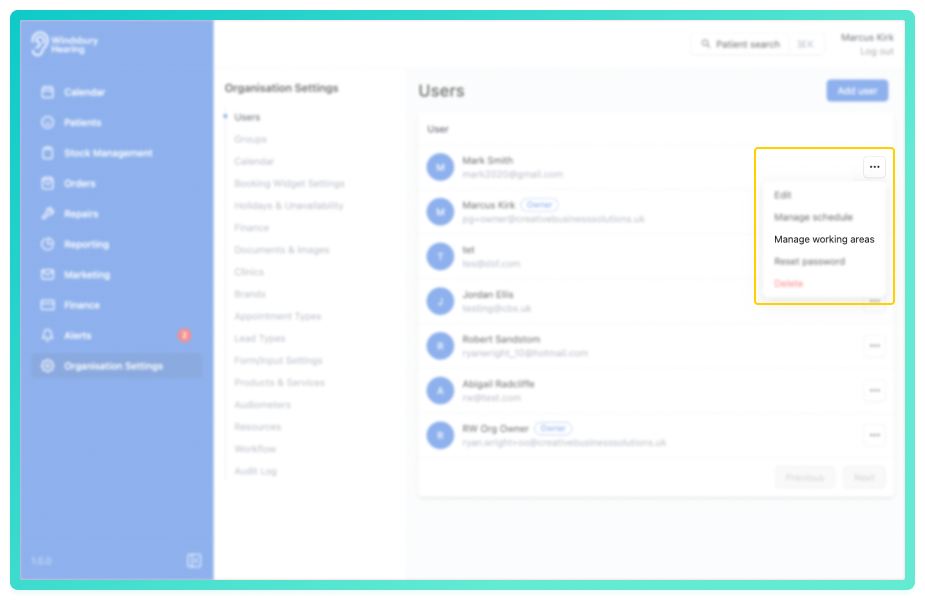
- Select Manage working areas from the list.
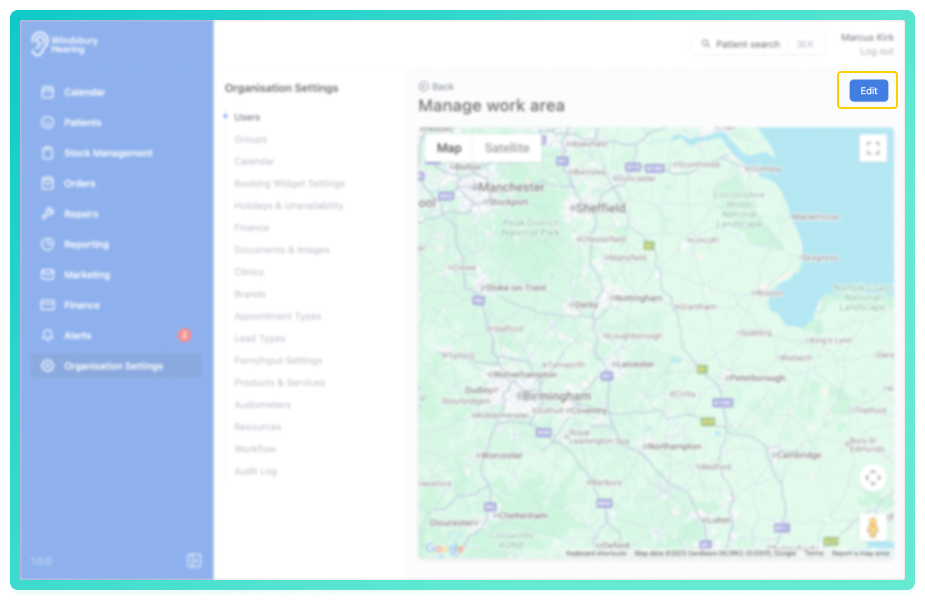
- Locate the click the Edit button.
Managing work areas manually
Using the Google Maps interface:
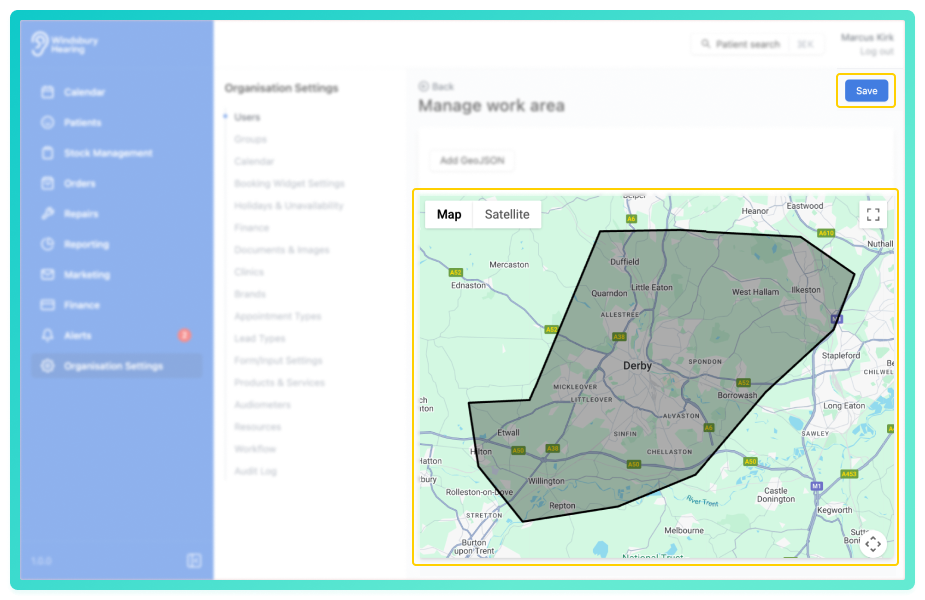
- Click on the map to drop points and create a custom boundry around the area the user covers.
- The shape will form as you add each click point, creating a polygon that outlines the user's working zone.
- This defined area helps the HearLink system recommend users when scheduling appointments based on proximity and availability.
Click Save and apply the changes.
You can always return and adjust the shape later if the user's coverage area changes.
Managing work areas using GeoJSON
Coming soon.
Was this article helpful?
That’s Great!
Thank you for your feedback
Sorry! We couldn't be helpful
Thank you for your feedback
Feedback sent
We appreciate your effort and will try to fix the article