As a newly invited user, you'll receive a temporary password from your organisation. The first time you log in, you'll be prompted to update this to a personal password.
In this article we'll cover how to:
- log in with your email address and temporary password.
- set a new password and access the system.
Log in with temporary password
- Enter the Email address provided to you by the organisation.
- Enter the temporary password issued during your invitation.
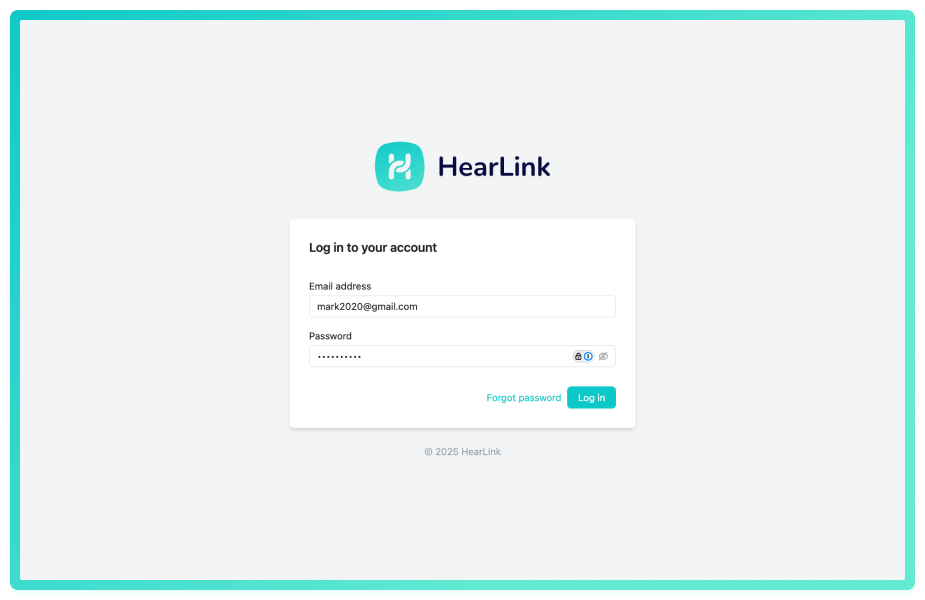
You'll be prompted to Set your own password.
- Enter your current (temporary) password.
- Create a new password.
- Confirm the new password.
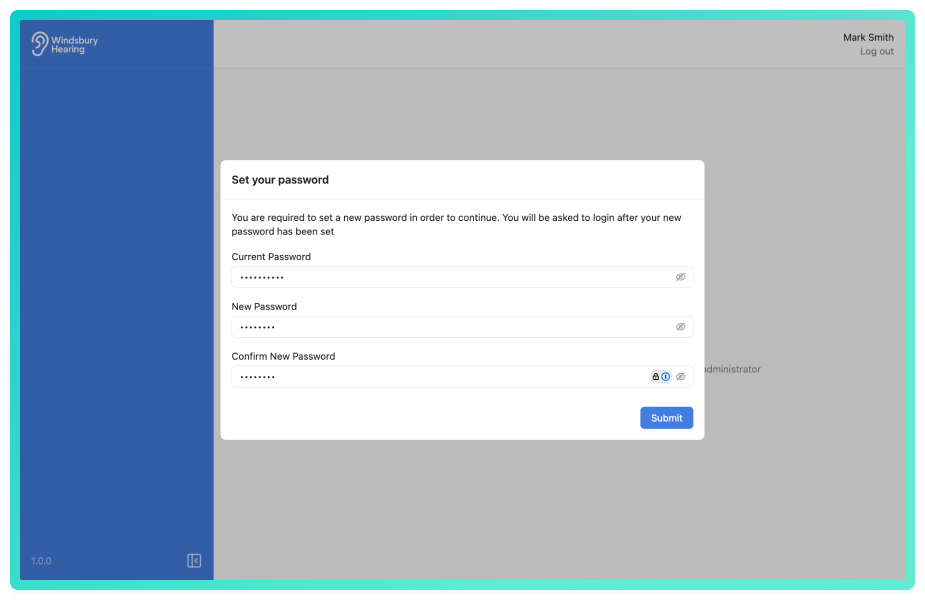
- Click Submit to save your new credentials.
You'll be redirected back to the login page. From here, log in using your email address and new password.
Was this article helpful?
That’s Great!
Thank you for your feedback
Sorry! We couldn't be helpful
Thank you for your feedback
Feedback sent
We appreciate your effort and will try to fix the article