Need to assign specific practitioners to certain appointment types? To make a user selectable in the Assignee dropdown when creating a new appointment, they must first be assigned to that appointment type.
In this article we will cover how to assign users to appointment types.
Only users with the correct permissions can assign users to an appointment type. If you think you should have permission to perform such and action please contact the organisation owner.Assigning a user to an appointment type
- Navigate to Organisation Settings.
- Locate and click the Appointment Types section of the settings.
- Click the View icon
 of the appointment type you want to assign users to.
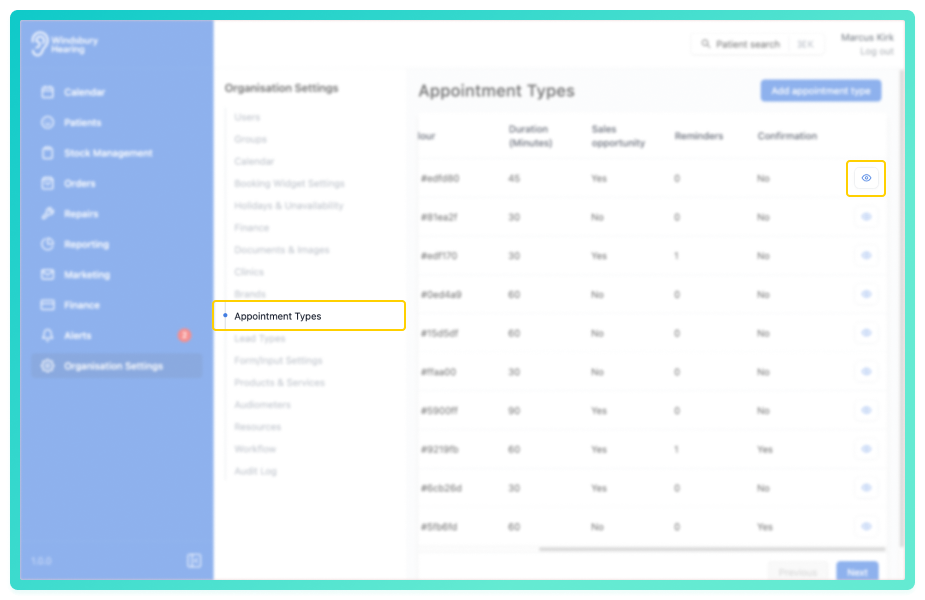
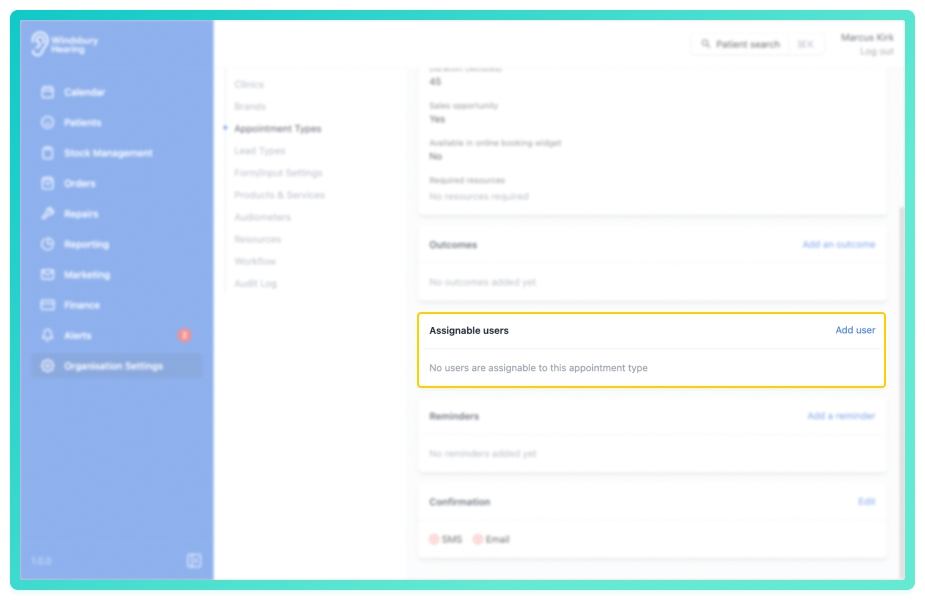
- Locate the Assignable users section,
- Click the Add user text.
- Start typing the user's name in the search box.
- Select the desired user to add them to the Assignable users list.
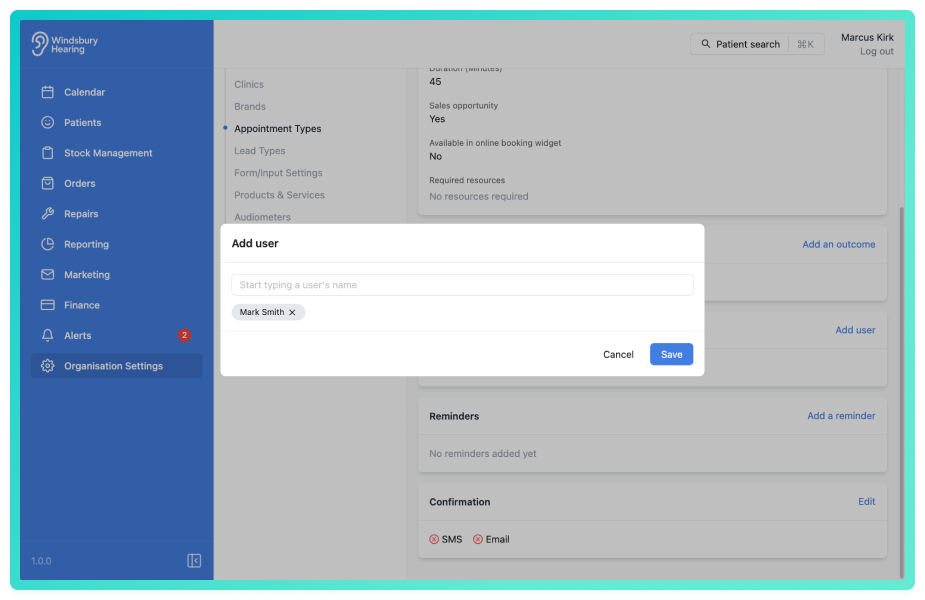
- Click Save to confirm.
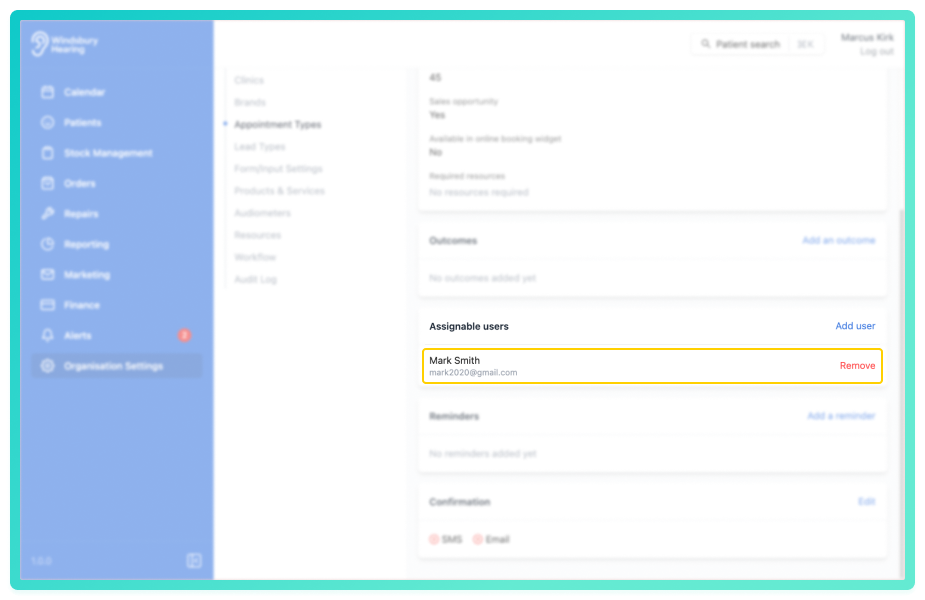
The assigned user will now appear in the list for that appointment type.
Remove a user from an appointment type
- Locate and click the Remove text.
- You'll be shown a warning message.
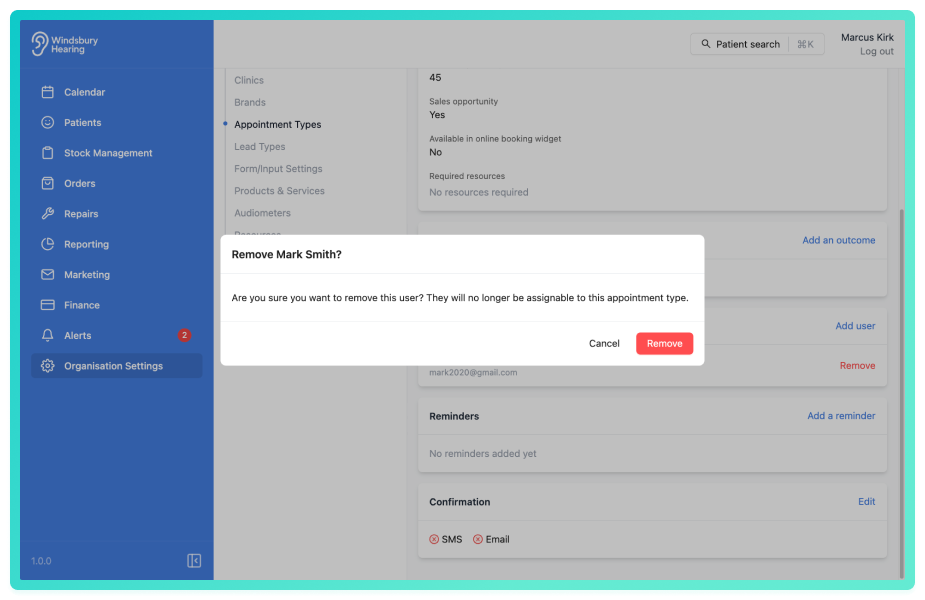
- Click Remove to confirm and remove the user.
Should you wish a user can be reinstated as an assigned user by repeating the steps from Assigning a user to an appointment type.Was this article helpful?
That’s Great!
Thank you for your feedback
Sorry! We couldn't be helpful
Thank you for your feedback
Feedback sent
We appreciate your effort and will try to fix the article