In this article we'll cover how to:
- create a new appointment for a patient directly from the dashboard.
- understand the fields in the appointment form.
Create an Appointment
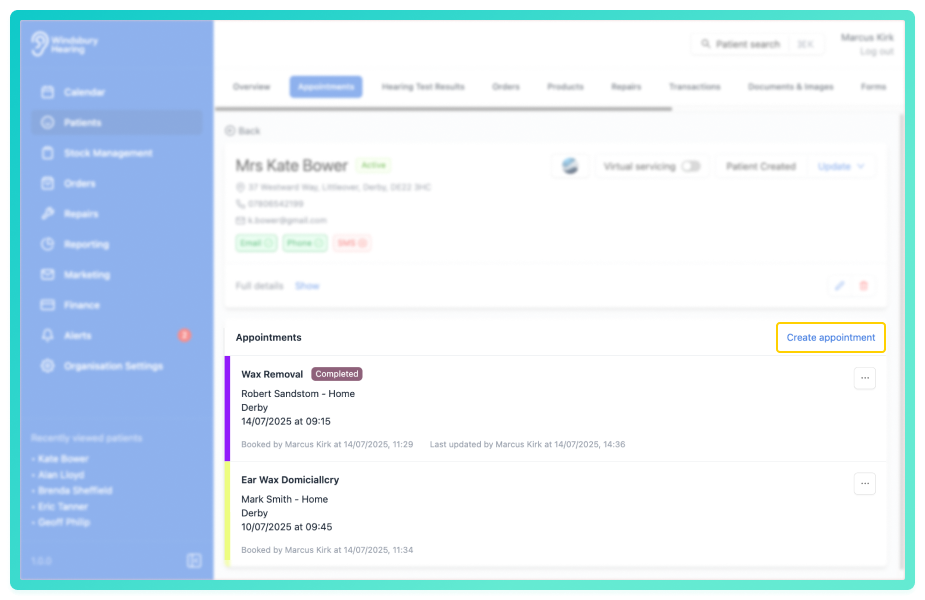
- Navigate to the desired patient.
- Locate and click the Appointments tab.
- Click the Create appointment text.
- Choose the Type of appointment and the Clinic.
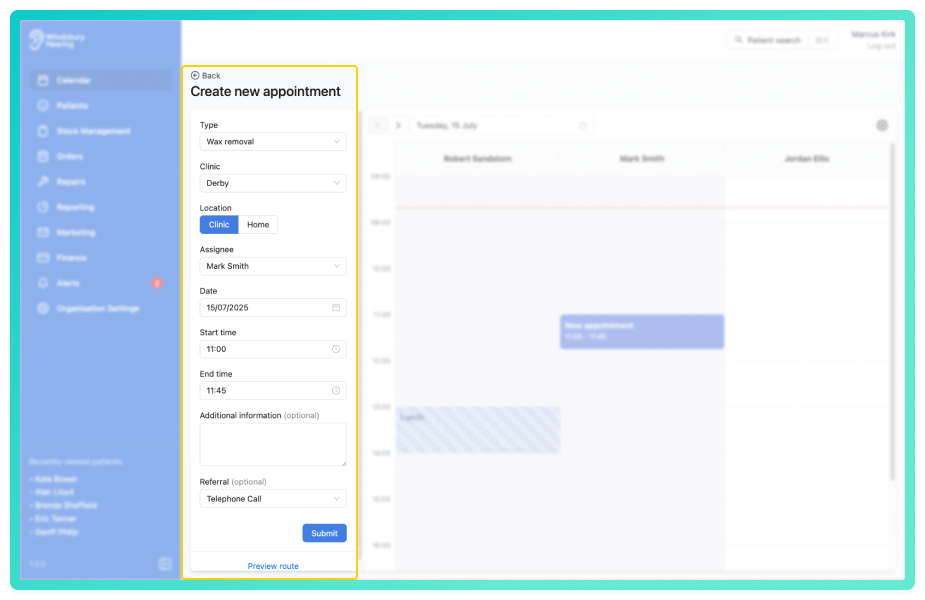
If there are no Types or Clinics available, these will need to be created in the organisation settings. See Appointment Types or Clinics for more information.- Complete the form with the Appointments details.
- Click Submit to save.
Your created appointment will now be visible in the appointments list.
Understanding the appointment form fields
Location
Select whether the appointment will take place in a Clinic or as a Home visit.
Assignee
Choose the practitioner to assign to the appointment. The HearLink system will suggest a practitioner based on the selected Clinic and any user assignments to the appointment Type.
Read more about assigning users to appointments here.
Date, Start time and End time
Select a date, start time and end time. The end time will automatically adjust based on the default duration of the selected appointment type (set in organisation settings), but it can be manually edited if needed.
Additional Information
This is an optional text field where you can add notes about the appointment.
Referral and sub type
Referral types to the Reporting section of the HearLink system. To learn more, see the articles in the Reporting section.
If there are no referral options available, see add a lead type.
Occasionally, you may receive a message such as "clinic mismatch" or "not enough resources" when creating an appointment. These can be overridden manually. For more information please read article warning messages.Was this article helpful?
That’s Great!
Thank you for your feedback
Sorry! We couldn't be helpful
Thank you for your feedback
Feedback sent
We appreciate your effort and will try to fix the article