An appointment outcome can be set in two ways, and also triggered through the patient statuses. Outcomes are configured in the Appointment types settings section of organisation settings.
In this article we'll cover how to:
- set an outcome from the patient dashboard.
- set an outcome from the calendar.
- trigger an outcome by changing a patient status.
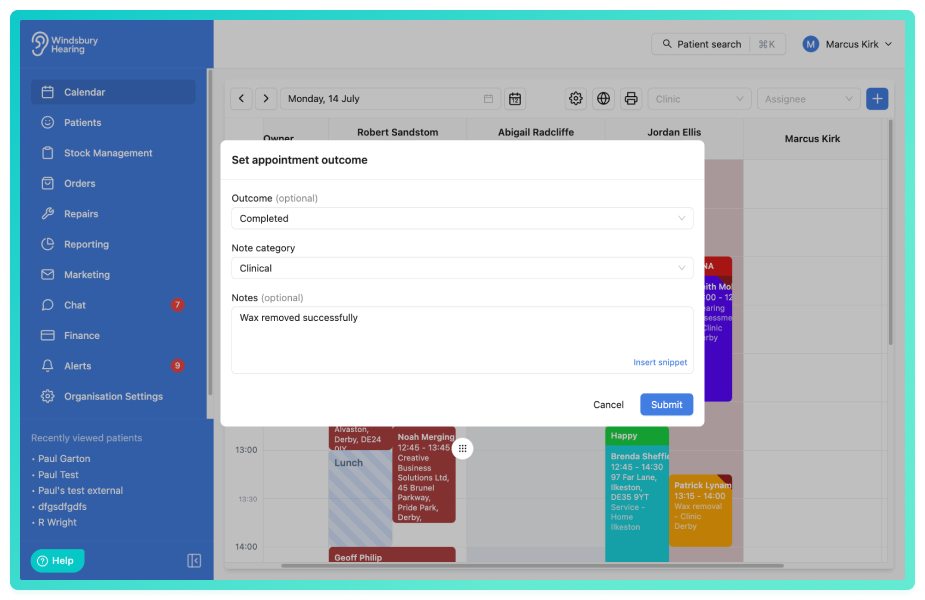
- adding a note to the outcome.
Set outcome from the patient dashboard
- Navigate to the desired patient.
- Locate and click the Appointments tab.
- Locate the required appointment, then click More options
 .
. - Click the Set appointment outcome text.
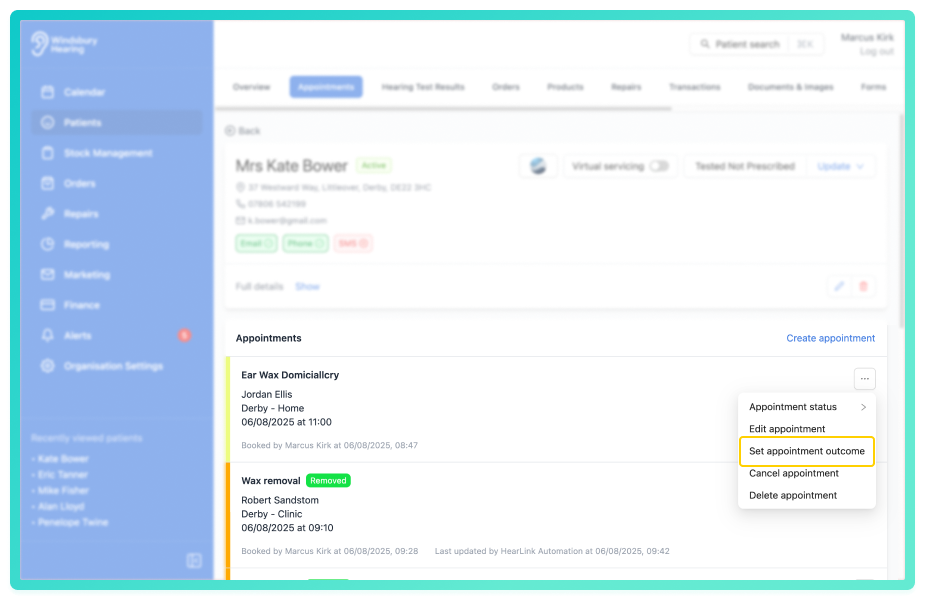
- Select the Outcome for this appointment.
- If required add a note to the Outcome.
- Add a Note Category for any notes added.
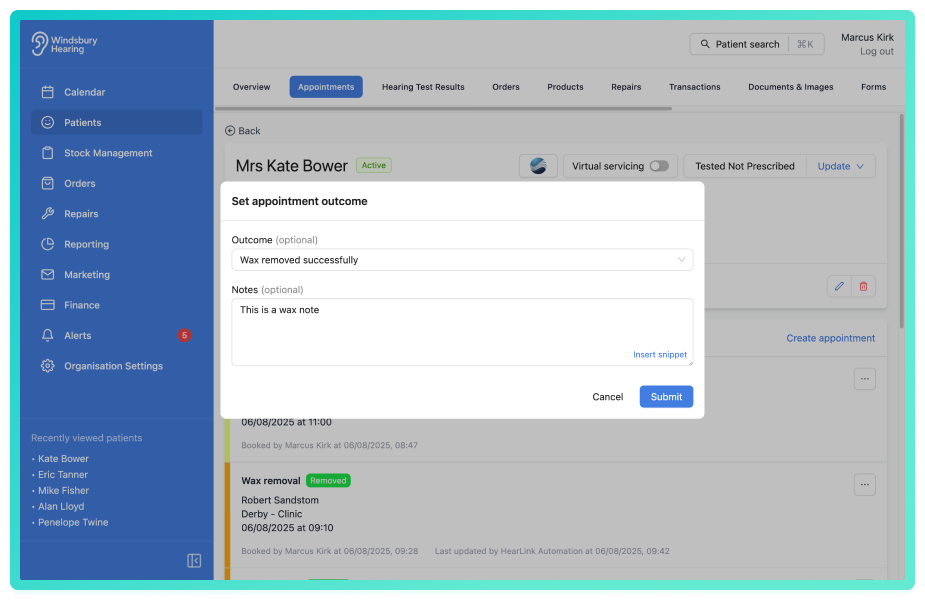
- Click Submit to save the outcome.
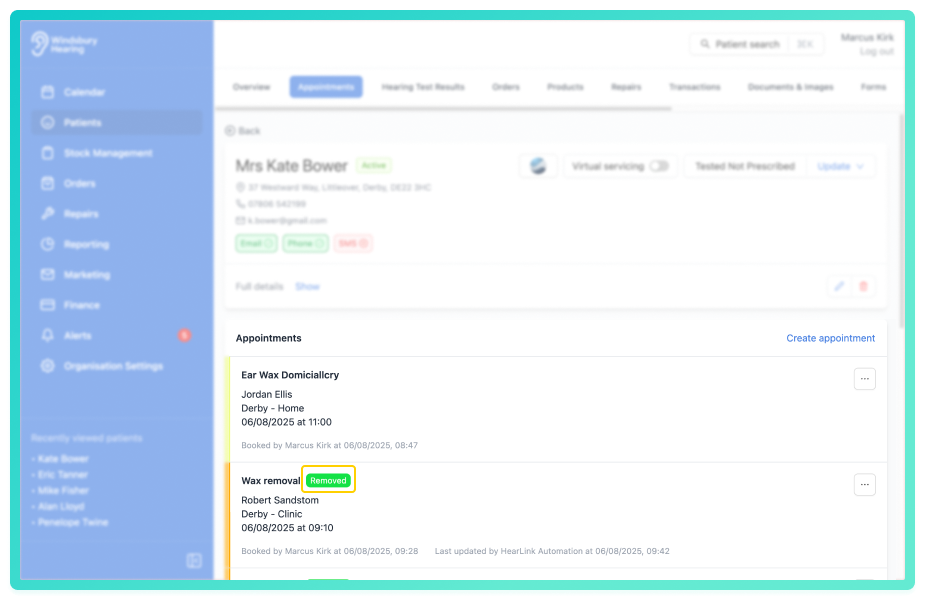
The appointment will now have the Outcome tag indication.
Set outcome from the calendar
- Navigate to Calendar.
- Locate the required appointment, then click More options.
- Click the Set appointment outcome text.
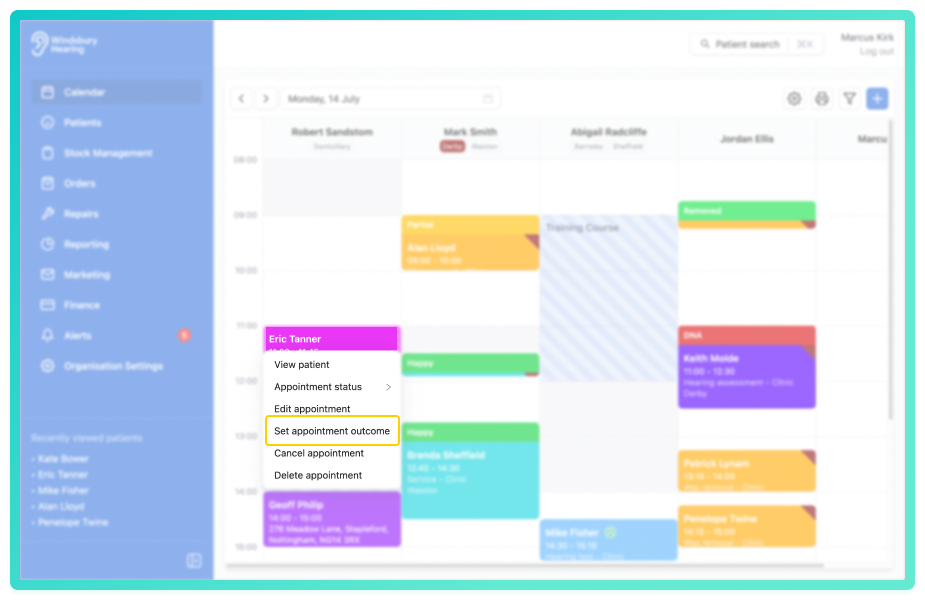
- Select the Outcome for this appointment.
- If required add a note to the Outcome.
- Add a Note Category for any notes added.
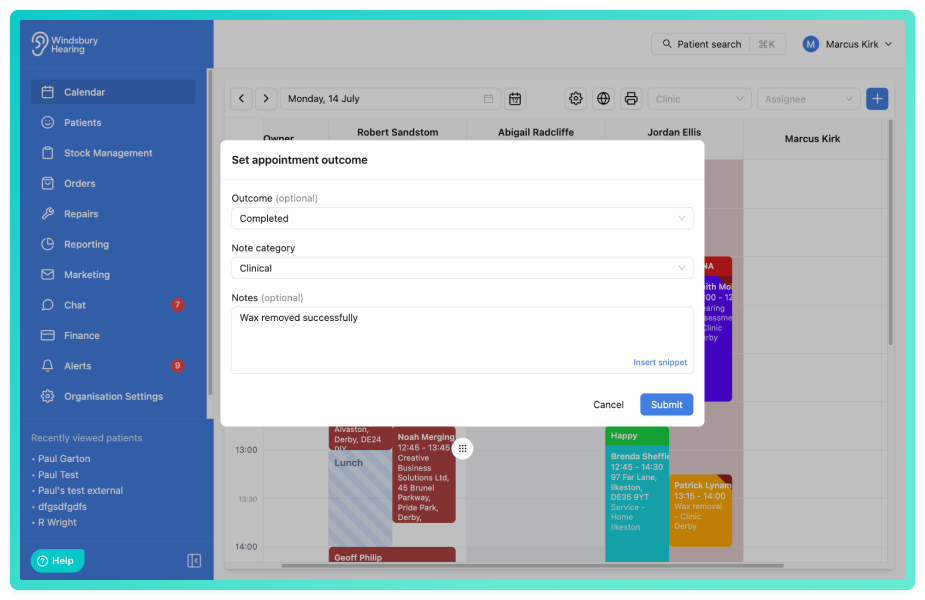
- Click Submit to save the outcome.
The appointment will now have the Outcome banner/tag/popover indication.
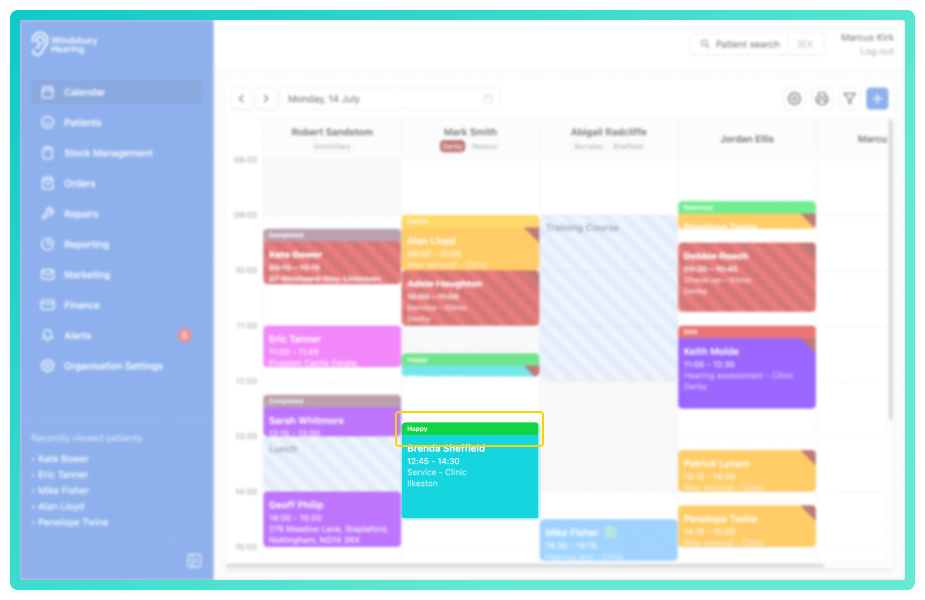
Trigger an outcome by changing a patient status
If a patient status and outcome are connected together in an appointment type, an outcome with be triggered by the status change.
- Navigate to the desired patient.
- Locate the Update text on the patient details section.
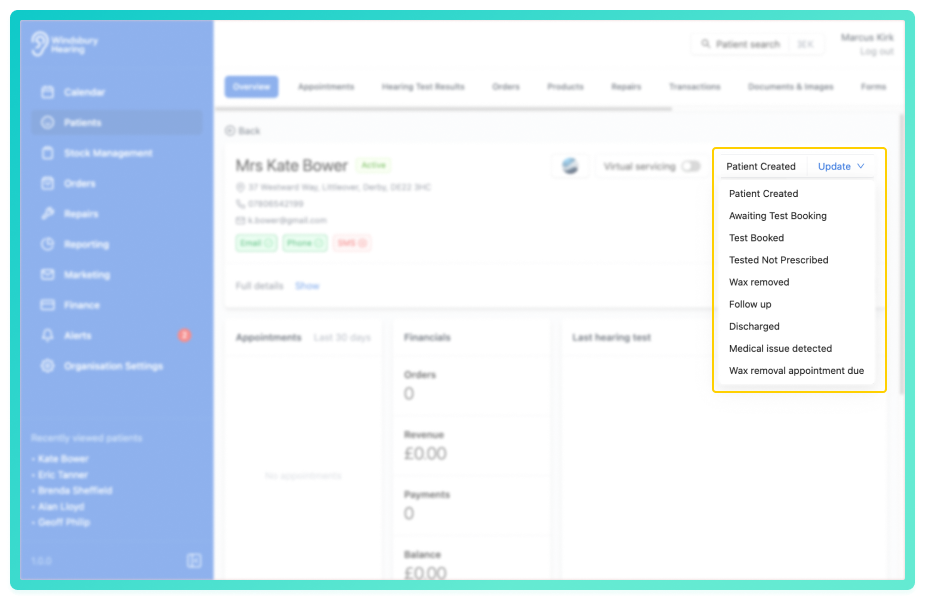
- Select a Status for the patient.
- If an Outcome is linked to this status and the appointment type, the Outcome will be automatically applied to the relevant appointment.
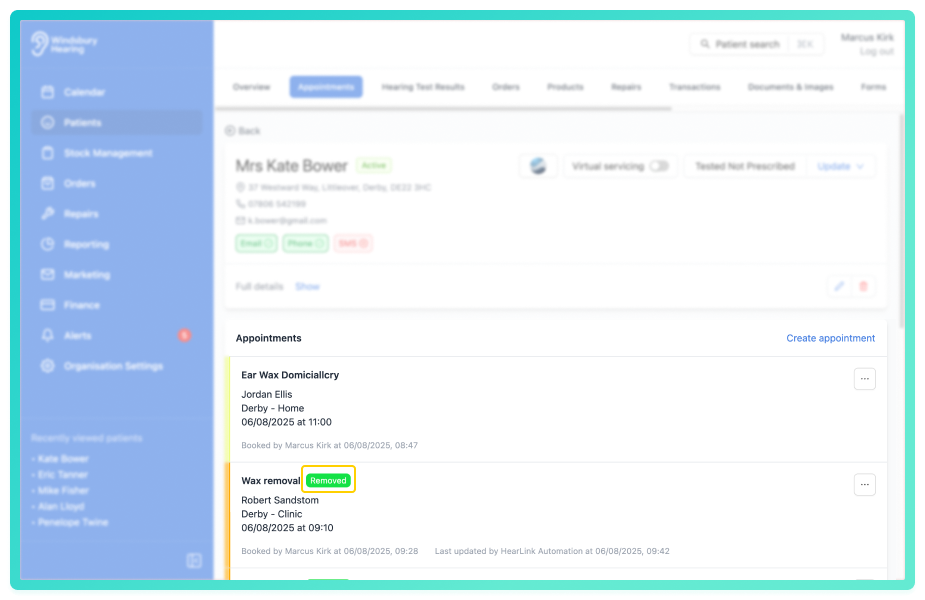
Add a note to an outcome
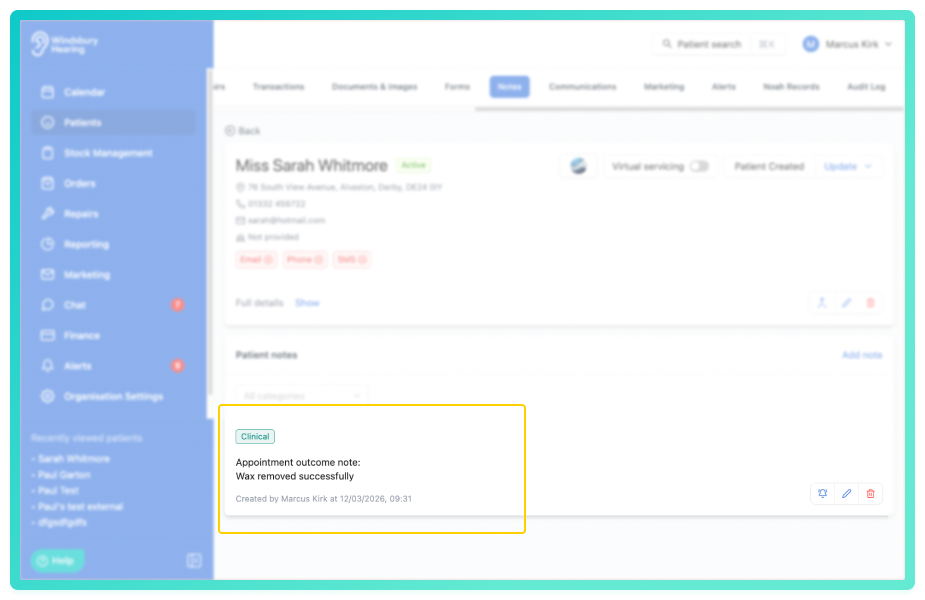
You can add notes to outcome set through the patient dashboard and calendar.
- View the note in the notes section of the patient dashboard.
Was this article helpful?
That’s Great!
Thank you for your feedback
Sorry! We couldn't be helpful
Thank you for your feedback
Feedback sent
We appreciate your effort and will try to fix the article