Before you can create an appointment, you need to define at least one appointment type. Types help you organise, categorise, and visually distinguish the services your organisation provides. You can customise these with a name, colour, duration, booking settings and more.
In this article we will cover:
- how to add an appointment type.
- key options and settings.
- a better understanding of the appointment type form fields.
Only users with the correct permissions can add an appointment type. If you think you should have permission to perform such an action please contact the organisation owner.Adding an appointment type
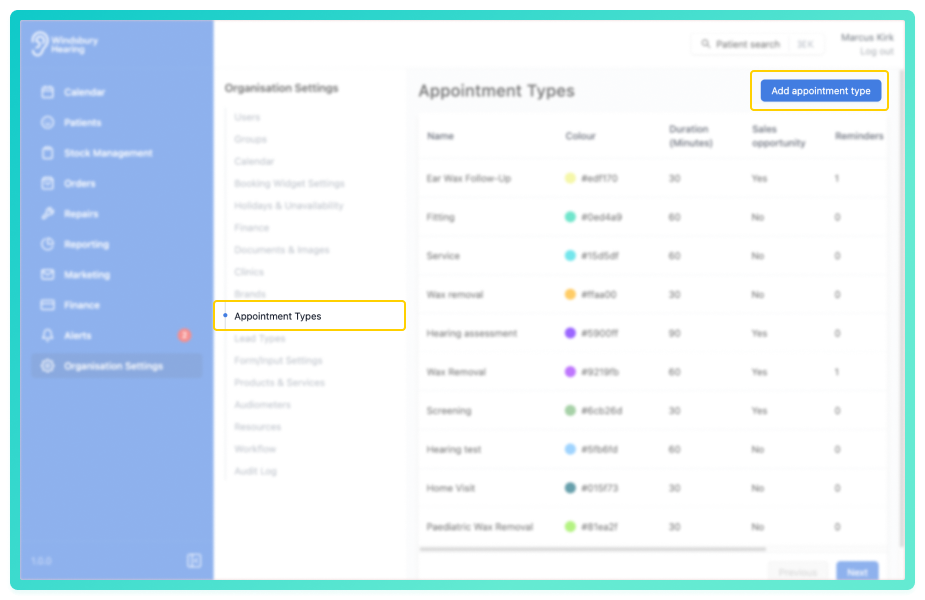
- Navigate to the Organisation Settings.
- Locate the Appointment Types section of the settings.
- Click the Add appointment type button.
- Complete the form according to your Appointment Types requirements.
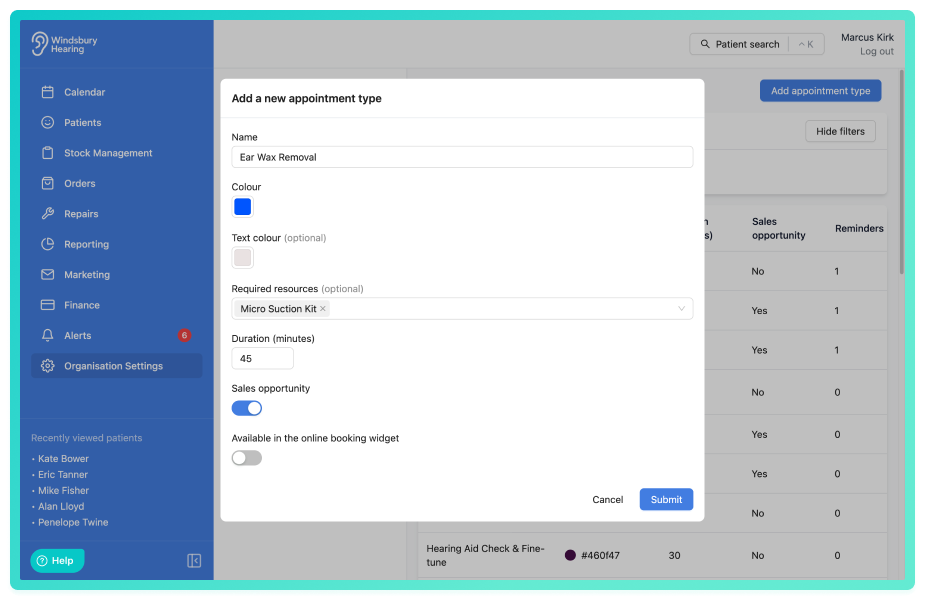
- Click Submit to save your new Appointment Type.
Understanding the Appointment Type form fields
Name
This is the name displayed to staff and patients.
Example: Hearing Test, Wax Removal, or Follow up appointment.
Colour
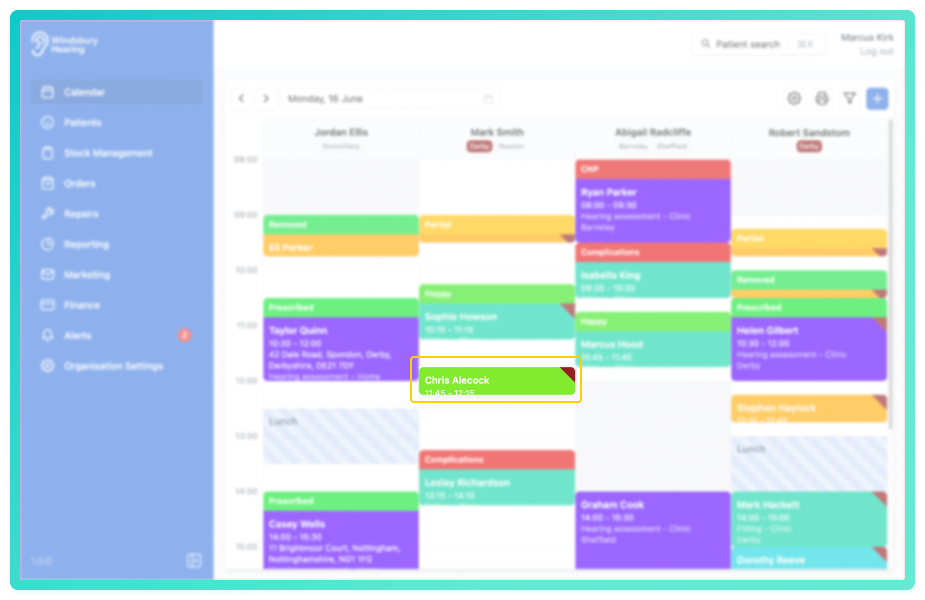
Choose a colour for the Appointment Type to make it easily identifiable in the calendar.
Example: Set Hearing Test to green for quick visual recognition.
Text Colour
Choose a text colour to complement the background colour of the appointment type.
Required Resources
If certain resources are needed to carry out the appointment (e.g. a specific clinic room or equipment), you can select them here.
See this article for more on setting up resources.
Duration (minutes)
Set how long this appointment should last.
This determines how it appears in the calendar.
Example: A Hearing Test may have a duration of 60 minutes.
Sales Opportunity
Enable this setting if the Appointment Type presents a potential for sales, such as consultations, assessments, or follow up appointments where products or services may be recommended.
This allows your team to track and report on sales opportunities generated through appointments, helping to identify which appointment types contribute to revenue.
Booking Widget
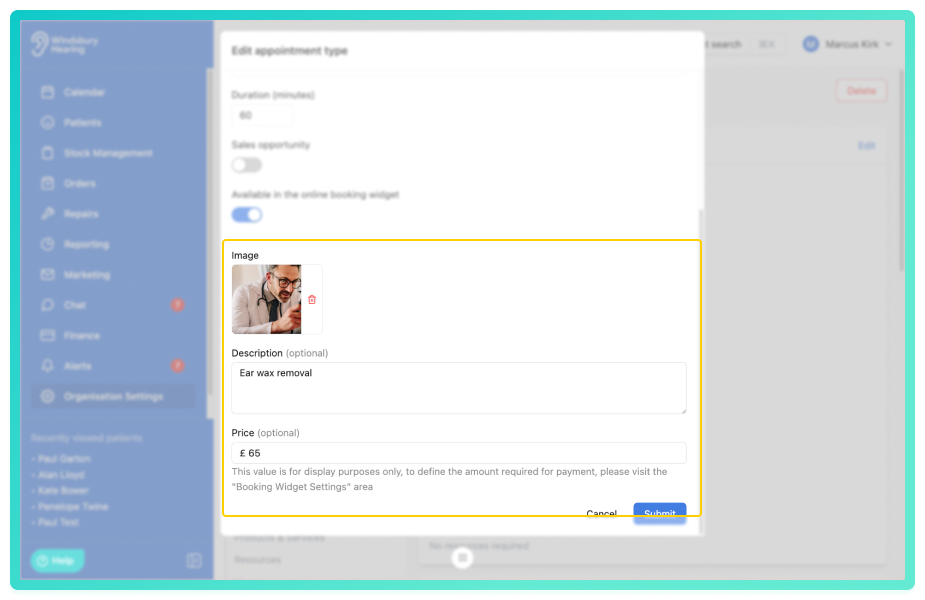
Enable this setting to make the Appointment Type available in your online booking widget. You can optionally:
- Add a description for patients to see.
- Add an image to be displayed for each appointment type.
- Set a price that will be displayed publicly.
This makes it easier for patients to book the correct service online. Learn more in the Booking Widget article.
Was this article helpful?
That’s Great!
Thank you for your feedback
Sorry! We couldn't be helpful
Thank you for your feedback
Feedback sent
We appreciate your effort and will try to fix the article