Performance dashboards let you track key clinic metrics across appointments, revenue, orders, and patients. Each dashboard is made up of widgets that you configure in Organisation Settings, and viewed from the Performance section of the main navigation.
Only Organisation Owners and users with permission to manage dashboard settings can configure dashboards. If you should have access and don't, contact your organisation owner.In this article we'll cover how to:
- find dashboard settings.
- create a dashboard.
- add a widget.
- set a breakdown.
- pin filters to a widget.
- arrange the layout.
- edit or remove a widget.
- edit dashboard details.
- duplicate a dashboard.
- delete a dashboard.
Find dashboard settings
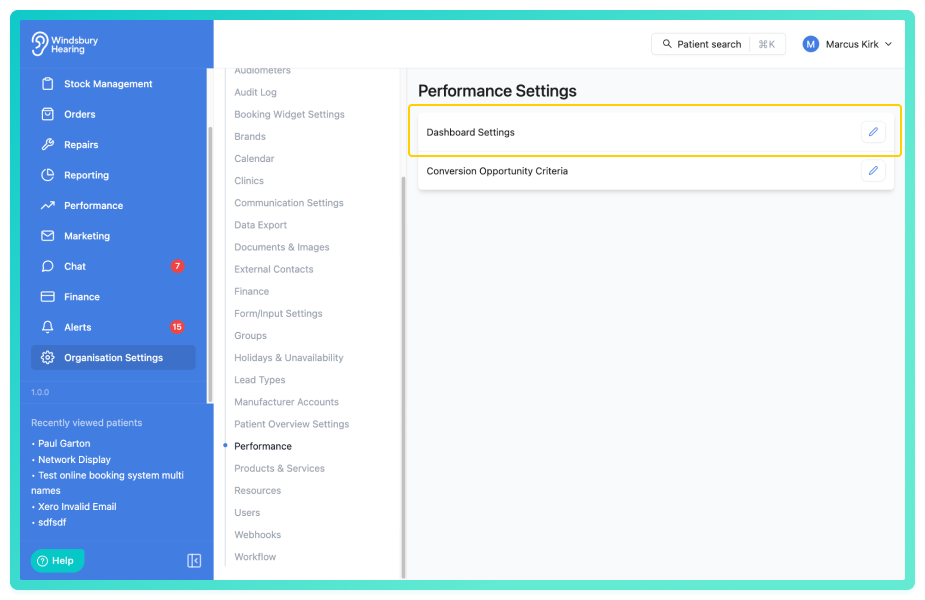
- Navigate to Organisation Settings.
- Locate and click Performance.
- Click the Edit
 icon Dashboard Settings.
Create a dashboard
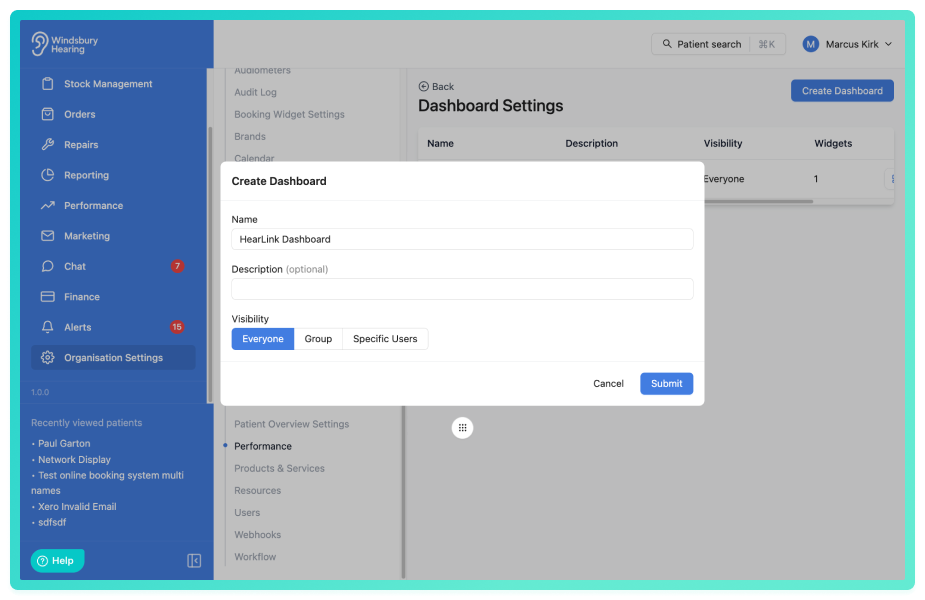
- From Dashboard Settings, click the Create Dashboard button.
- Enter a Name.
- Optionally enter a Description.
- Choose a Visibility:
- Everyone: every user with permission to view dashboards can see it.
- Group: only members of the selected groups can see it.
- Specific Users: only the selected users can see it.
- Click Submit. You'll be taken straight to the layout editor for the new dashboard.
Organisation Owners always see every dashboard, regardless of its visibility setting.Add a widget
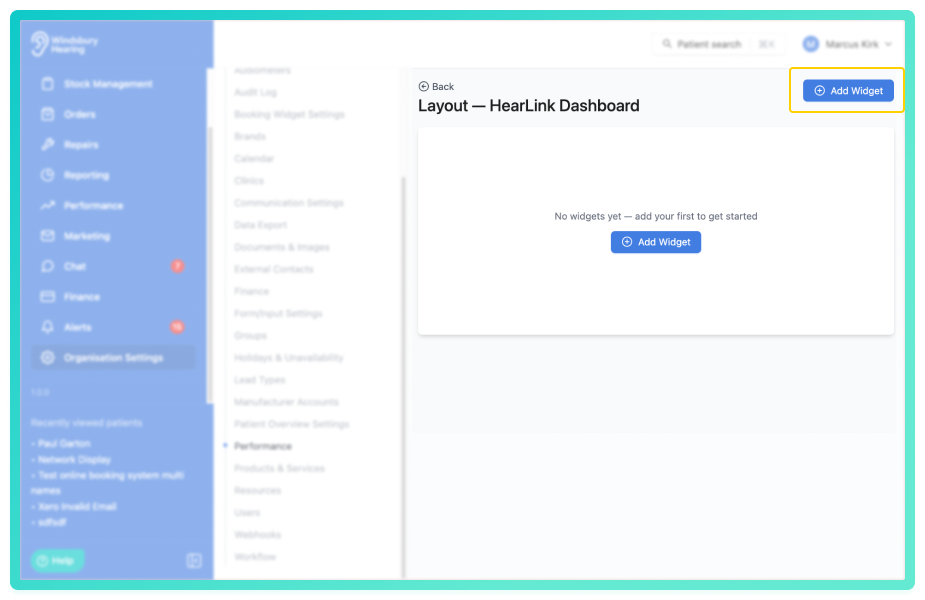
- After creating a dashboard you can add widgets immediately or from Dashboard Settings, click the Manage widgets icon next to the dashboard.
- In the layout editor, click the Add Widget button at the top right.
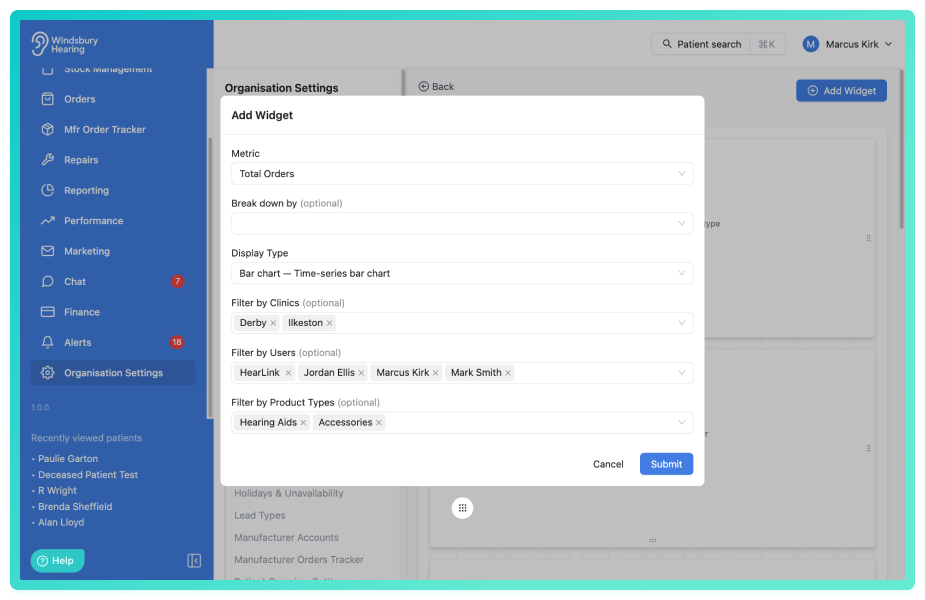
Choose a Metric. Metrics are grouped by:
- Appointments: Total Appointments, Conversion Rate, Cancellation Rate, No-Show Rate.
- Revenue: Total Revenue, Average Order Value.
- Orders: Units Sold, Total Orders.
- Patients: New Patients.
- Capacity: Utilisation Rate*.
*Utilisation Rate is calculated by dividing booked appointment minutes by available clinician minutes, capped at 100%. Available minutes account for clinician schedules, holidays and unavailability. Cancelled appointments are excluded, but no-show appointments are included.Optionally choose a Break down by dimension. The available options depend on the chosen metric:
- Appointment metrics: appointment type, clinic, or practitioner.
- Revenue metrics: clinic or practitioner.
- Units Sold: clinic or practitioner.
- Total Orders: clinic, practitioner, or product type.
- New Patients: clinic or referral source.
Leaving Break down by blank gives a single headline number. Setting a breakdown splits the metric across the chosen dimension and changes the available display types.
Choose a Display Type. The available options depend on whether a breakdown is set:
- No breakdown: Stat, Bar chart, or Progress.
- With a breakdown: Bar chart (stacked by the breakdown) or Pie chart.
- Optionally pin Filter by Clinics and Filter by Users (covered in the next section), and Filter by Product Type. Product type filtering is only available for revenue and order metrics, allowing you to scope data to Hearing Aid, Accessory, Service or Custom products.
- Click Submit. The widget appears at the bottom of the dashboard.
Pin filters to a widget
When configuring a widget, you can pin it to specific clinics and/or specific users (providers). A pinned filter always applies to that widget. The dashboard's viewer-side clinic filter then narrows the pinned scope further, the widget shows the overlap of the two filters.
Examples of how pinning interacts with the dashboard filter:
- Widget pinned to Clinic A, viewer filters the dashboard to Clinic B - the widget shows no data, because the two filters don't overlap.
- Widget pinned to Clinics A and B, viewer filters the dashboard to Clinics B and C - the widget shows only Clinic B's data.
- Widget not pinned, viewer filters the dashboard to Clinic B - the widget shows Clinic B's data.
- Widget pinned to Clinic A, viewer applies no clinic filter - the widget shows Clinic A's data.
When the breakdown axis matches a pinned filter dimension, the filter field is hidden in the widget editor - pinning to a single clinic and breaking down by clinic at the same time would give a one-bar chart, so the editor lets you pick one or the other. To scope a clinic-broken-down widget to a subset of clinics, use the dashboard's Clinic filter at view time.Which filters apply to which metrics
Clinic filters apply to every metric. The user (provider) filter applies to most, but not all - patient metrics aren't tied to a specific provider, so the field is hidden when you choose one of those.
| Metric | Clinic filter | User filter |
|---|---|---|
| Total Appointments | Yes | Yes |
| Conversion Rate | Yes | Yes |
| Cancellation Rate | Yes | Yes |
| No-Show Rate | Yes | Yes |
| Total Revenue | Yes | Yes |
| Average Order Value | Yes | Yes |
| Units Sold | Yes | Yes |
| Total Orders | Yes | Yes |
| New Patients | Yes | No |
Note: For revenue and order metrics, the user filter - and the practitioner breakdown - look up the assigned provider on the appointment that the order or invoice was raised against. Orders or invoices that aren't linked to an appointment are excluded.Arrange the layout
- In the layout editor, click and drag a widget to reposition it on the grid.
- Drag the left, right, or bottom edge of a widget to resize it.
- Layout changes save automatically.
On mobile devices, widgets stack into a single column following the order they appear on the desktop layout (top to bottom, left to right).Edit or remove a widget
- In the layout editor, click the Edit icon on a widget to change its metric, breakdown, display type, or pinned filters.
- Click the Delete icon to remove the widget. Confirm when prompted.
Edit dashboard details
- From Dashboard Settings, click the Edit icon next to a dashboard.
- Update the name, description, or visibility.
- Click Submit.
Duplicate a dashboard
- From Dashboard Settings, click the Duplicate dashboard icon next to a dashboard.
- A copy is created with all widgets preserved. The name pre-fills as Copy of {original name}.
- Adjust the name and visibility as needed.
- Click Submit. You'll be taken to the layout editor for the new dashboard.
Delete a dashboard
- From Dashboard Settings, click the Delete icon next to a dashboard.
- Confirm to delete.
Warning: Deleting a dashboard cannot be undone. All widget configurations are removed.
Was this article helpful?
That’s Great!
Thank you for your feedback
Sorry! We couldn't be helpful
Thank you for your feedback
Feedback sent
We appreciate your effort and will try to fix the article