Goals let you set measurable targets for your clinic's key performance metrics and track progress against them. You can set a target for your whole organisation, for an individual clinic, or for a single member of staff, and HearLink will show how actual performance is tracking against it.
In this article we'll cover:
- why you should use goals.
- how goals work.
- how to create a goal.
- how to set a target that changes over time.
- how to find and filter your goals.
- how to edit a goal.
- how to delete a goal.
- who can see and manage goals.
Why use goals?
Setting goals turns the numbers you already collect into clear targets your team can work towards. Goals help you:
- turn your KPIs into concrete monthly targets the whole team can rally around, instead of abstract numbers on a dashboard.
- see at a glance whether the organisation, a clinic, or an individual is on track, with no report to build.
- catch problems early, because the tracking figure tells you whether you are pacing to hit the target before the period ends.
- motivate staff with visible personal goals on their own My Goals tab.
- set fair targets that grow with the business, raise or lower a target for any future month without disturbing past performance.
How goals work
Every goal is made up of three things:
- A metric - the performance measure you want to track.
- A scope - who the target applies to: the whole Organisation, one or more Clinics, or one or more Users.
- A monthly target - the figure to hit each month, taking effect from a month you choose. The target stays in force every month until you set a later one to replace it.
Targets are set per month, but the Goals page rolls them up automatically, so a monthly target is also reflected in the quarter and year views.
You can set goals on the following metrics:
- Total Appointments, Conversion Rate, Cancellation Rate, No-Show Rate.
- Total Revenue, Average Order Value.
- Units Sold, Total Orders.
- New Patients, Patients by Referral Source.
New Patients and Patients by Referral Source can be set for the organisation or a clinic, but not for an individual user.Create a goal
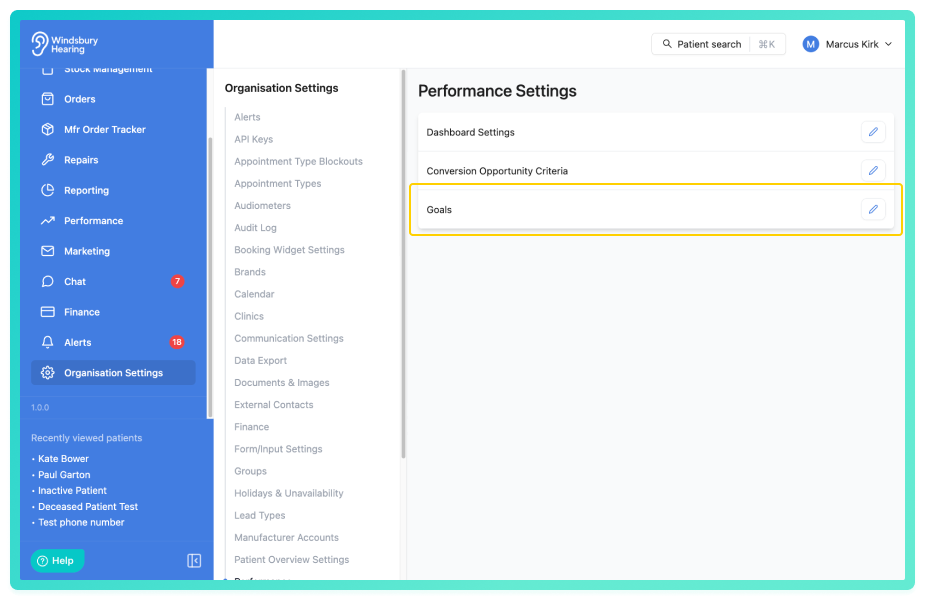
- Navigate to Organisation Settings.
- Locate and click Performance.
- Click the Edit
 icon on Goals.
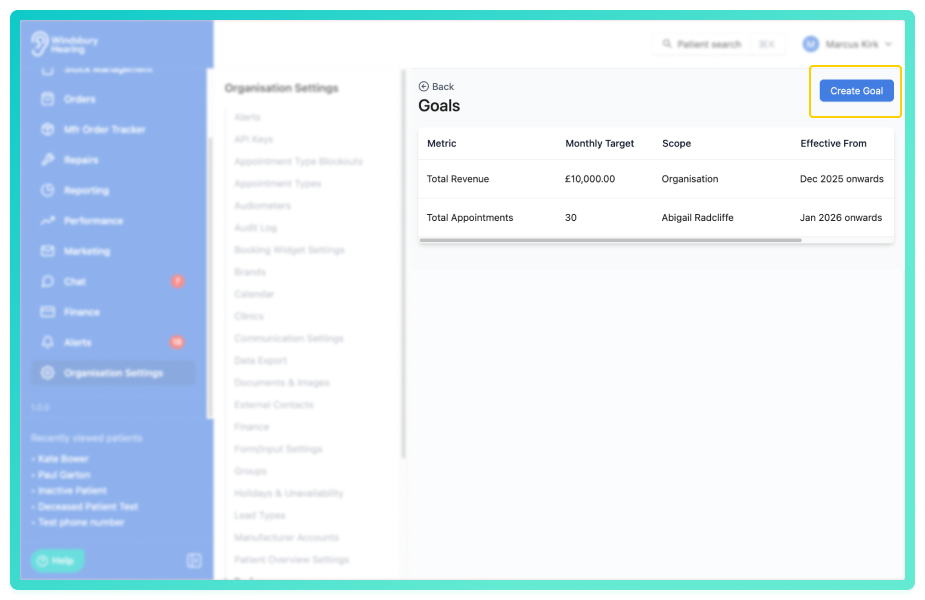
- Select Create Goal.
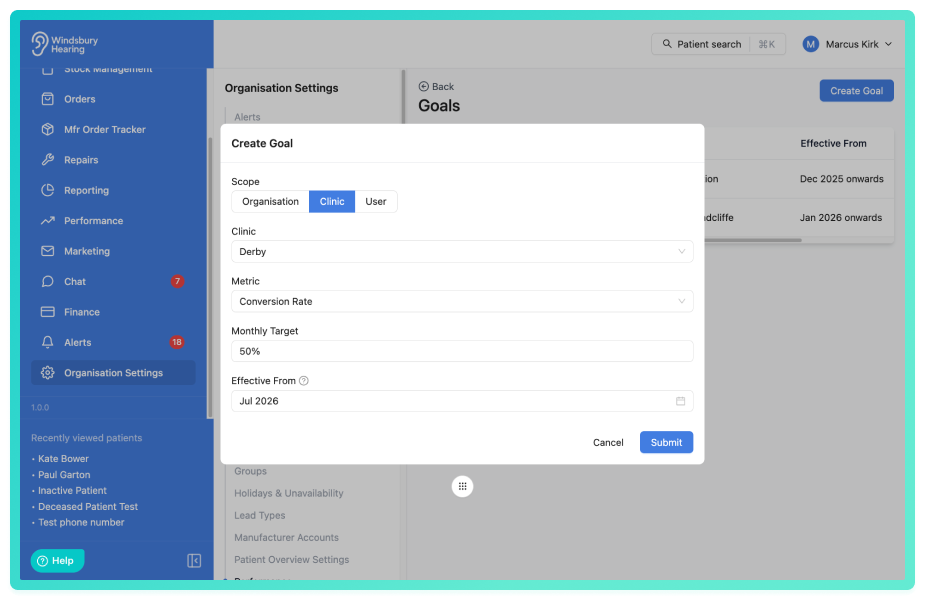
- Choose the Scope: Organisation, Clinic, or User.
- If you chose Clinic or User, select one or more clinics or users to apply the target to.
- Choose the Metric.
- Enter the Monthly Target. The field adapts to the metric, a currency amount for revenue, a percentage for rates, or a whole number for counts.
- Choose the Effective From month, the month the target starts applying from.
- Click Submit to save the goal.
Set a target that changes over time
A target does not need an end date — it stays in force every month until you replace it. To change a target from a future month, create a second goal for the same metric and the same scope, with a later Effective From month.
- The Effective From column then shows the range each target is in force for.
- The most recent target runs onwards until you add another one after it.
Example: set a target of £40,000 effective from January, then a second target of £50,000 effective from April. The list will show “Jan 2026 – Mar 2026” for the first and “Apr 2026 onwards” for the second.
You can only have one target per metric and scope starting in a given month. If you pick a month that already has a target, HearLink will warn you.Find and filter your goals
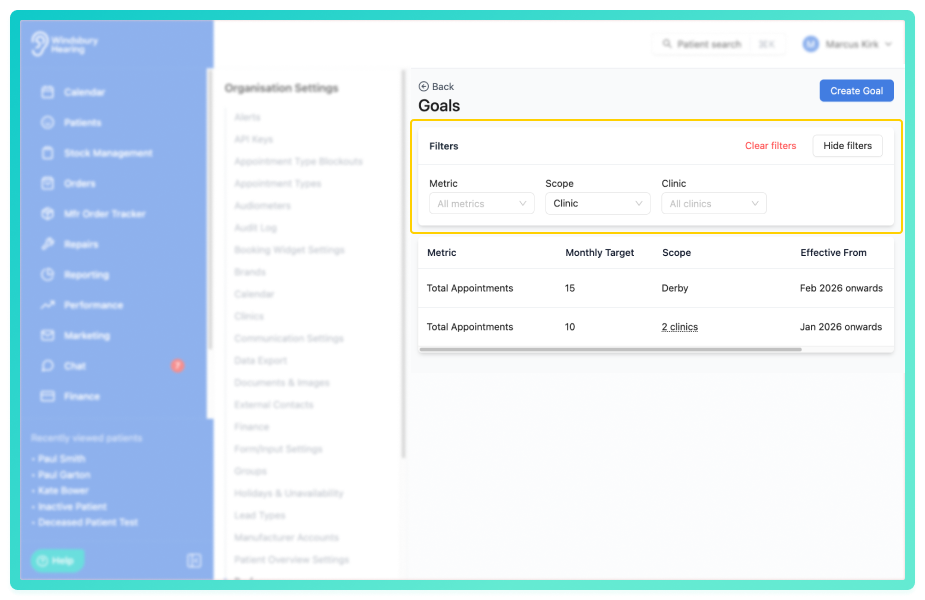
As you add more goals, use the filters at the top of the list to narrow them down:
- filter by Metric.
- filter by Scope (Organisation, Clinic, or User).
- when filtering by clinic or user scope, narrow further to specific clinics or users.
Edit a goal
- Select the Editicon on the goal in the list.
- A future-dated target can be changed fully, including its Effective From month.
- A target that is currently in force can have its value changed, but its Effective From month is locked.
- A target that has already been superseded by a newer one cannot be edited — add a new target instead.
Delete a goal
If a goal is no longer relevant, you can delete it from the list. The goal stops being evaluated, but historical performance data is kept.
Deleting a goal cannot be undone from the screen. To bring a goal back, create it again, or contact HearLink Support.Who can see and manage goals
Access to goals is controlled by the permissions on each user's Group, set under Organisation Settings → Groups. Viewing and managing are granted separately, so you can let staff see goals without being able to change them. The permissions below appear in the role editor exactly as named here:
| Permission (as shown when editing a role) | What it gives the user |
|---|---|
| Access to view goals assigned to you personally | Adds the My Goals tab, where the user sees the targets set for them as an individual and how they are tracking against them. |
| Access to view goals scoped to clinics you belong to | Adds the Clinic Goals tab, showing the targets set for any clinic the user is a member of. |
| Access to view personal goals of users at clinics you belong to | Adds the Team Goals tab, letting the user pick any colleague who works at one of their clinics and view that person's individual goals. |
| Access to view organisation-wide goals | Adds the Organisation Goals tab, showing the targets set for the organisation as a whole. |
| Access to view all goals across the organisation | Unlocks all four tabs and removes the clinic and colleague limits, so the user can view any clinic's and any user's goals across the whole organisation. |
| Access to create, edit, and archive goals | Adds the Goals area under Organisation Settings → Performance, and lets the user create new targets, edit existing ones, and archive goals. This is the permission needed to do everything else in this article. |
Organisation Owners always have full access to view and manage every goal, regardless of the permissions above.
If you can't see Goals in your settings, your role may not have the “Access to create, edit, and archive goals” permission, or the feature may not be enabled for your organisation. Contact HearLink Support and we'll help.
Was this article helpful?
That’s Great!
Thank you for your feedback
Sorry! We couldn't be helpful
Thank you for your feedback
Feedback sent
We appreciate your effort and will try to fix the article