The Goals page shows how you, your clinic, and your organisation are performing against the targets your administrators have set. This article explains where to find it and how to read everything on it.
In this article we'll cover:
- where to find your goals.
- choosing what you're looking at.
- choosing the time period.
- reading a goal card.
- understanding the status labels.
- understanding Overall and Tracking.
- the “vs previous” comparison.
Find your goals
- Navigate to Performance.
- Choose the Goals option.
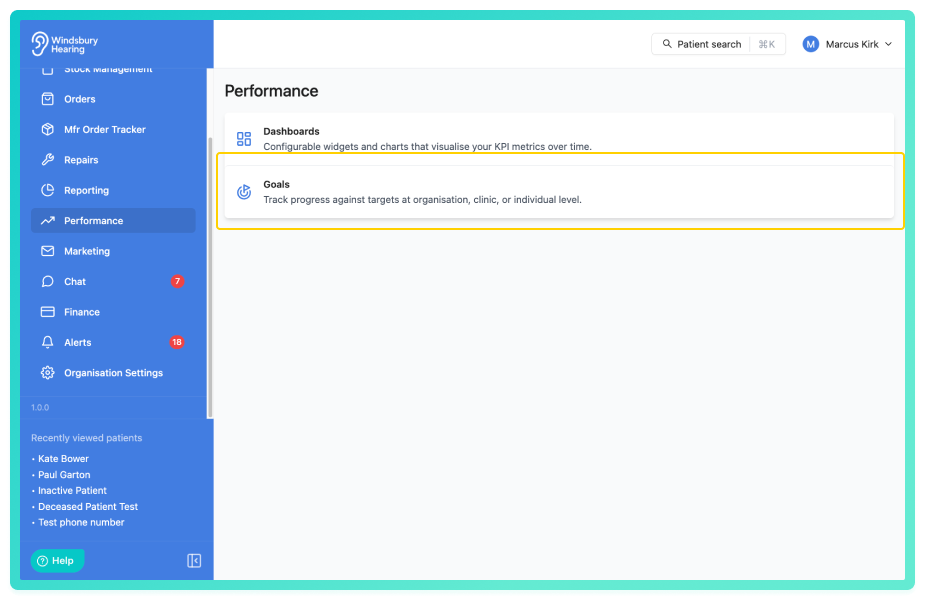
You'll only see the goals you have permission to view. If you can't see Performance or Goals at all, ask your administrator to grant you access.Choose what you're looking at
Depending on your permissions, up to four tabs are shown along the top:
- My Goals - the targets set for you personally.
- Clinic Goals - the targets set for a clinic. Pick the clinic you want to look at.
- Team Goals - an individual colleague's goals. Pick the person you want to look at.
- Organisation Goals - the targets set for the organisation as a whole.
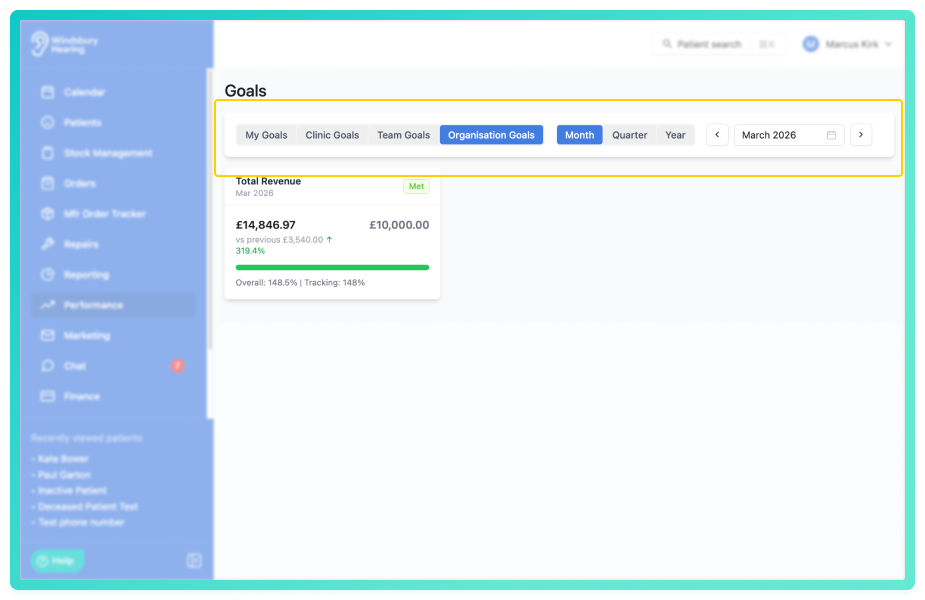
If you only have access to one of these, the tabs are hidden and that view is shown straight away.
Choose the time period
- Switch between Month, Quarter and Year.
- Step backwards or forwards to look at past, current, or upcoming periods.
Targets are set per month, but they are added up automatically, so the Quarter and Year views show the combined target and combined performance for that span.
Read a goal card
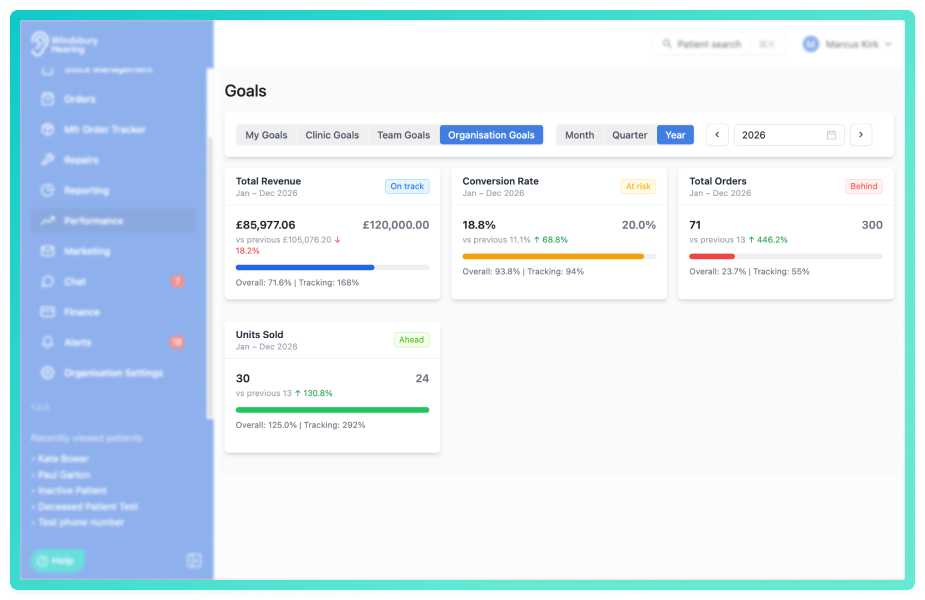
Each metric you have a goal for is shown as its own card. A card contains:
- the metric name and the period it covers, at the top.
- a large number on the left, your actual performance so far, and the target on the right.
- a progress bar filling towards the target.
- a status label in the top corner.
- an Overall and Tracking line beneath the bar.
- a vs previous comparison under the main number.
Understanding the status labels
The status label gives you an at a glance read on each goal. While a period is still in progress you'll see one of:
- Ahead: you're doing better than you need to at this point in the period.
- On track: you're pacing to hit the target.
- At risk: you're slightly behind the pace needed.
- Behind: you're well behind the pace needed.
Once a period has finished, the label settles to one of:
- Met: the target was achieved.
- Not met: the target wasn't achieved.
For metrics where a lower number is better, such as Cancellation Rate and No-Show Rate, the status works in reverse: staying below the target counts as ahead or on track.Understanding Overall and Tracking
The line beneath the progress bar shows two percentages:
- Overall: how much of the target you've reached so far. At 100% the target has been met in full.
- Tracking: how you're doing for this point in the period. 100% means you're exactly on pace; above 100% means you're ahead; below means you're behind.
Example: halfway through the month you've reached 60% of a sales target. Overall is 60%, but Tracking is 120% — because you'd normally expect to be around halfway by now, and you're ahead.
Tracking is only shown for in-progress periods on metrics that build up over time. For finished periods, and for average or rate-based metrics, only Overall is shown.The “vs previous” comparison
Under the main figure, vs previous shows the same metric for the previous period, with an up or down arrow and the percentage change. The arrow is green when the change is good and red when it isn't, and it takes account of metrics where lower is better.
When the current period is still in progress, the comparison is marked (to date). This means it compares the same number of days into the previous period, not that period's full total, so you're always comparing like for like.
Example: on the 15th of the month, the previous figure covers only the first 15 days of last month, so the two numbers are directly comparable.
If there are no goals to show
If a tab or period shows no goals, it simply means none have been set for that view and period yet. Goal setting is done by administrators, ask yours if you expected to see a target here.
Was this article helpful?
That’s Great!
Thank you for your feedback
Sorry! We couldn't be helpful
Thank you for your feedback
Feedback sent
We appreciate your effort and will try to fix the article