Performance dashboards give you a live view of key clinic metrics, appointments, revenue, orders, and patients for a chosen date range. Open them from the Performance section of the main navigation.
Only Organisation Owners and users with permission to view dashboards can open the Performance section. If you should have access and don't, contact your organisation owner.In this article we'll cover:
- choosing a dashboard.
- filtering the data.
- how dashboard filters interact with widget filters.
- reading the different widget types.
- what each metric measures.
- how breakdowns split a metric.
- empty states.
Choosing a dashboard
- Navigate to Performance.
- If you have access to more than one dashboard, a dashboard selector appears in the top right of the page header. Pick the one you want to view.
- Your selection stays in the page address, so you can bookmark a specific dashboard or share the link with someone who has access.
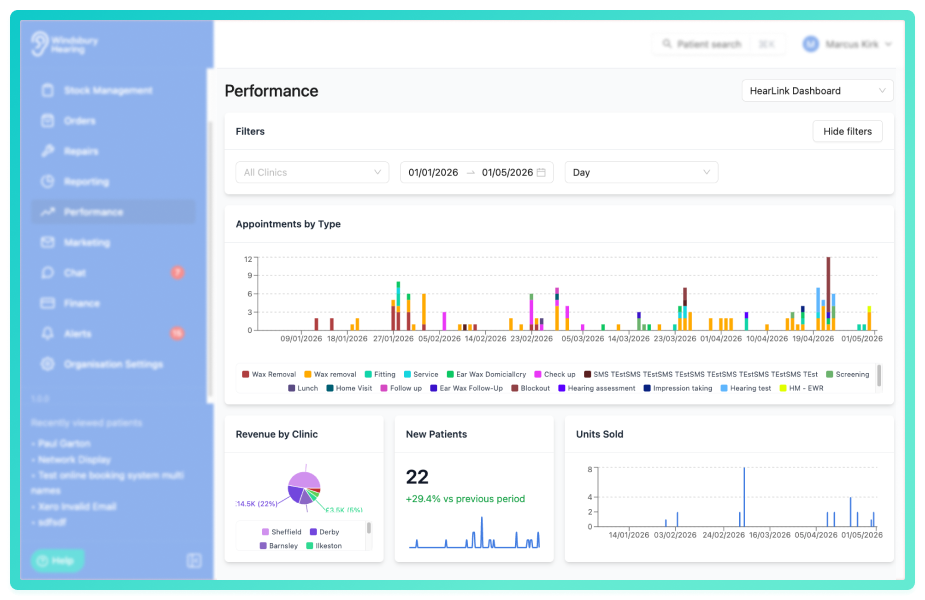
Which dashboards you see depends on each dashboard's visibility setting. Organisation Owners see every dashboard. Other users see dashboards set to "Everyone", dashboards shared with a group they're a member of, and dashboards shared with them by name.Filtering the data
Three filters appear at the top of the dashboard. Changes apply to every widget at once.
- Clinic — pick one or more clinics. Leave empty to include every clinic.
- Date — pick a start and end date, or use a preset (Today, Yesterday, This week, Last week, This month, Last month, This year, Last year). The maximum range is one year.
- Aggregation Period — choose how time-series widgets are grouped: Day, Week, Month, Quarter or Year.
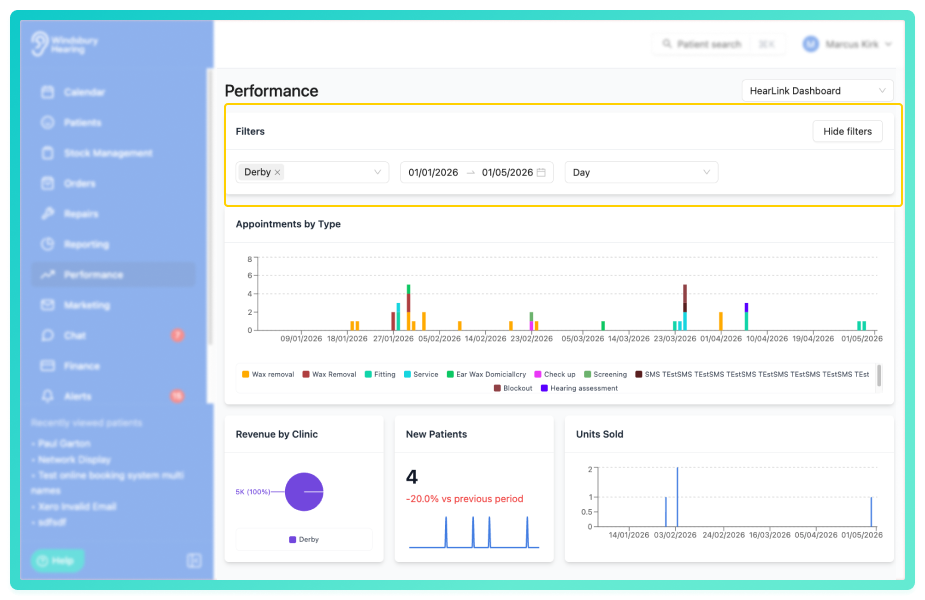
Filter selections are kept in the page address, so refreshing the page or sharing the link preserves your filters.How dashboard filters interact with widget filters
Some widgets have filters pinned to them when they were configured. For example, a widget might be pinned to a specific clinic so it always shows that clinic's data. The dashboard's Date and Aggregation Period filters always apply to every widget. The dashboard's Clinic filter then narrows the pinned scope further, the widget shows only data that matches both filters.
Examples:
- Widget pinned to Clinic A, you select Clinic B: the widget shows no data, because the two filters don't overlap.
- Widget pinned to Clinics A and B, you select Clinics B and C: the widget shows only Clinic B's data.
- Widget not pinned, you select Clinic B: the widget shows Clinic B's data.
- Widget pinned to Clinic A, you leave the Clinic filter empty, the widget shows Clinic A's data.
When a widget has filters pinned, they're listed in small text under the widget title (for example, Clinics: Manchester) so you can always tell why a widget is showing the data it is.Reading the different widget types
Each widget is shown as one of three display types, chosen when the widget was configured.
Stat
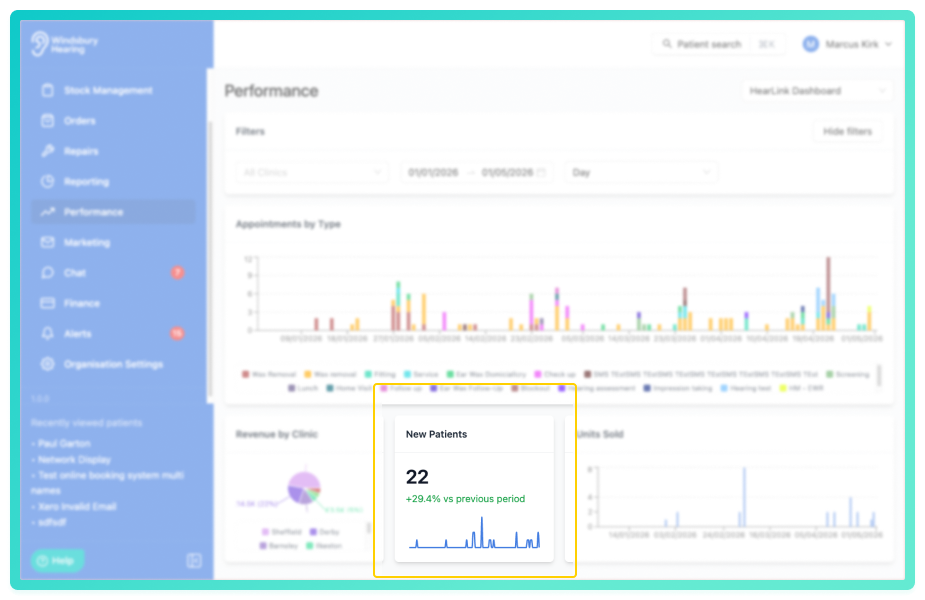
- A single headline number for the period, formatted in the right unit (count, currency or percentage).
- Underneath, the percentage change versus the previous comparable period (in green if up, red if down).
- A small line chart (sparkline) showing the trend over the selected aggregation period.
- Hover the sparkline to see the exact value for any point.
Bar chart
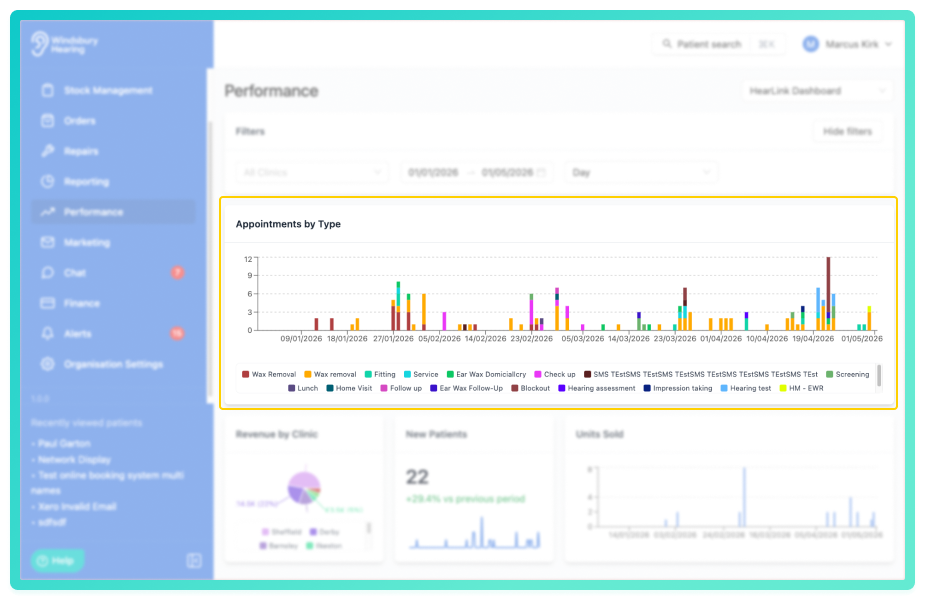
- A time-series bar chart with one bar per period (day, week, month, quarter or year, depending on the dashboard's Aggregation Period).
- When a widget has a breakdown set (for example, Total Appointments broken down by Appointment Type), bars are stacked by category and a colour legend appears below the chart.
- Hover any bar to see the exact value and label.
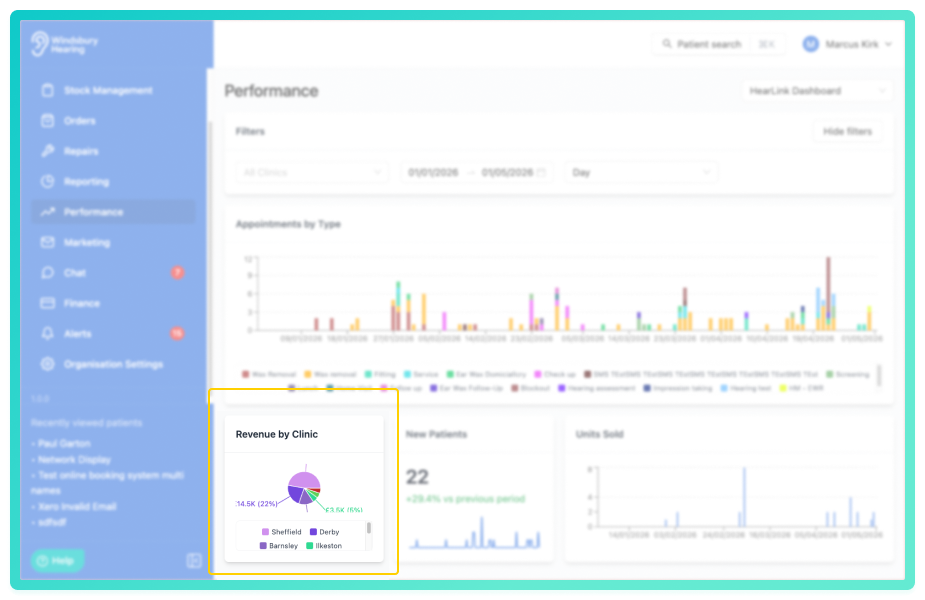
Pie chart
- A proportional breakdown of a metric across categories (for example, Total Revenue broken down by Clinic).
- Slice labels show the value and its share of the total. Very small slices (under 5%) are hidden from the chart but still listed in the legend.
- Hover any slice to see the exact value.
What each metric measures
Appointments
- Total Appointments - the number of non-cancelled appointments in the selected period.
- Conversion Rate - the percentage of qualifying sales-opportunity appointments that resulted in an order or invoice. What "qualifying" means is set by your organisation's Conversion Opportunity Criteria.
- Cancellation Rate - the percentage of appointments in the period that were cancelled.
- No-Show Rate - the percentage of non-cancelled appointments where the patient did not attend.
Revenue
- Total Revenue - the sum of non-cancelled order and invoice totals dated in the period.
- Average Order Value - the average value of a single non-cancelled order or invoice.
Orders
- Units Sold - the number of hearing aid units sold on non-cancelled invoices in the period.
- Total Orders - the count of non-cancelled orders and invoices dated in the period.
Patients
- New Patients - the number of patient records created in the selected period.
Breakdowns
Most metrics can optionally be broken down by a secondary dimension. When configured, the widget shows a category-level split rather than a single number, and the widget title reads "{metric} by {breakdown}" - for example Total Revenue by Clinic or New Patients by Referral source.
The available breakdowns depend on the metric:
- Appointment metrics (Total Appointments, Conversion Rate, Cancellation Rate, No-Show Rate) - appointment type, clinic, or practitioner.
- Revenue metrics (Total Revenue, Average Order Value) - clinic or practitioner.
- Units Sold - clinic or practitioner.
- Total Orders - clinic, practitioner, or product type.
- New Patients - clinic or referral source.
Breakdowns are best paired with bar or pie chart widgets - stat and progress widgets show a single number, so they aren't broken down.Empty states
- No dashboards available - you don't have any dashboards shared with you yet. Contact your organisation owner or someone with permission to manage dashboard settings.
- This dashboard has no widgets configured - the dashboard exists but no widgets have been added to it yet.
- No data available for this period on a single widget - the widget's filters and the dashboard's filters together don't match any data in the selected date range. Try widening the date range or clearing a filter.
Was this article helpful?
That’s Great!
Thank you for your feedback
Sorry! We couldn't be helpful
Thank you for your feedback
Feedback sent
We appreciate your effort and will try to fix the article