Organisations may want to review revenue at the invoice level to understand how much income is being generated across clinics, appointment types or referral sources.
This reports displays:
- one row per invoice within the selected date range.
- invoice financial values including subtotal, discount, VAT and total.
- the product types included on each invoice.
View the Invoice revenue report
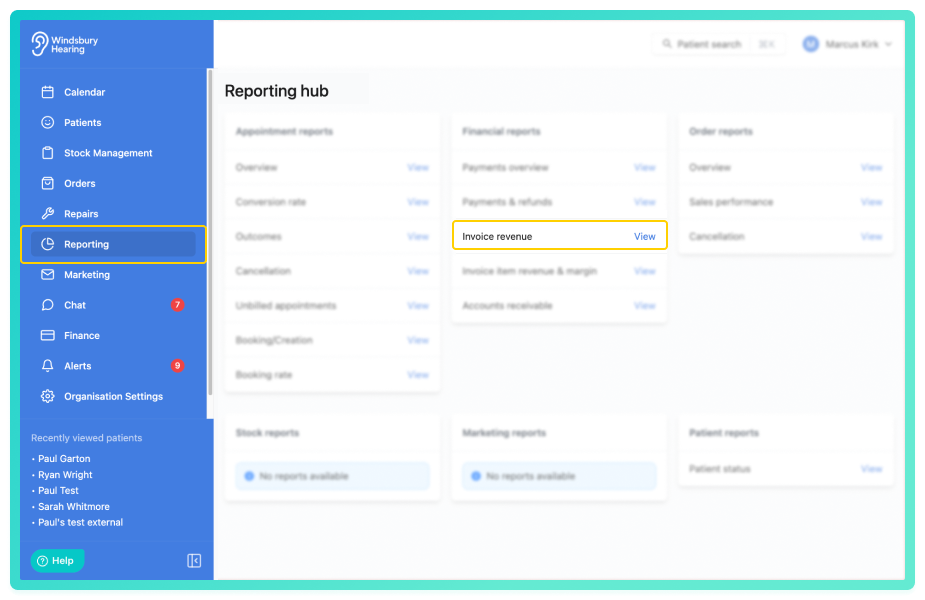
Each row represents an invoice item or service and includes the following columns:
- Date - the date of the invoice.
- Number - the order number the item belongs to.
- Patient - the associated patient (clickable to access their dashboard).
- Audiologist - The audiologist that was assigned.
- Clinic - The clinic that was assigned.
- Product types - the types of products or services included in the invoice.
- Subtotal - the total value of invoice items before discounts and VAT.
- Discount - any discount applied.
- VAT - any VAT applied.
- Total - the final invoice value including VAT and after discounts.
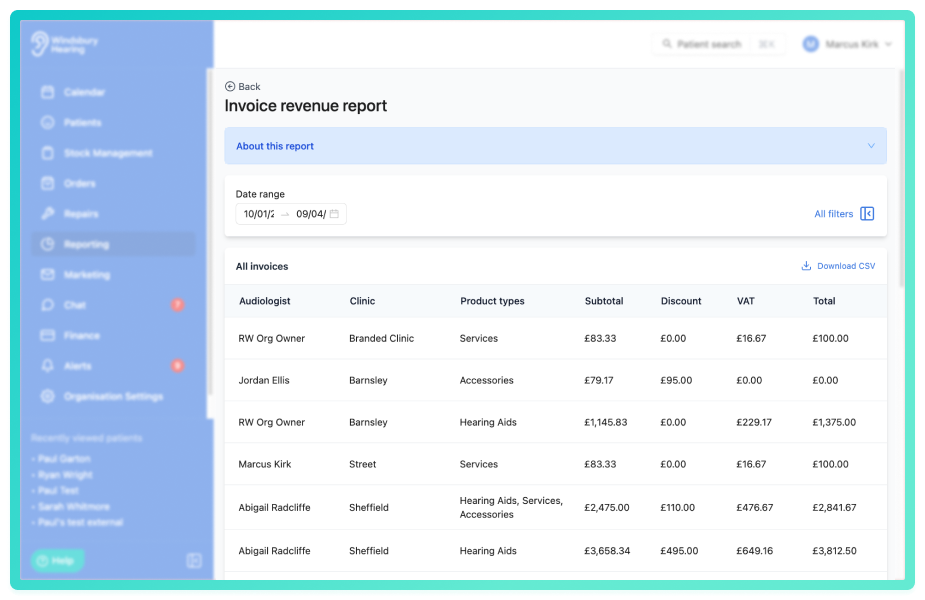
Use the dropdown filters above the report to refine the data.
These filters allow you to drill into item or service level performance across different sources, services or locations.
You can save a set of filters for each report to quickly change the data on the report. See Saved report filters
Export to CSV
Click the Download CSV button to export the current data view.
This is useful for deeper analysis or record keeping outside of the HearLink system.
Was this article helpful?
That’s Great!
Thank you for your feedback
Sorry! We couldn't be helpful
Thank you for your feedback
Feedback sent
We appreciate your effort and will try to fix the article