For each report a user or organisation owner can save a set of filters specific to their requirements. This saves time when quickly viewing reports and save manually adding each filter in each time.
In this article we'll cover how to:
- save a set of filters.
- select a set of filters.
- update a set of filters.
- delete a set of filters.
Save a set of filters
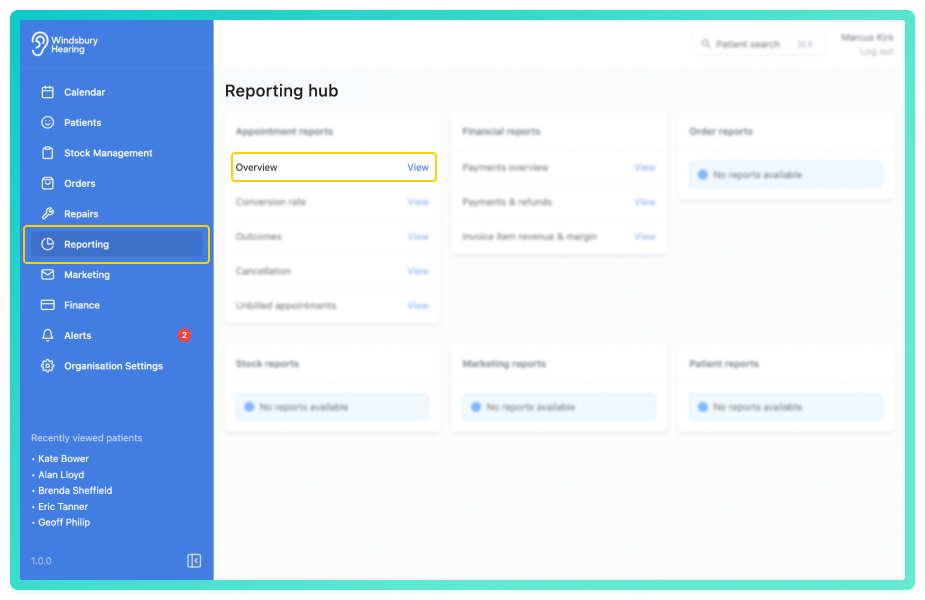
- Locate and click the All filters text to open the filters tab.
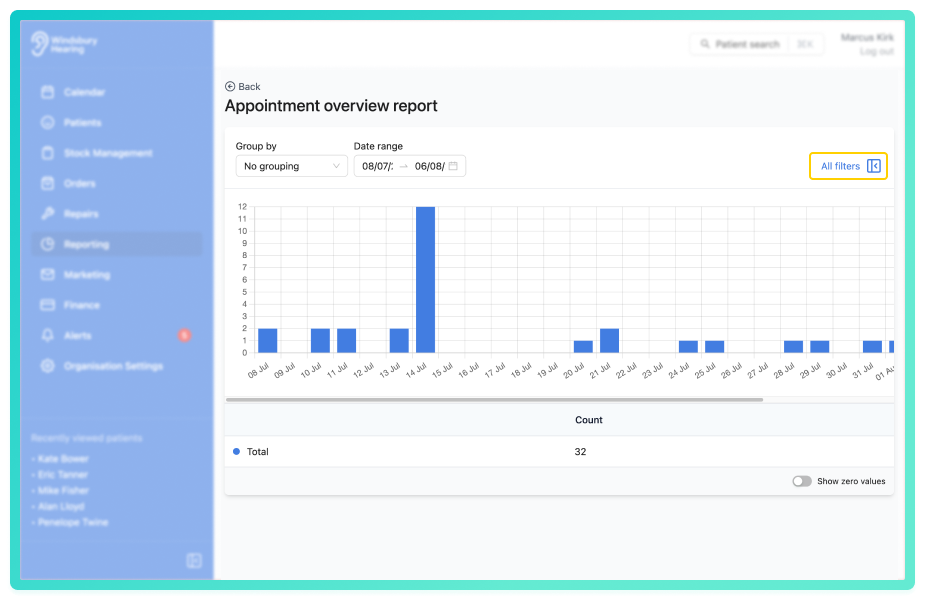
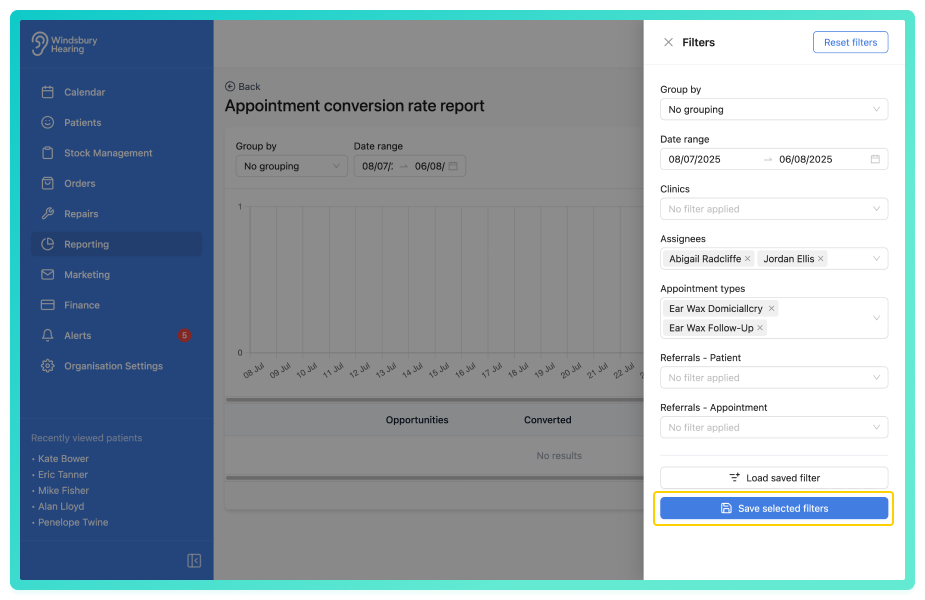
- Select the desired filters.
- Click the Save selected filters button.
- Give the saved filters a Name.
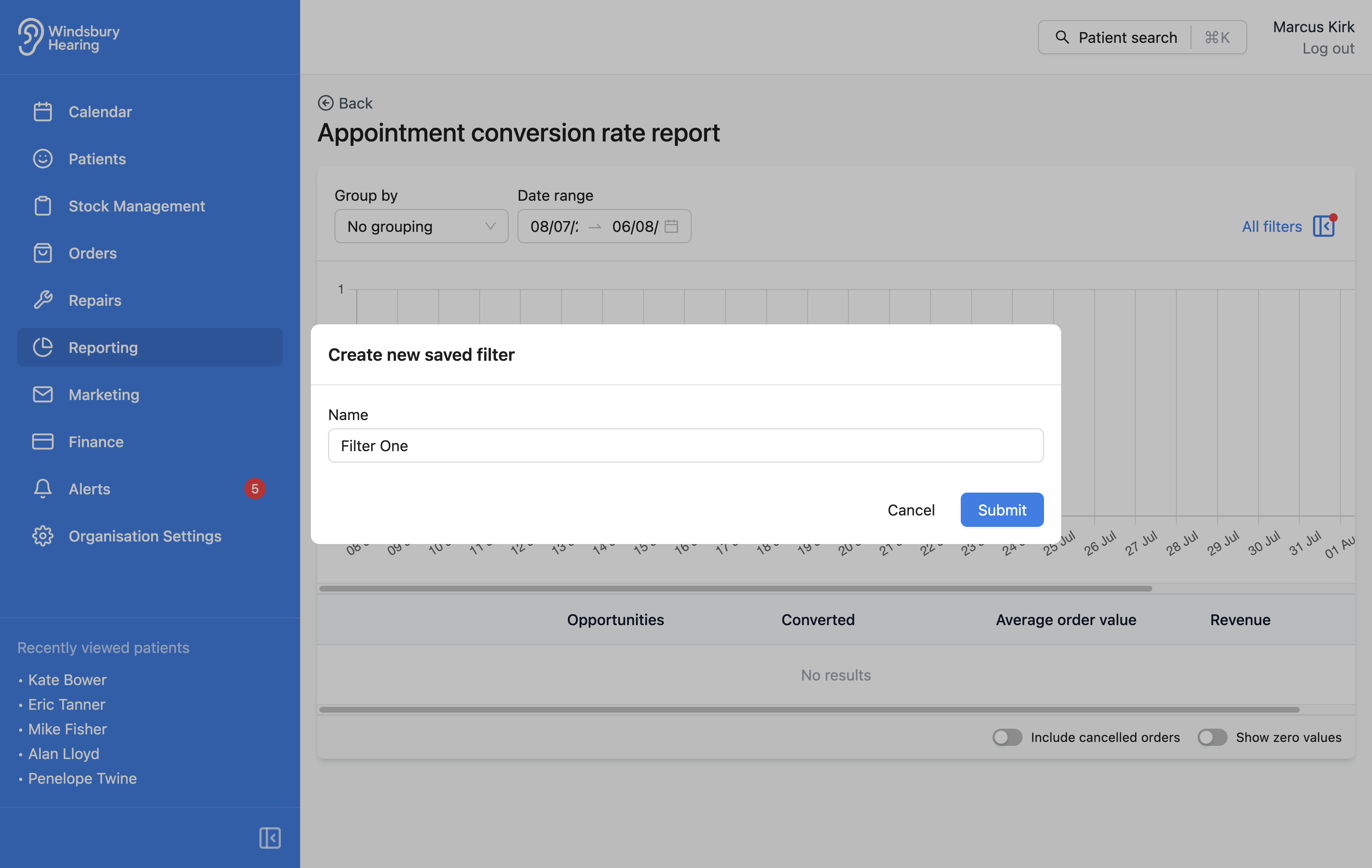
- Click Submit to save the filters.
Select a set of saved filters
Once you have added a set of saved filters you can quickly select these and apply them to the report you are viewing.
- Navigate to the filters tab on the required report.
- Click Load saved filter.
- Select a Saved filter from the available options.
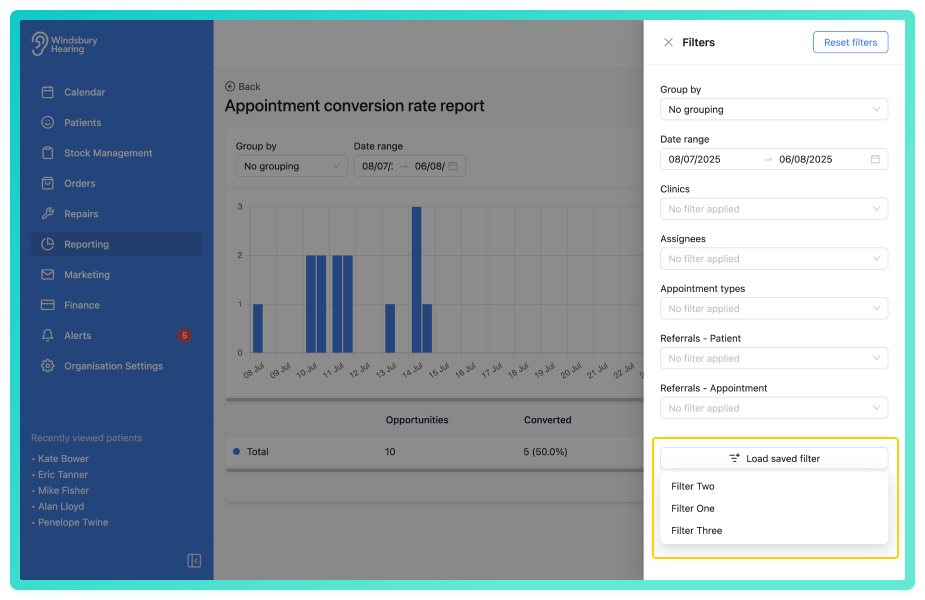
The filters will be applied to the report.
Update a set of filters
Sometimes, instead of creating a new saved filter you may want to update an existing one. For example, adding an extra referral source.
- Select a Saved filter from the available options.
- Add or remove any filters.
- Click the Update button.
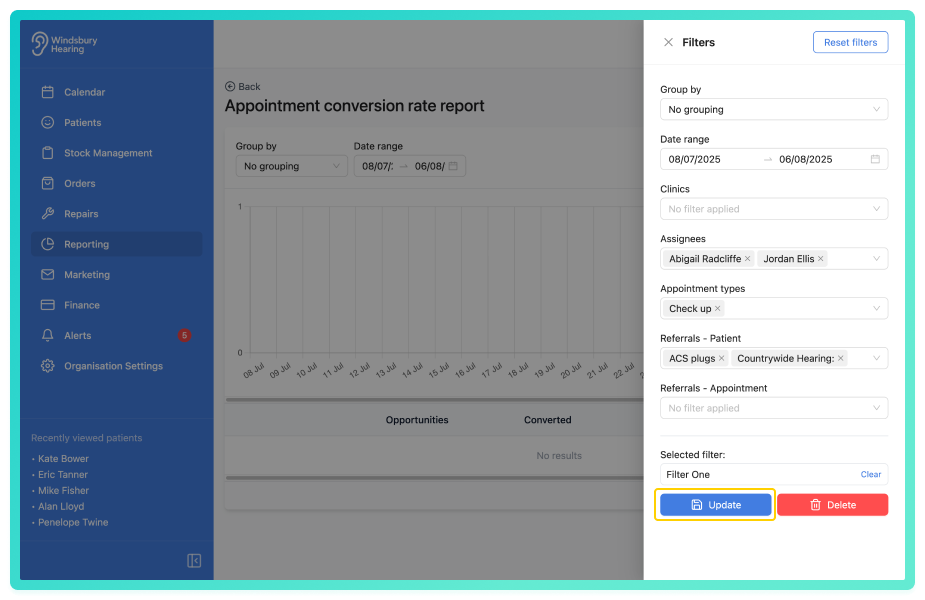
- Update the name of the filter or keep the same.
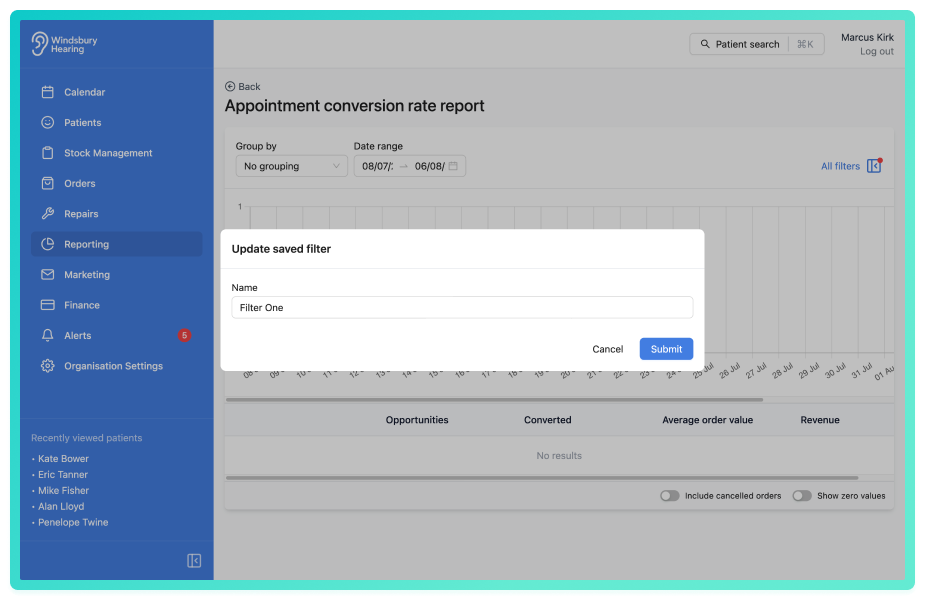
- Click Submit to save the new filters.
Delete a set of saved filters
- Select a Saved filter from the available options.
- Click the Delete button.
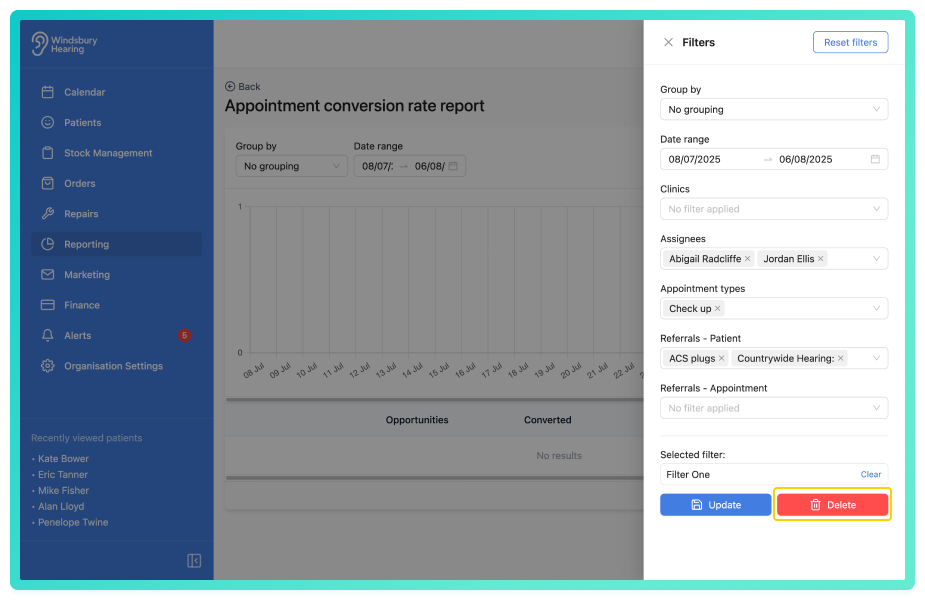
- You'll be shown a warning message.
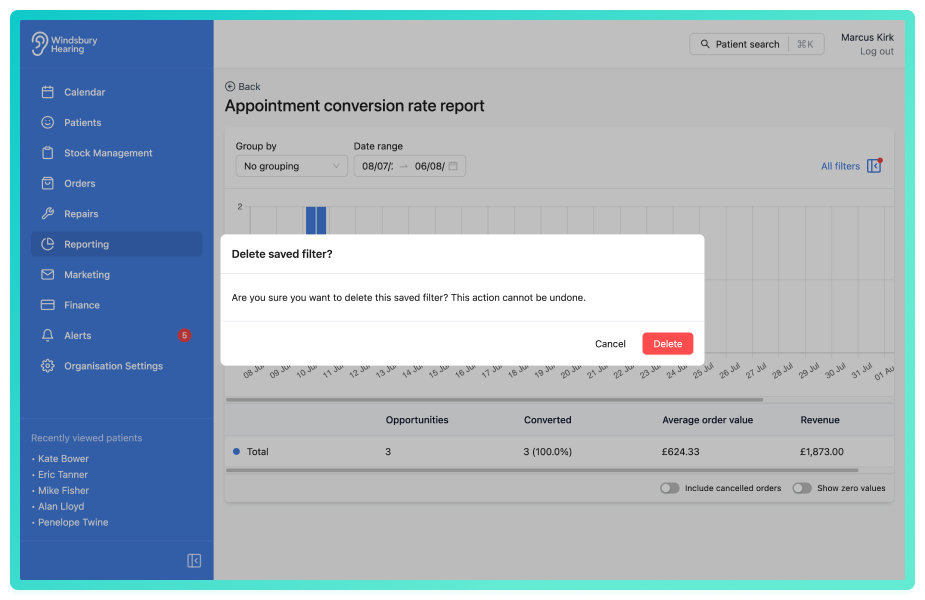
- Click Delete to delete the saved filters.
Warning: Once a set of filters has been deleted this action cannot be undone. Please proceed with caution.
Was this article helpful?
That’s Great!
Thank you for your feedback
Sorry! We couldn't be helpful
Thank you for your feedback
Feedback sent
We appreciate your effort and will try to fix the article