Some users in your organisation may only need access to specific clinics, such as a clinician working at a single location. You can control which clinics each user can view by using a combination of different permissions in groups.
In this article we'll cover how to:
- restrict appointment visibility to users assigned clinics
Only users with the correct permissions can manage groups. If you think you should have permission to perform such an action please contact the organisation owner.Create new group and assign a user
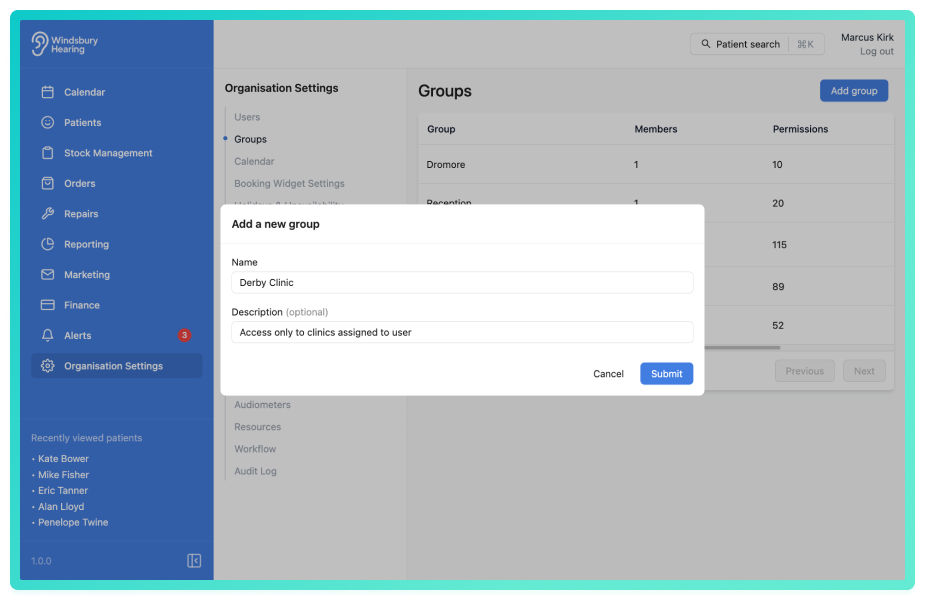
- Navigate to Organisation settings.
- Locate and click the Groups section of the settings.
- Add a new group.
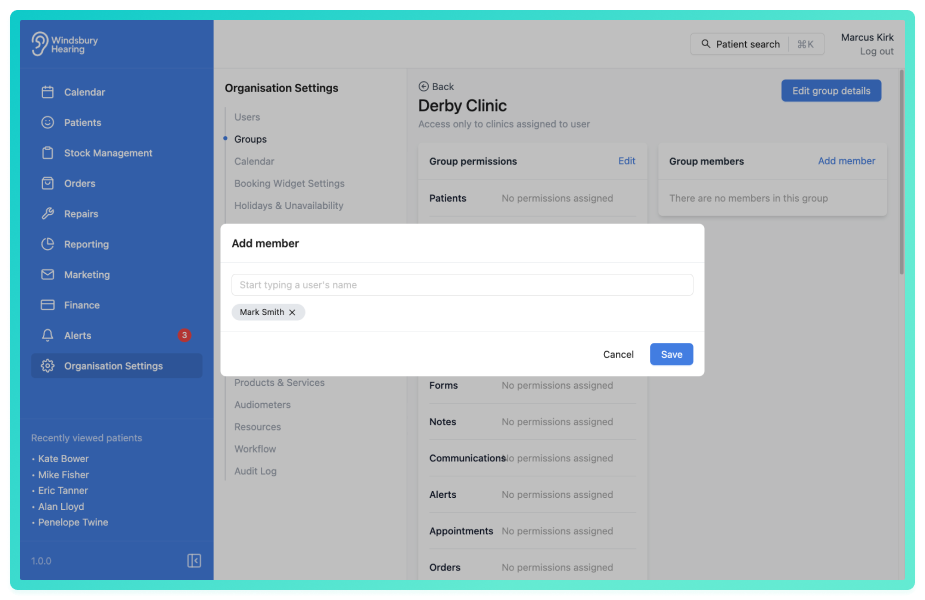
- Assign the required user to a the newly created group.
Restrict a user to only see appointments at clinics they are assigned to
To ensure a user only sees information for their assigned clinic(s) you need the certain permissions enabled.
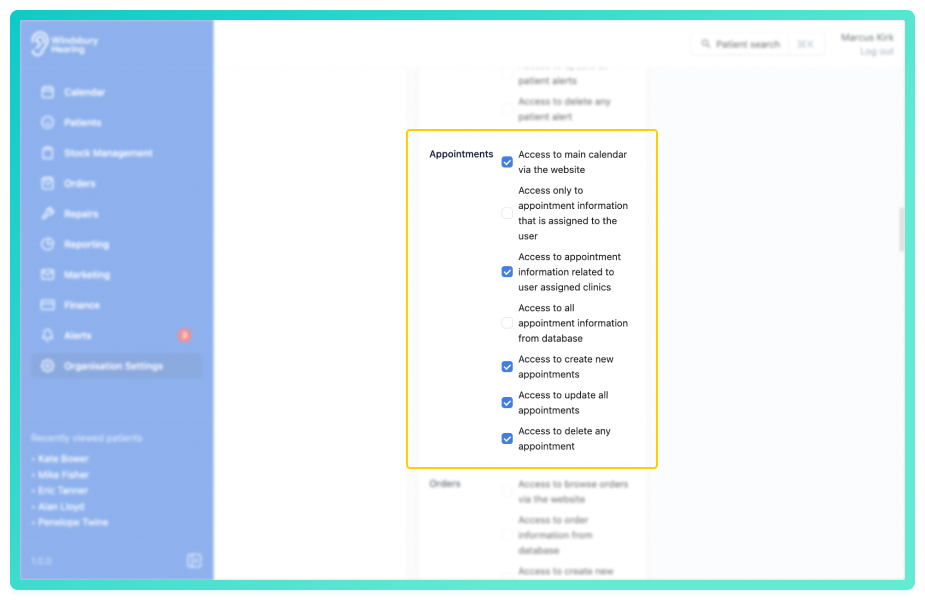
In the Appointments section you MUST have these two permissions enabled:
- Access to main calendar via the website
- Access to appointment information related to user assigned clinics
In the Users section you MUST have enabled:
- Access to user information from the database
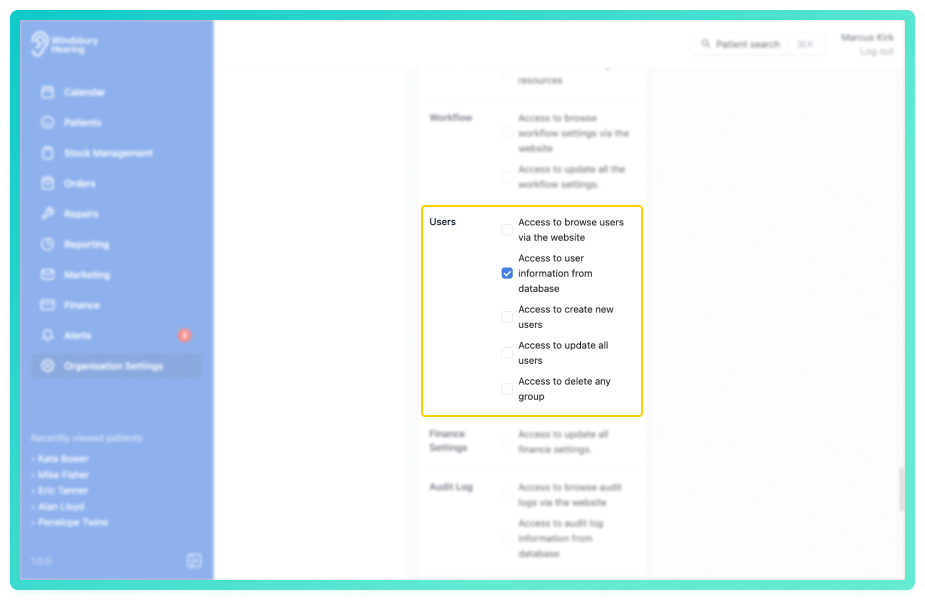
With these enabled you will restrict the user to only have access to clinics they are assigned to. All other permissions are optional dependent on the users required access.
Example:
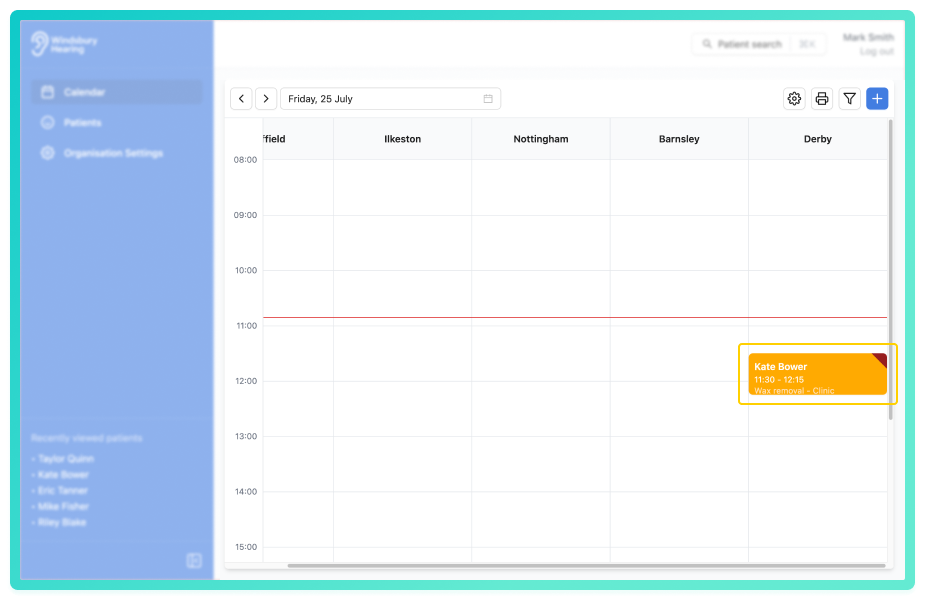
Mark works in the Derby clinic.
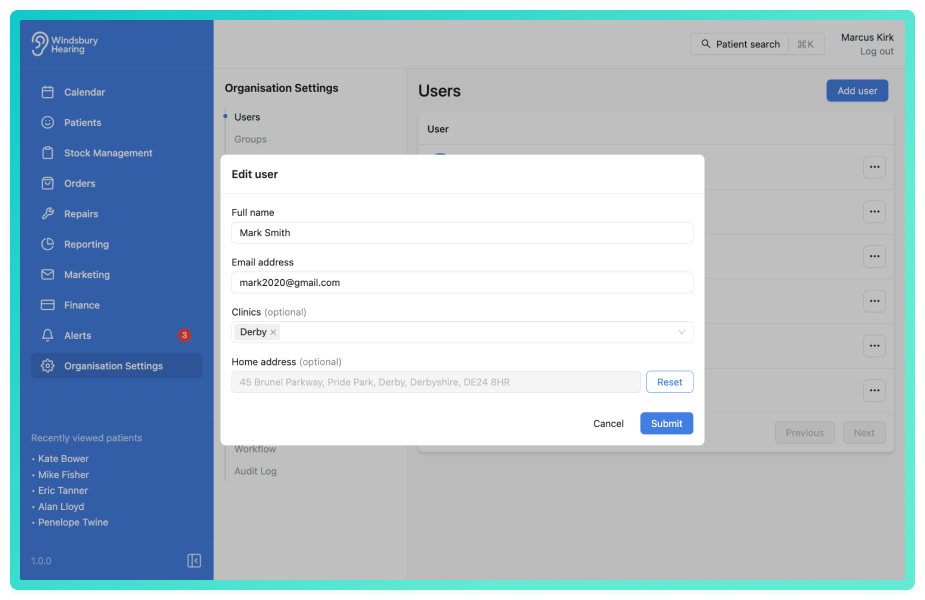
The organisation only wants Mark to view appointments at the Derby clinic. Following the steps above we can restrict Mark's access to only see appointments at the clinic he works at.
Was this article helpful?
That’s Great!
Thank you for your feedback
Sorry! We couldn't be helpful
Thank you for your feedback
Feedback sent
We appreciate your effort and will try to fix the article